How to Add and Delete Users Accounts With Command Prompt in Windows
Open your PC's Start menu.. Type "Command Prompt" into your Start menu's search bar.. Right-click the Command Prompt icon.
Steps
1
Open your PC's Start menu.
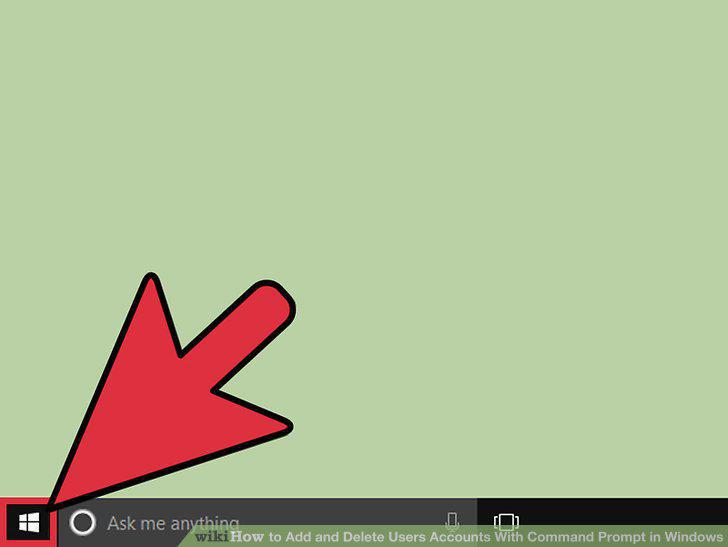
Open your PC's Start menu.
2
Type "Command Prompt" into your Start menu's search bar.
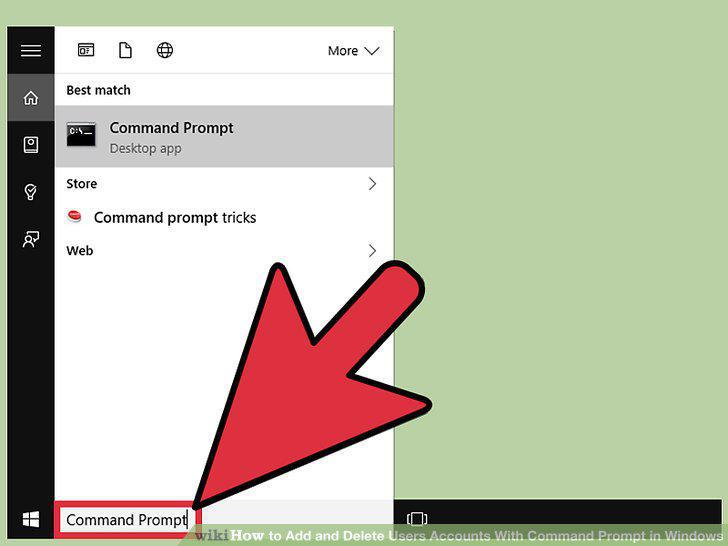
Type "Command Prompt" into your Start menu's search bar.
3
Right-click the Command Prompt icon.
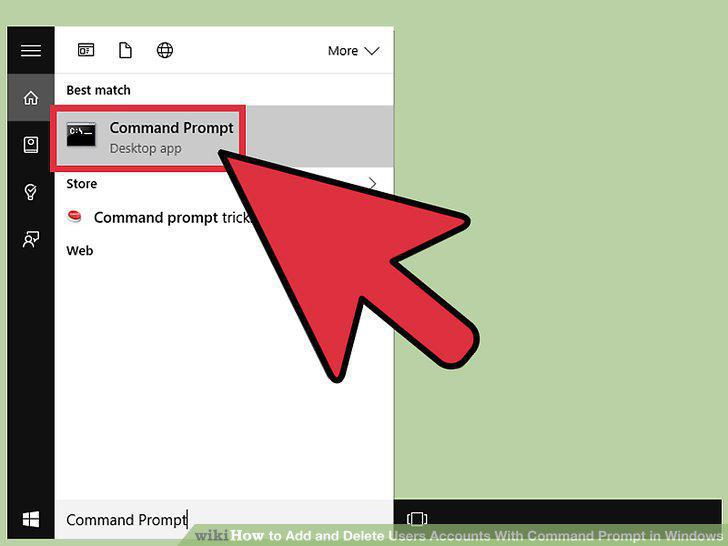
Right-click the Command Prompt icon.
4
Click "Run as administrator" in the drop-down menu.
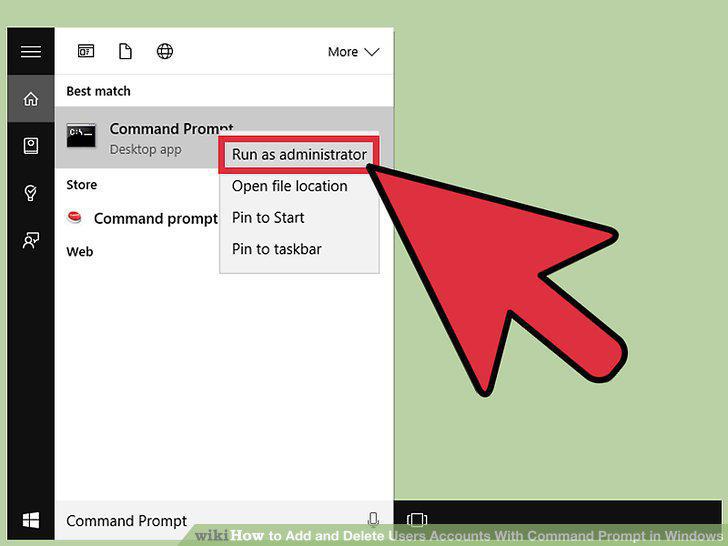
Click "Run as administrator" in the drop-down menu.
5
Click "Yes" on the pop-up window.
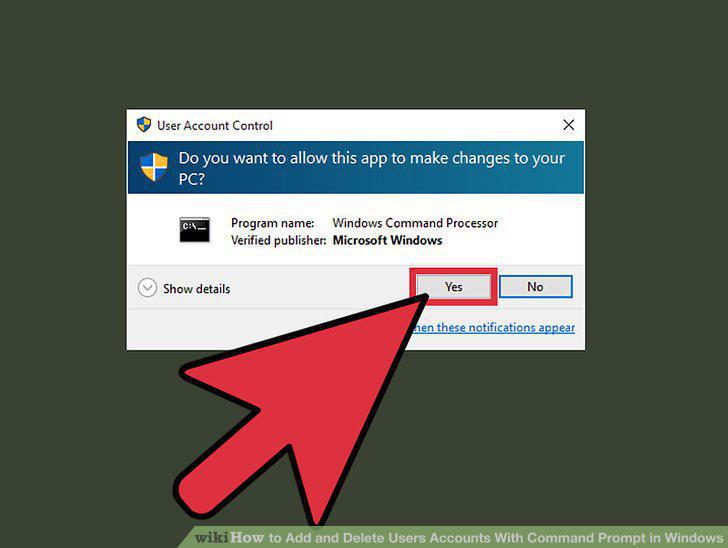
Click "Yes" on the pop-up window.
6
Click on the Command Prompt window.
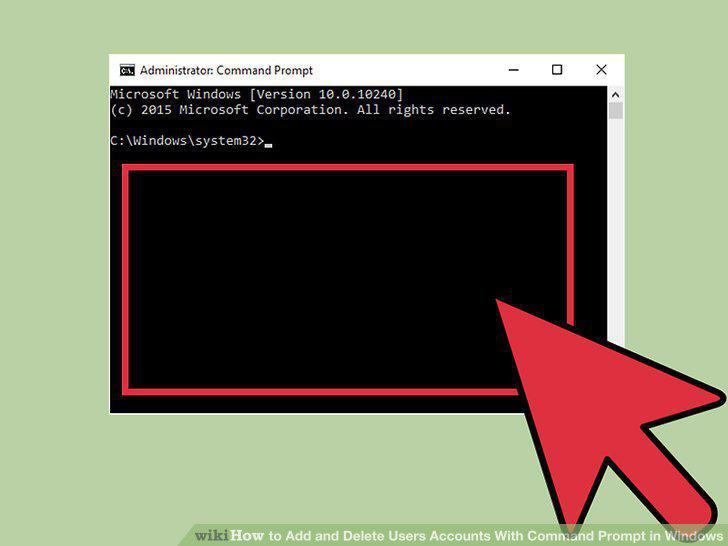
Click on the Command Prompt window.
7
Add a user account.
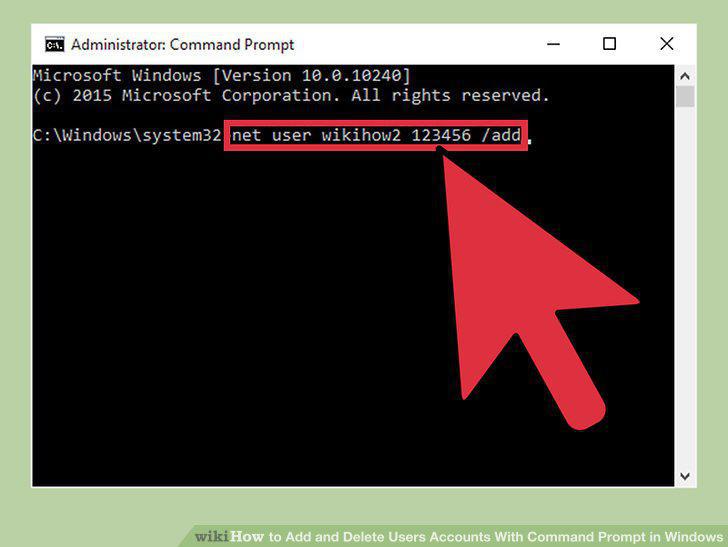
Add a user account.
8
Delete a user account.
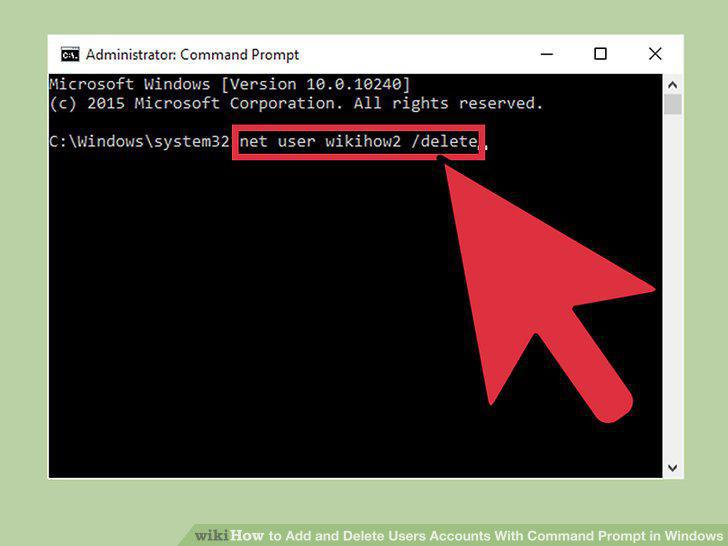
Delete a user account.
9
Exit Command Prompt.
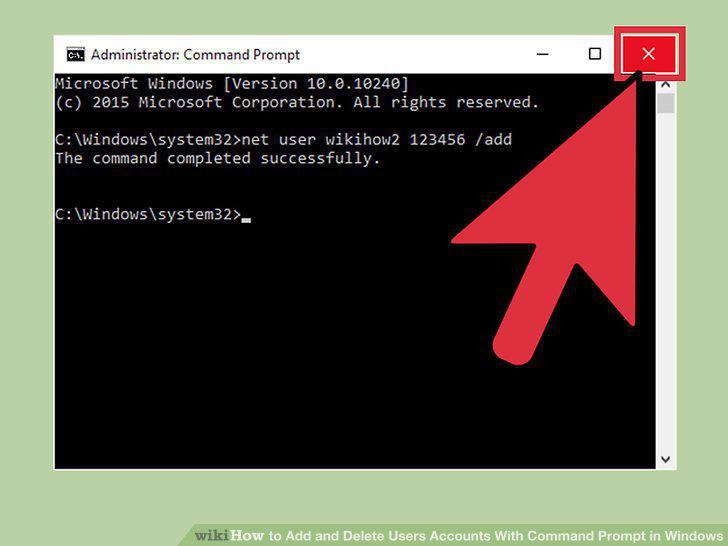
Exit Command Prompt.
Comments (0)
No comments yet. Be the first to share your thoughts!