How to Import Contacts on Kik Messenger
Open Kik and sign in to your account.. Tap the magnifying glass icon.. Tap the "Use Phone Contacts" icon.
Steps
1
Open Kik and sign in to your account.
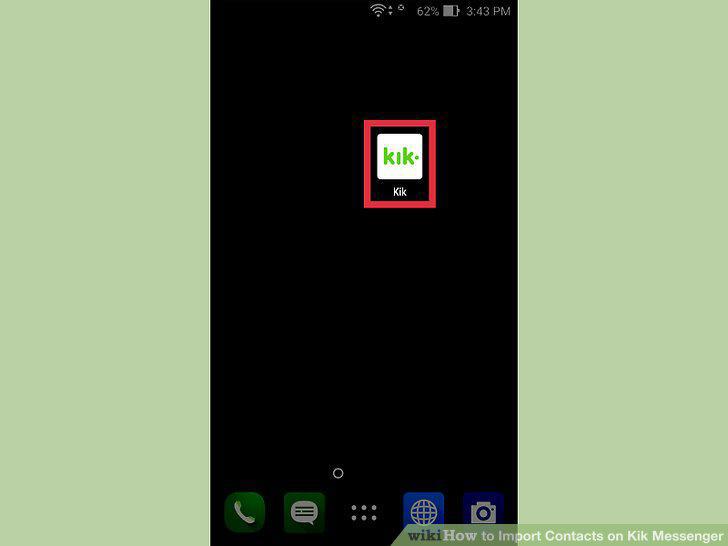
Open Kik and sign in to your account.
2
Tap the magnifying glass icon.
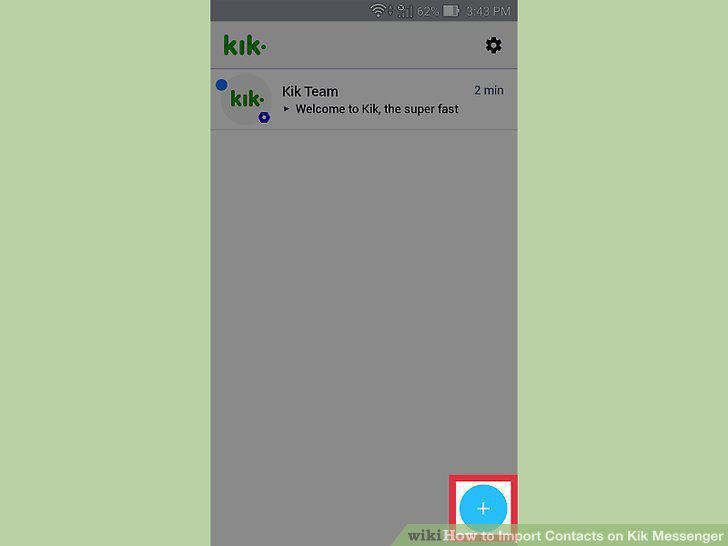
Tap the magnifying glass icon.
3
Tap the "Use Phone Contacts" icon.
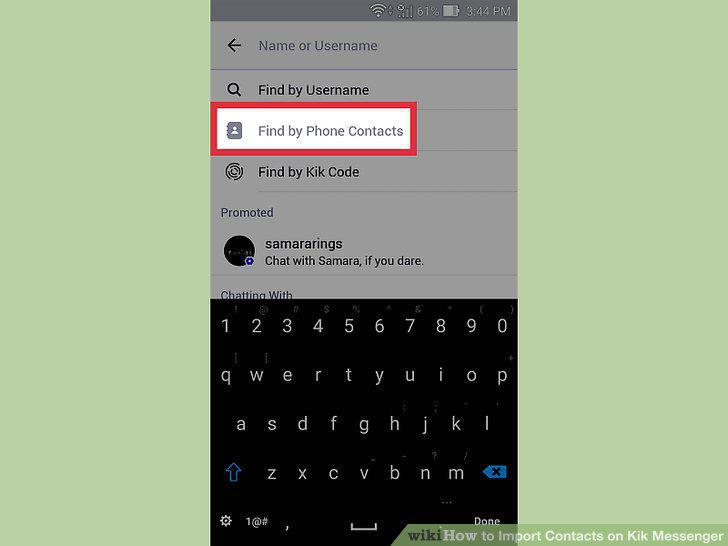
Tap the "Use Phone Contacts" icon.
4
Tap "Find Friends" to import your phone contacts.
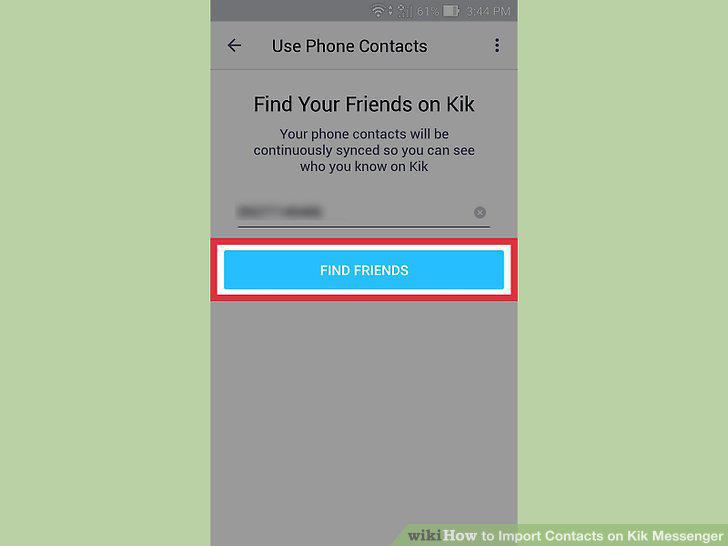
Tap "Find Friends" to import your phone contacts.
5
View your New Chats list to see your contacts.
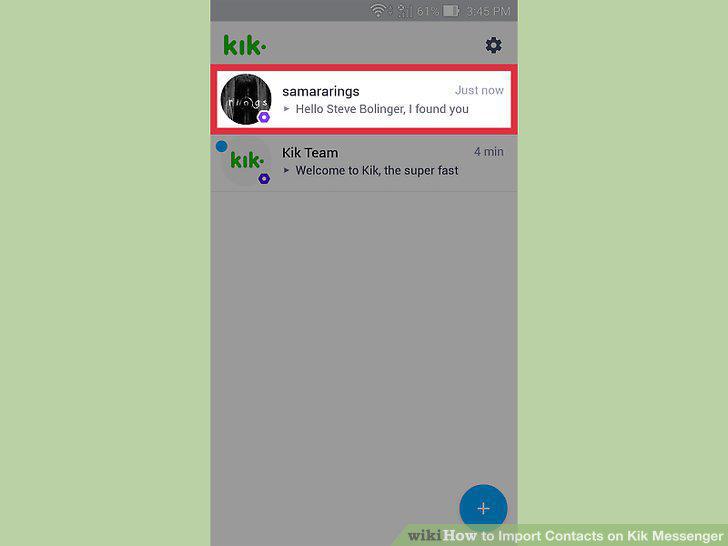
View your New Chats list to see your contacts.
6
Install Kik from the App Store (iOS) or Play Store (Android).
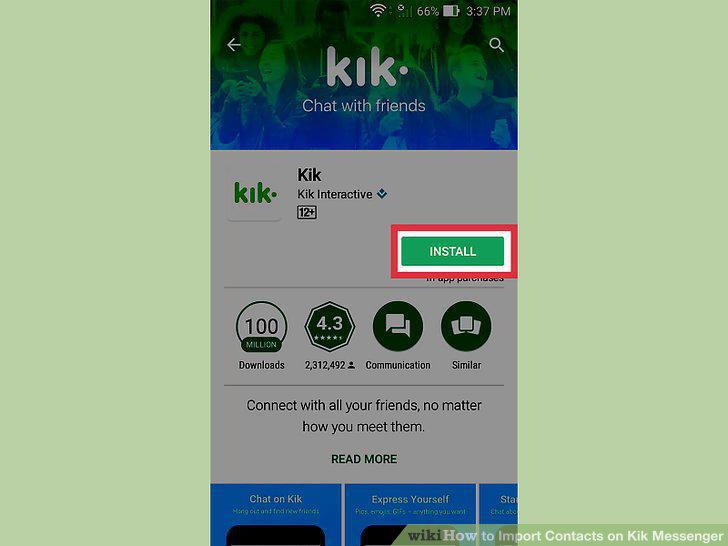
Install Kik from the App Store (iOS) or Play Store (Android).
7
Open Kik and tap "Register".
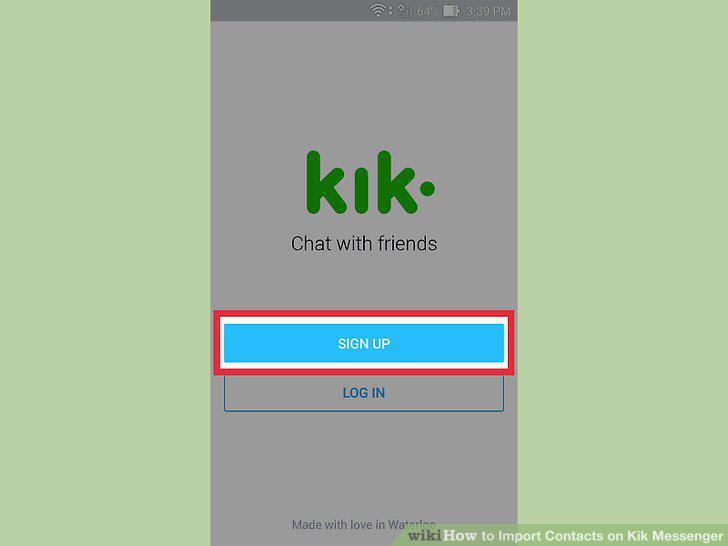
Open Kik and tap "Register".
8
Follow the prompts until you arrive at the "Find Your Friends on Kik" screen.
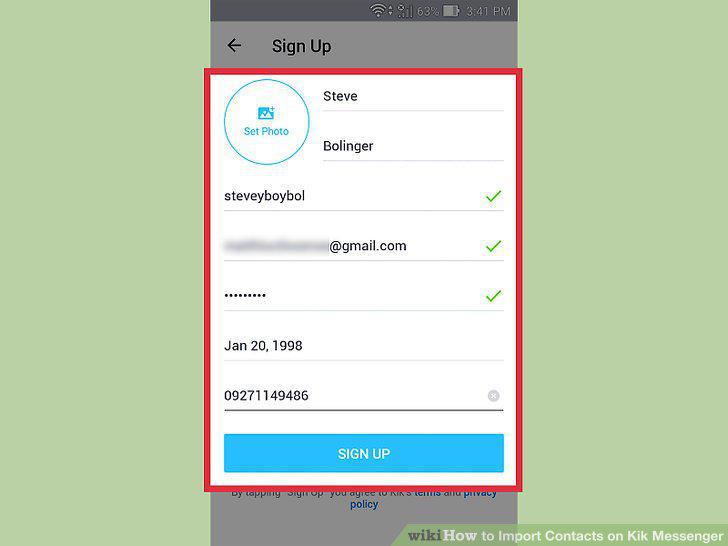
Follow the prompts until you arrive at the "Find Your Friends on Kik" screen.
9
Tap "Find Friends" to import your phone contacts.
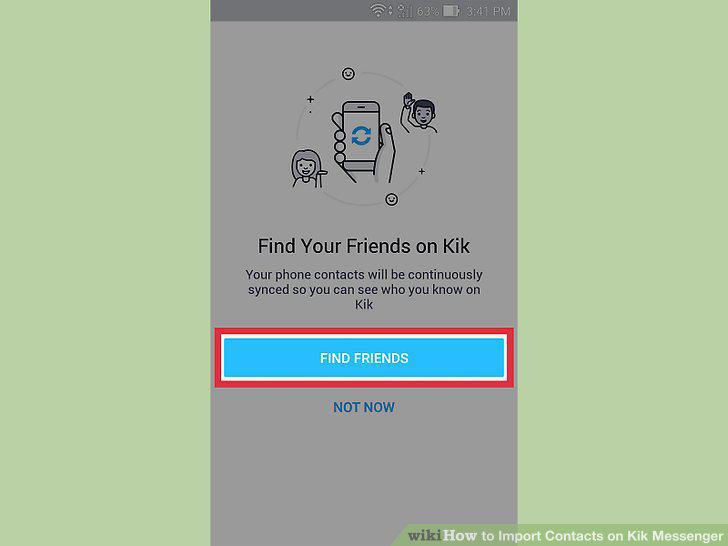
Tap "Find Friends" to import your phone contacts.
10
Open Kik and sign in to your account.
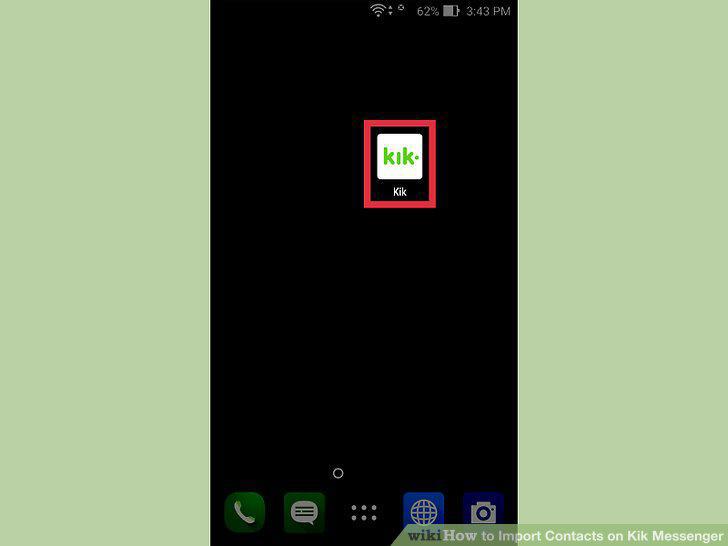
Open Kik and sign in to your account.
11
Tap the gear icon at the top right corner of Kik.
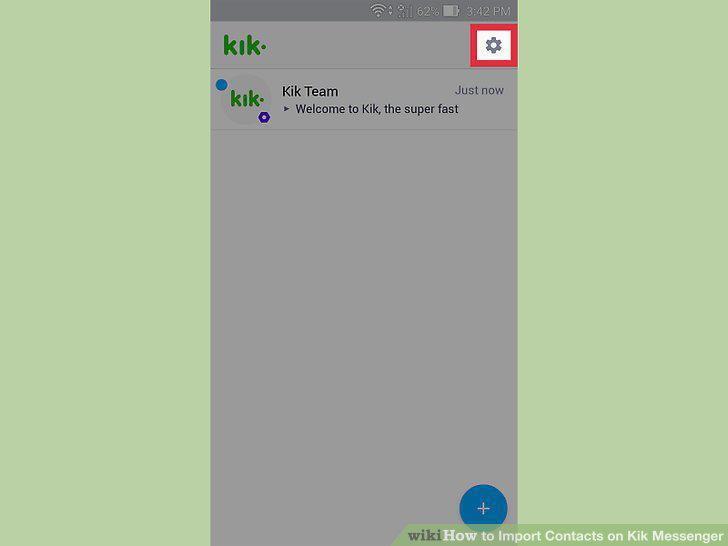
Tap the gear icon at the top right corner of Kik.
12
Select "Privacy" from the menu.
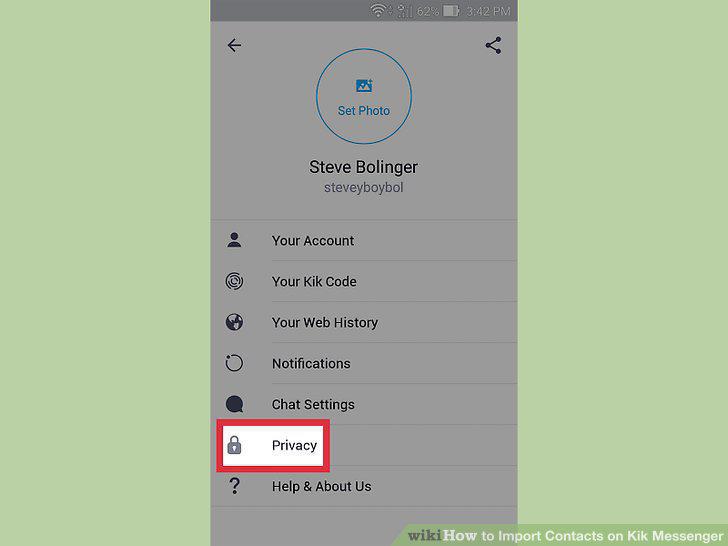
Select "Privacy" from the menu.
13
Remove the checkmark from "Let Friends Find Me.
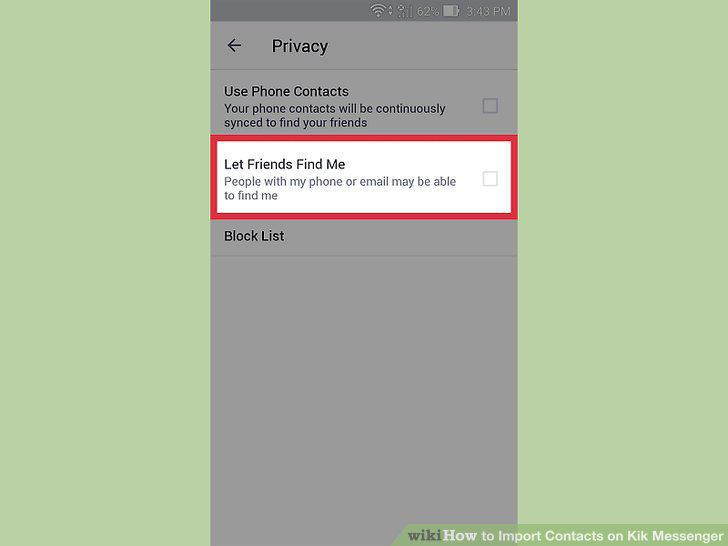
Remove the checkmark from "Let Friends Find Me.
Comments (0)
No comments yet. Be the first to share your thoughts!