How to Turn Off Mac Firewall
Click on the Apple menu from your toolbar.. Select System Preferences.. Choose View, then select Security when the System Preferences window appears on your screen.
Steps
Click on the Apple menu from your toolbar.
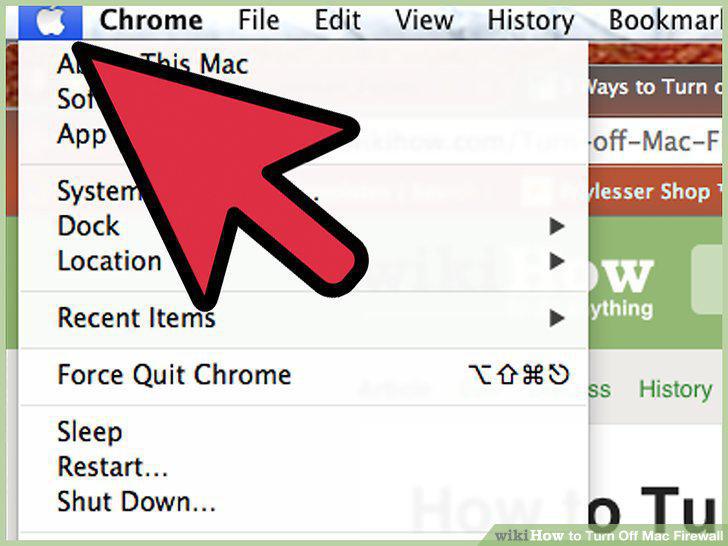
Click on the Apple menu from your toolbar.
Select System Preferences.
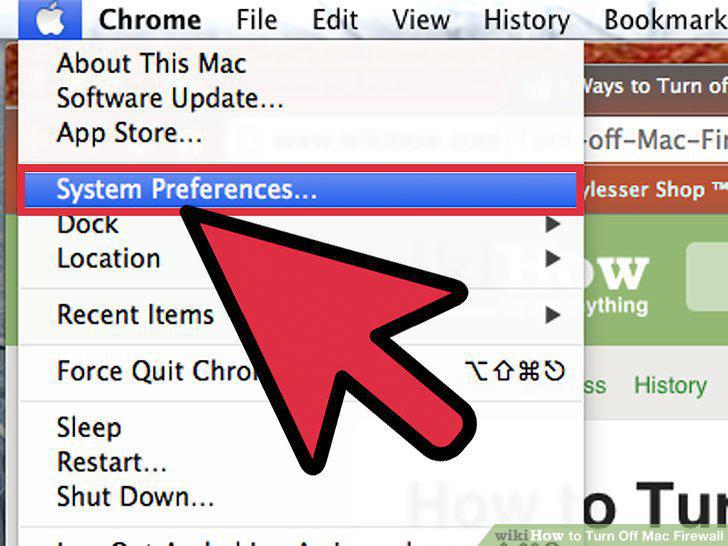
Select System Preferences.
Choose View, then select Security when the System Preferences window appears on
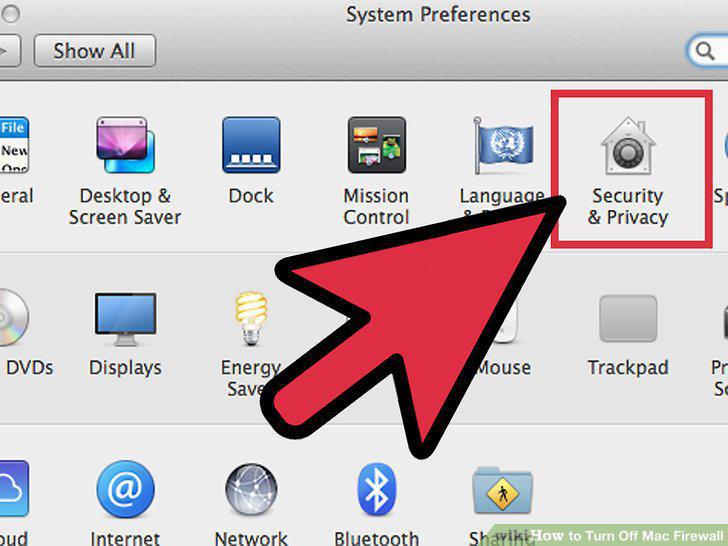
Choose View, then select Security when the System Preferences window appears on your screen.
Click on the Firewall tab.
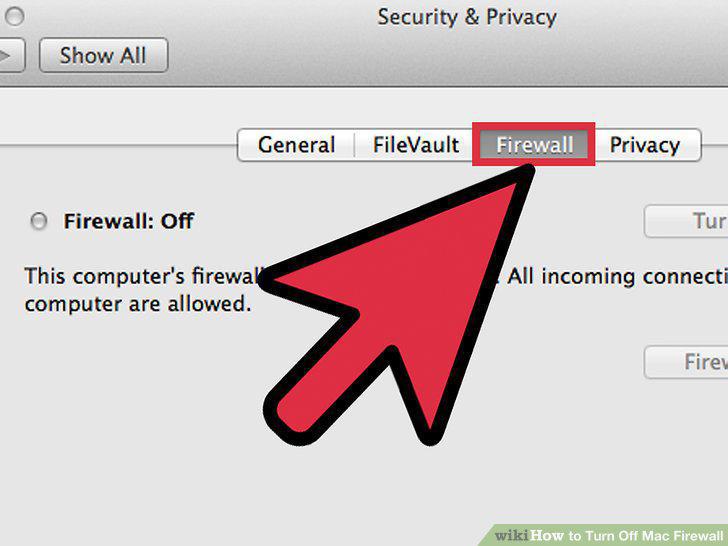
Click on the Firewall tab.
Select the Stop button to disable your firewall.
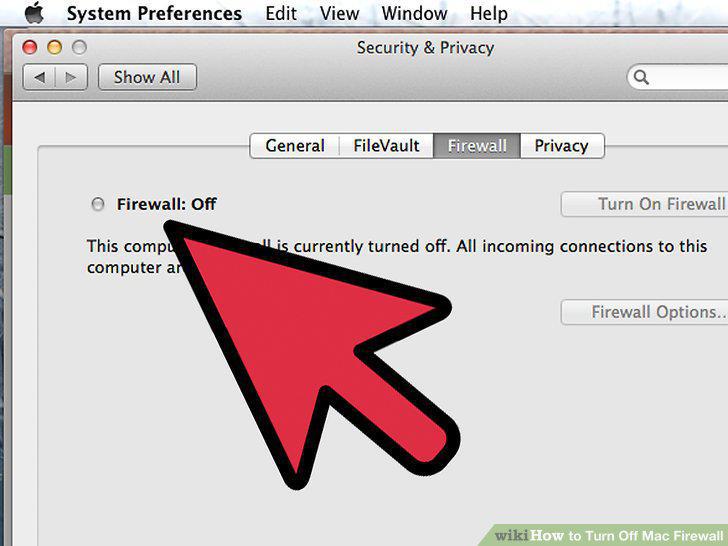
Select the Stop button to disable your firewall.
Configure advanced firewall options if you want to customize your firewall witho
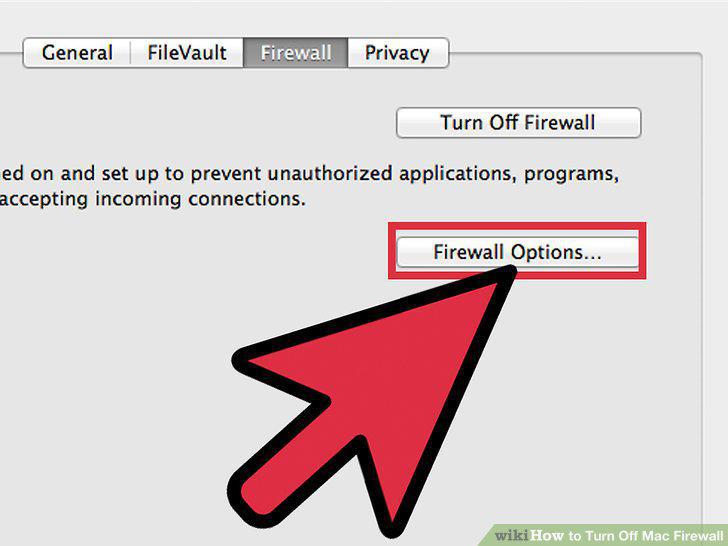
Configure advanced firewall options if you want to customize your firewall without completely disabling it.
Click the "OK" button to save and apply your settings.
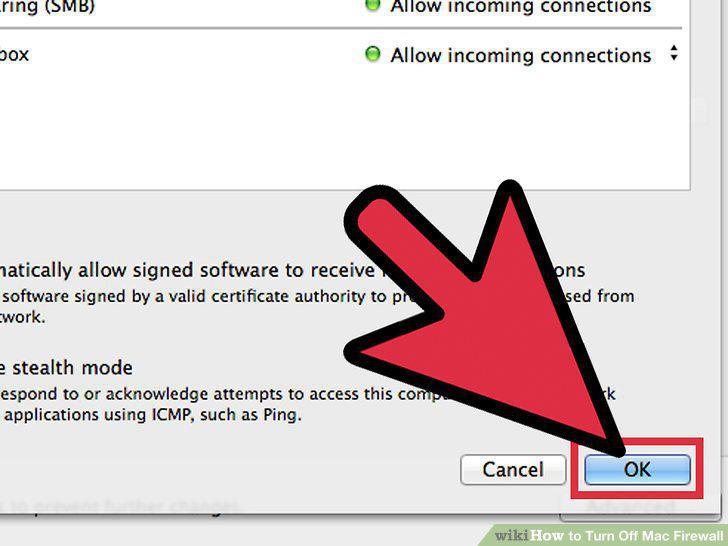
Click the "OK" button to save and apply your settings.
Click on the Apple menu located in the upper left corner of your screen.
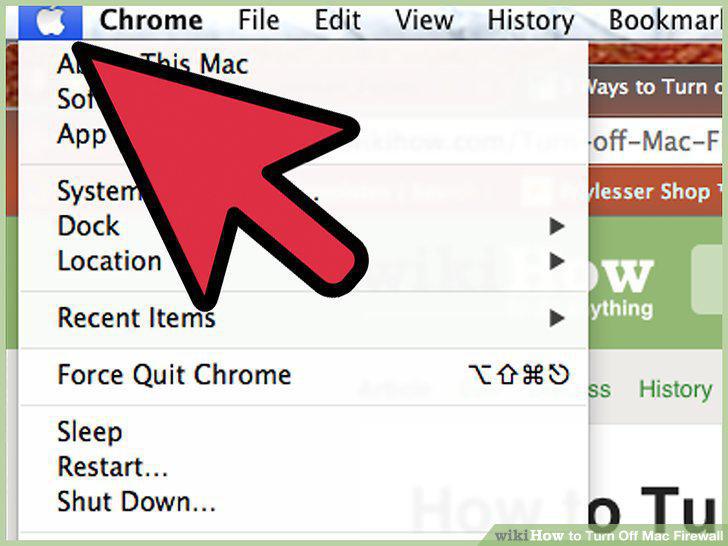
Click on the Apple menu located in the upper left corner of your screen.
Click on System Preferences.
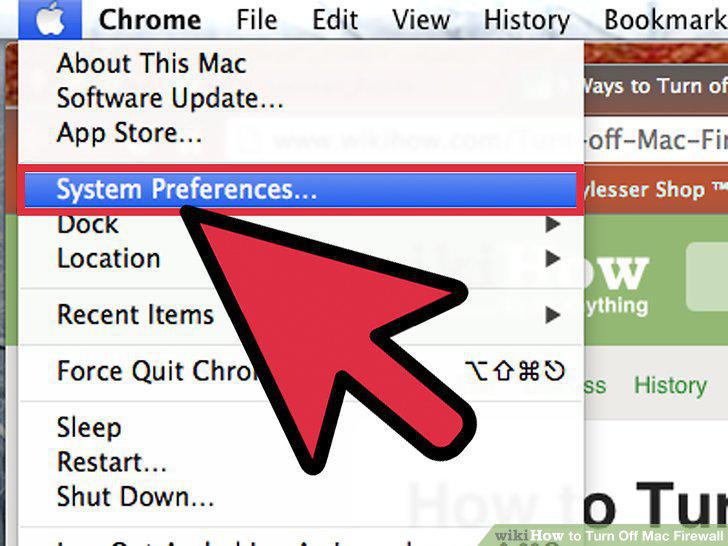
Click on System Preferences.
Click View and select Security after the System Preferences window appears on th
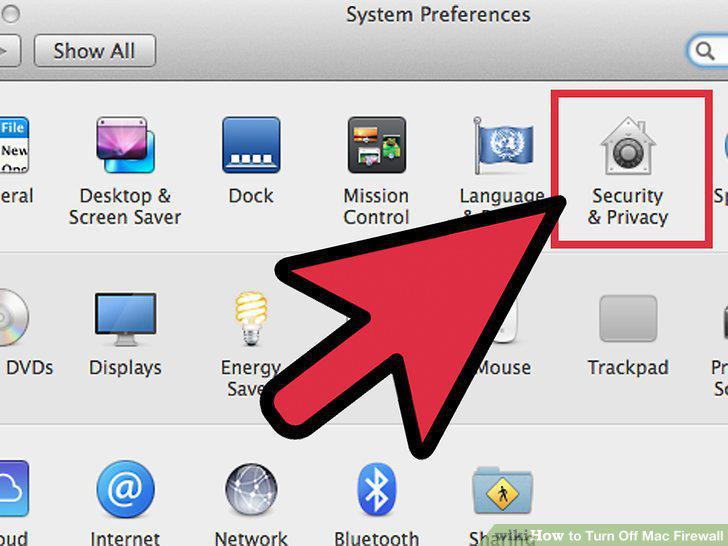
Click View and select Security after the System Preferences window appears on the screen.
Click on the Firewall tab.
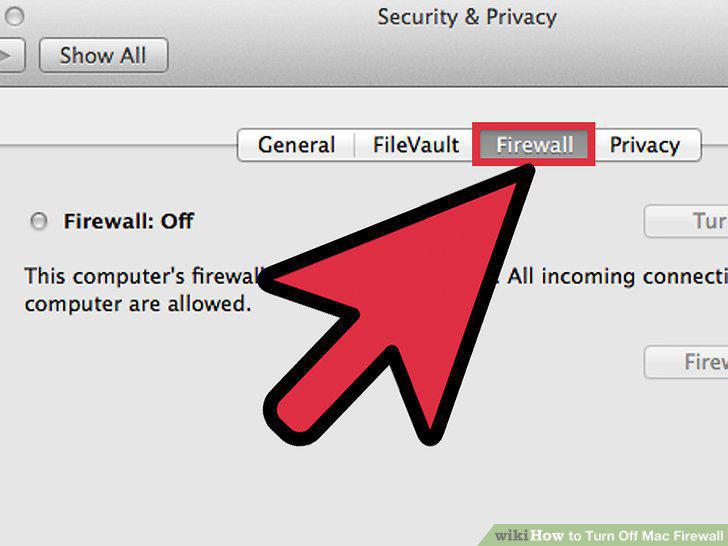
Click on the Firewall tab.
Select the radio button next to "Allow all incoming connections" to completely d
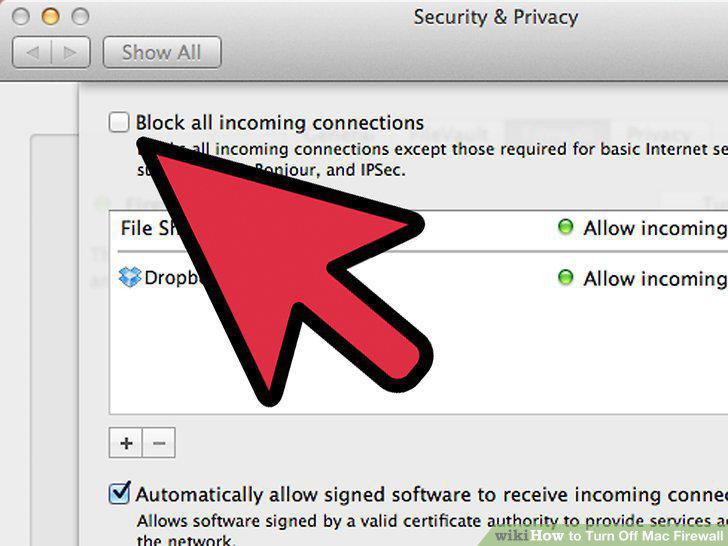
Select the radio button next to "Allow all incoming connections" to completely disable the firewall.
Click on "OK" to apply and save your settings.
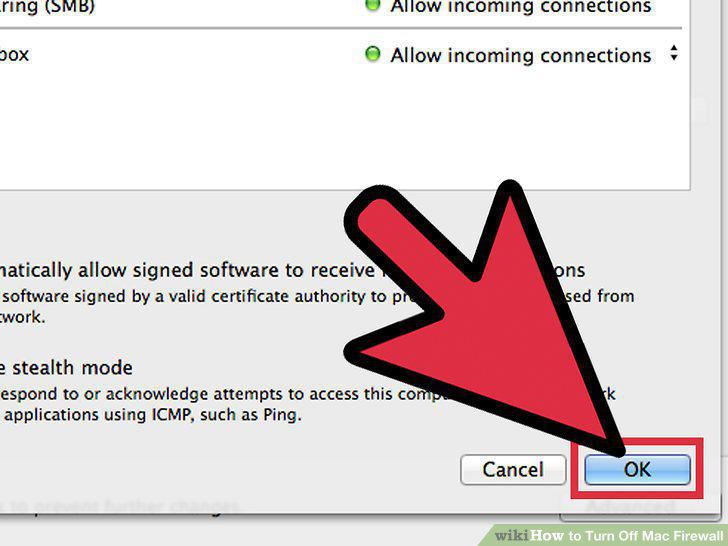
Click on "OK" to apply and save your settings.
Open the Apple menu in the upper left of your screen by clicking on the Apple ic
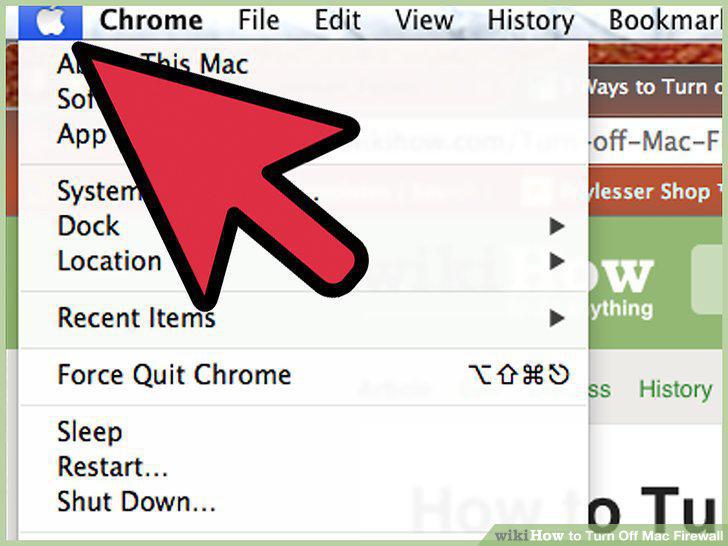
Open the Apple menu in the upper left of your screen by clicking on the Apple icon.
Choose System Preferences.
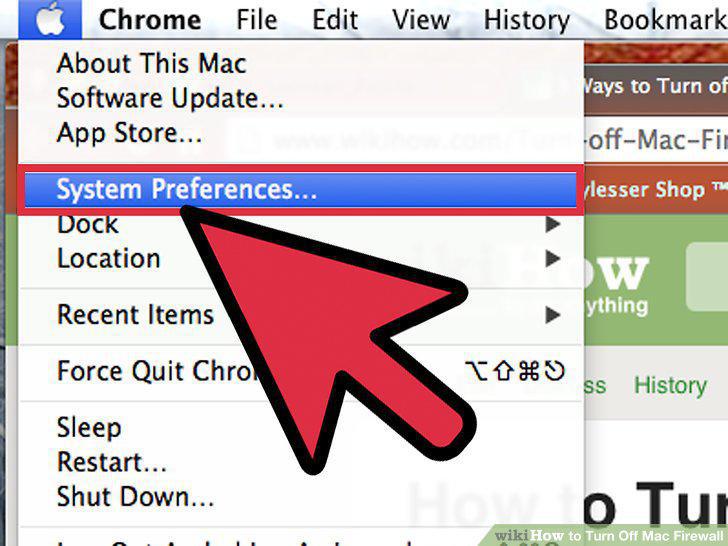
Choose System Preferences.
Click on View, then click on Security when System Preferences opens.
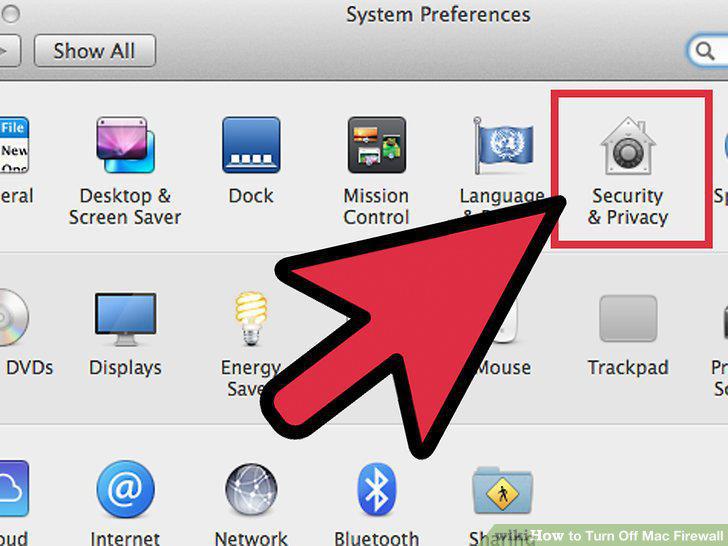
Click on View, then click on Security when System Preferences opens.
Select the Firewall tab.
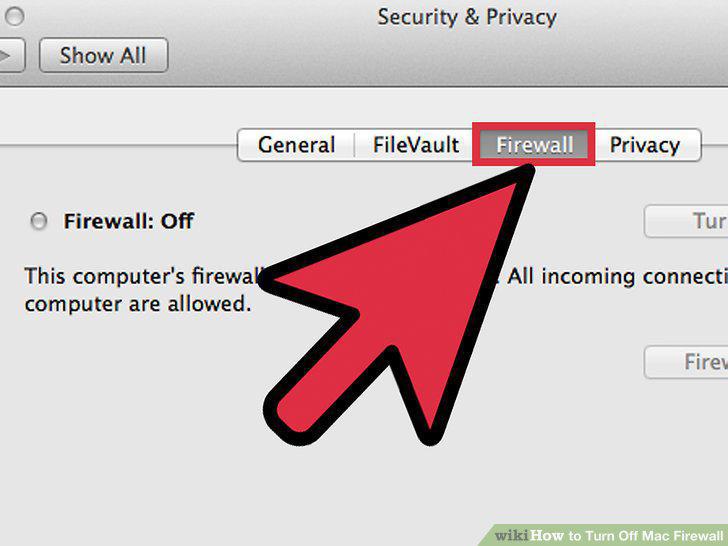
Select the Firewall tab.
Disable your firewall by clicking the Stop button.
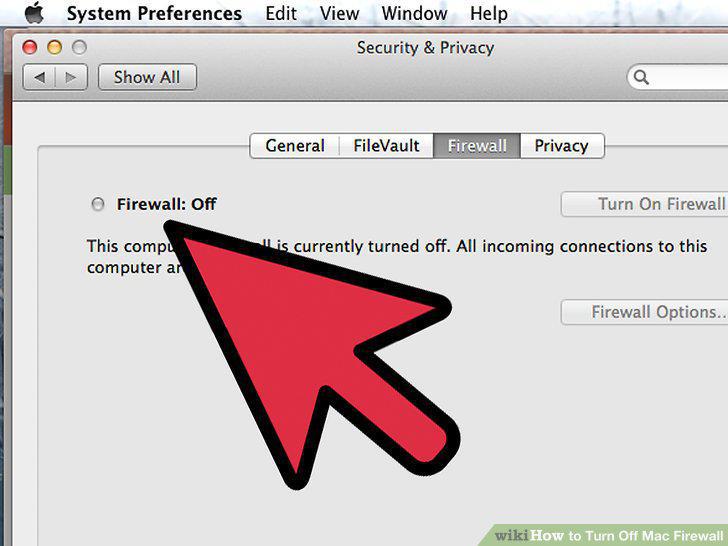
Disable your firewall by clicking the Stop button.
Click on the "OK" button to save your preferences.
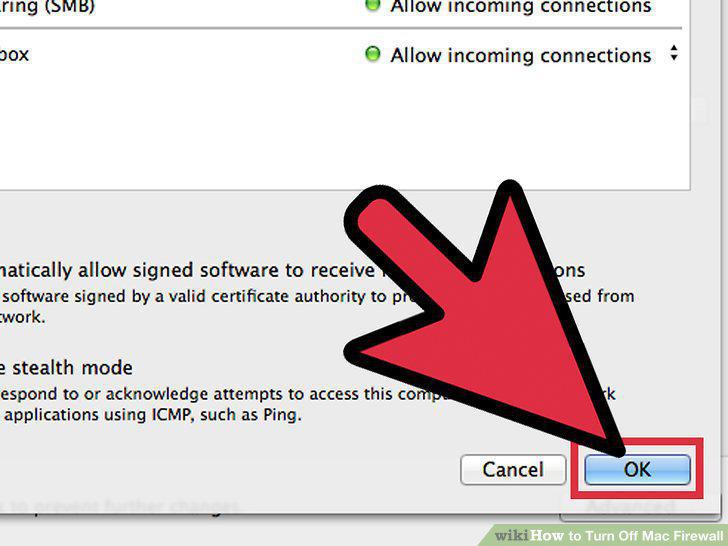
Click on the "OK" button to save your preferences.
Comments (0)
No comments yet. Be the first to share your thoughts!