How to Transfer from iPhone to iPhone
Open the Settings on your old iPhone.. Tap your Apple ID.. Tap iCloud.
Steps
1
Open the Settings on your old iPhone.
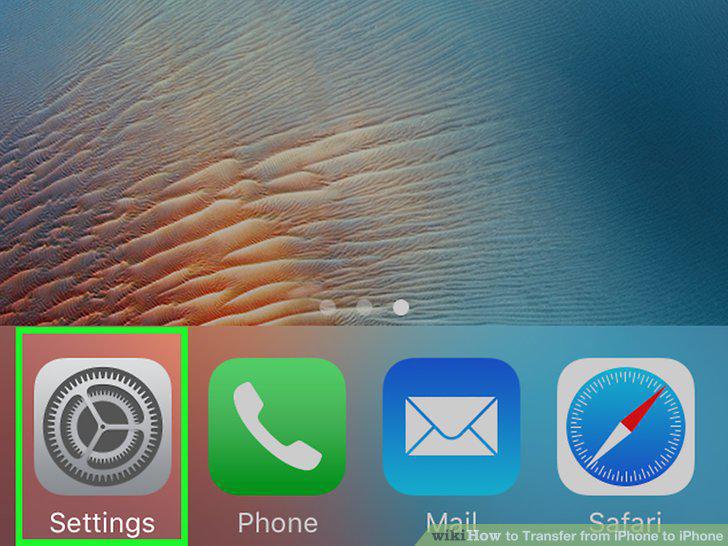
Open the Settings on your old iPhone.
2
Tap your Apple ID.
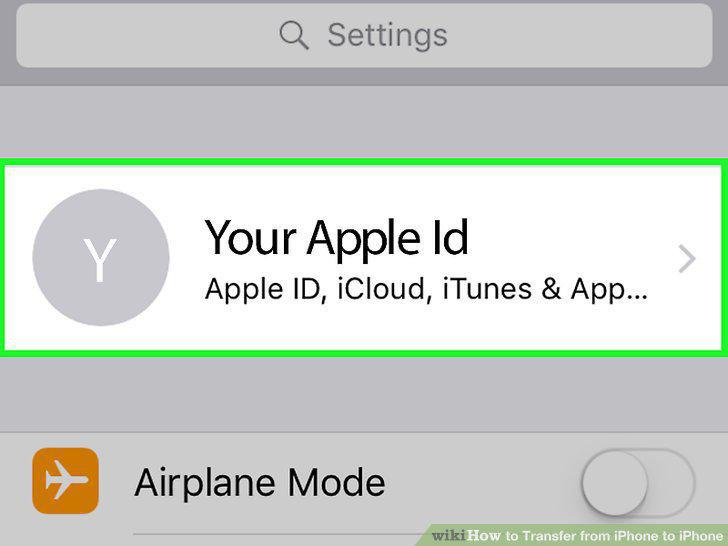
Tap your Apple ID.
3
Tap iCloud.
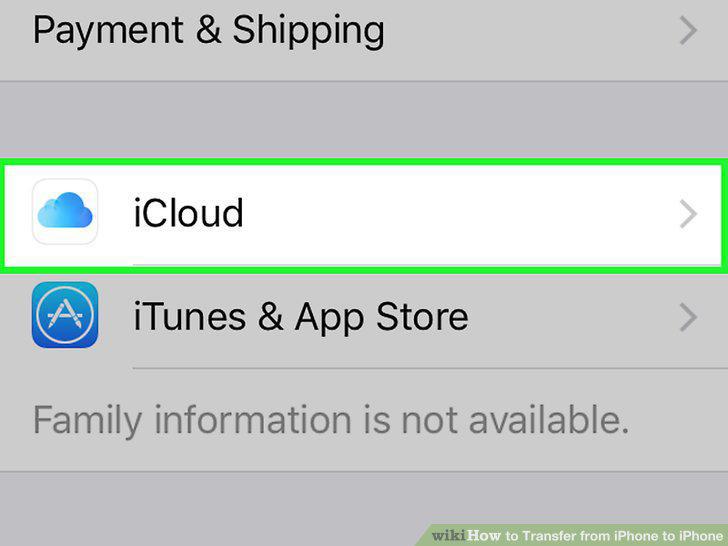
Tap iCloud.
4
Switch on each type of item you want to transfer.
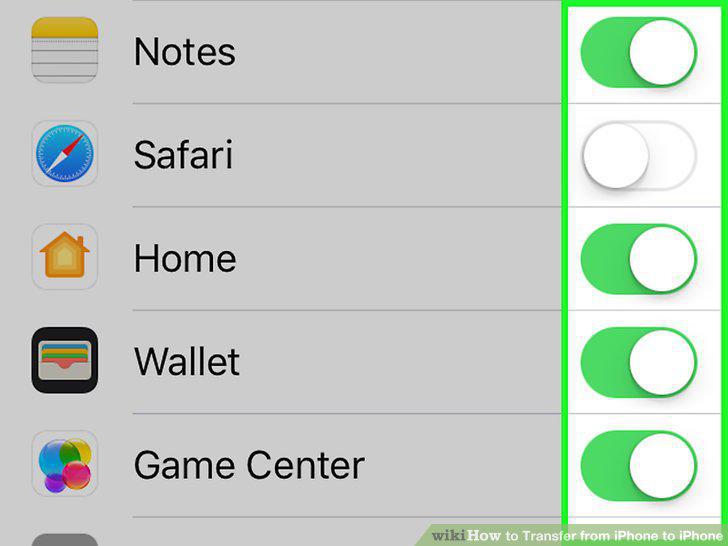
Switch on each type of item you want to transfer.
5
Tap iCloud Backup.
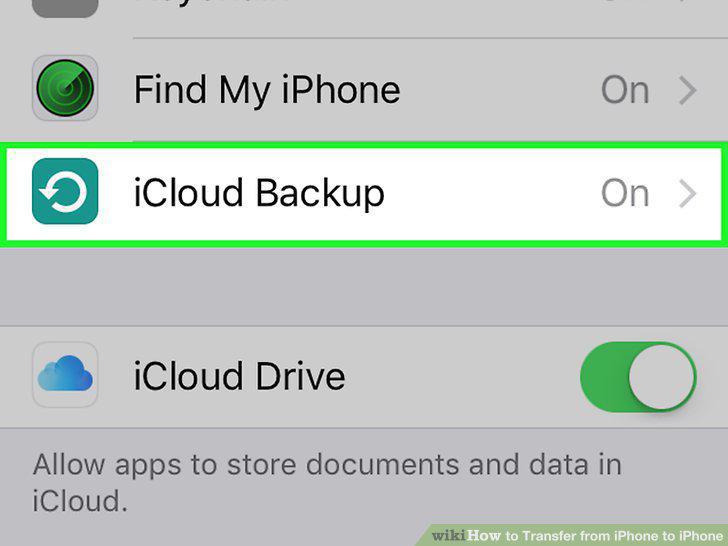
Tap iCloud Backup.
6
Slide the "iCloud Backup" switch to On .
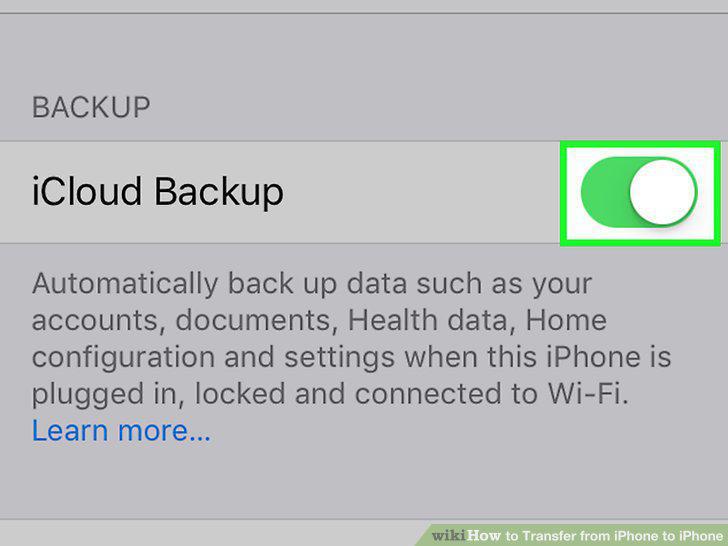
Slide the "iCloud Backup" switch to On .
7
Tap OK.
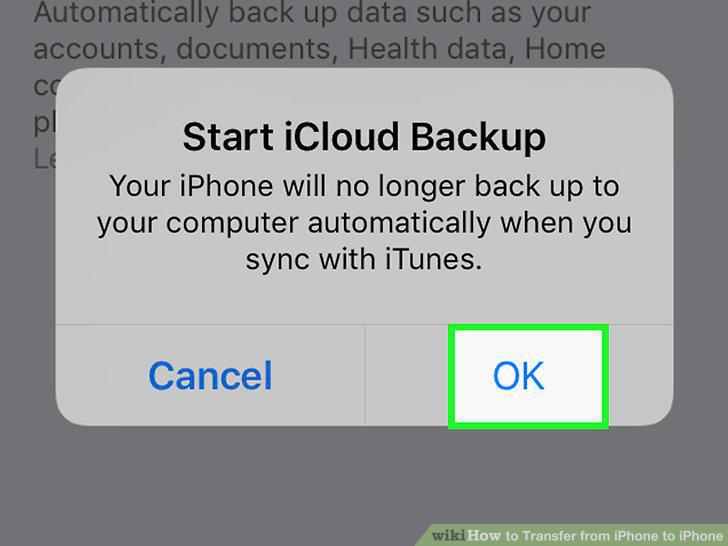
Tap OK.
8
Tap Back Up Now.
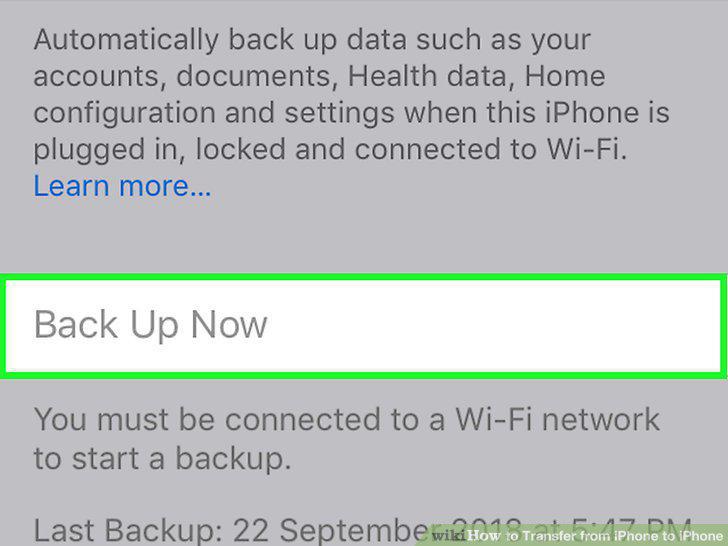
Tap Back Up Now.
9
Turn on the new iPhone.
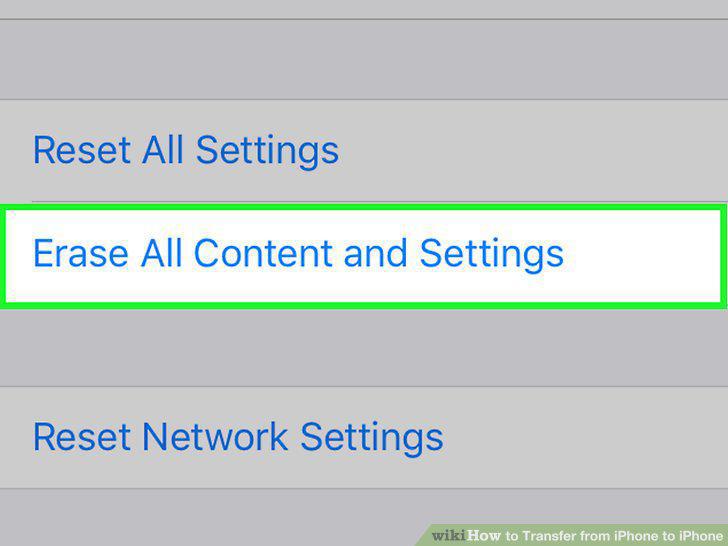
Turn on the new iPhone.
10
Follow the on-screen instructions until you reach the Wi-Fi screen.
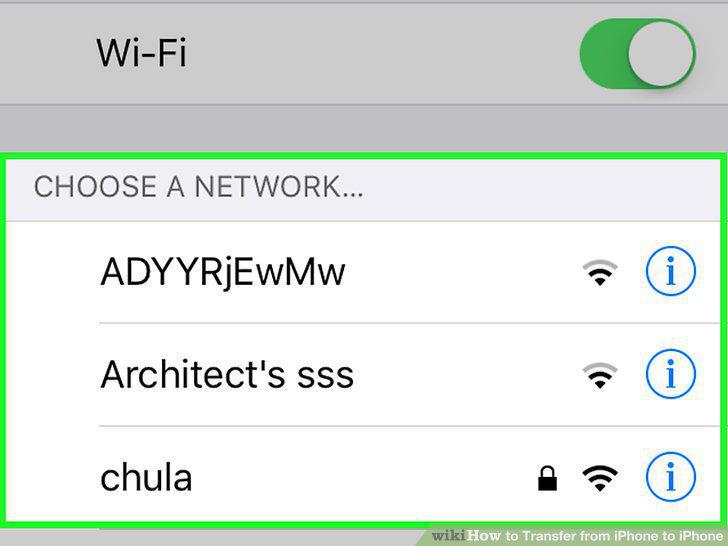
Follow the on-screen instructions until you reach the Wi-Fi screen.
11
Join a Wi-Fi network.
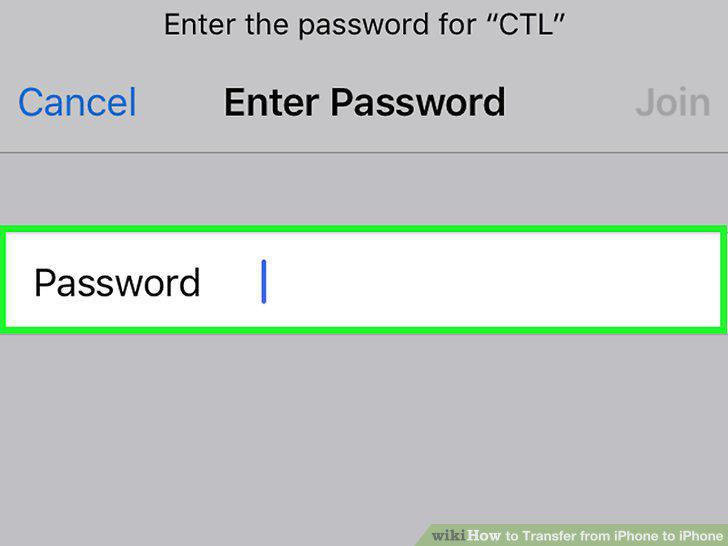
Join a Wi-Fi network.
12
Follow the on-screen instructions until you reach the Apps & Data screen.
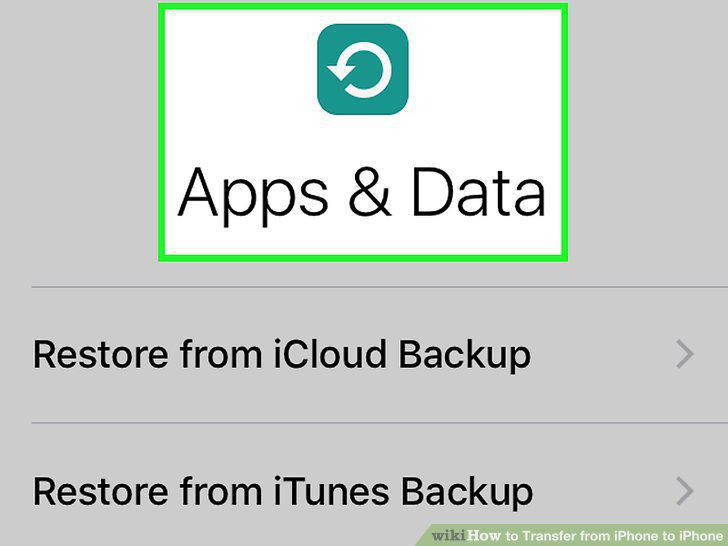
Follow the on-screen instructions until you reach the Apps & Data screen.
13
Tap Restore from iCloud backup.
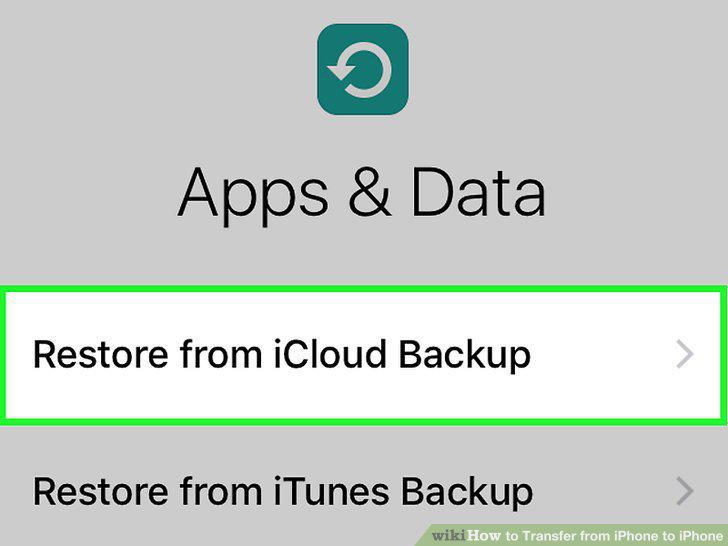
Tap Restore from iCloud backup.
14
Sign in to iCloud.
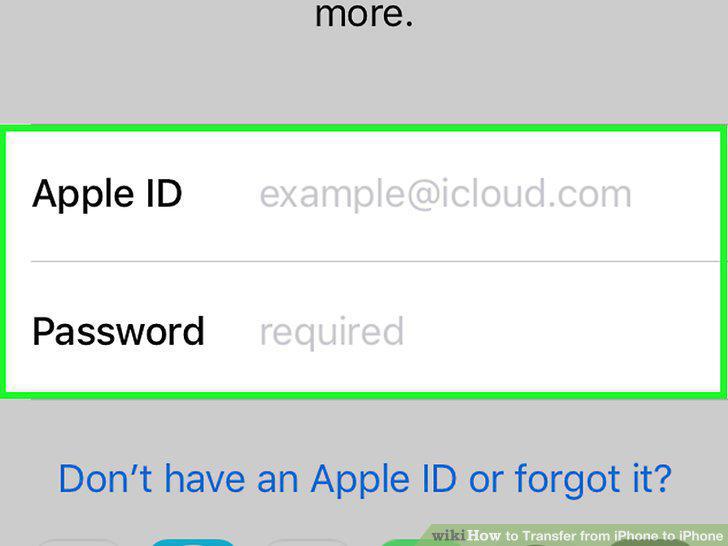
Sign in to iCloud.
15
Select the latest backup when prompted.
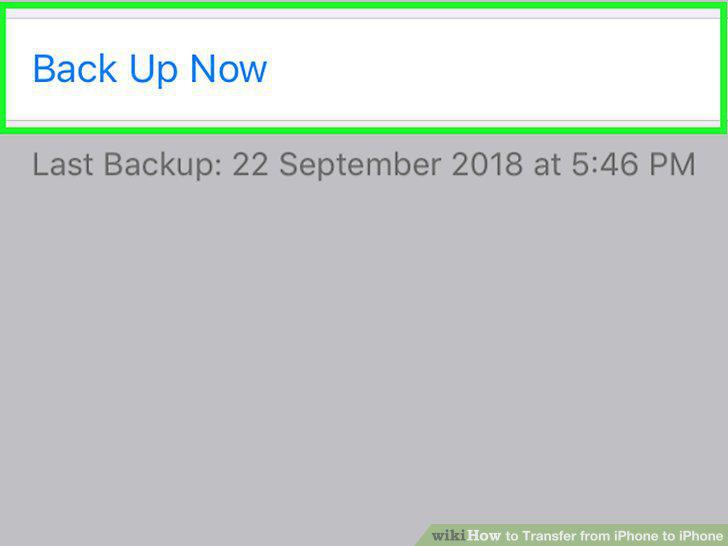
Select the latest backup when prompted.
16
Enable AirDrop on both iPhones.
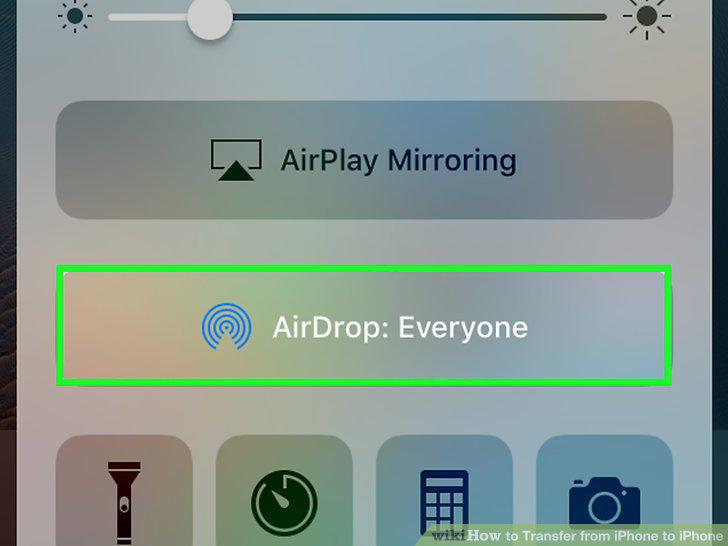
Enable AirDrop on both iPhones.
17
Open the app with the data you want to transfer.
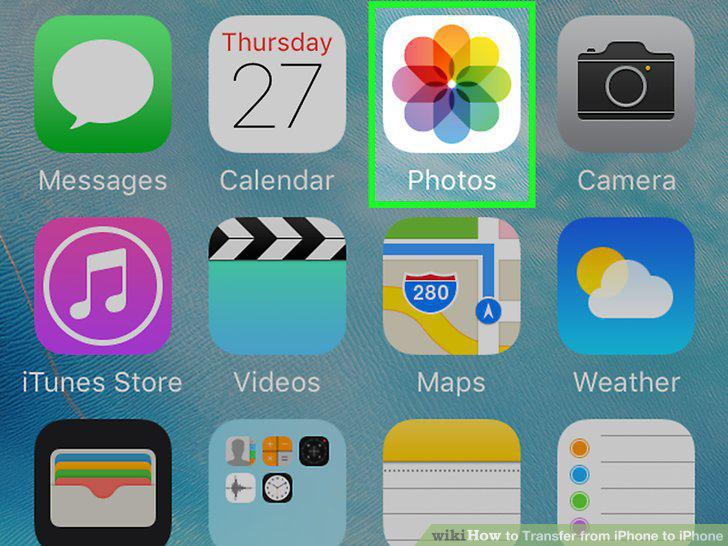
Open the app with the data you want to transfer.
18
Tap the item you want to transfer.
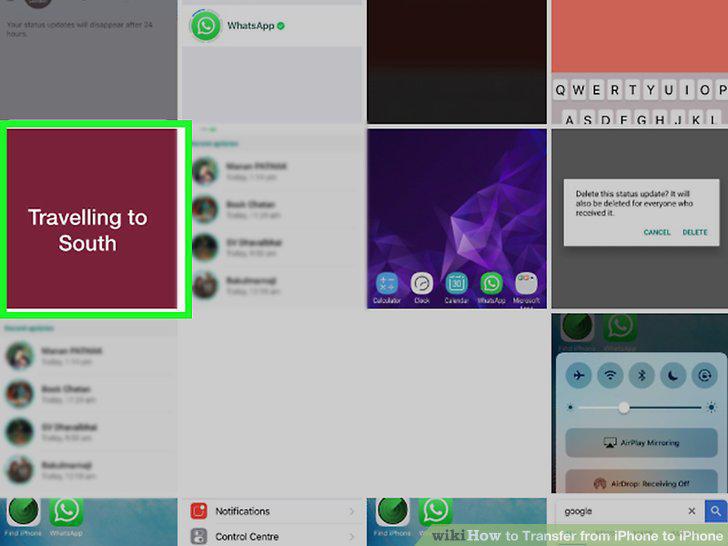
Tap the item you want to transfer.
19
Tap the Share icon.
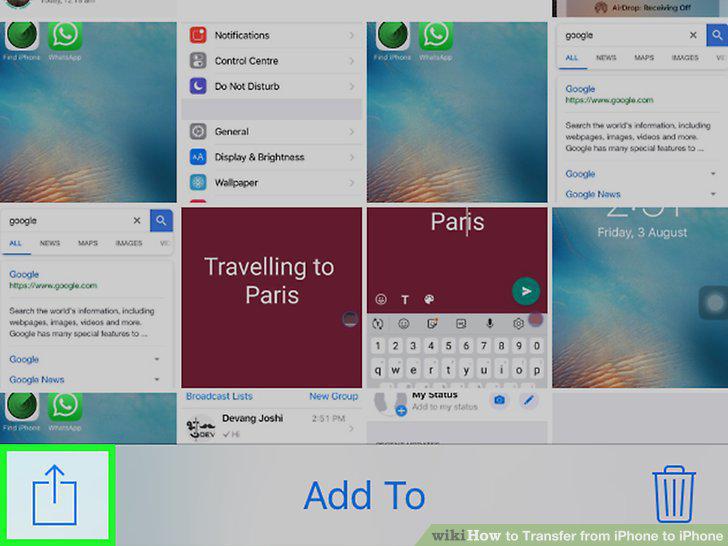
Tap the Share icon.
20
Tap the iPhone you want to transfer to.
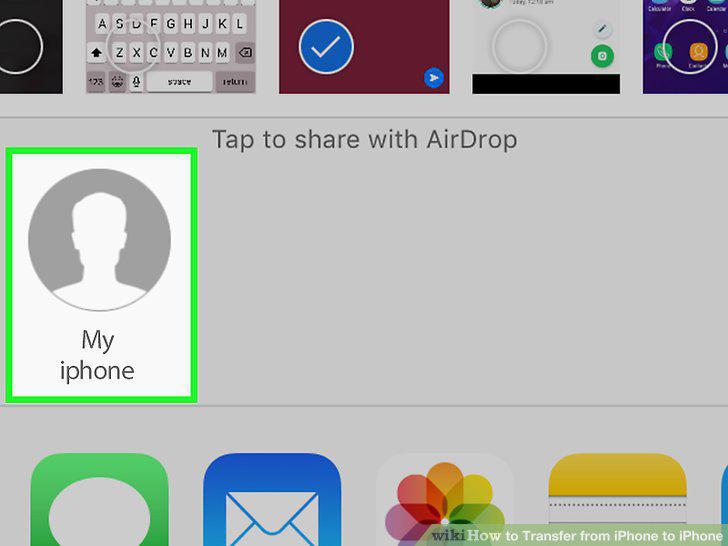
Tap the iPhone you want to transfer to.
Comments (0)
No comments yet. Be the first to share your thoughts!