How to Make an Apple Store Appointment
Log into your Apple account to make an Apple Store appointment.. Visit https://www.apple.com/uk/retail/geniusbar/ to make a reservation.. Select the device and problem that you need help with.
Steps
Log into your Apple account to make an Apple Store appointment.
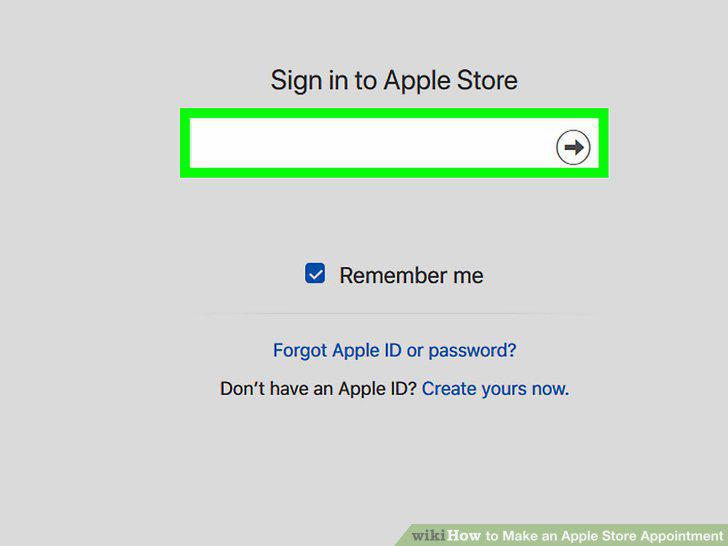
Log into your Apple account to make an Apple Store appointment.
Visit https://www.apple.com/uk/retail/geniusbar/ to make a reservation.
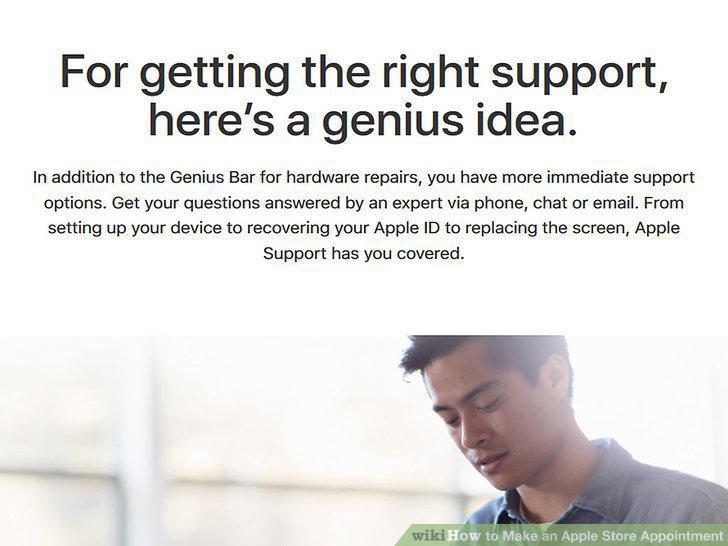
Visit https://www.apple.com/uk/retail/geniusbar/ to make a reservation.
Select the device and problem that you need help with.
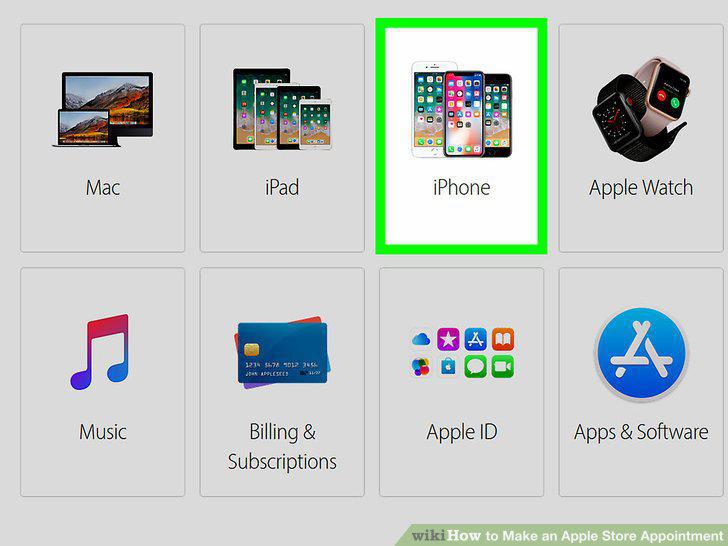
Select the device and problem that you need help with.
Enter your location to browse nearby Apple Stores.
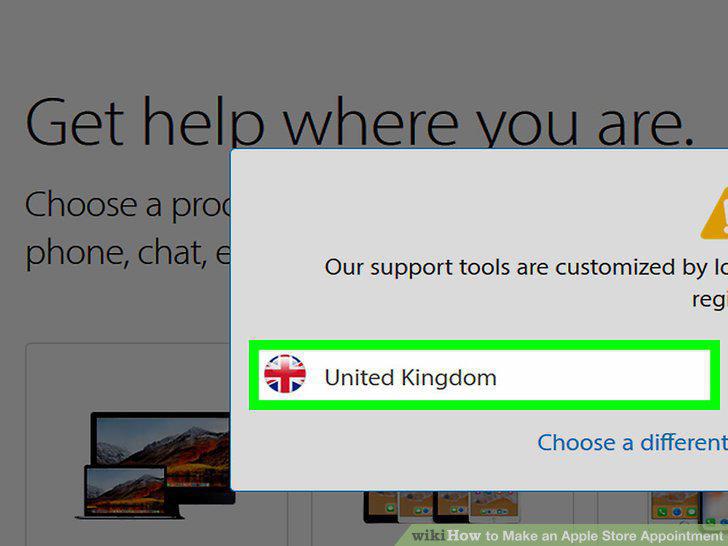
Enter your location to browse nearby Apple Stores.
Click on your desired location to make your appointment.
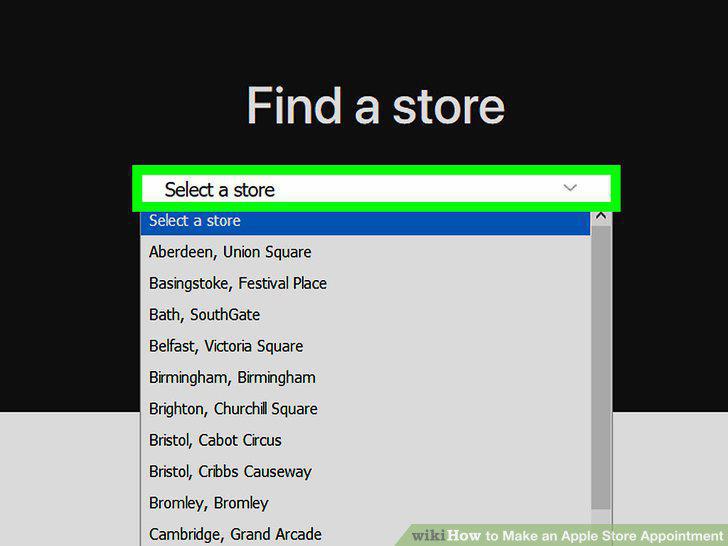
Click on your desired location to make your appointment.
Select an available time slot based on convenience.
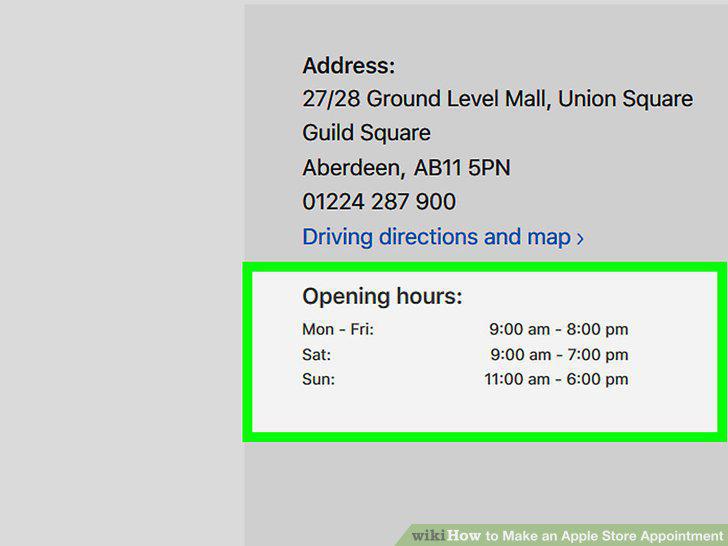
Select an available time slot based on convenience.
Ensure you are logged into your Apple account.
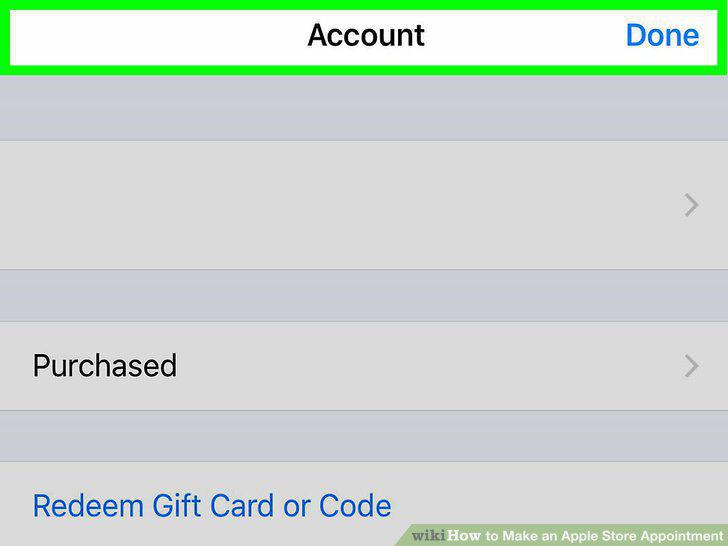
Ensure you are logged into your Apple account.
Click on the "Apple Store" application to review nearby locations.
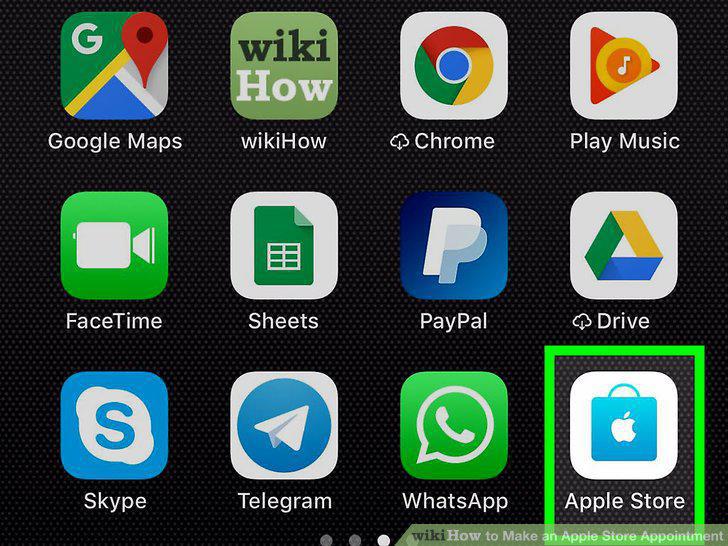
Click on the "Apple Store" application to review nearby locations.
Select the "Genius Bar" option to start the reservation process.
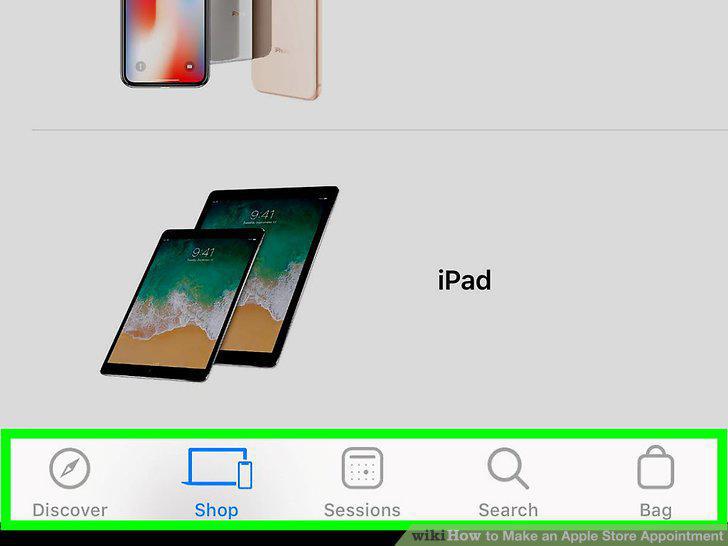
Select the "Genius Bar" option to start the reservation process.
Pick the product and issue that you need help with.
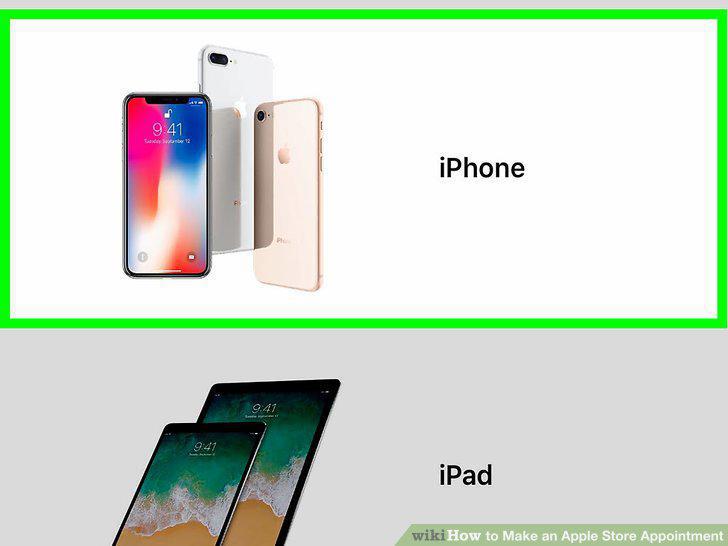
Pick the product and issue that you need help with.
Select your store from the list of options.
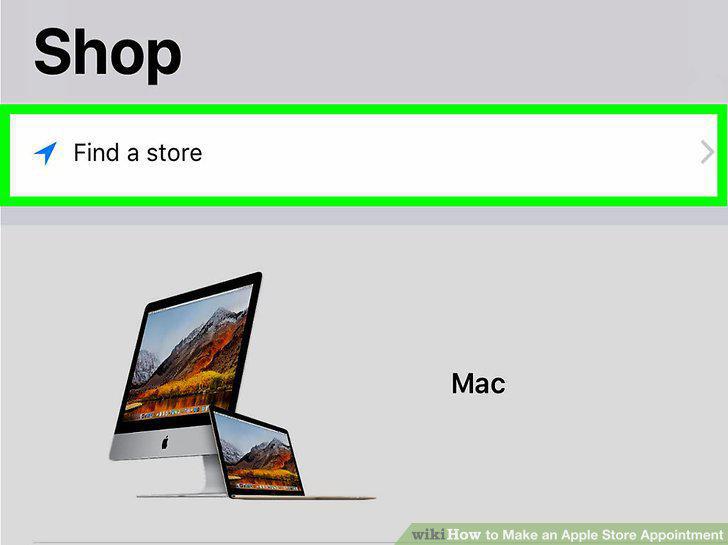
Select your store from the list of options.
Choose a convenient time and date.
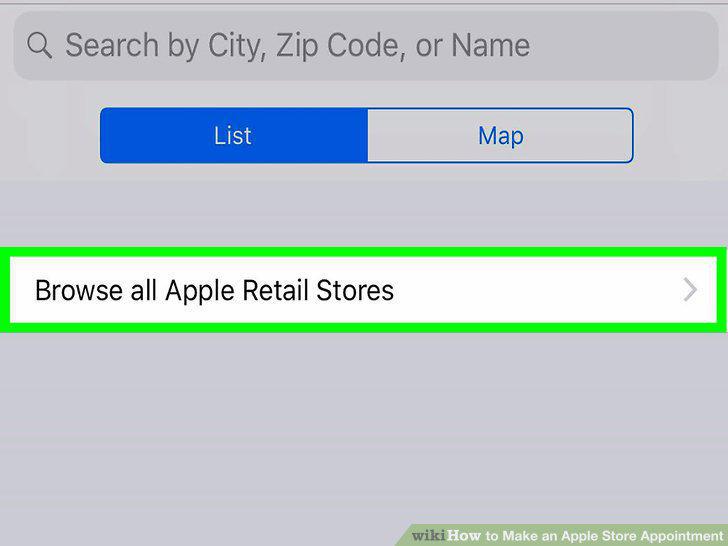
Choose a convenient time and date.
Click on the "Reserve" button to confirm your reservation.
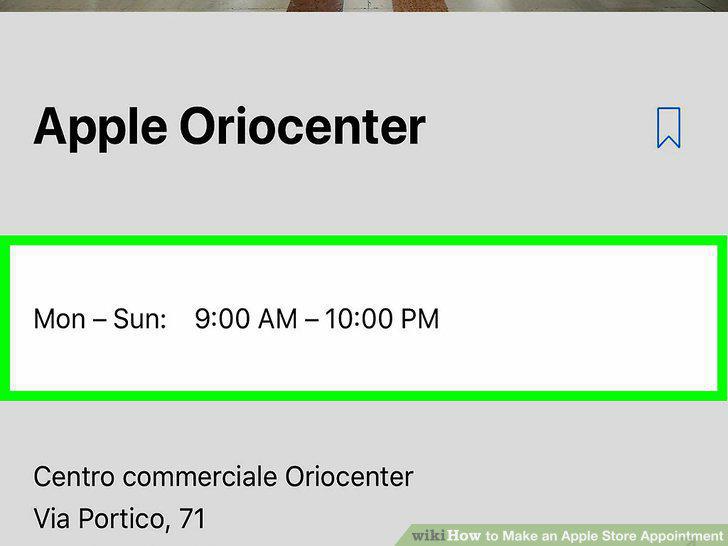
Click on the "Reserve" button to confirm your reservation.
Comments (0)
No comments yet. Be the first to share your thoughts!