How to Back Up Favorites in Internet Explorer
Open Windows Explorer.. Access your user's "Documents and Settings.. Access your Favorites folder.
Steps
1
Open Windows Explorer.
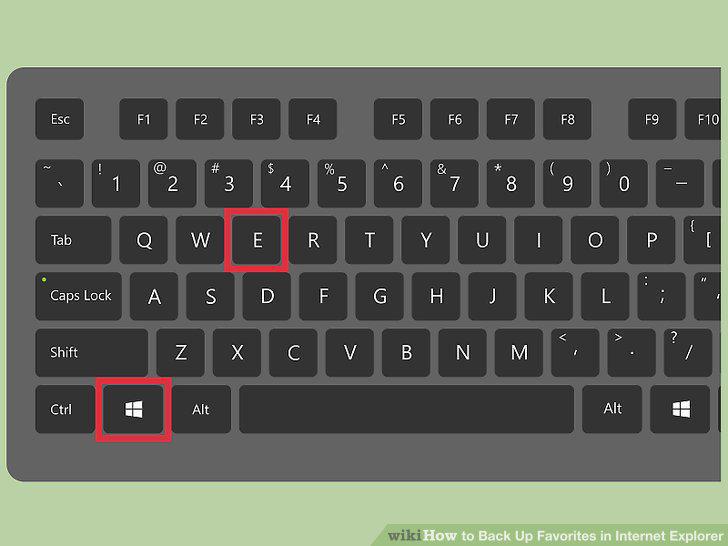
Open Windows Explorer.
2
Access your user's "Documents and Settings.
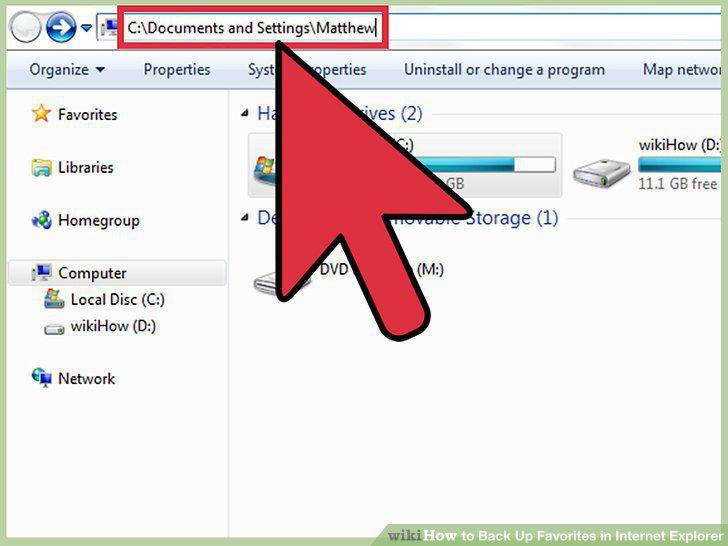
Access your user's "Documents and Settings.
3
Access your Favorites folder.
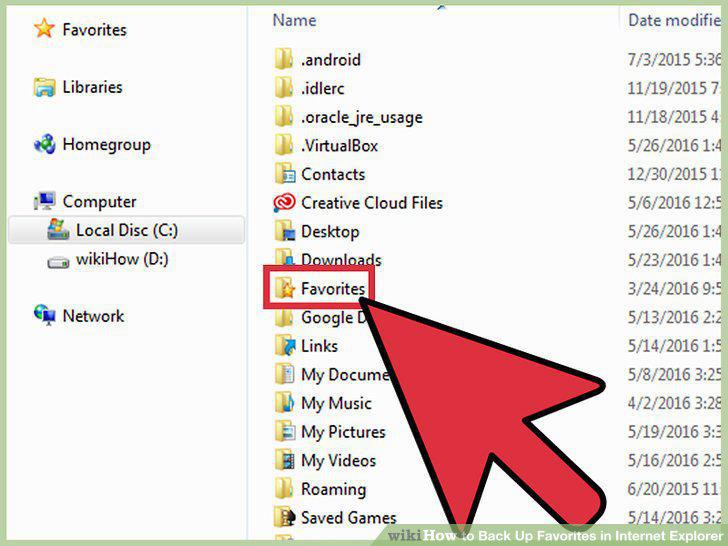
Access your Favorites folder.
4
Copy the Favorites folder.
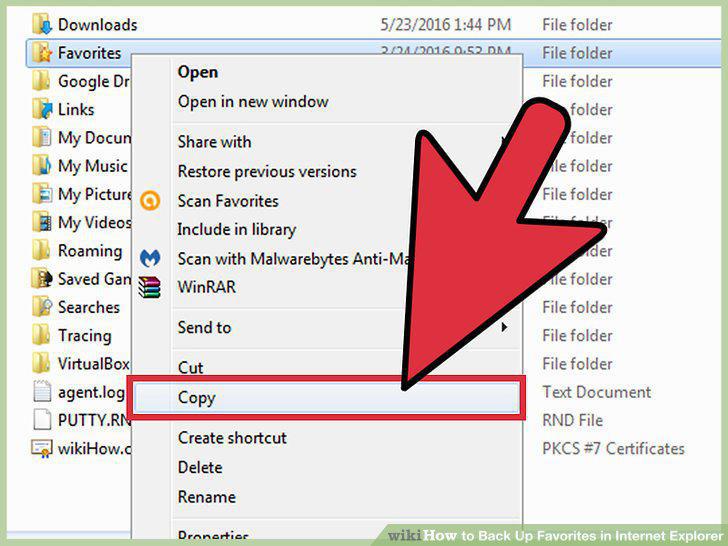
Copy the Favorites folder.
5
Paste the Favorites folder in a new location.
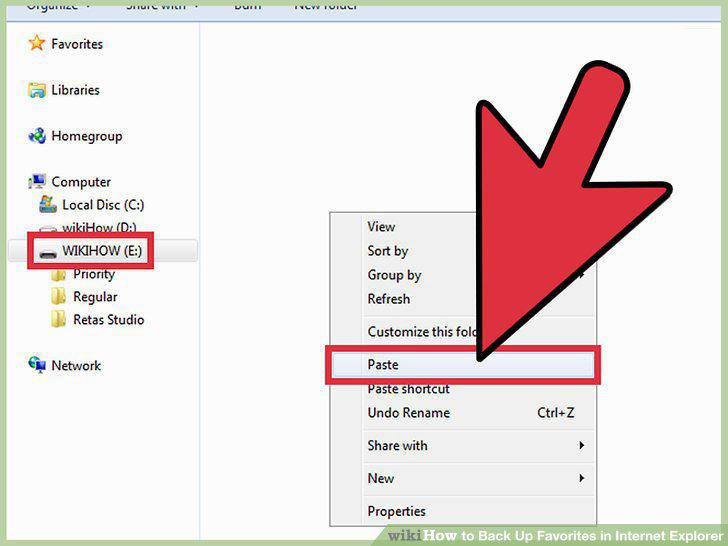
Paste the Favorites folder in a new location.
6
Open Internet Explorer.
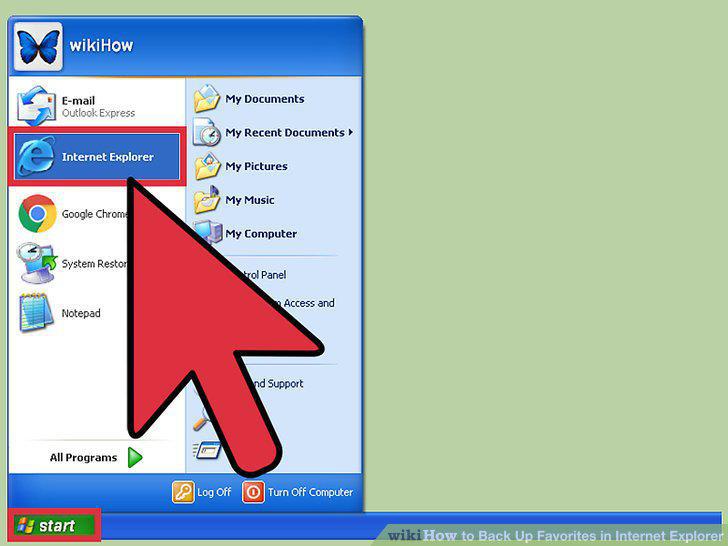
Open Internet Explorer.
7
Access the "Import and Export" screen.
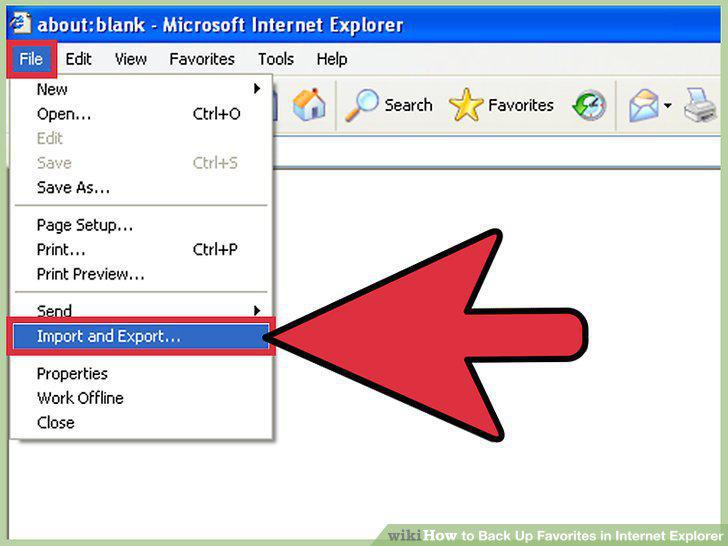
Access the "Import and Export" screen.
8
Initiate the export process.
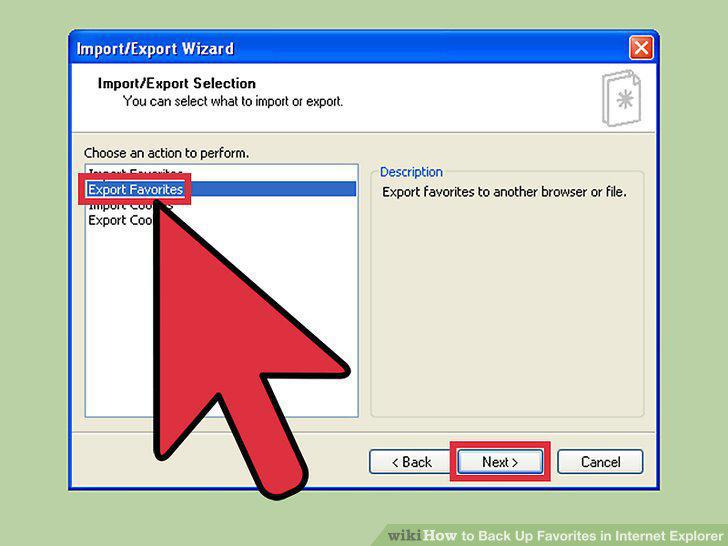
Initiate the export process.
9
Select the files you wish to export.
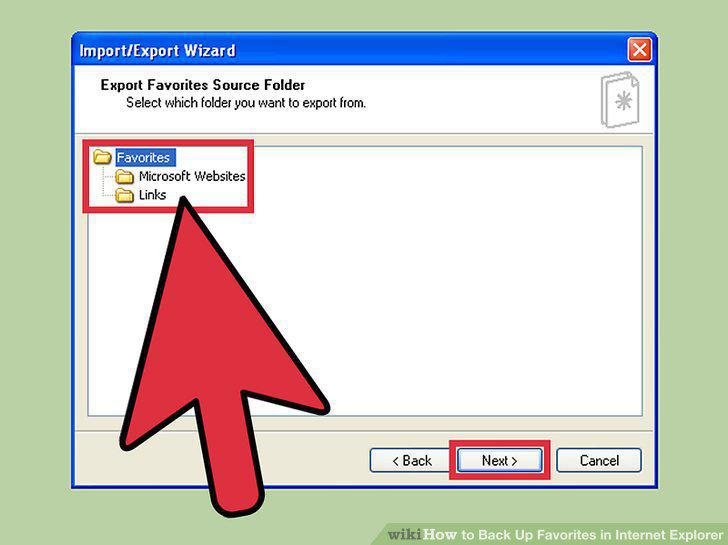
Select the files you wish to export.
10
Choose a backup destination.
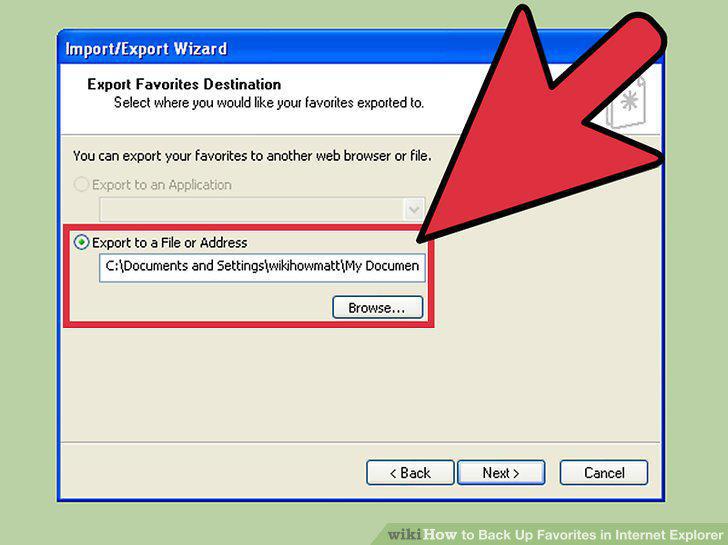
Choose a backup destination.
11
Open Internet Explorer.
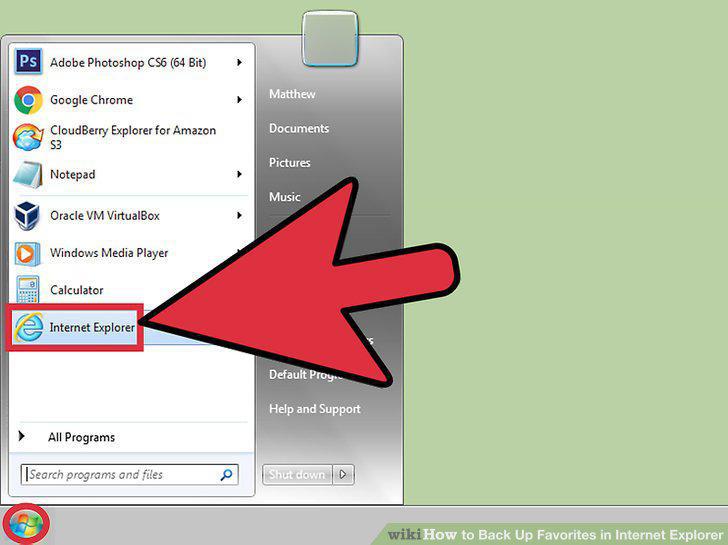
Open Internet Explorer.
12
Access your Favorites.

Access your Favorites.
13
Initiate the export process.
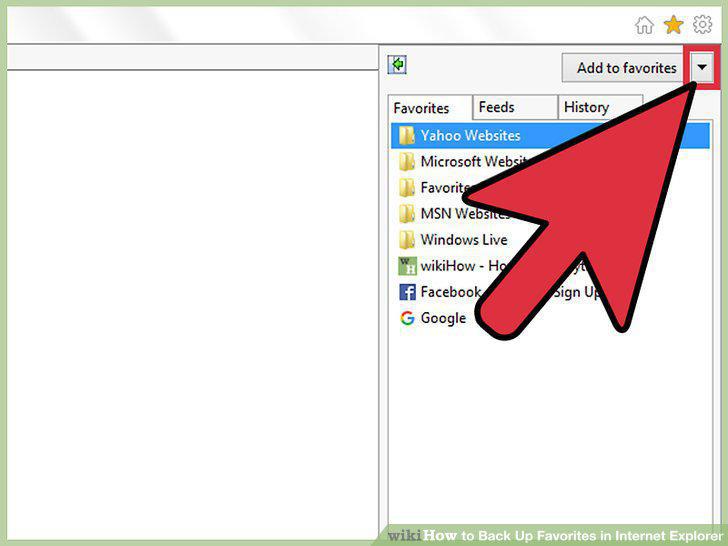
Initiate the export process.
14
Select the files you wish to export.
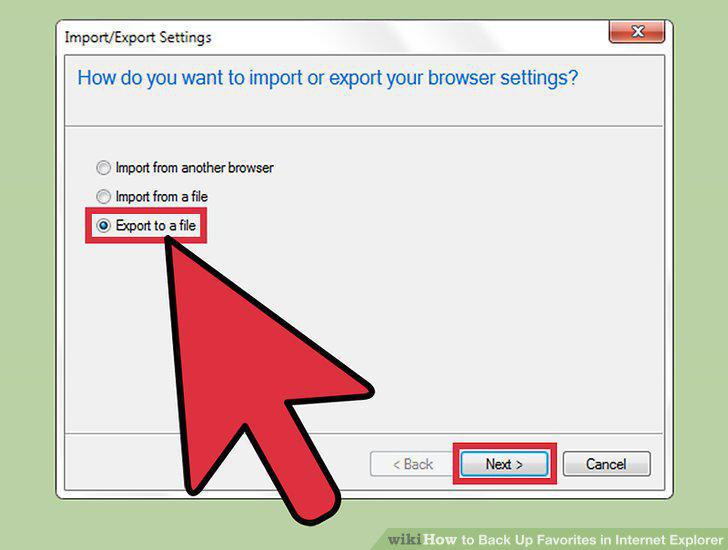
Select the files you wish to export.
15
Choose a backup destination.
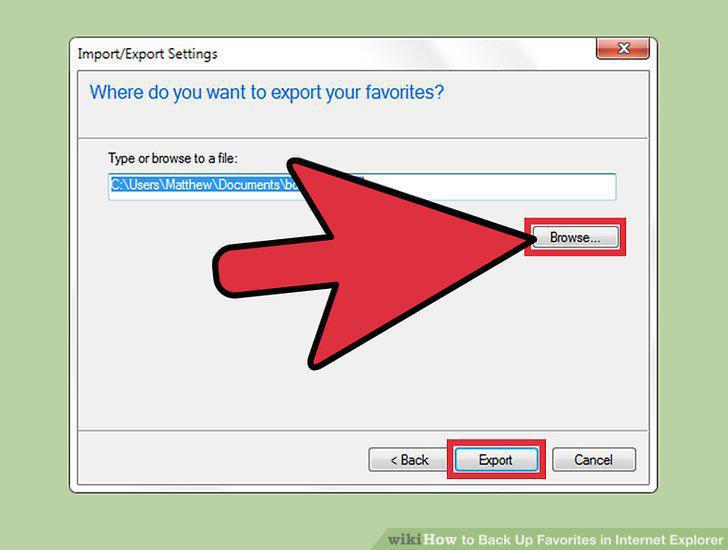
Choose a backup destination.
Comments (0)
No comments yet. Be the first to share your thoughts!