How to Convert Text to Outline in Photoshop
Open or create a Photoshop file.. Long click on the Type Tool.. Click on Horizontal Type Tool.
Steps
1
Open or create a Photoshop file.
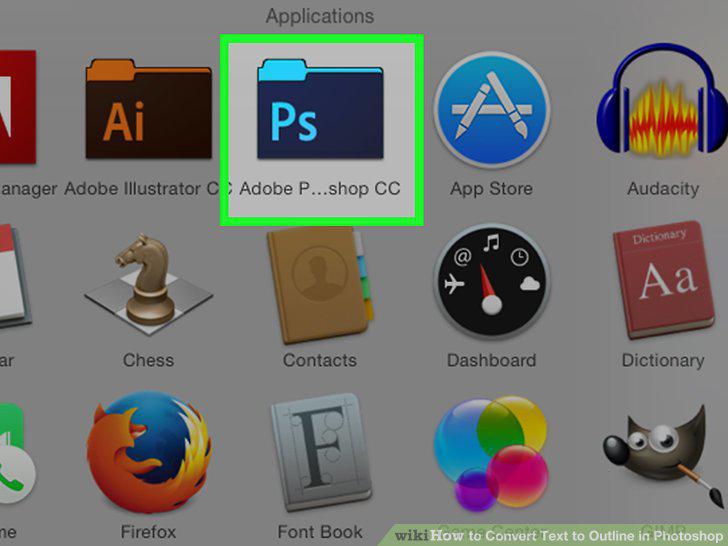
Open or create a Photoshop file.
2
Long click on the Type Tool.
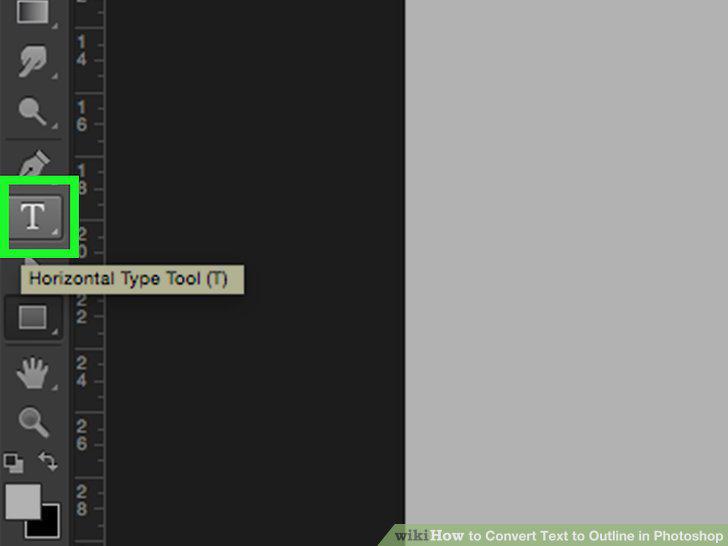
Long click on the Type Tool.
3
Click on Horizontal Type Tool.
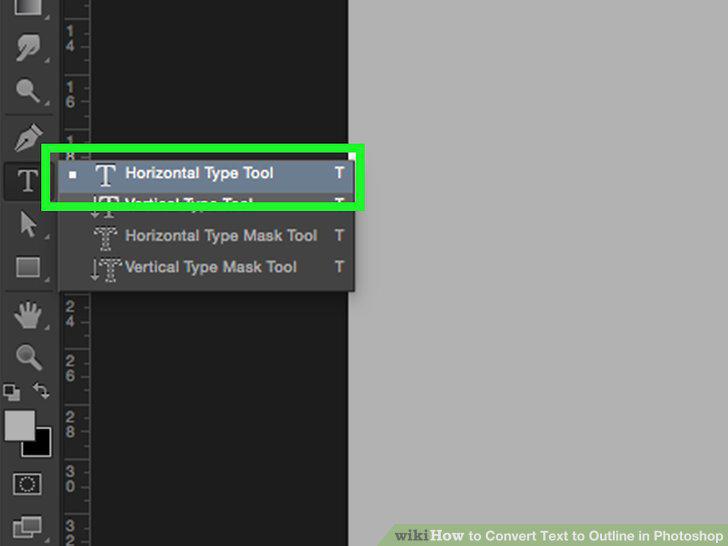
Click on Horizontal Type Tool.
4
Click anywhere on the document.
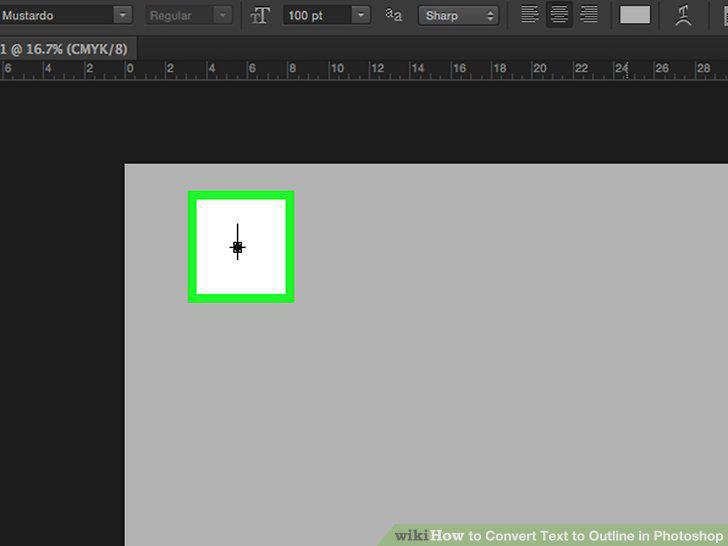
Click anywhere on the document.
5
Type the text you want to convert to outlines.
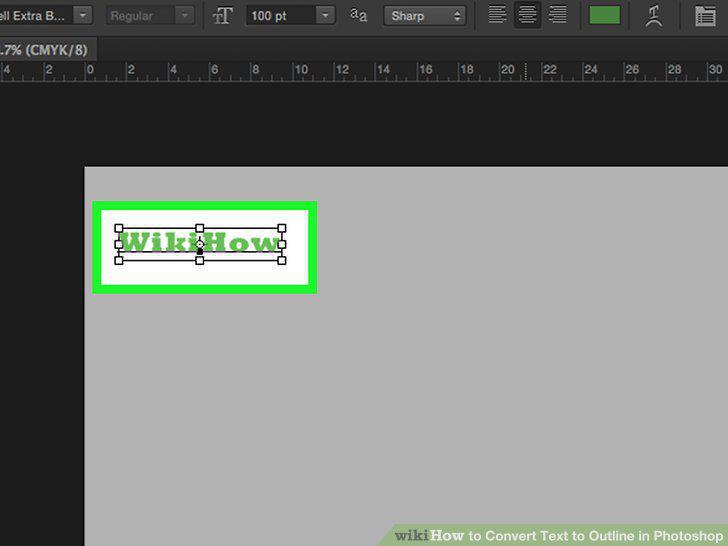
Type the text you want to convert to outlines.
6
Long click on the Selection Tool.
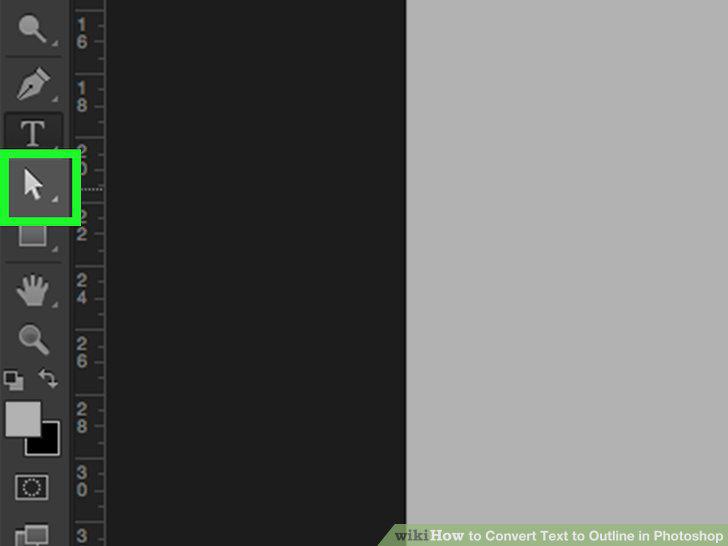
Long click on the Selection Tool.
7
Click on Direct Selection Tool.
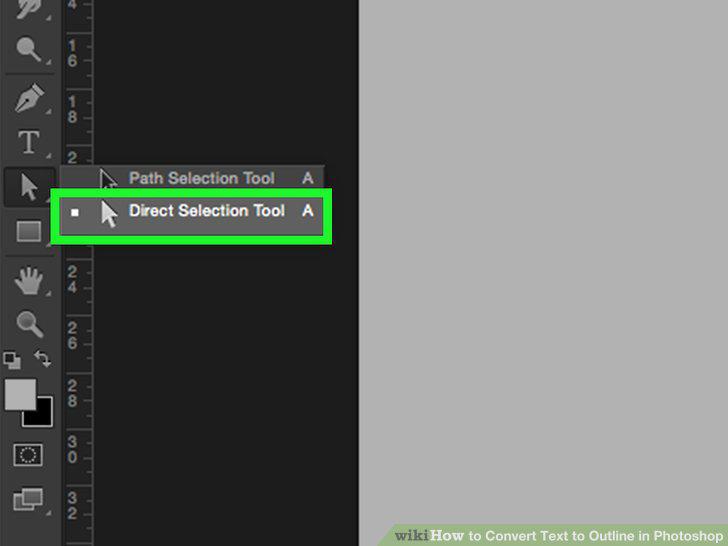
Click on Direct Selection Tool.
8
Click on the text you typed.
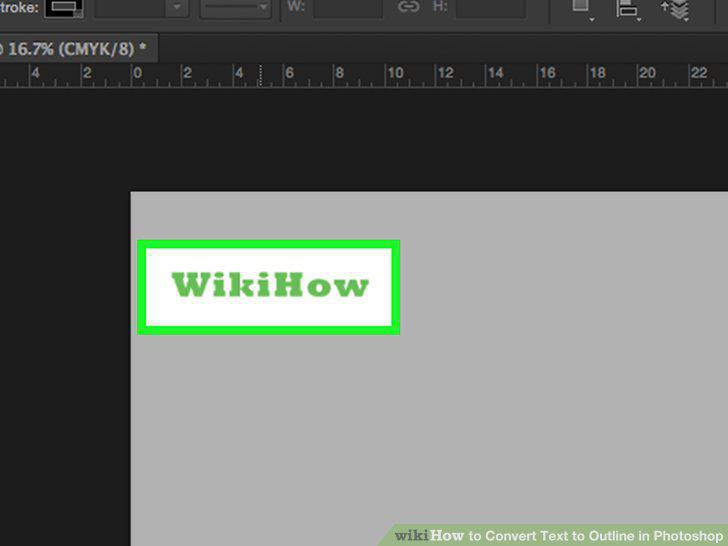
Click on the text you typed.
9
Click on Type in the menu bar.
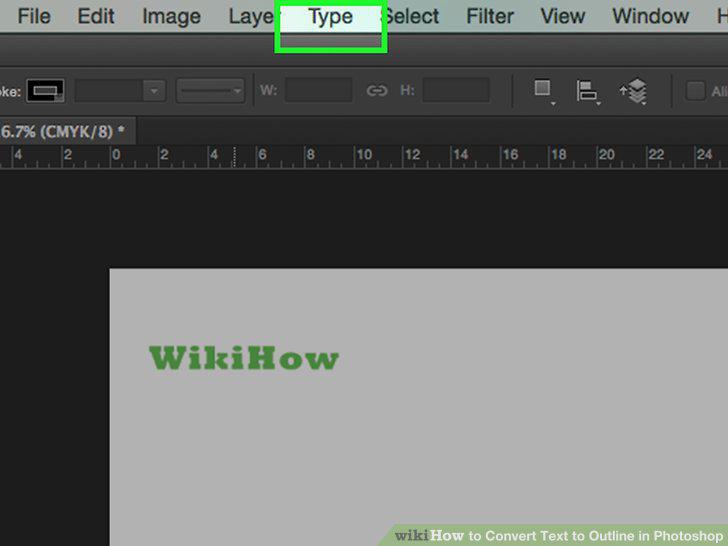
Click on Type in the menu bar.
10
Click on Convert to Shape.
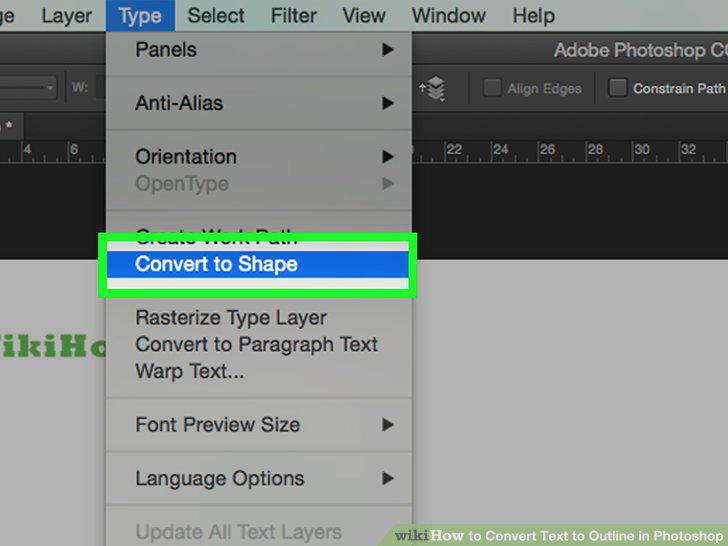
Click on Convert to Shape.
Comments (0)
No comments yet. Be the first to share your thoughts!