How to Inspect Element on Chrome
Open Google Chrome on your computer.. Click the three vertical dots icon.. Hover over More Tools on the drop-down menu.
Steps
1
Open Google Chrome on your computer.
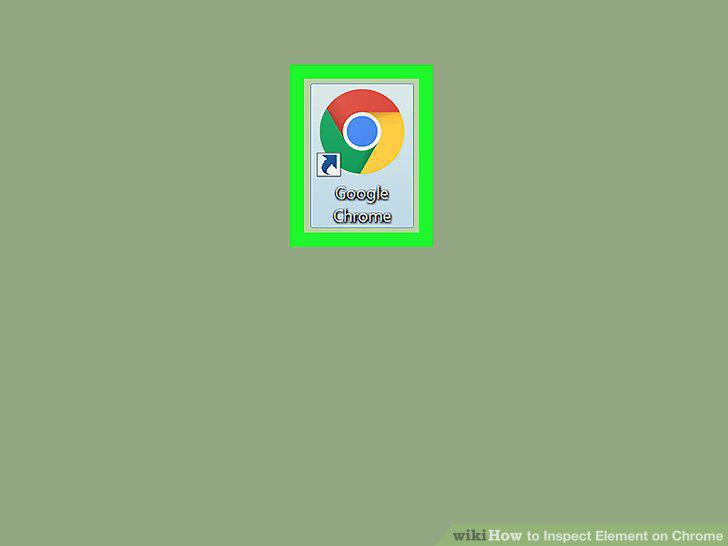
Open Google Chrome on your computer.
2
Click the three vertical dots icon.
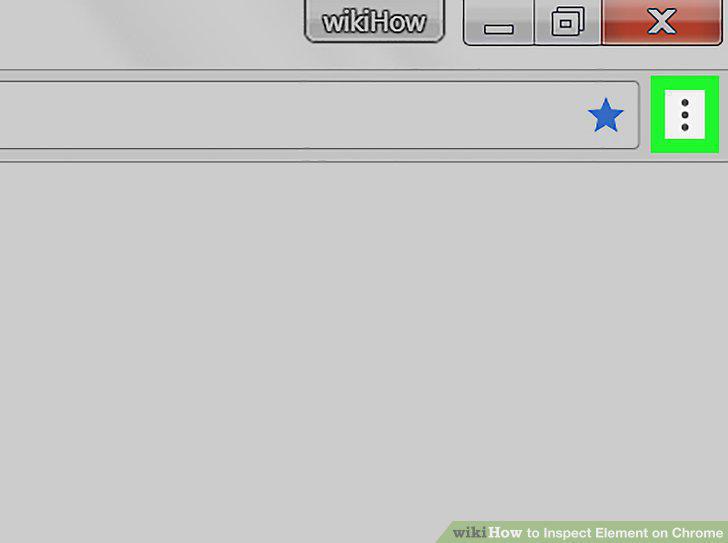
Click the three vertical dots icon.
3
Hover over More Tools on the drop-down menu.
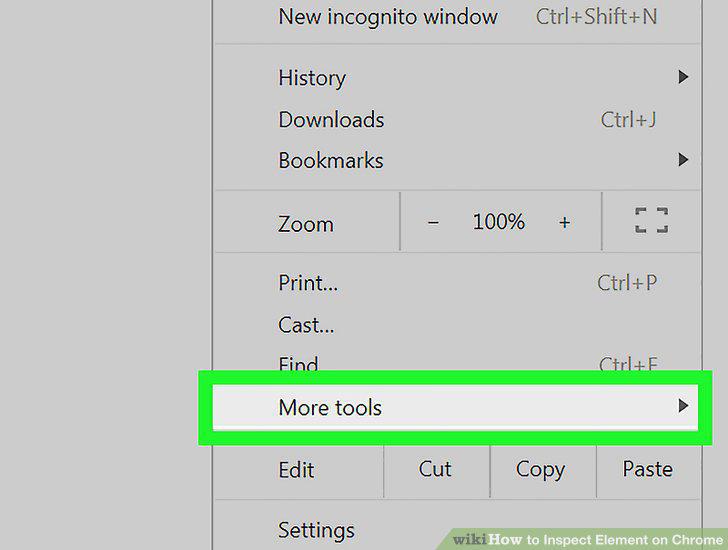
Hover over More Tools on the drop-down menu.
4
Click Developer Tools on the More Tools sub-menu.
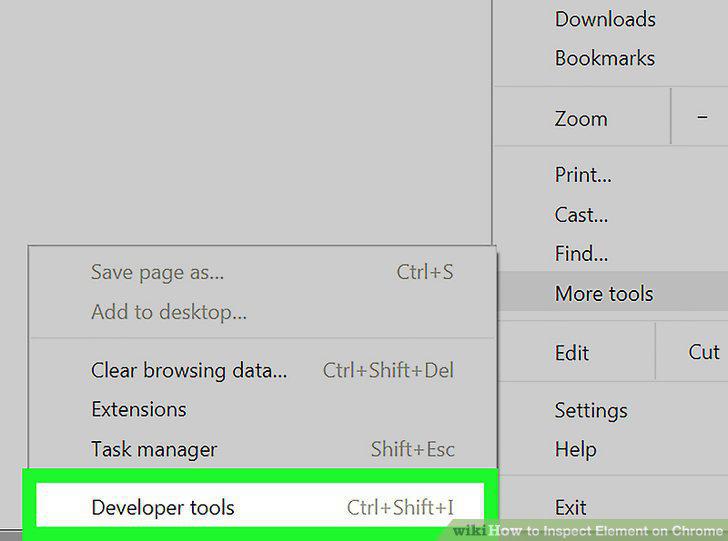
Click Developer Tools on the More Tools sub-menu.
5
Hover over an element on the Inspector column.
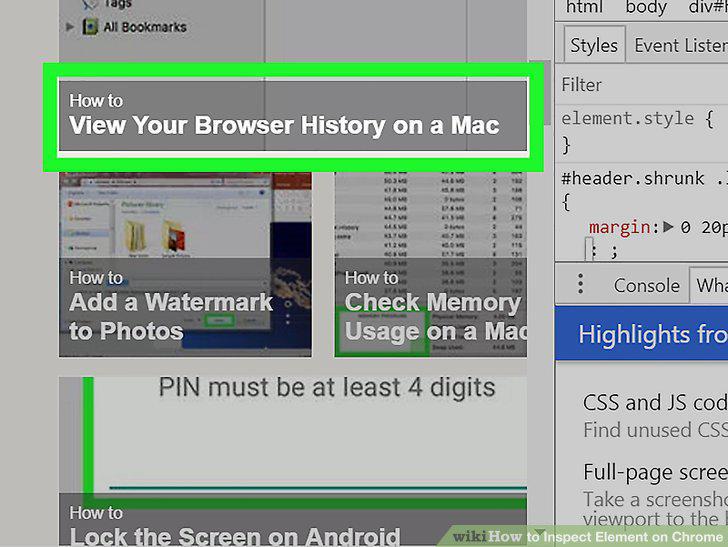
Hover over an element on the Inspector column.
6
Right-click an element you want to inspect on any web page.
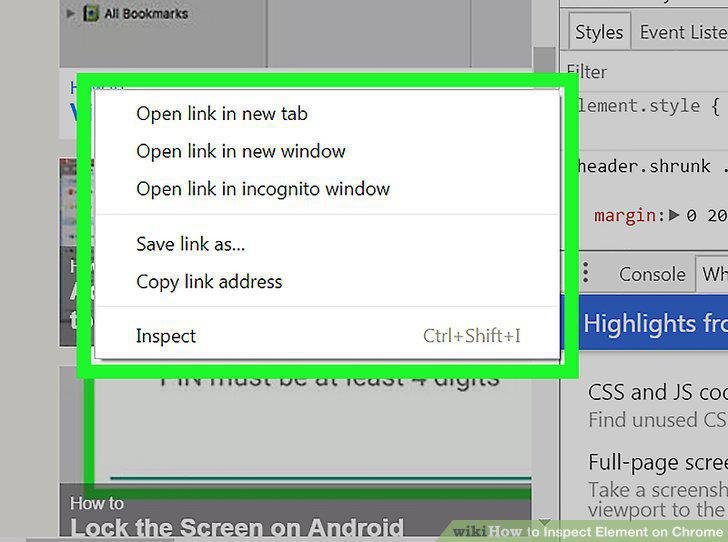
Right-click an element you want to inspect on any web page.
7
Select Inspect on the drop-down menu.
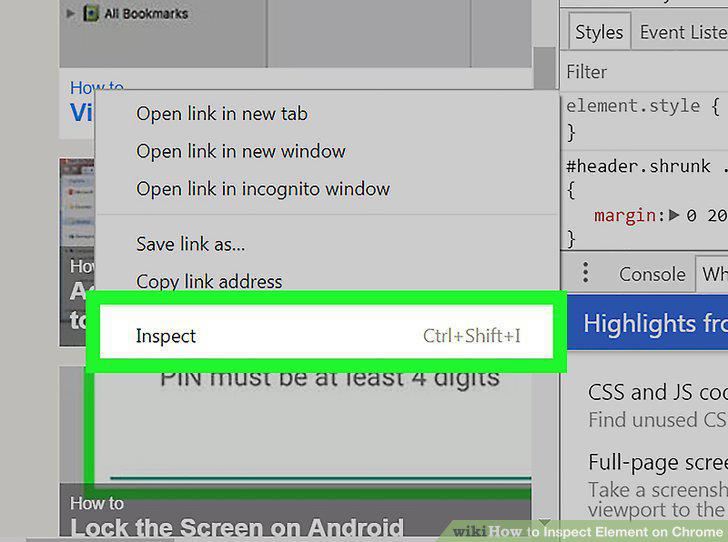
Select Inspect on the drop-down menu.
Comments (0)
No comments yet. Be the first to share your thoughts!