How to Turn Off Windows Activation Messages in Windows 8
Search for your PC's Action Center.. Click Open Action Center.. Click Change Action Center settings.
Steps
1
Search for your PC's Action Center.
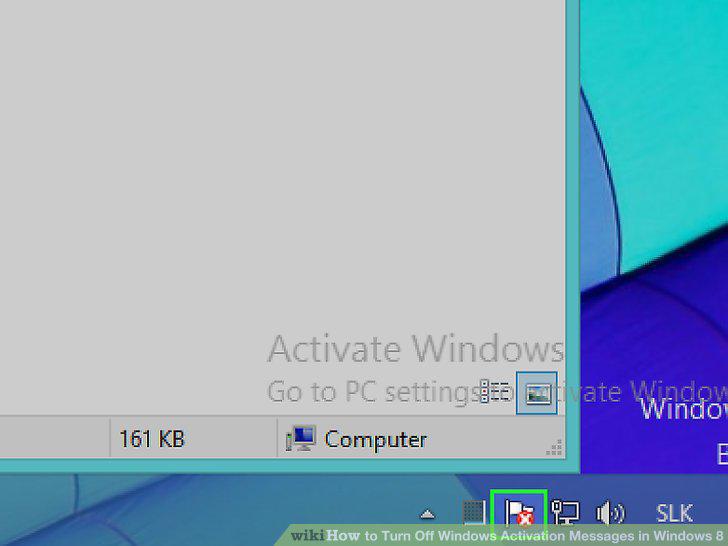
Search for your PC's Action Center.
2
Click Open Action Center.
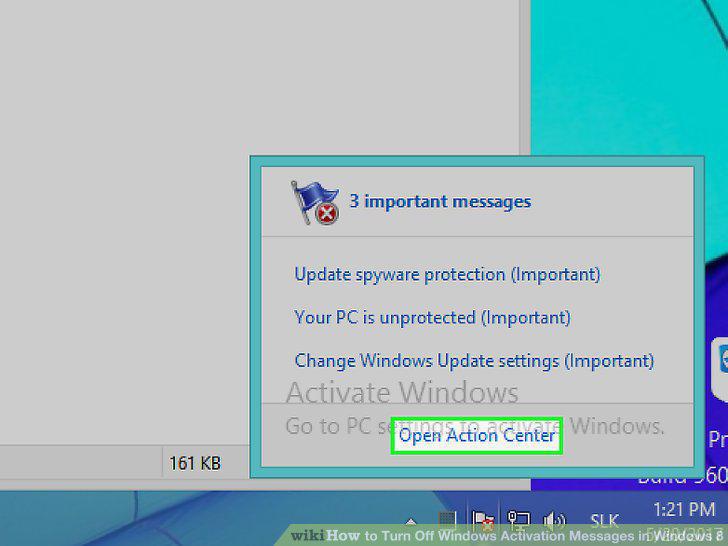
Click Open Action Center.
3
Click Change Action Center settings.
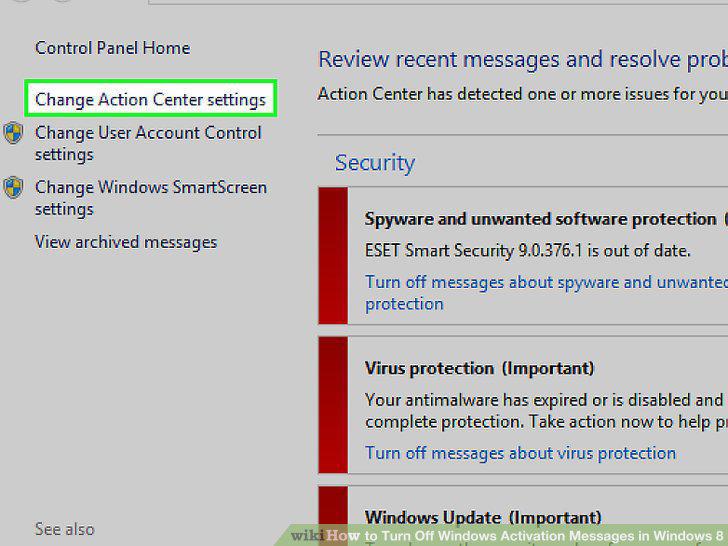
Click Change Action Center settings.
4
Click the box next to "Windows Activation".
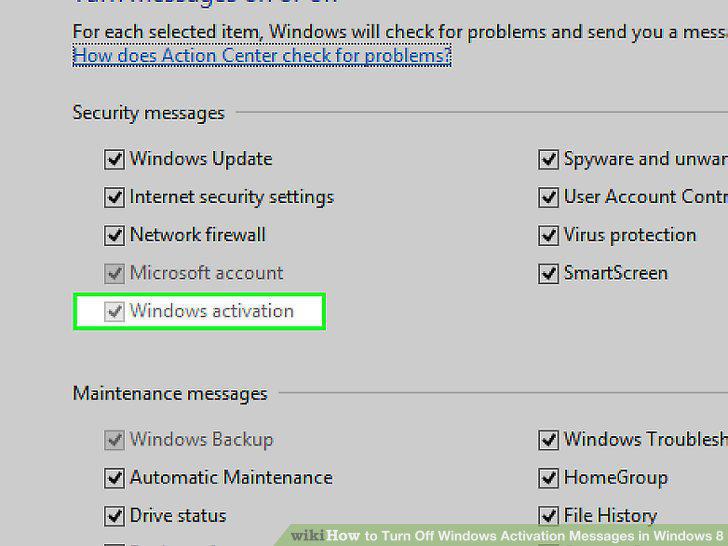
Click the box next to "Windows Activation".
5
Open the Winabler webpage.
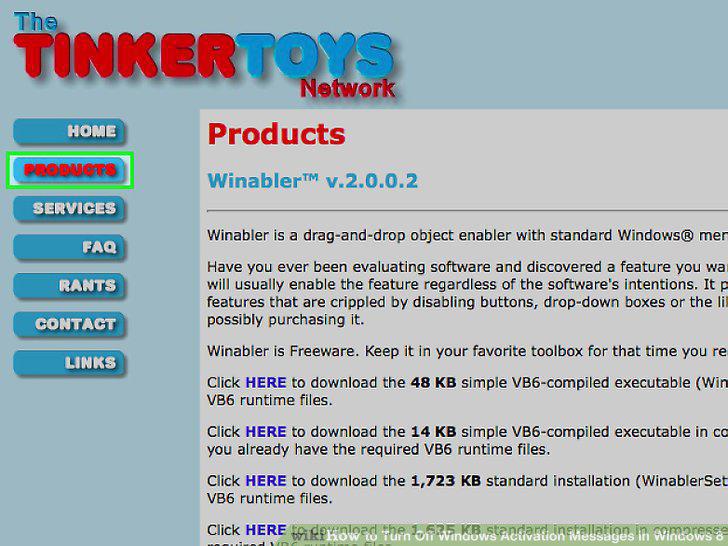
Open the Winabler webpage.
6
Click HERE to the left of a "Standard Installation" Winabler version.
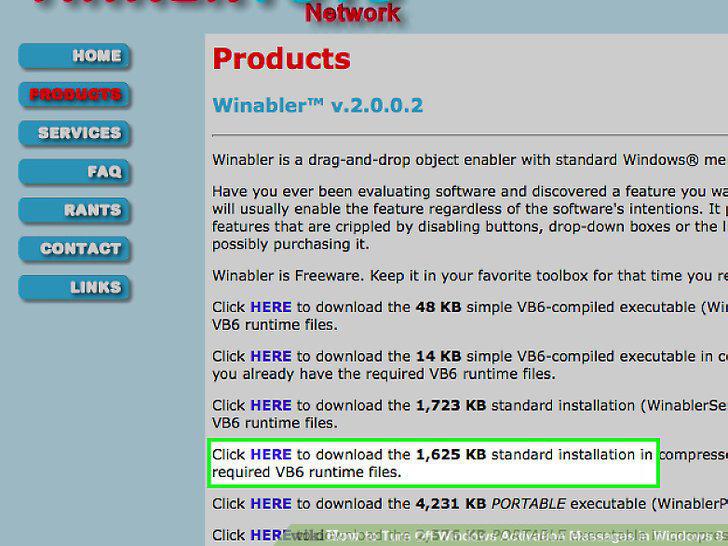
Click HERE to the left of a "Standard Installation" Winabler version.
7
Double-click the Winabler set-up program.
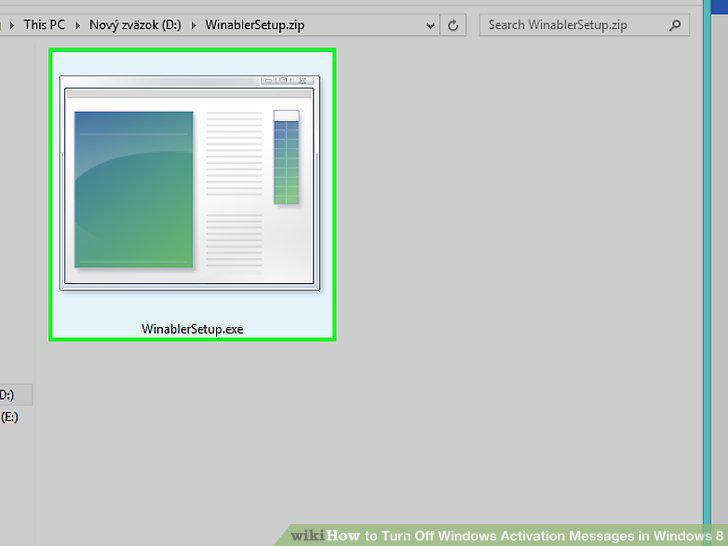
Double-click the Winabler set-up program.
8
Follow the on-screen instructions.
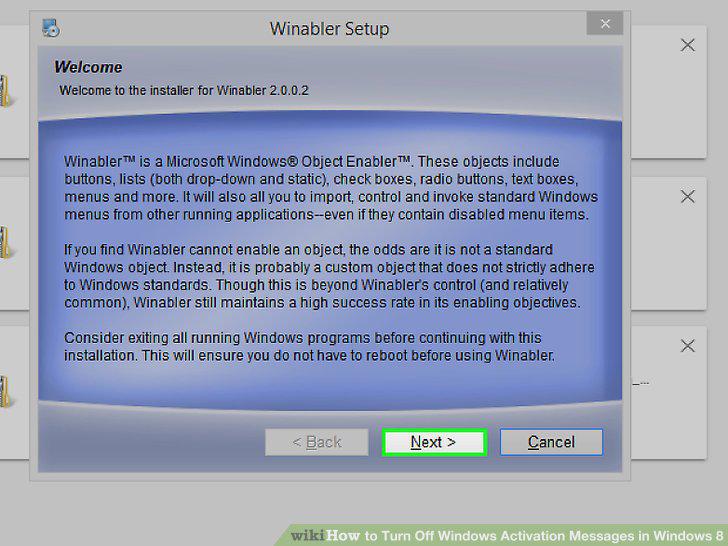
Follow the on-screen instructions.
9
Open the Action Center settings menu if it isn't already open.
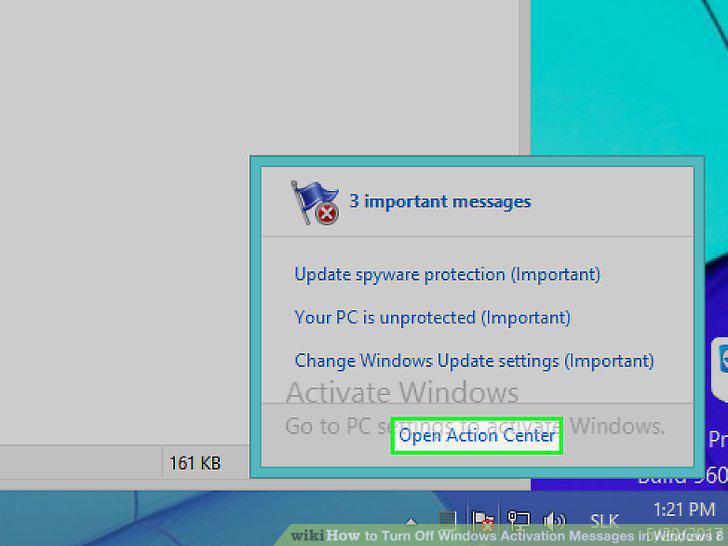
Open the Action Center settings menu if it isn't already open.
10
Open Winabler.
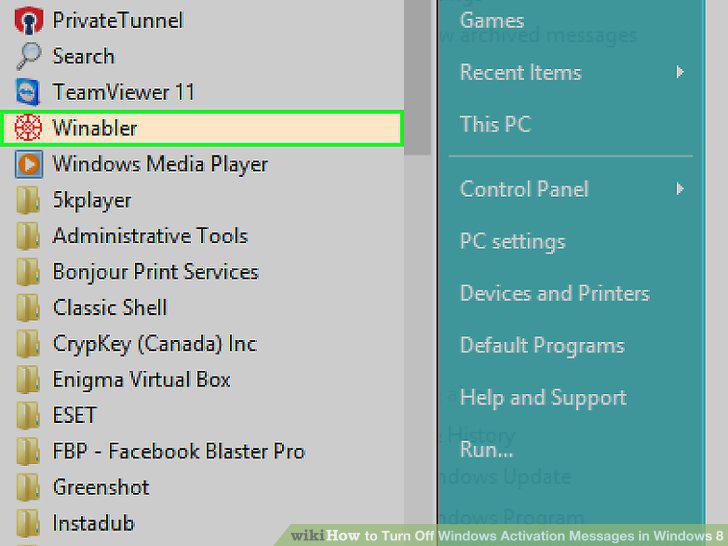
Open Winabler.
11
Click and drag the Winabler crosshairs onto the Windows Activation box.
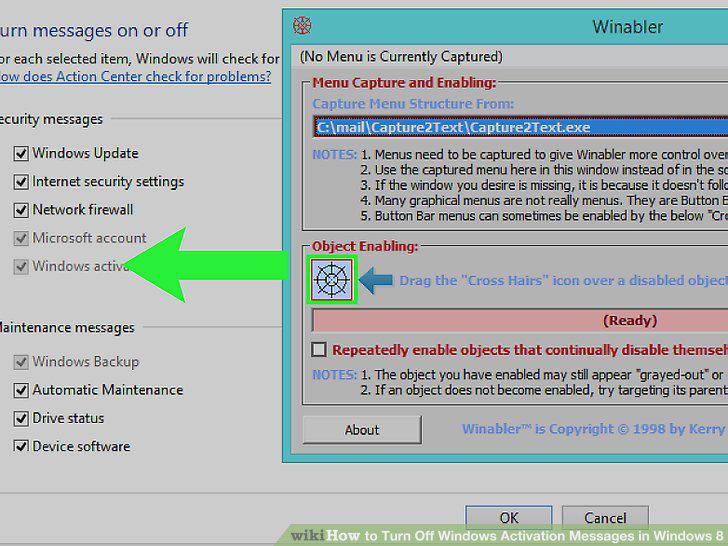
Click and drag the Winabler crosshairs onto the Windows Activation box.
12
Uncheck the Windows Activation box.
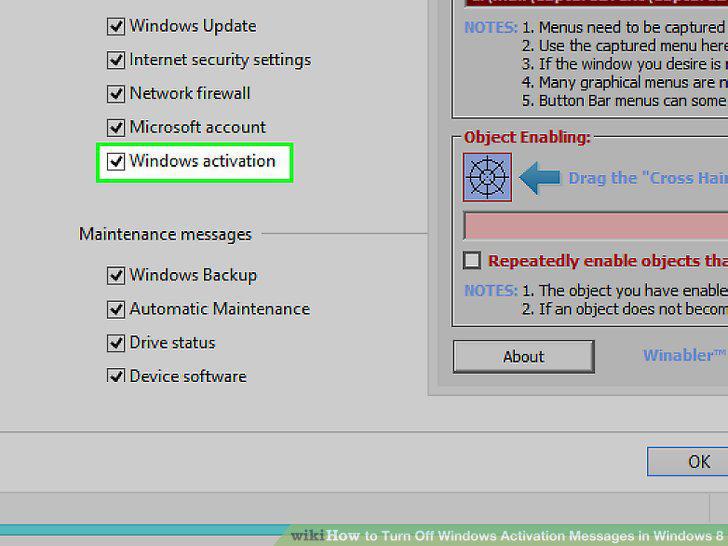
Uncheck the Windows Activation box.
13
Click OK.
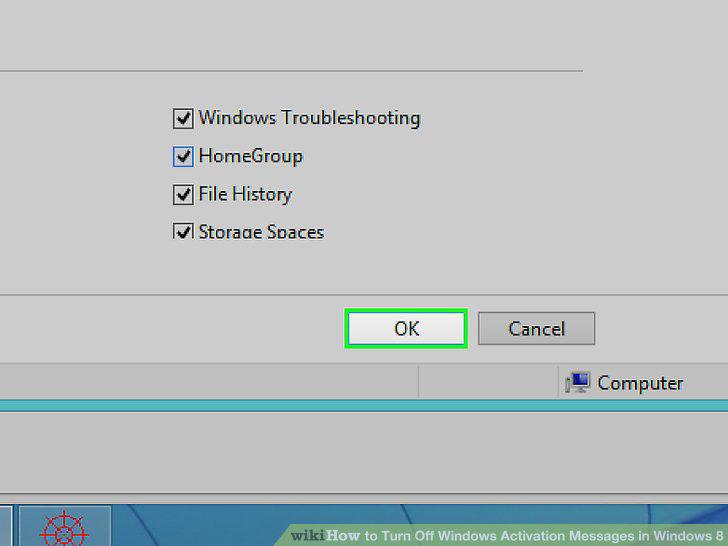
Click OK.
14
Consider Activating Windows 8.
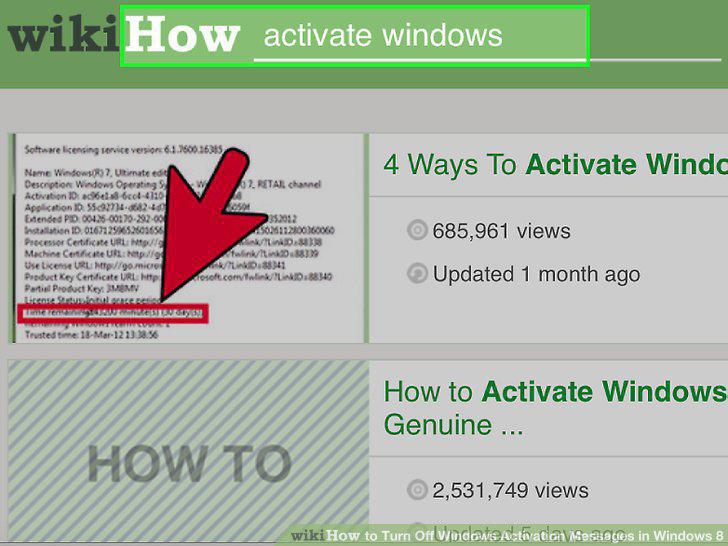
Consider Activating Windows 8.
Comments (0)
No comments yet. Be the first to share your thoughts!