How to Send Mail Using Mailform
Make sure that your letter is a PDF.. Open Mailform.. Click UPLOAD PDFs.
Steps
1
Make sure that your letter is a PDF.
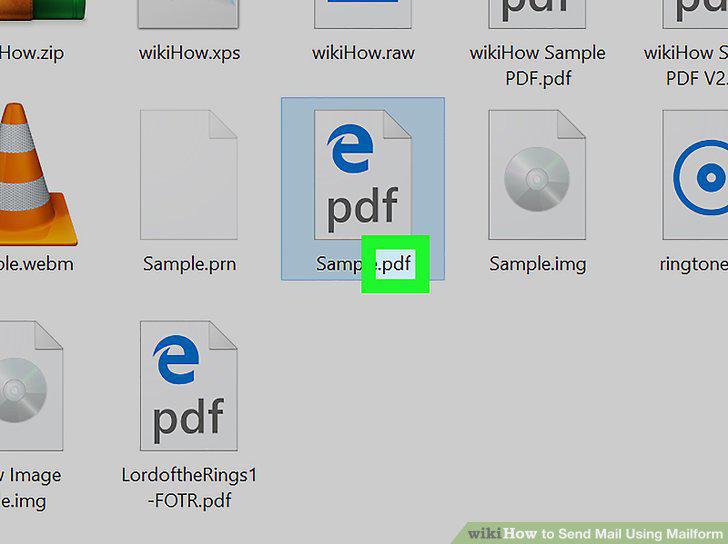
Make sure that your letter is a PDF.
2
Open Mailform.
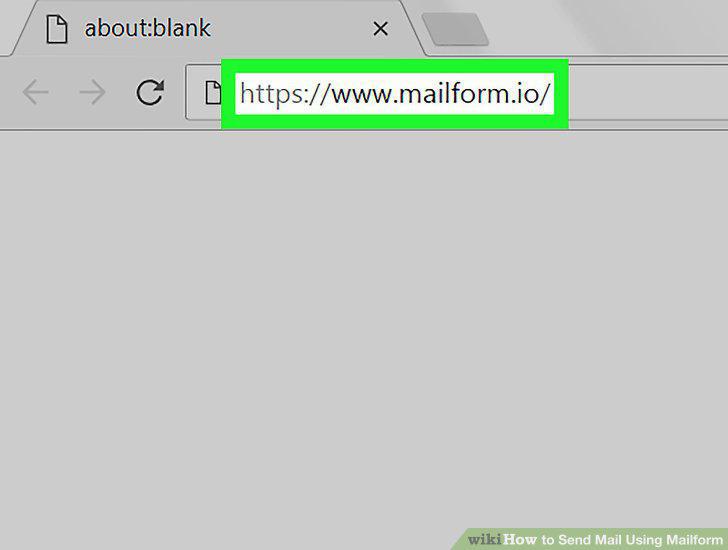
Open Mailform.
3
Click UPLOAD PDFs.
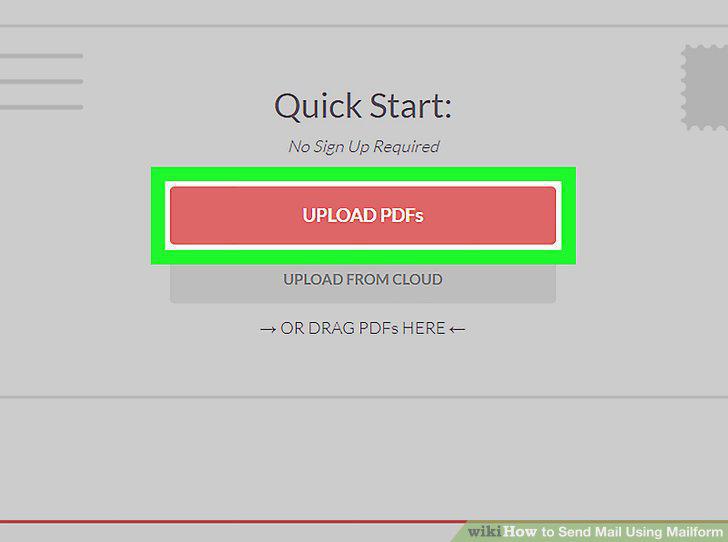
Click UPLOAD PDFs.
4
Select your PDF.
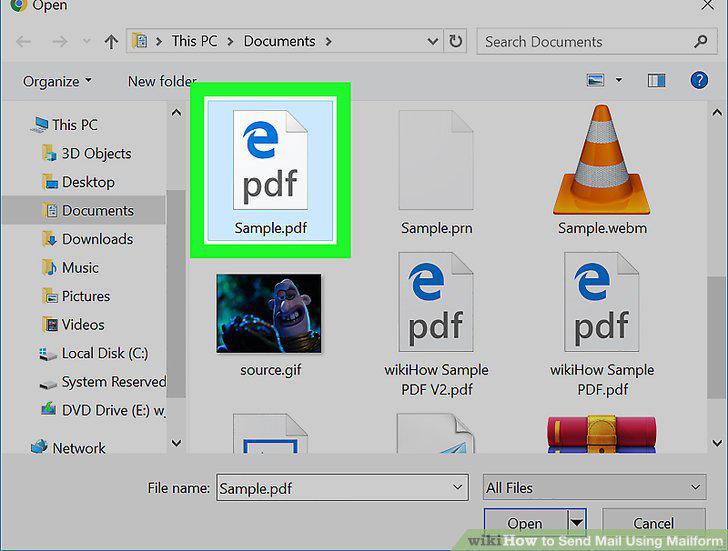
Select your PDF.
5
Click Open.
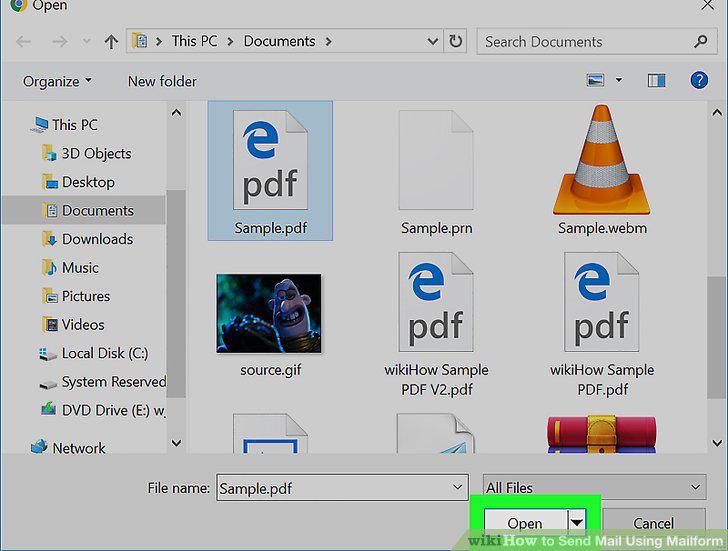
Click Open.
6
Click NEXT.
Click NEXT.
7
Enter the mail recipient's address.
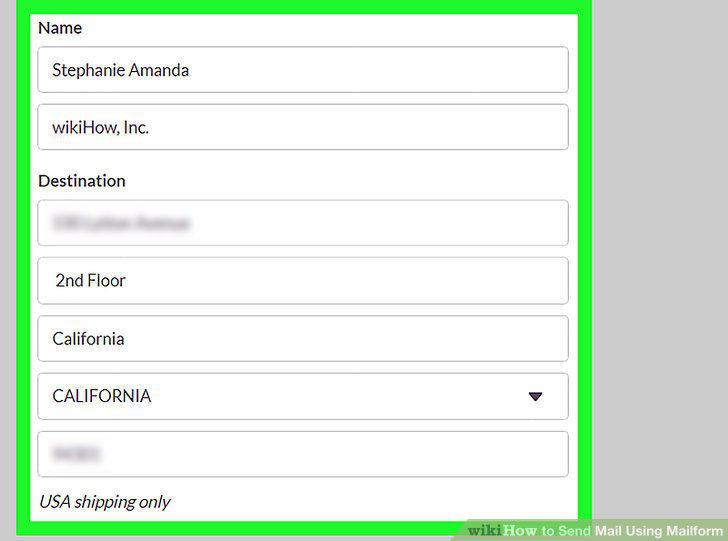
Enter the mail recipient's address.
8
Click NEXT.
Click NEXT.
9
Enter your return address.
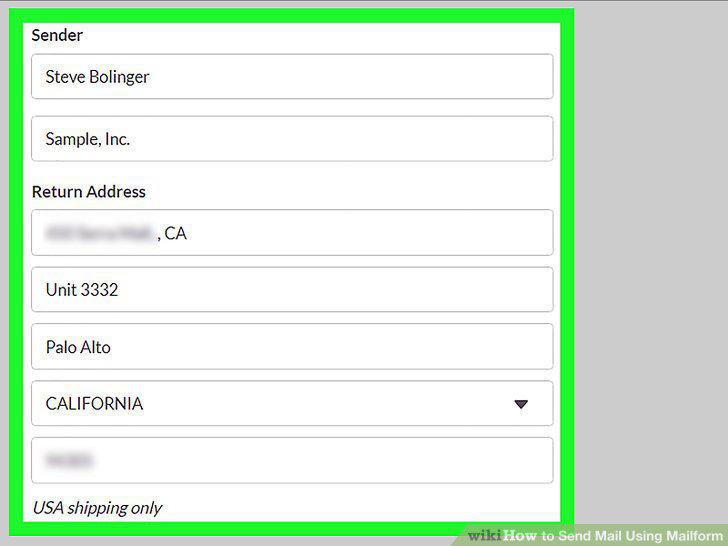
Enter your return address.
10
Scroll down and click CHECKOUT.
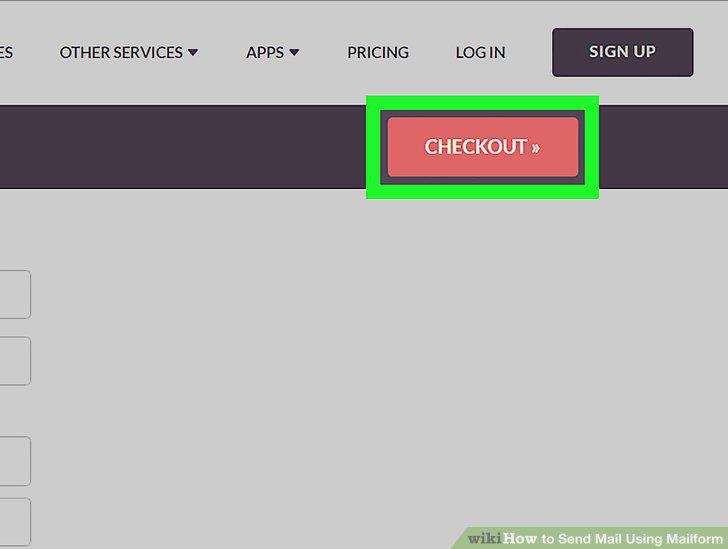
Scroll down and click CHECKOUT.
11
Select a delivery speed.
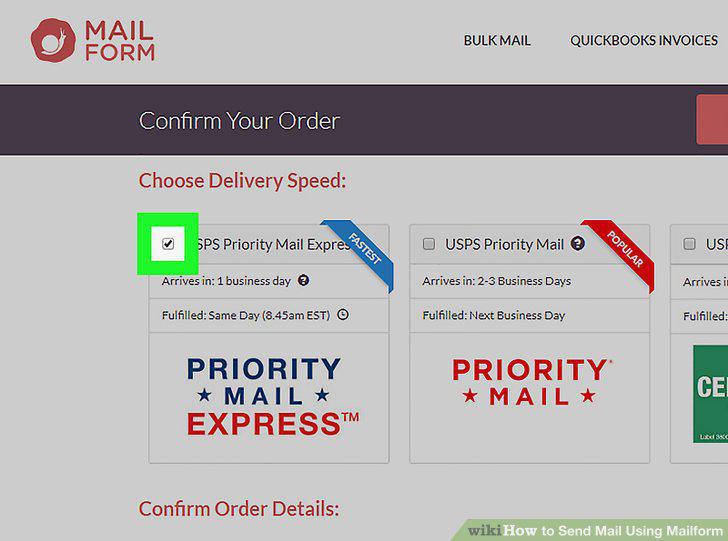
Select a delivery speed.
12
Scroll down to the "Confirm Fulfillment Options" heading.
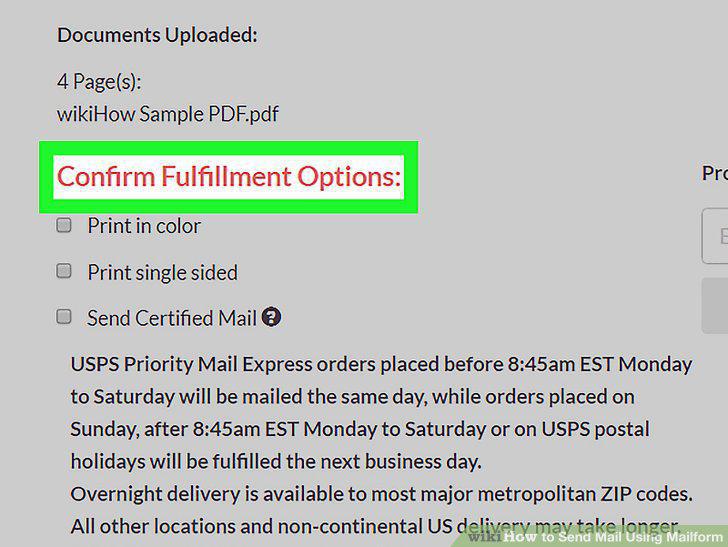
Scroll down to the "Confirm Fulfillment Options" heading.
13
Select additional options for your mail.
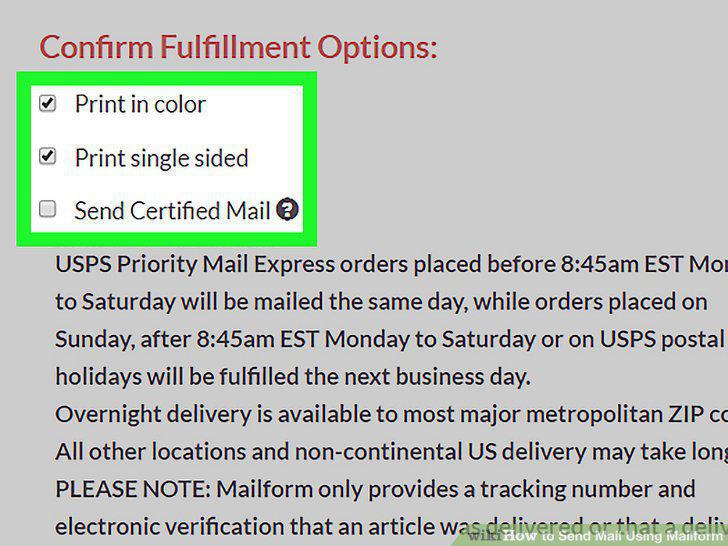
Select additional options for your mail.
14
Select a payment method.
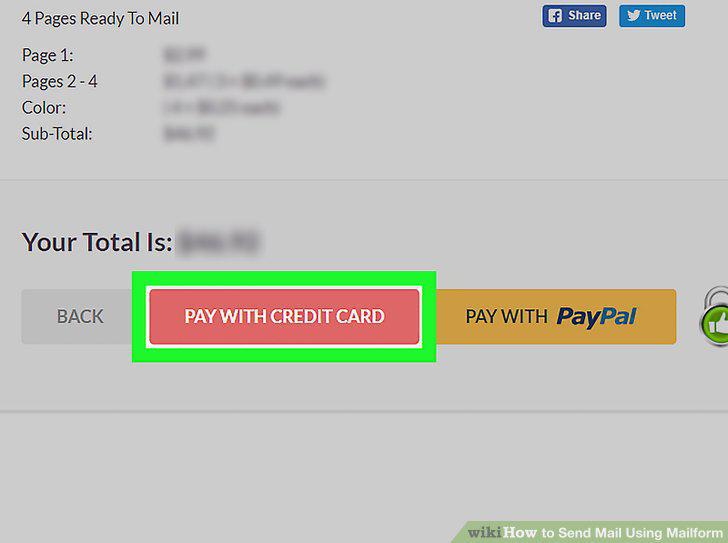
Select a payment method.
15
Enter your payment information.
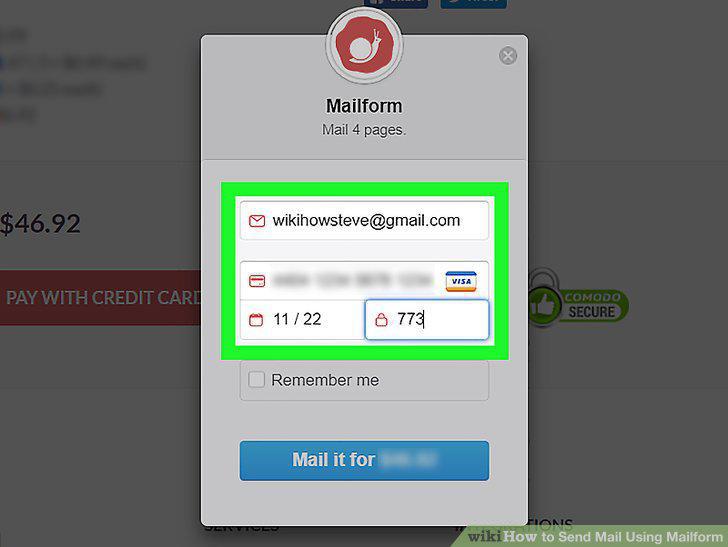
Enter your payment information.
16
Send your mail.
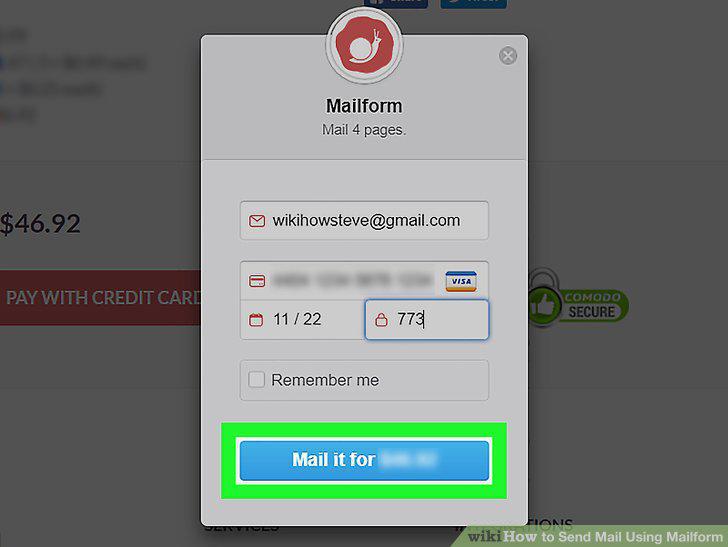
Send your mail.
Comments (0)
No comments yet. Be the first to share your thoughts!