How to Open a DICOM File on Android
Open Chrome on your Android.. Go to https://viewmyscans.com in your browser.. Tap the click to choose a file link.
Steps
1
Open Chrome on your Android.
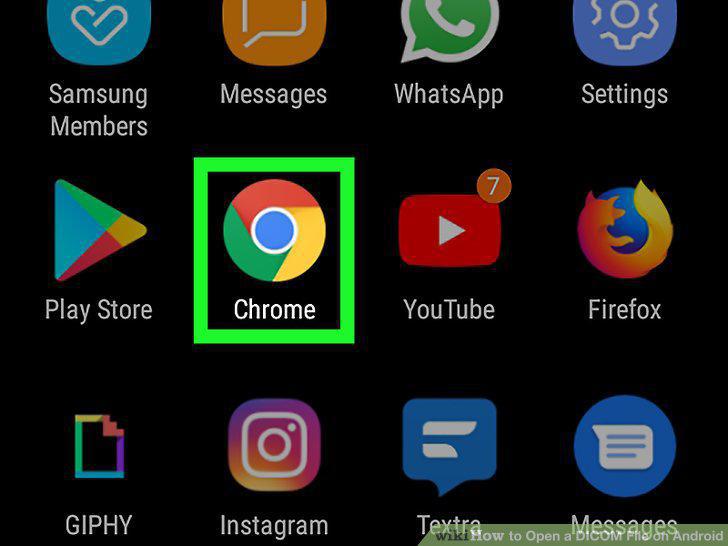
Open Chrome on your Android.
2
Go to https://viewmyscans.com in your browser.
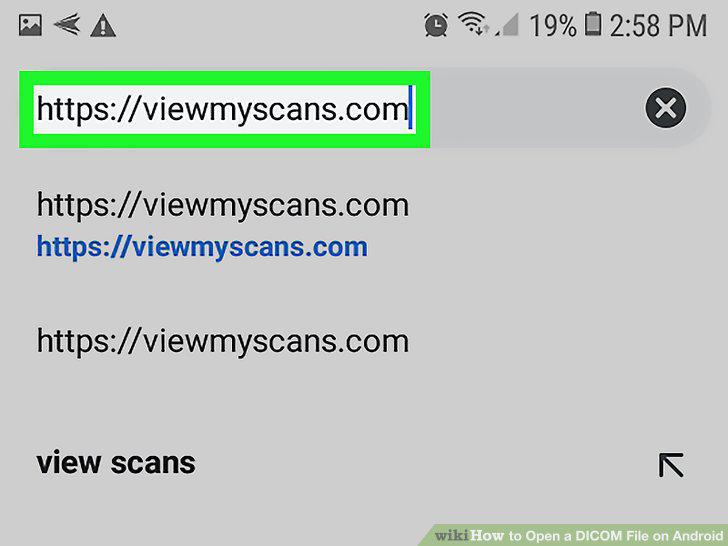
Go to https://viewmyscans.com in your browser.
3
Tap the click to choose a file link.
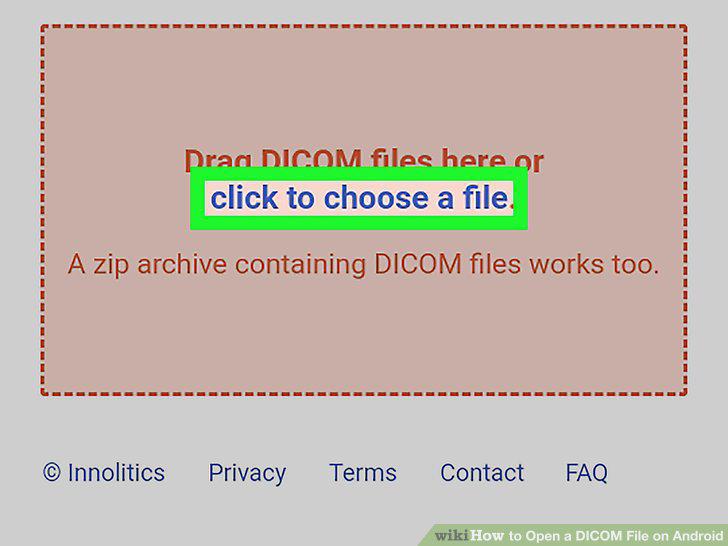
Tap the click to choose a file link.
4
Tap Documents on the pop-up menu.
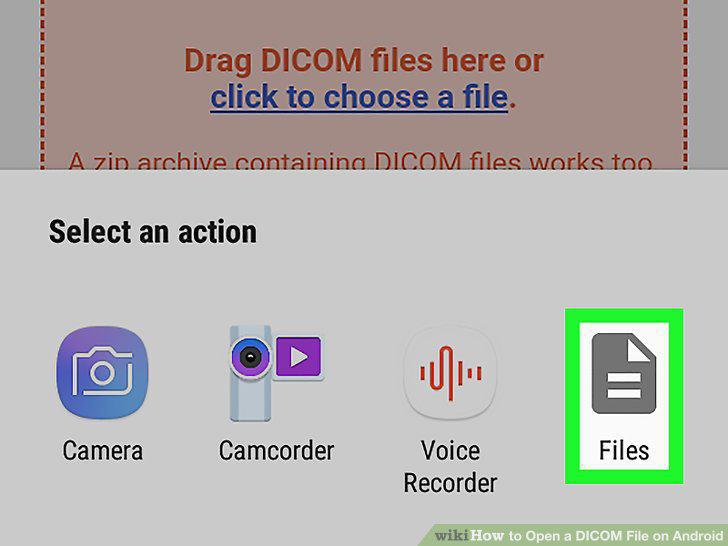
Tap Documents on the pop-up menu.
5
Select your DICOM image file.
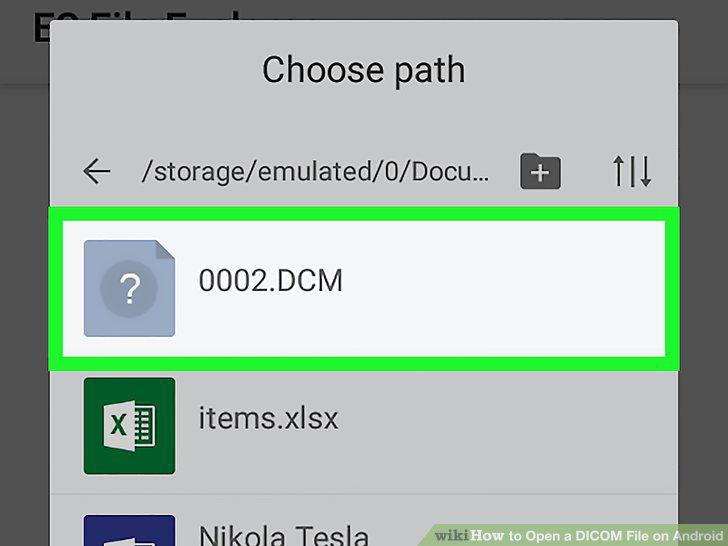
Select your DICOM image file.
6
Tap the blue image name.
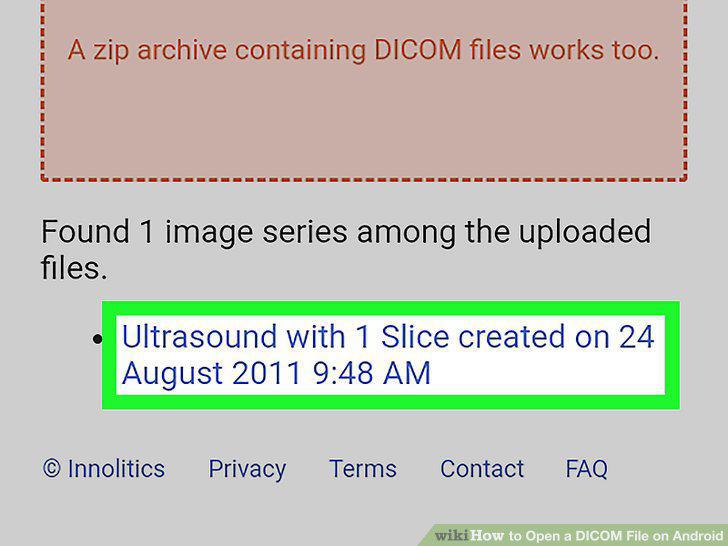
Tap the blue image name.
7
Download and install the DroidRender app from the Play Store.
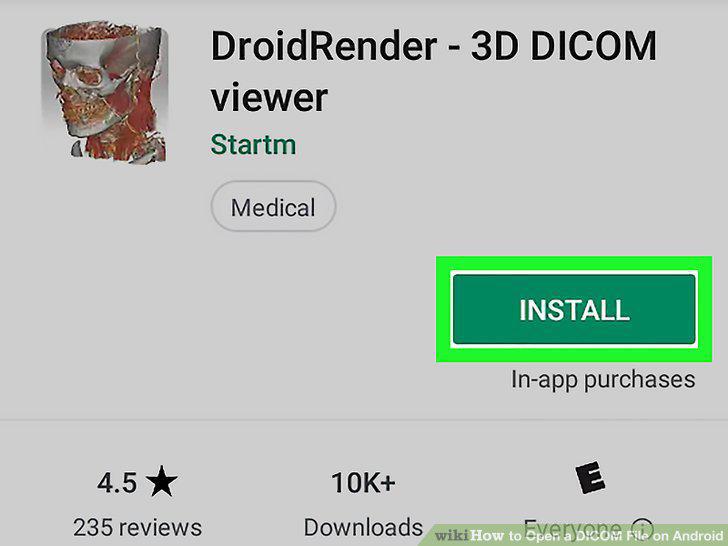
Download and install the DroidRender app from the Play Store.
8
Open the DroidRender app on your Android.
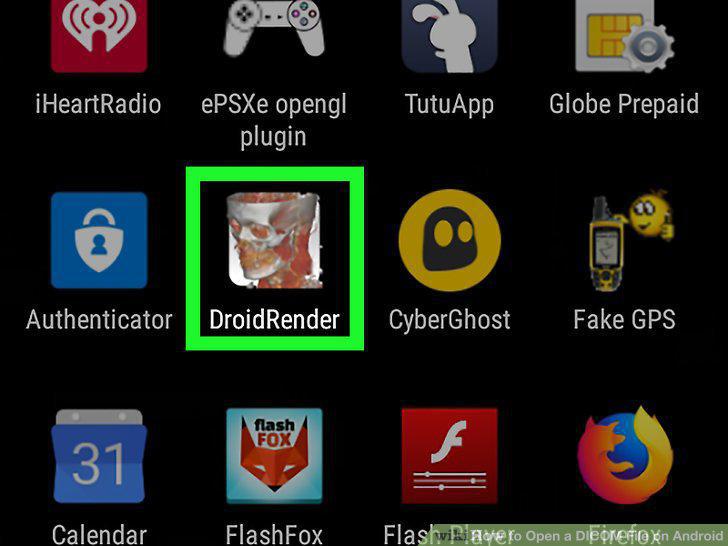
Open the DroidRender app on your Android.
9
Tap OK.
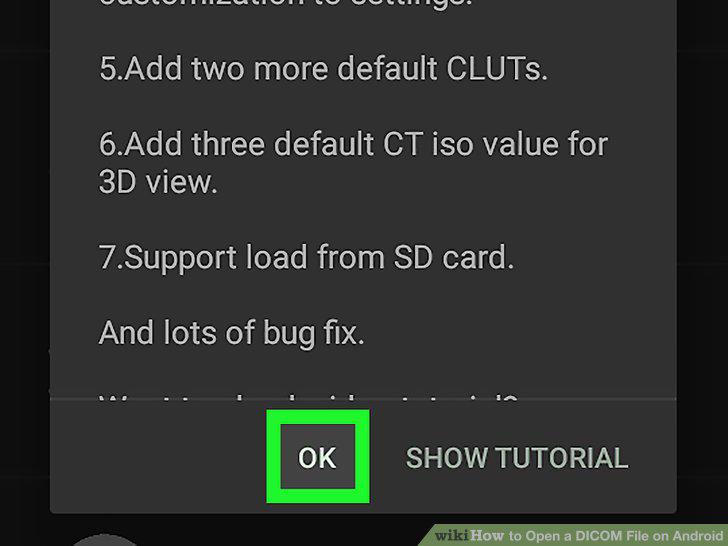
Tap OK.
10
Tap Agree in the pop-up.
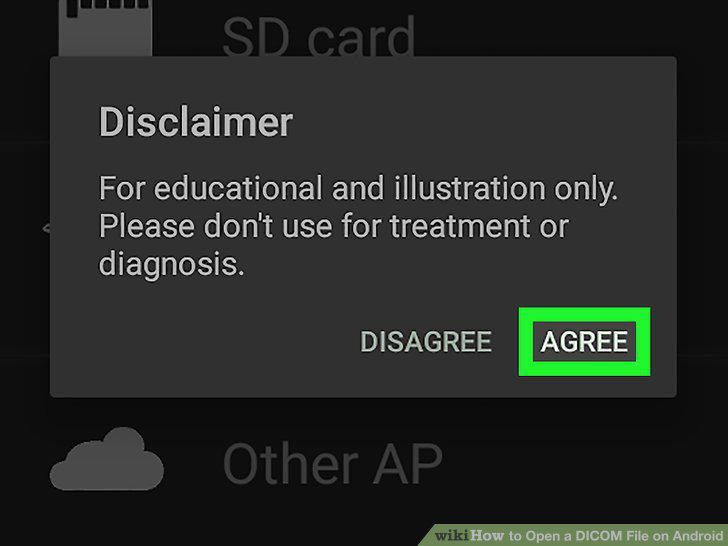
Tap Agree in the pop-up.
11
Tap Internal storage.
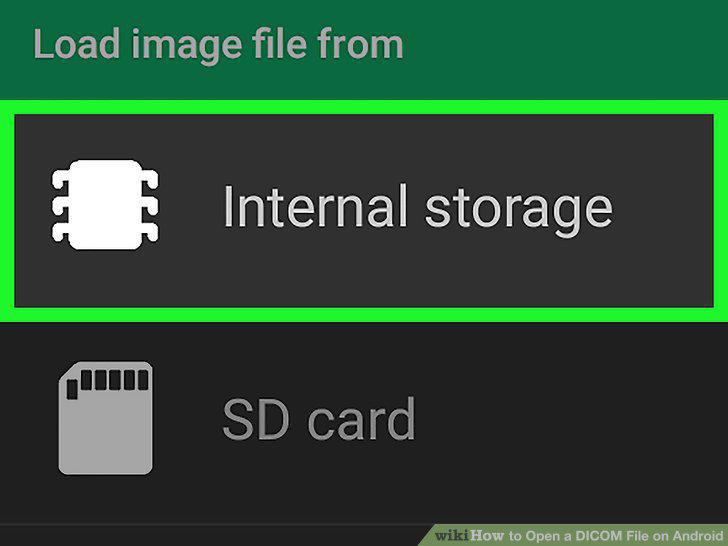
Tap Internal storage.
12
Find and tap the DICOM file you want to open.
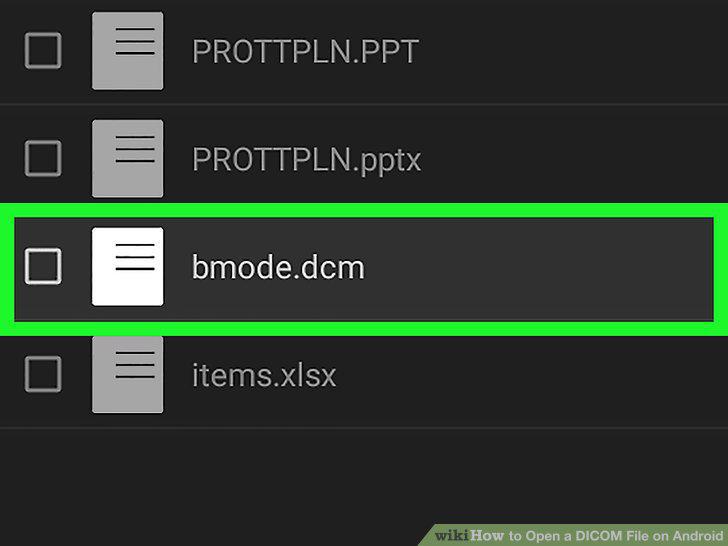
Find and tap the DICOM file you want to open.
13
Tap the white checkmark on the top-left.
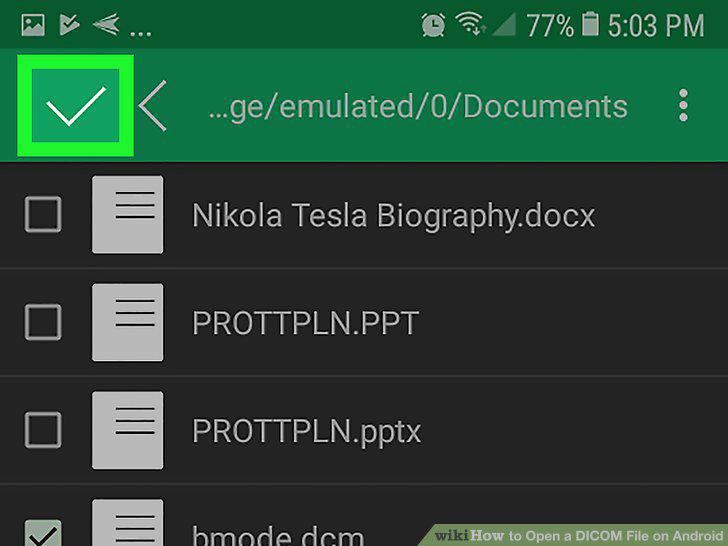
Tap the white checkmark on the top-left.
14
Tap the white checkmark on the top-left again.
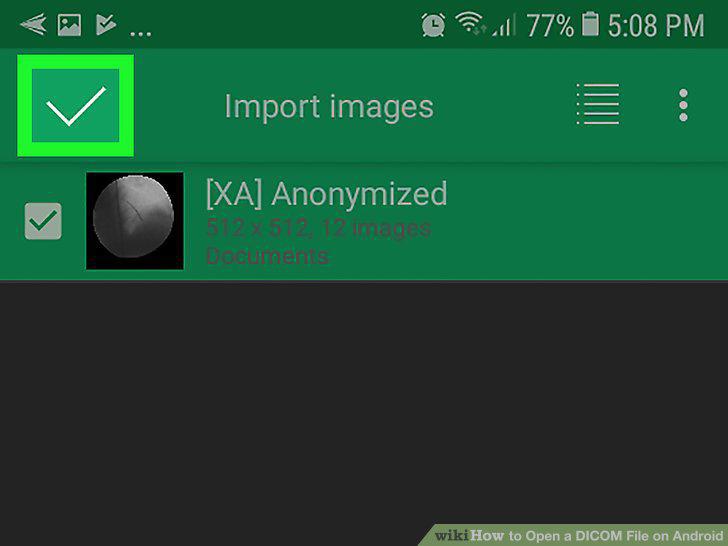
Tap the white checkmark on the top-left again.
Comments (0)
No comments yet. Be the first to share your thoughts!