How to Delete Photos on a Mac Computer
Open a new Finder window.. Navigate to a photo.. Click and hold the file to grab the photo.
Steps
1
Open a new Finder window.
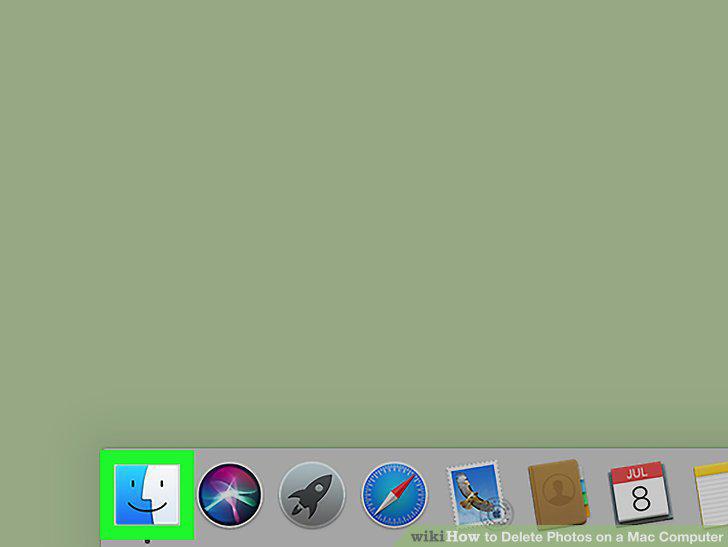
Open a new Finder window.
2
Navigate to a photo.
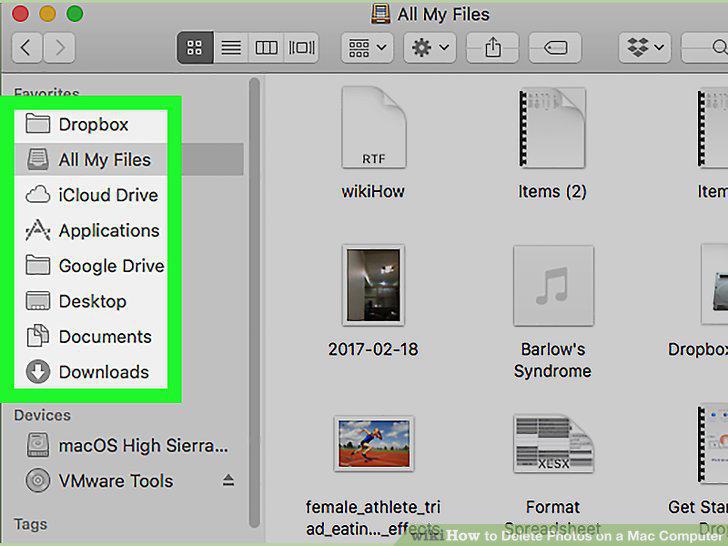
Navigate to a photo.
3
Click and hold the file to grab the photo.
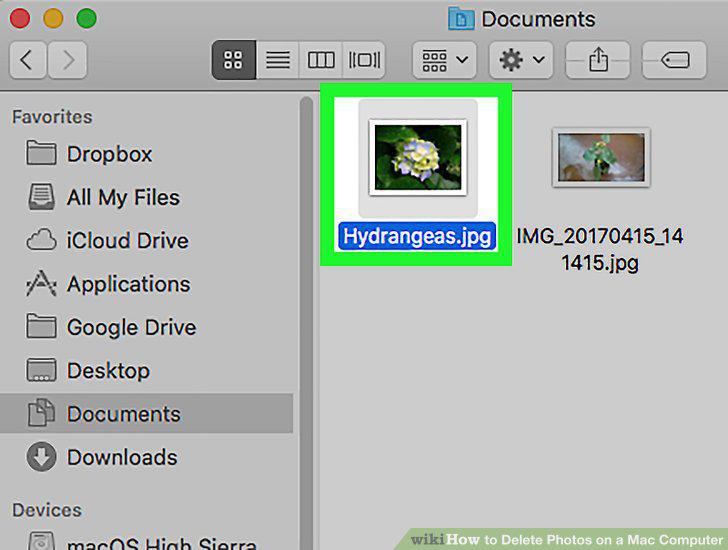
Click and hold the file to grab the photo.
4
Drag the photo to the trash.
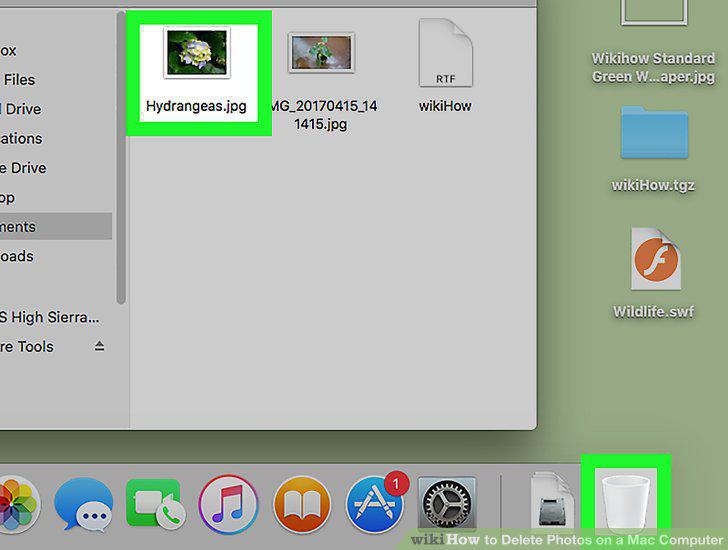
Drag the photo to the trash.
5
Hold Control and click the trash can.
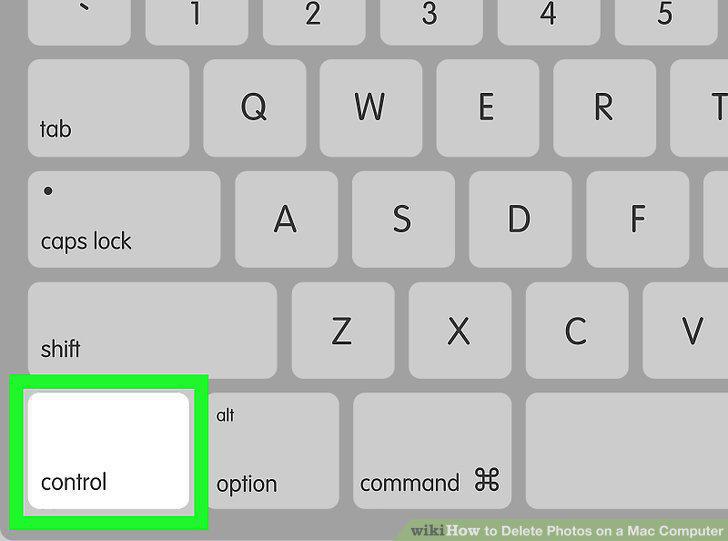
Hold Control and click the trash can.
6
Click Empty Trash.
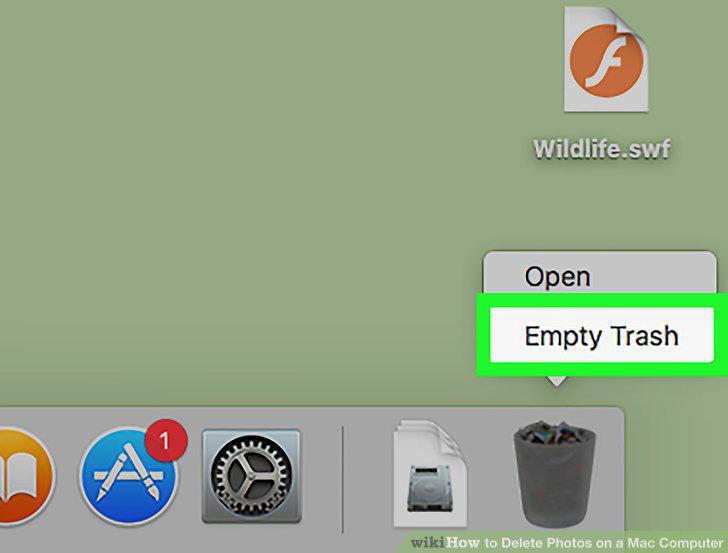
Click Empty Trash.
7
Click Empty Trash to confirm.
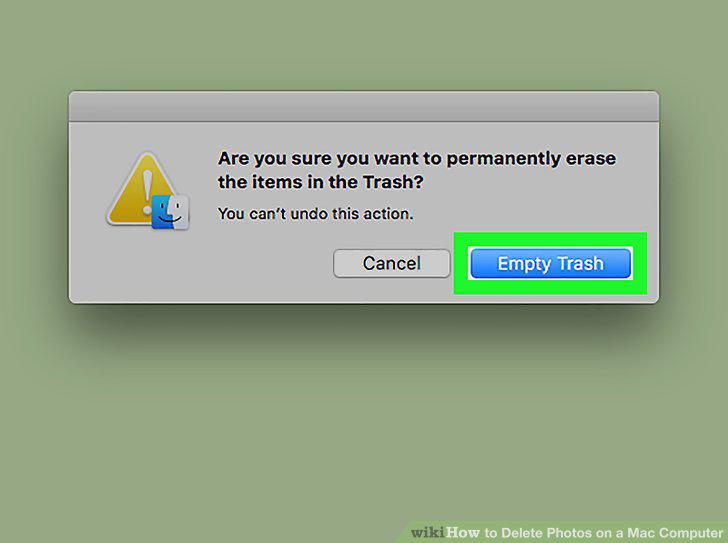
Click Empty Trash to confirm.
8
Open the Photos app.
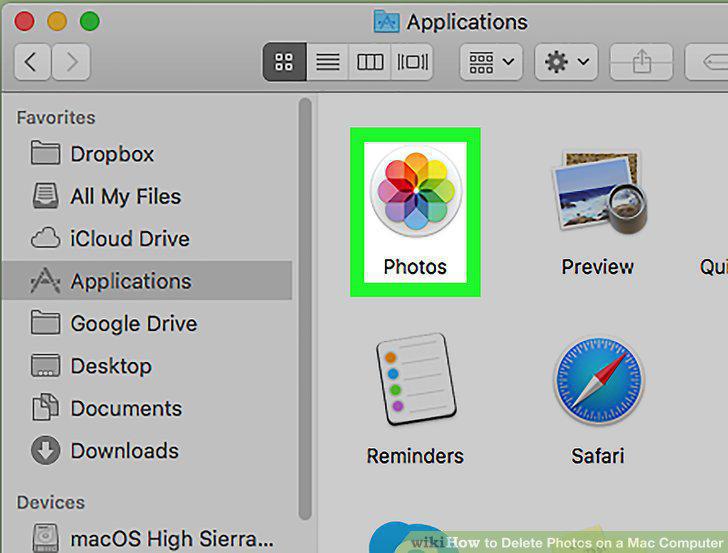
Open the Photos app.
9
Click Photos.
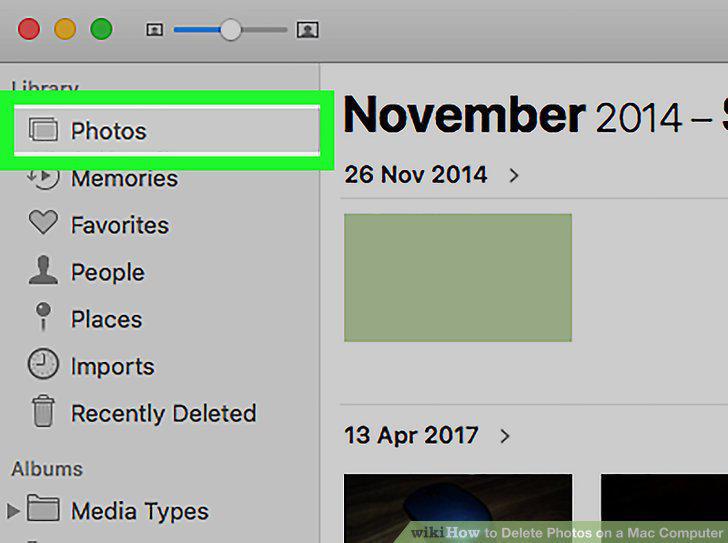
Click Photos.
10
Select the photos you want to delete.
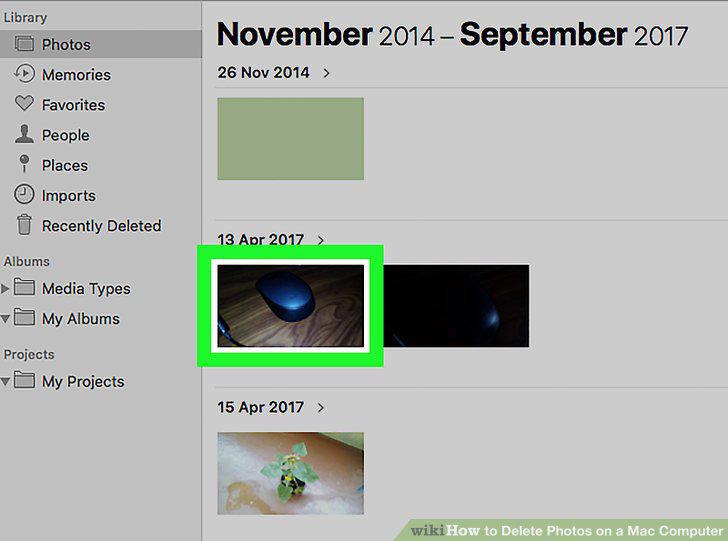
Select the photos you want to delete.
11
Press Delete.
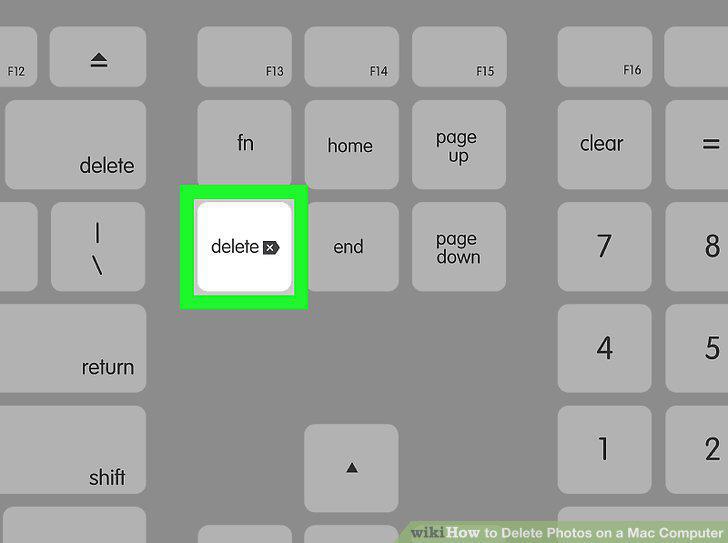
Press Delete.
12
Click Delete.
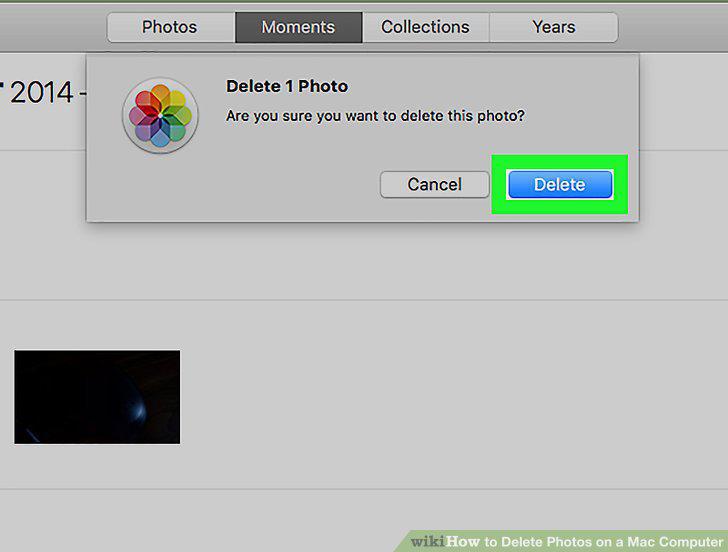
Click Delete.
Comments (0)
No comments yet. Be the first to share your thoughts!