How to Change Your Email on Twitter on iPhone or iPad
Open Twitter.. Tap the profile icon.. Tap the gear.
Steps
1
Open Twitter.
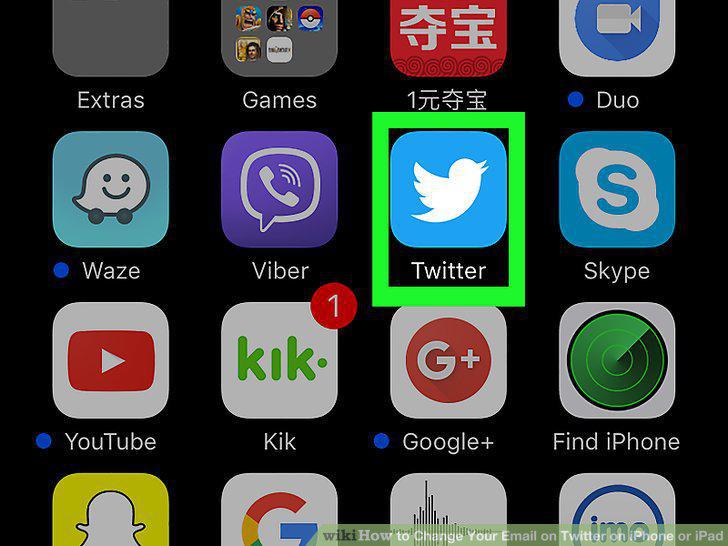
Open Twitter.
2
Tap the profile icon.

Tap the profile icon.
3
Tap the gear.
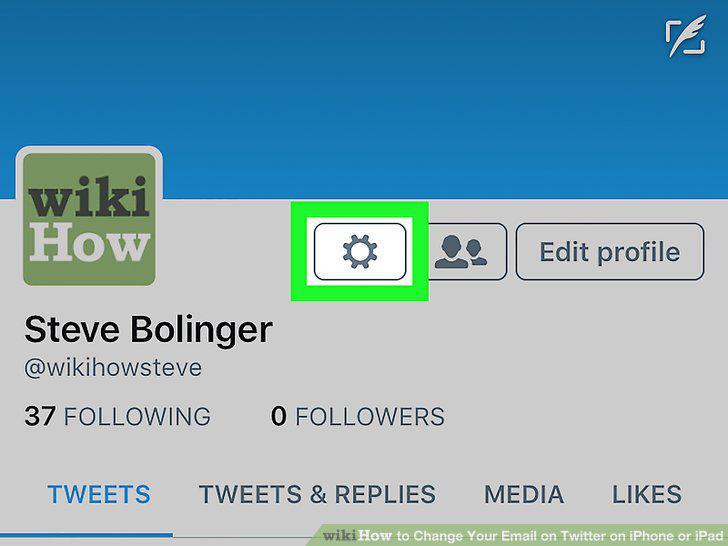
Tap the gear.
4
Tap Settings & Privacy.
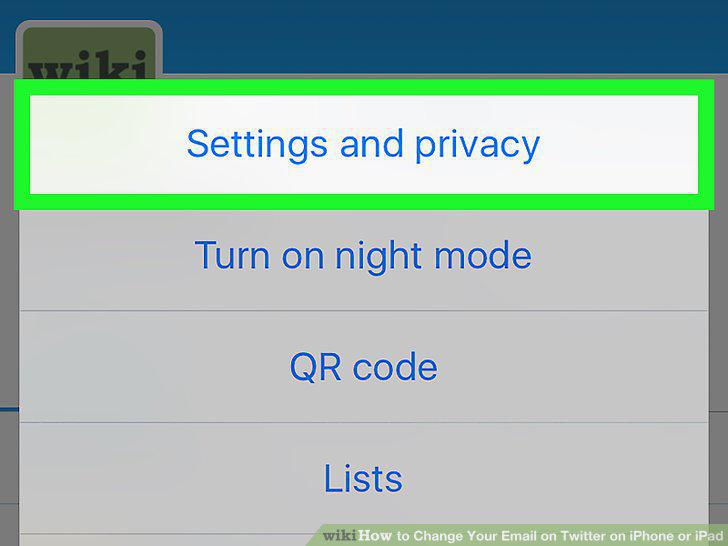
Tap Settings & Privacy.
5
Tap Account.
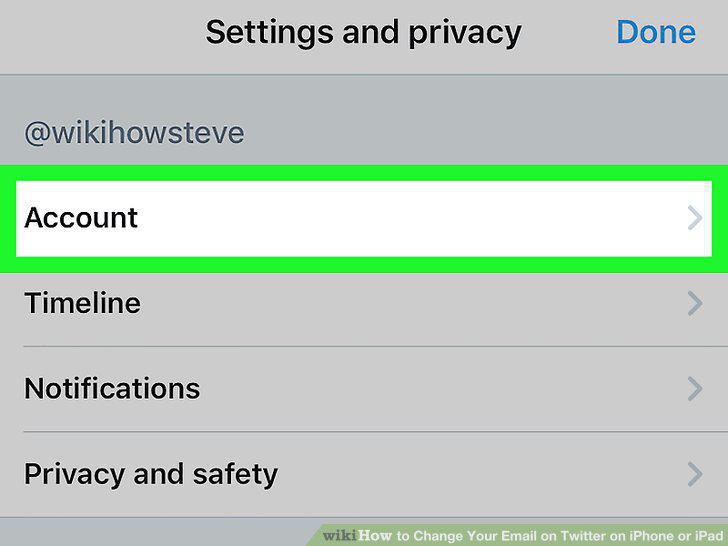
Tap Account.
6
Tap Email.
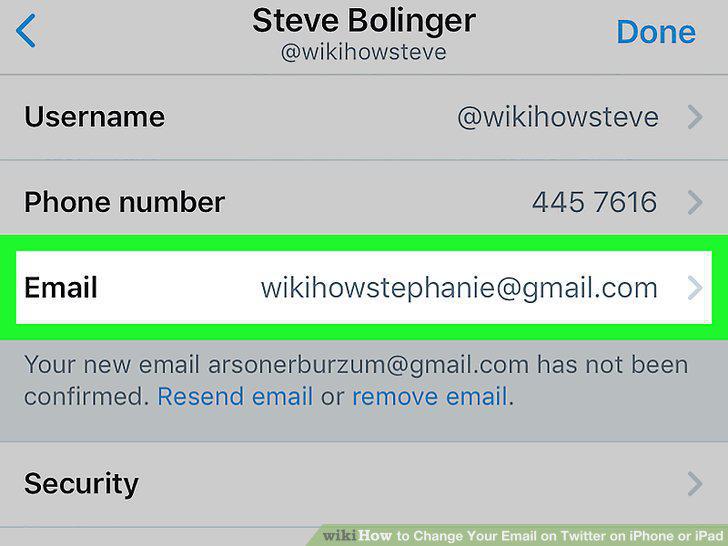
Tap Email.
7
Enter your new email address.
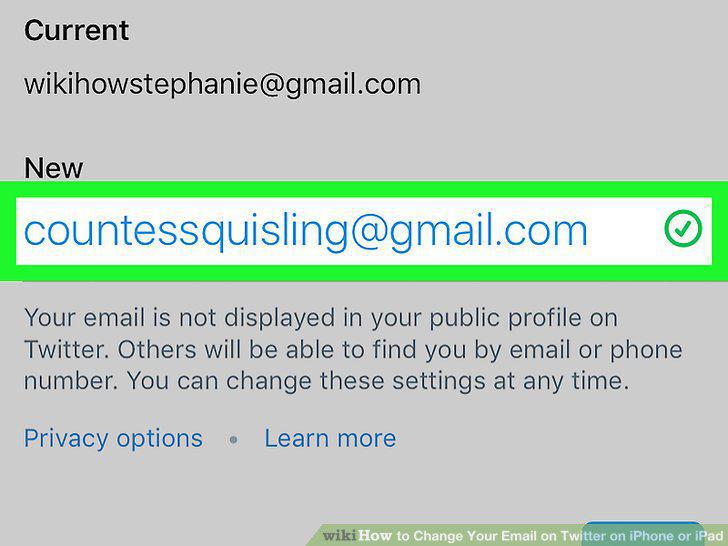
Enter your new email address.
8
Tap Next.
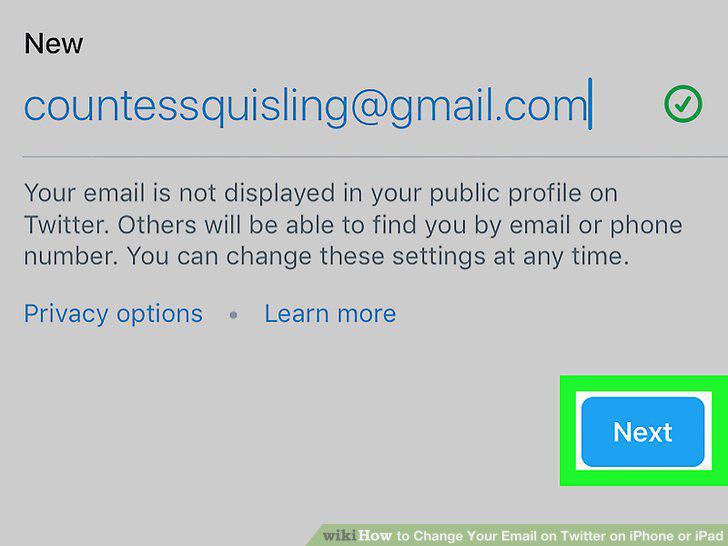
Tap Next.
9
Open the email from Twitter.
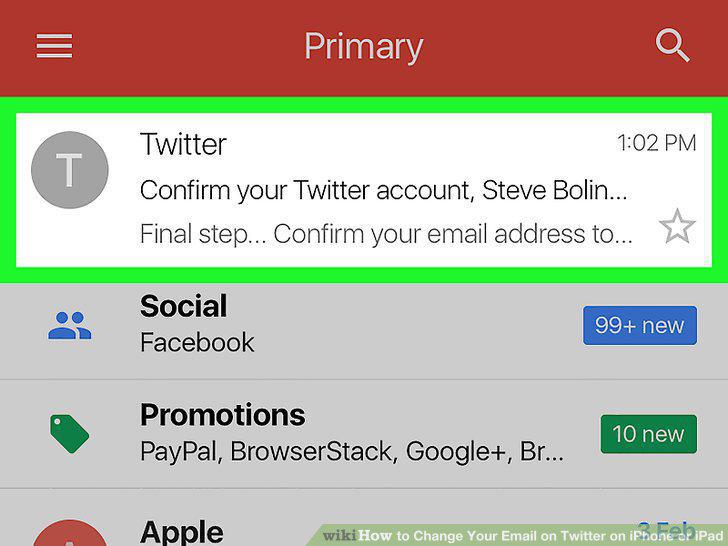
Open the email from Twitter.
10
Tap Confirm Now.
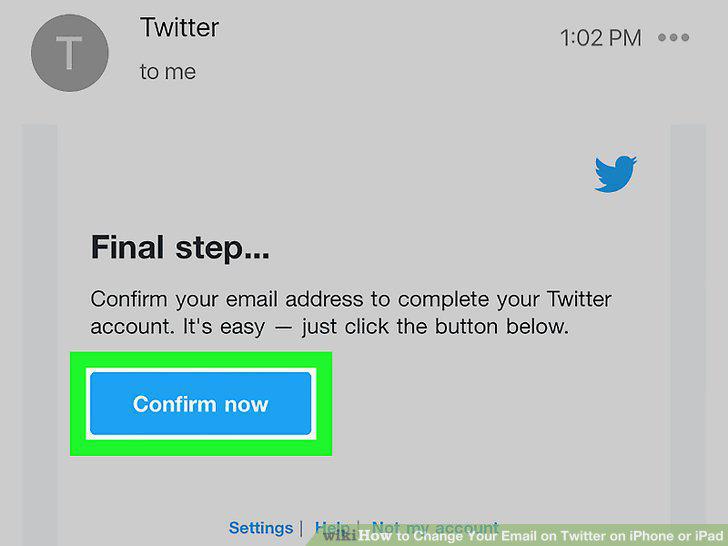
Tap Confirm Now.
Comments (0)
No comments yet. Be the first to share your thoughts!