How to Override Time Zones on an iPhone Calendar
Open your iPhone's Settings.. Scroll to the fifth group of options and tap Calendar.. Select Time Zone Override.
Steps
1
Open your iPhone's Settings.
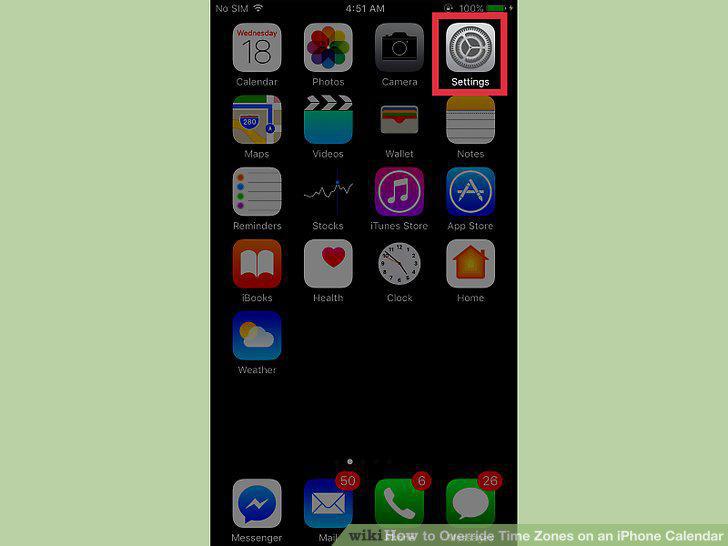
Open your iPhone's Settings.
2
Scroll to the fifth group of options and tap Calendar.
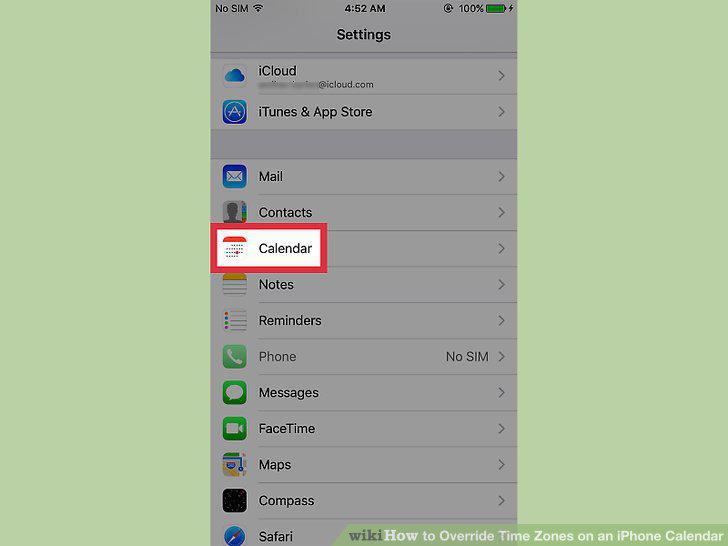
Scroll to the fifth group of options and tap Calendar.
3
Select Time Zone Override.
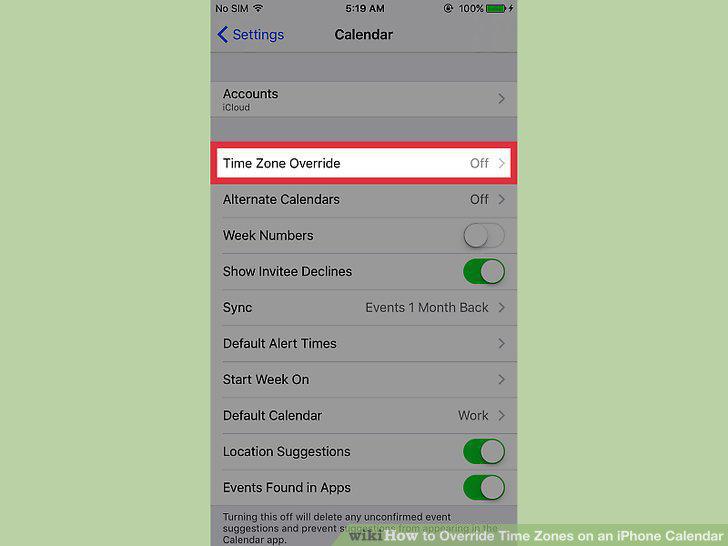
Select Time Zone Override.
4
Slide the grey Time Zone Override button right to the "On" position.
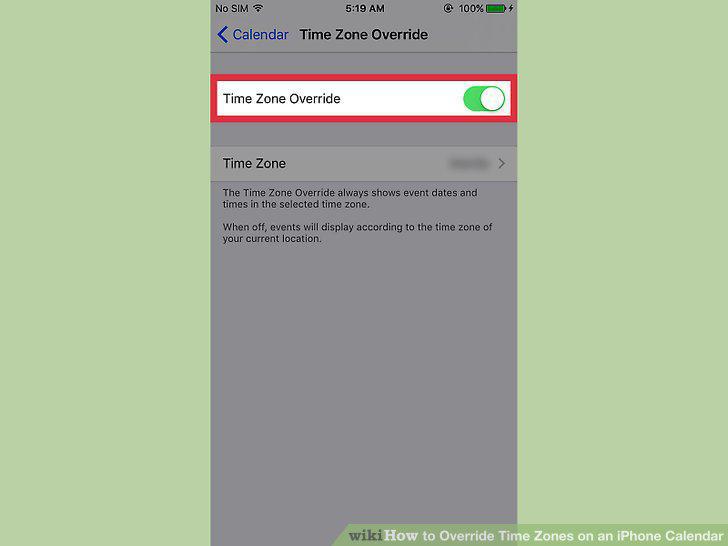
Slide the grey Time Zone Override button right to the "On" position.
5
Tap Time Zone.
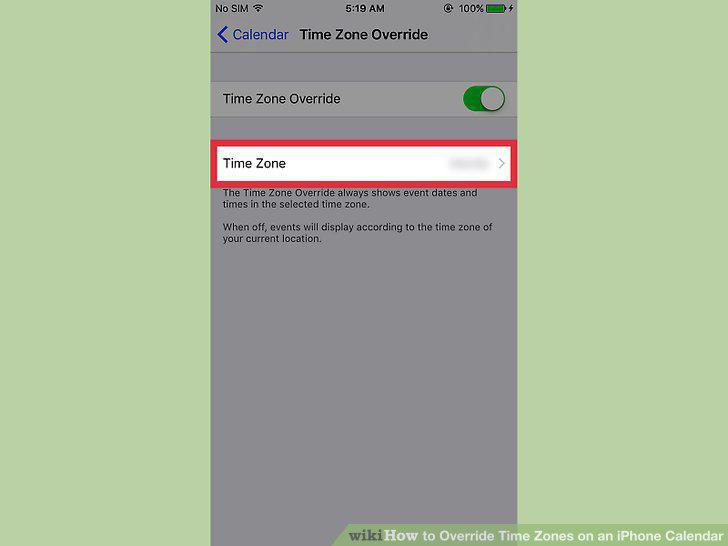
Tap Time Zone.
6
Tap the search bar at the top of the screen.
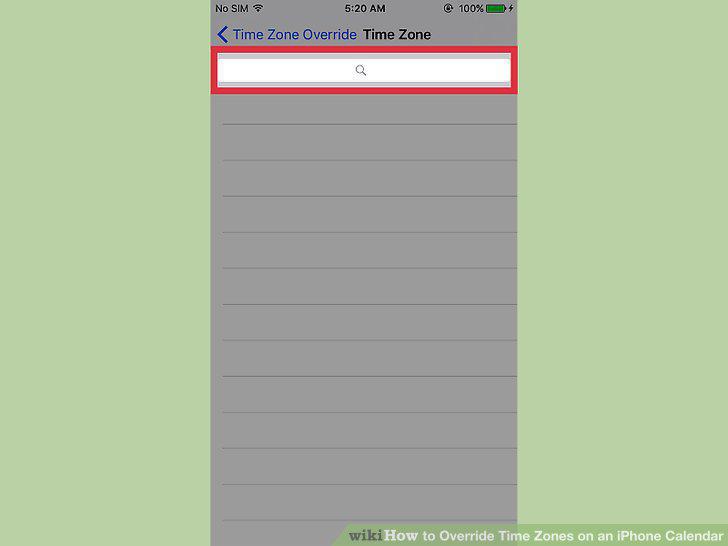
Tap the search bar at the top of the screen.
7
Type in the name of a large city in your time zone.
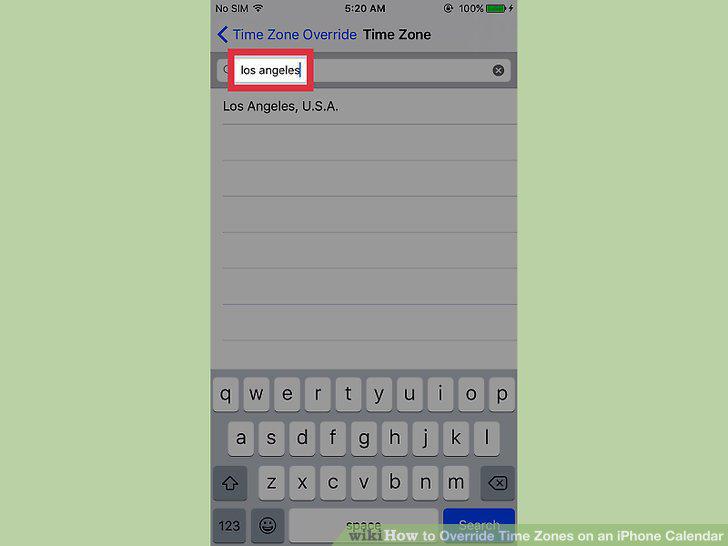
Type in the name of a large city in your time zone.
8
Select your preferred city.
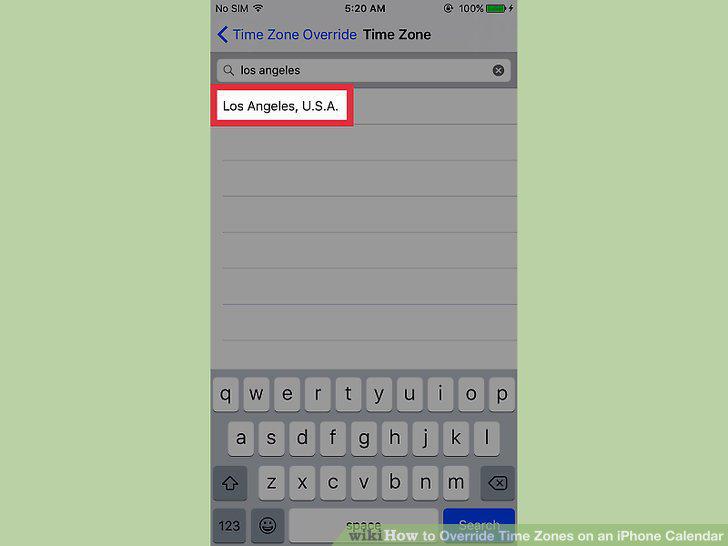
Select your preferred city.
Comments (0)
No comments yet. Be the first to share your thoughts!