How to Flip an Image in Adobe Photoshop
Open a the image you need to flip.. Flip an image horizontally through the "Image" menu.. Flip an image vertically through the "Image" menu.
Steps
1
Open a the image you need to flip.
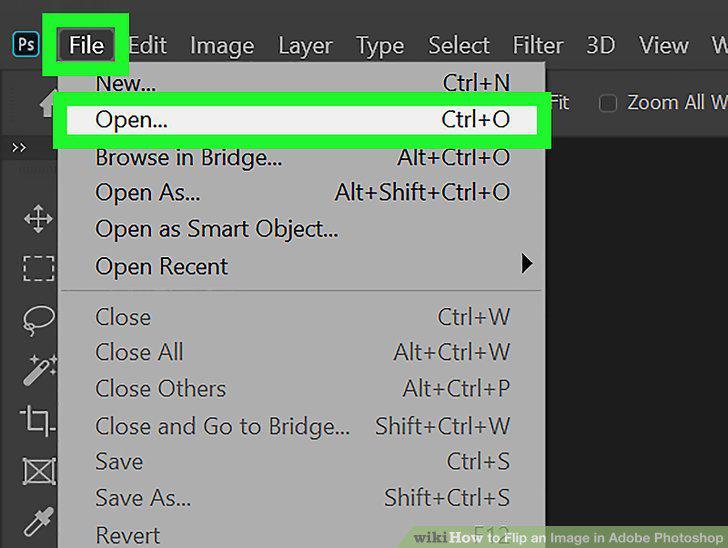
Open a the image you need to flip.
2
Flip an image horizontally through the "Image" menu.
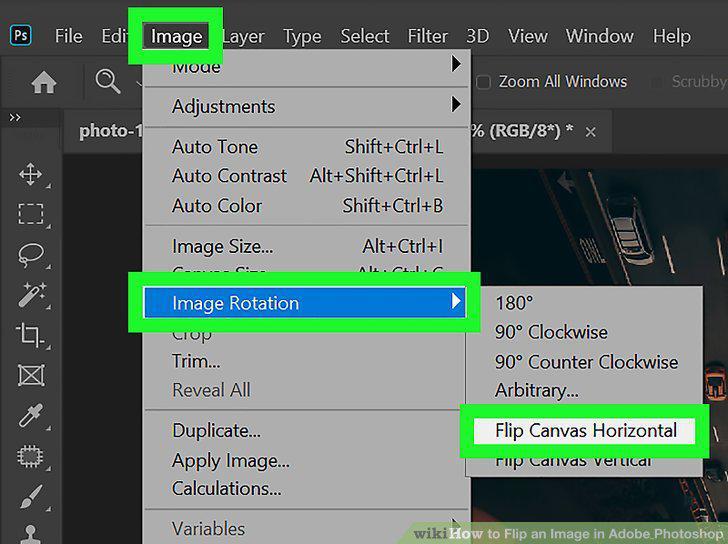
Flip an image horizontally through the "Image" menu.
3
Flip an image vertically through the "Image" menu.
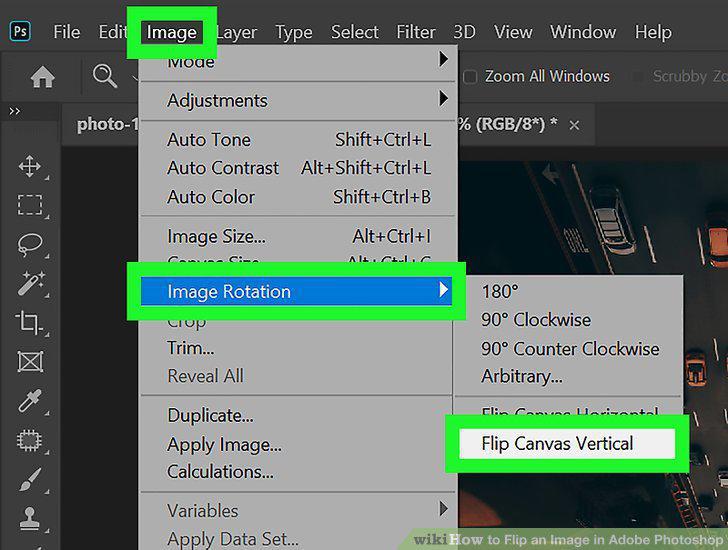
Flip an image vertically through the "Image" menu.
4
Note that the wording may be slightly different for different versions of Photos
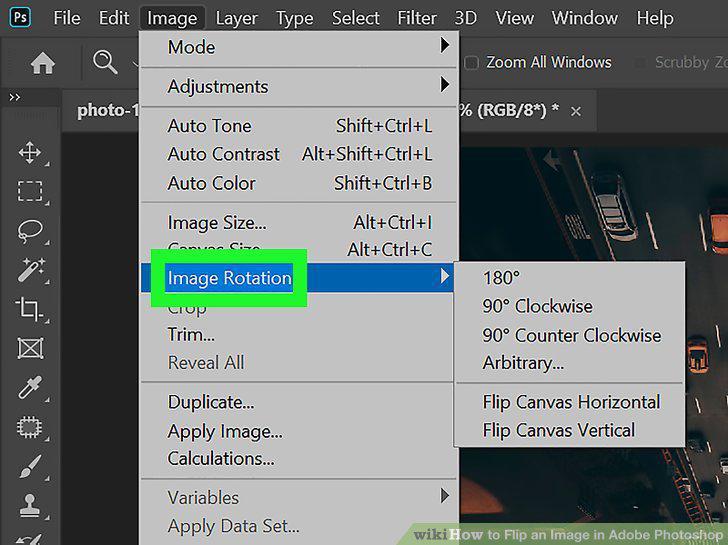
Note that the wording may be slightly different for different versions of Photoshop.
5
Select the layer you want to flip.
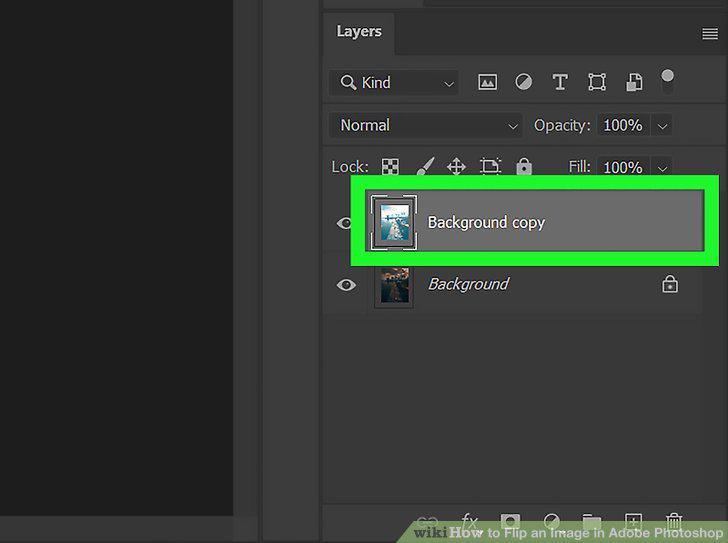
Select the layer you want to flip.
6
Enter "Free-Transform Mode" to manipulate the image.
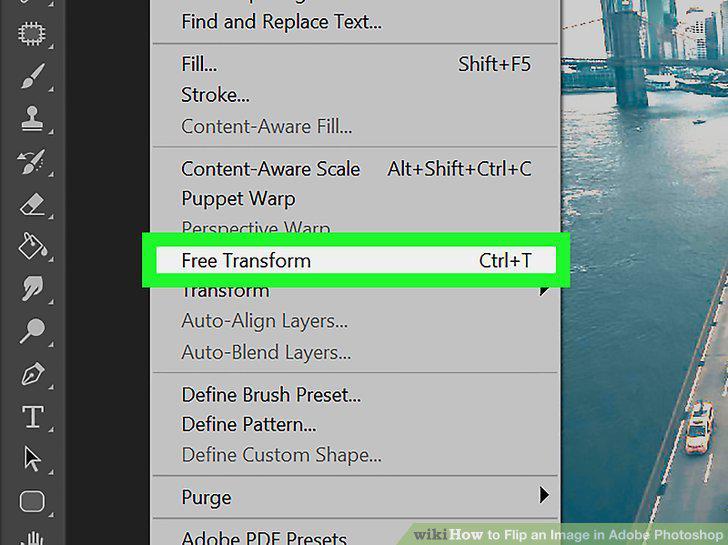
Enter "Free-Transform Mode" to manipulate the image.
7
Right click on the Free-Transformed image to open up the flip options.
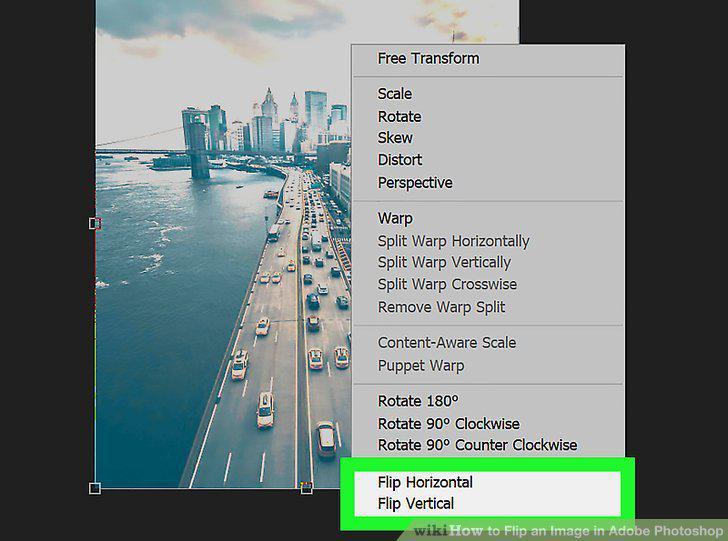
Right click on the Free-Transformed image to open up the flip options.
8
Hit "Enter" to make the free transformation stay.
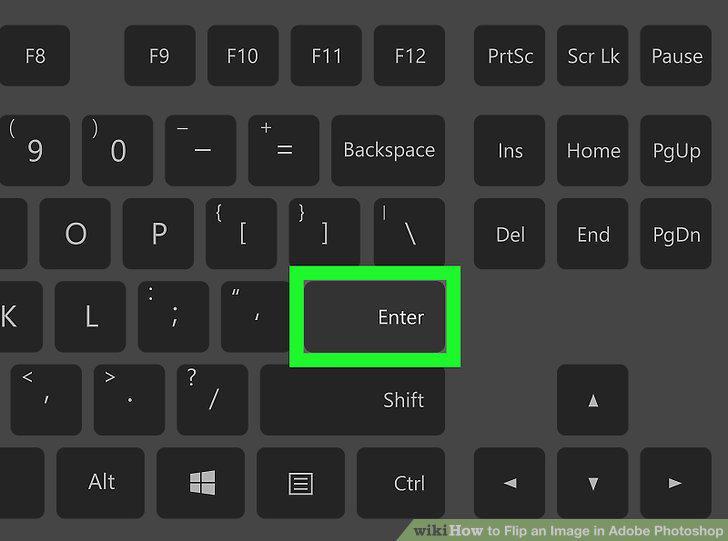
Hit "Enter" to make the free transformation stay.
Comments (0)
No comments yet. Be the first to share your thoughts!