How to Adjust the Brightness on iPhone or iPad
Swipe up from the bottom of your screen.. Locate the brightness adjuster in Control Center.. Slide the adjuster up for higher brightness.
Steps
1
Swipe up from the bottom of your screen.
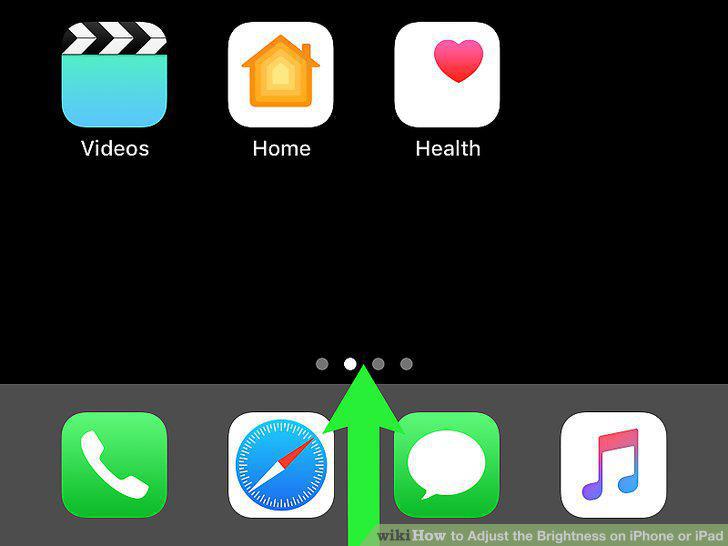
Swipe up from the bottom of your screen.
2
Locate the brightness adjuster in Control Center.
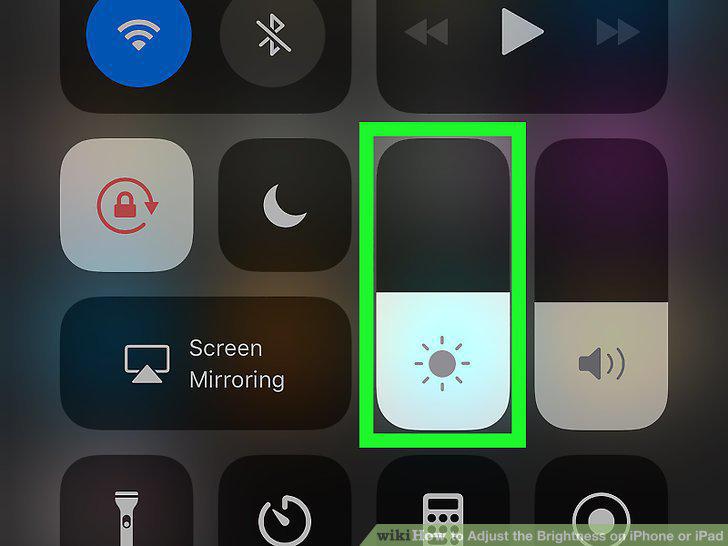
Locate the brightness adjuster in Control Center.
3
Slide the adjuster up for higher brightness.
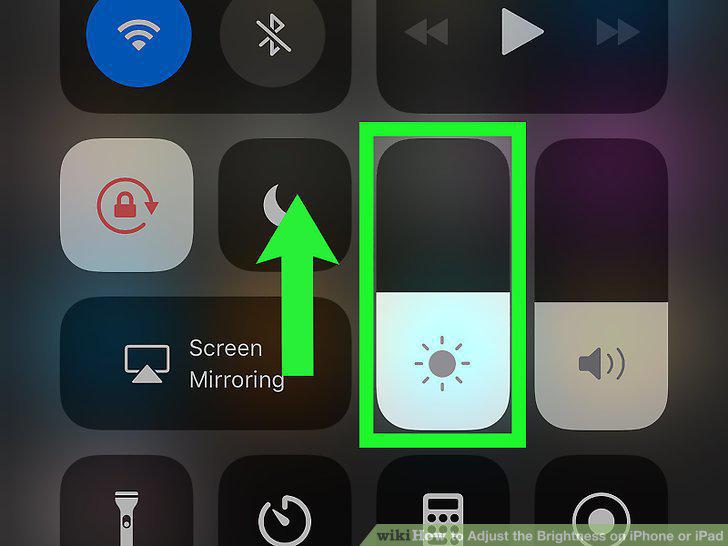
Slide the adjuster up for higher brightness.
4
Slide the adjuster down for lower brightness.
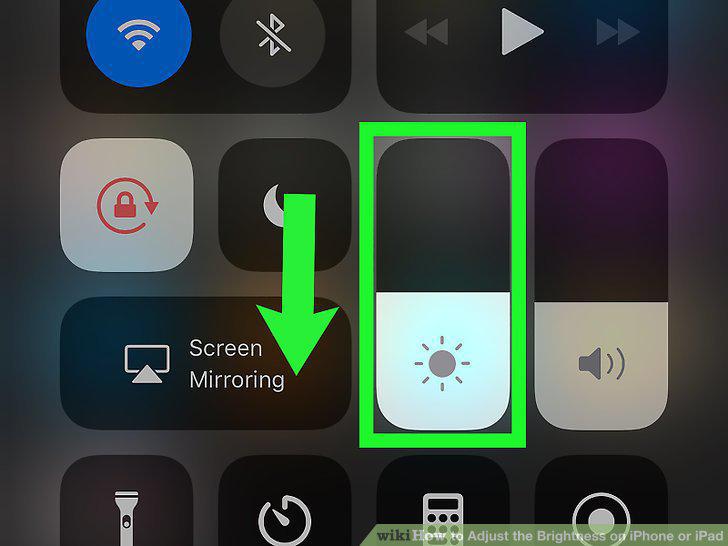
Slide the adjuster down for lower brightness.
5
Open your iPhone or iPad's Settings menu.
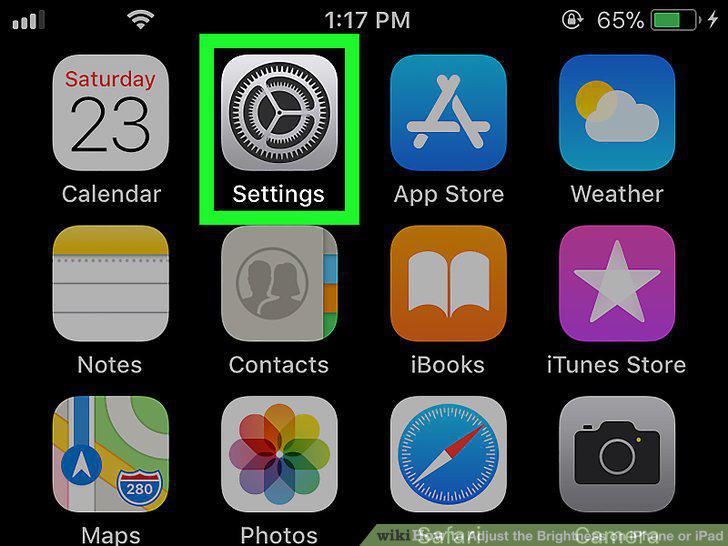
Open your iPhone or iPad's Settings menu.
6
Scroll down and tap Display & Brightness.
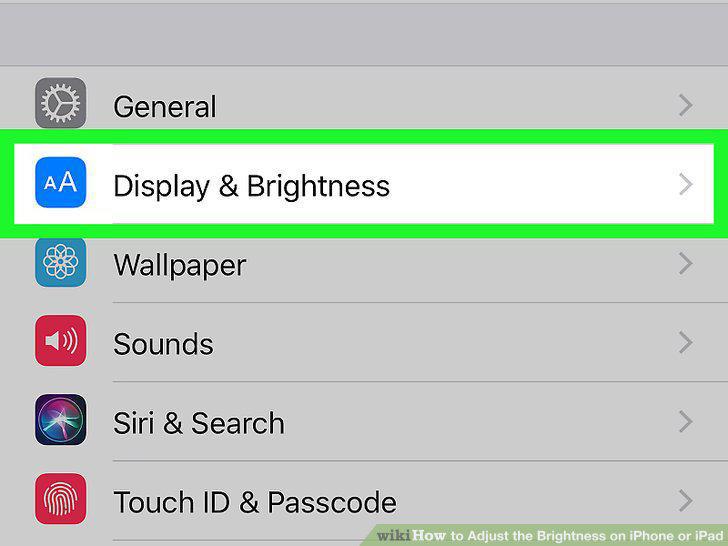
Scroll down and tap Display & Brightness.
7
Drag the BRIGHTNESS slider to the right for higher brightness.
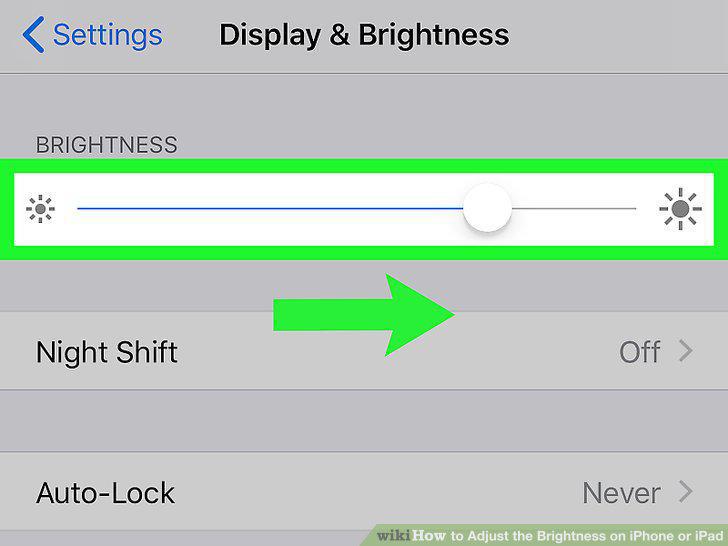
Drag the BRIGHTNESS slider to the right for higher brightness.
8
Drag the BRIGHTNESS slider to the left for lower brightness.
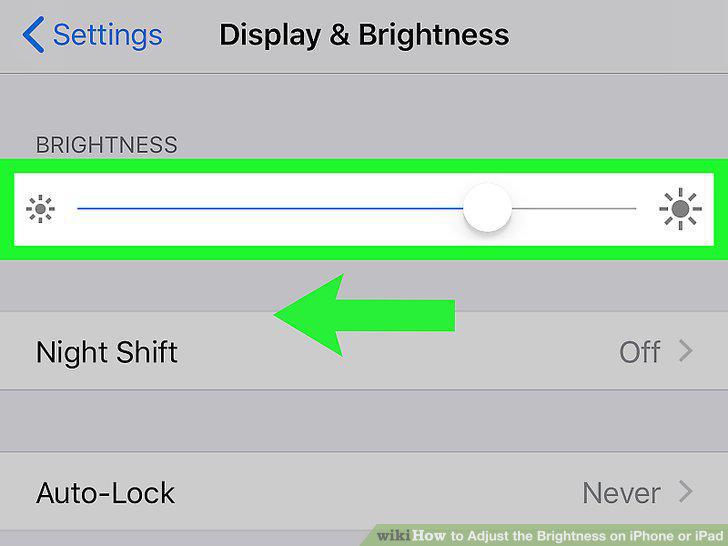
Drag the BRIGHTNESS slider to the left for lower brightness.
Comments (0)
No comments yet. Be the first to share your thoughts!