How to Not Sync a Dropbox Folder on PC or Mac
Click the Dropbox icon on your desktop taskbar.. Click the icon.. Click Preferences on the menu.
Steps
1
Click the Dropbox icon on your desktop taskbar.
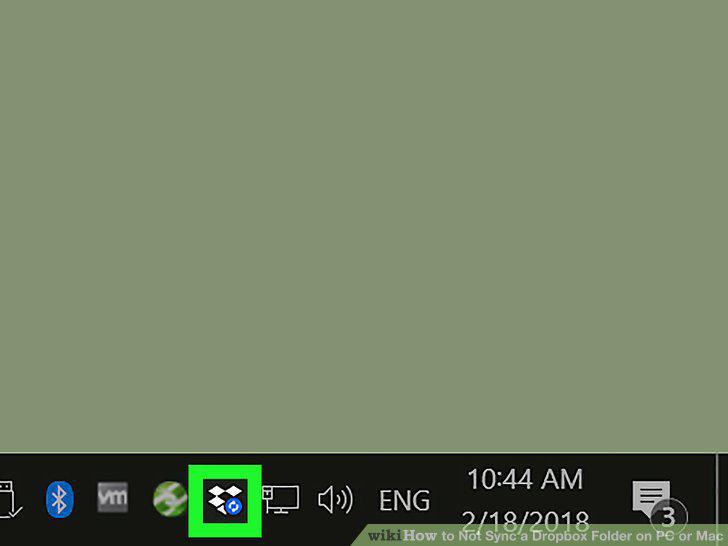
Click the Dropbox icon on your desktop taskbar.
2
Click the icon.
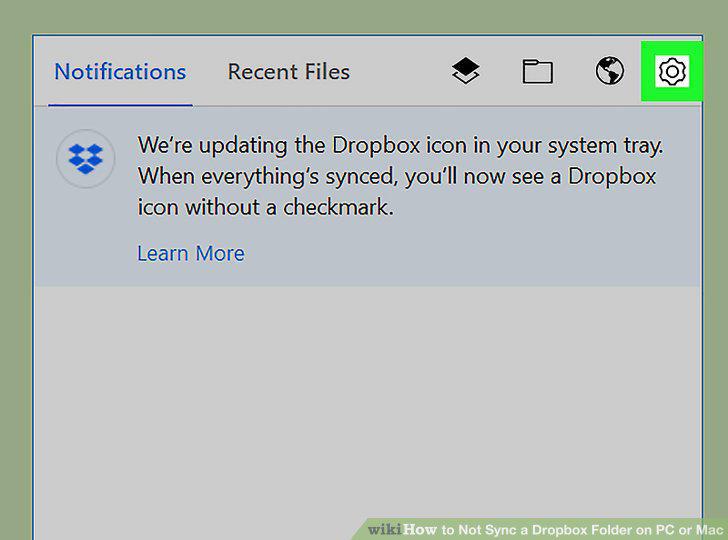
Click the icon.
3
Click Preferences on the menu.
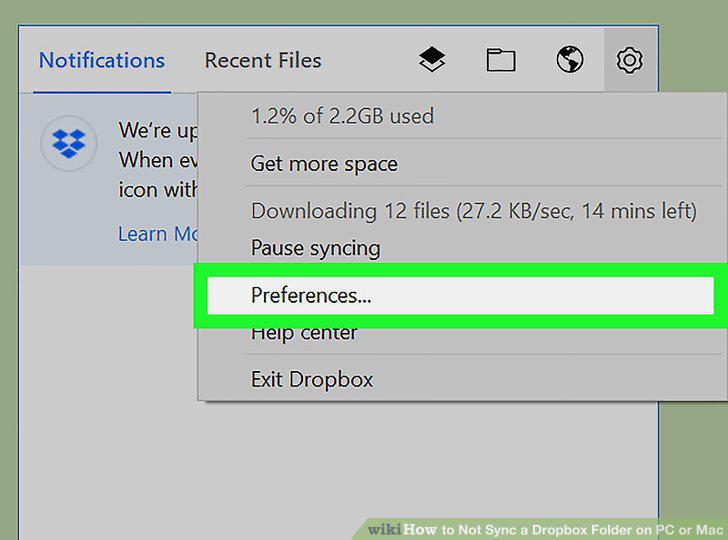
Click Preferences on the menu.
4
Click the Sync tab.
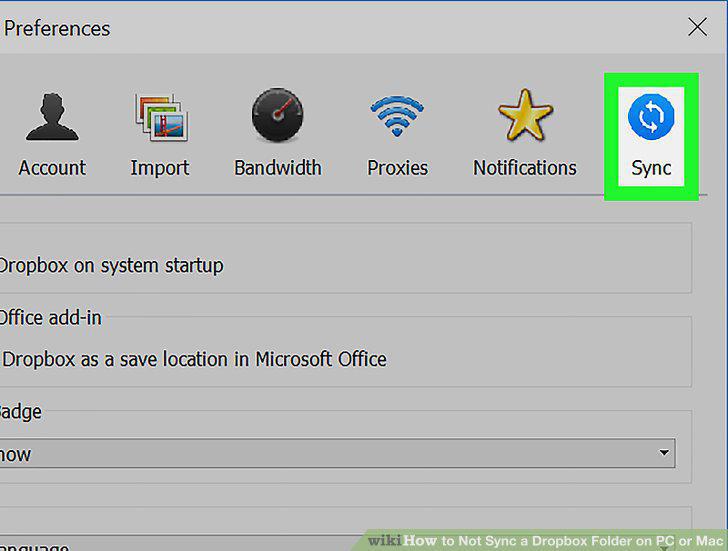
Click the Sync tab.
5
Click Selective Sync or Choose folders to sync.
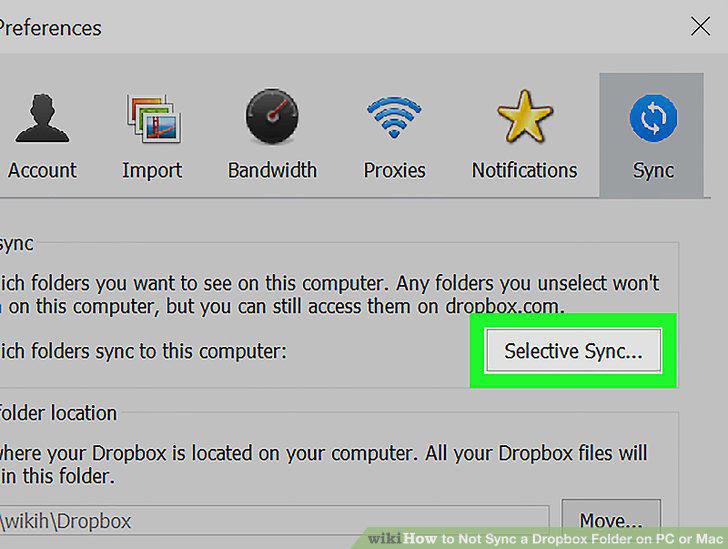
Click Selective Sync or Choose folders to sync.
6
Uncheck the folder you want to unsync.
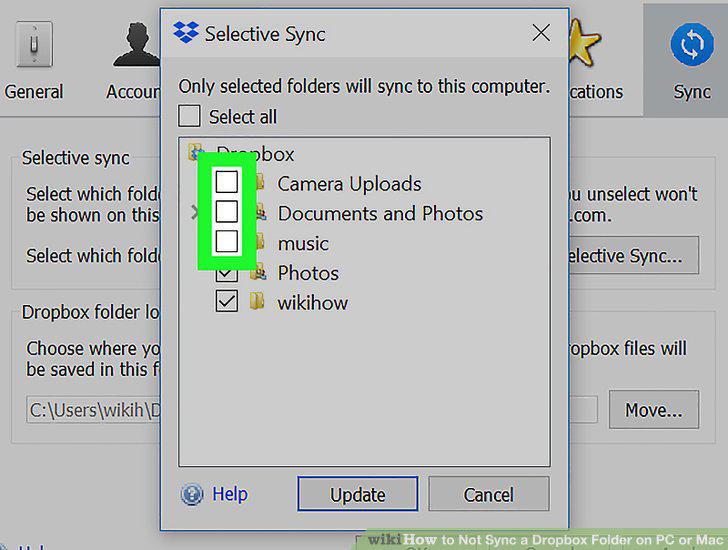
Uncheck the folder you want to unsync.
7
Click the Update button.
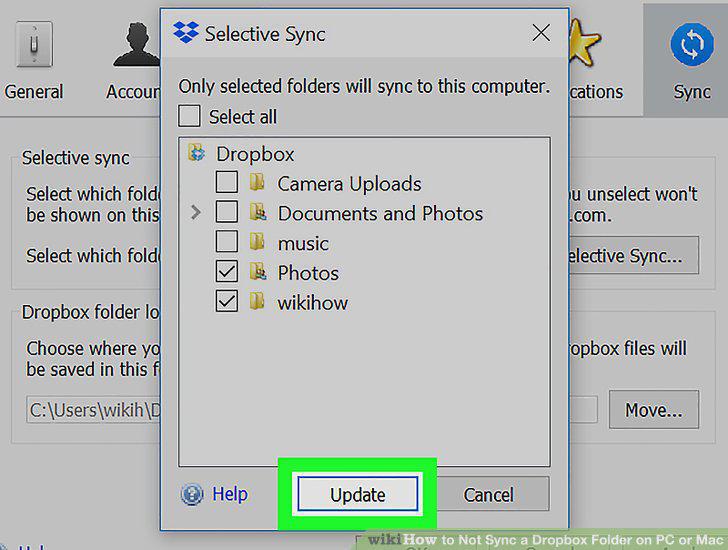
Click the Update button.
8
Click OK in the confirmation pop-up.
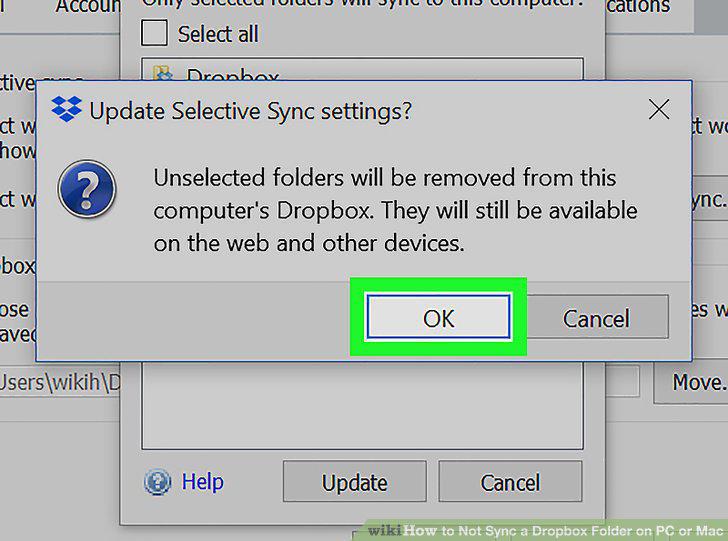
Click OK in the confirmation pop-up.
Comments (0)
No comments yet. Be the first to share your thoughts!