How to Delete Messages on Telegram on iPhone or iPad
Open the Telegram app on your iPhone or iPad.. Tap the Chats tab.. Tap a chat on your Chats list.
Steps
1
Open the Telegram app on your iPhone or iPad.
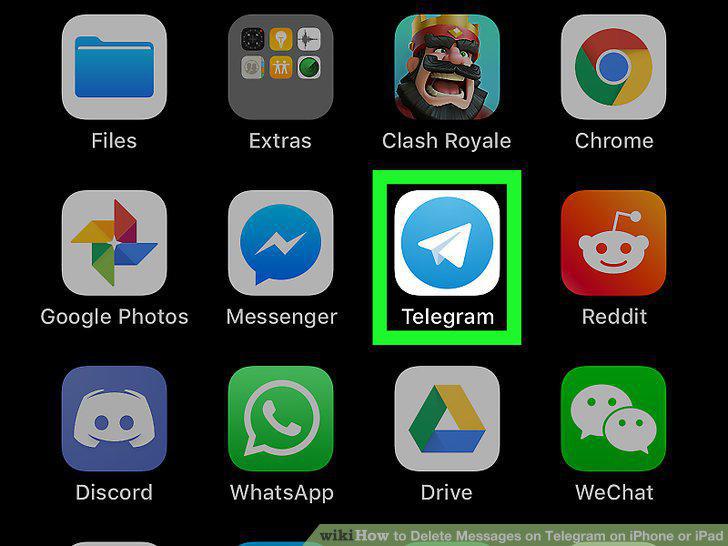
Open the Telegram app on your iPhone or iPad.
2
Tap the Chats tab.
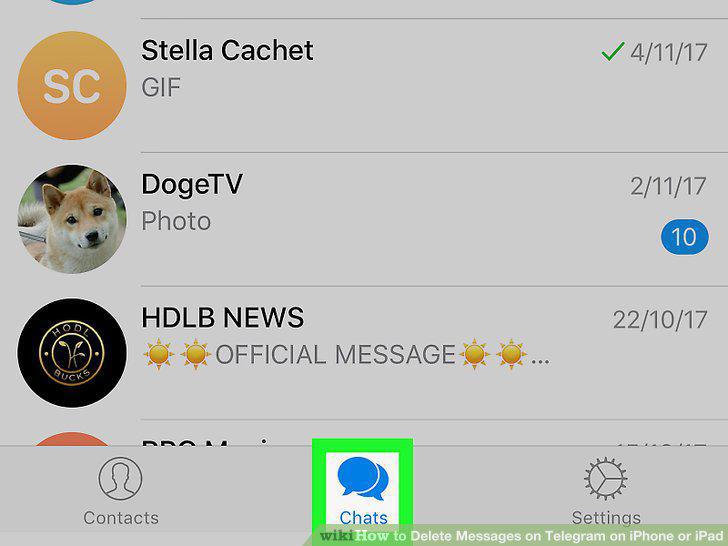
Tap the Chats tab.
3
Tap a chat on your Chats list.
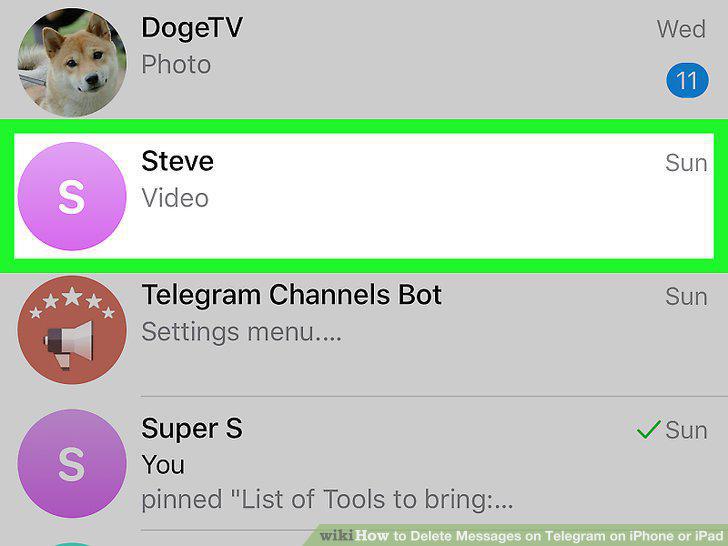
Tap a chat on your Chats list.
4
Tap and hold a chat message bubble.
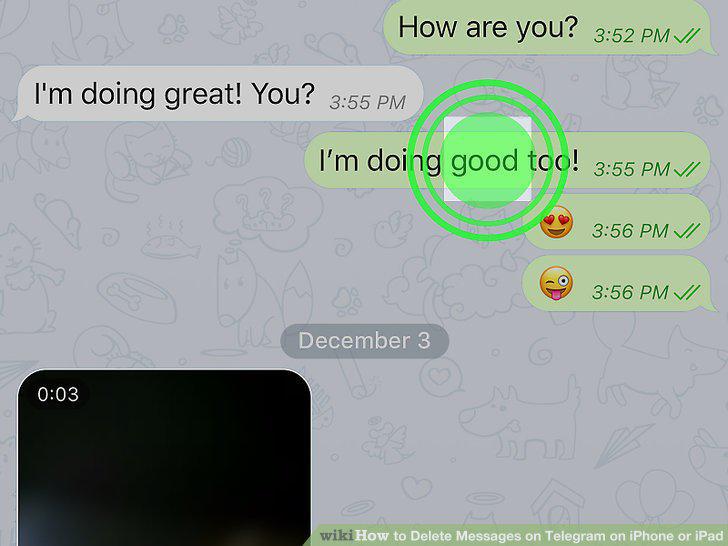
Tap and hold a chat message bubble.
5
Tap More on the black toolbar.
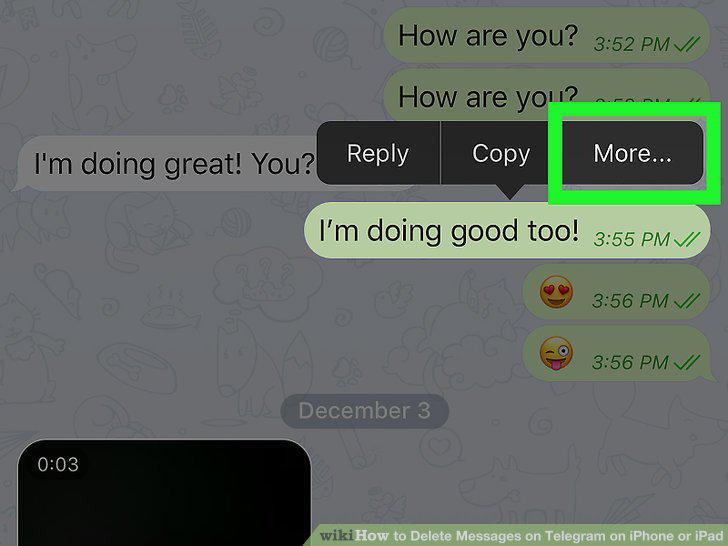
Tap More on the black toolbar.
6
Select all the messages you want to delete.
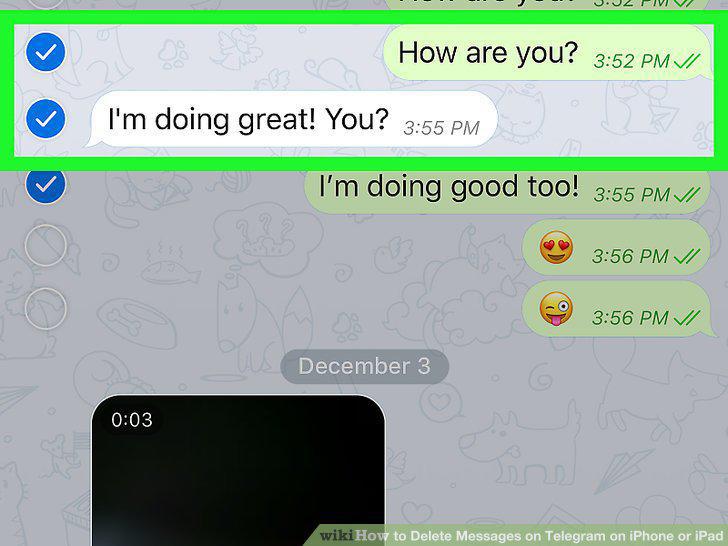
Select all the messages you want to delete.
7
Tap the blue Trash icon.
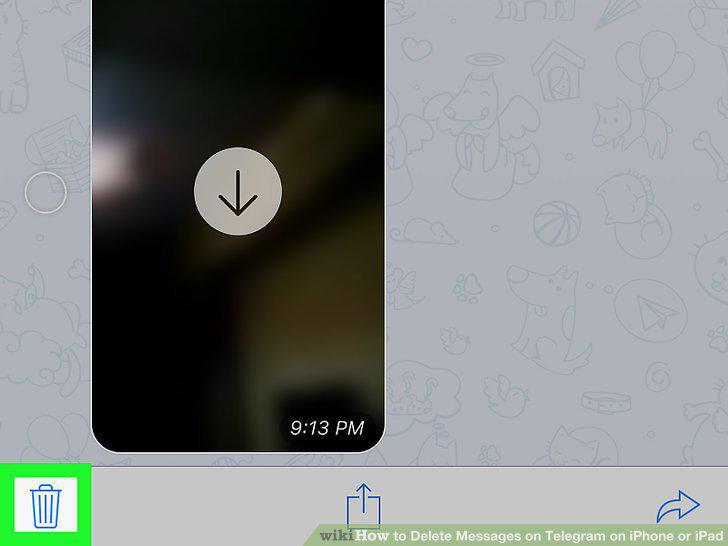
Tap the blue Trash icon.
8
Tap Delete for me in the confirmation pop-up.
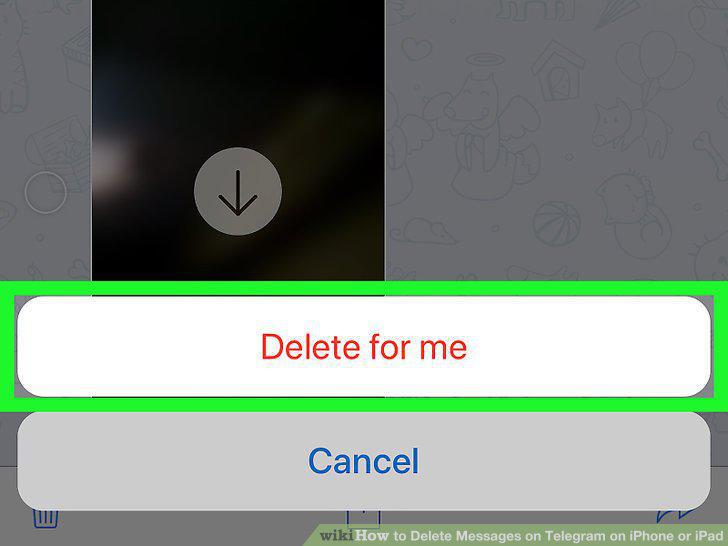
Tap Delete for me in the confirmation pop-up.
9
Open the Telegram app on your iPhone or iPad.
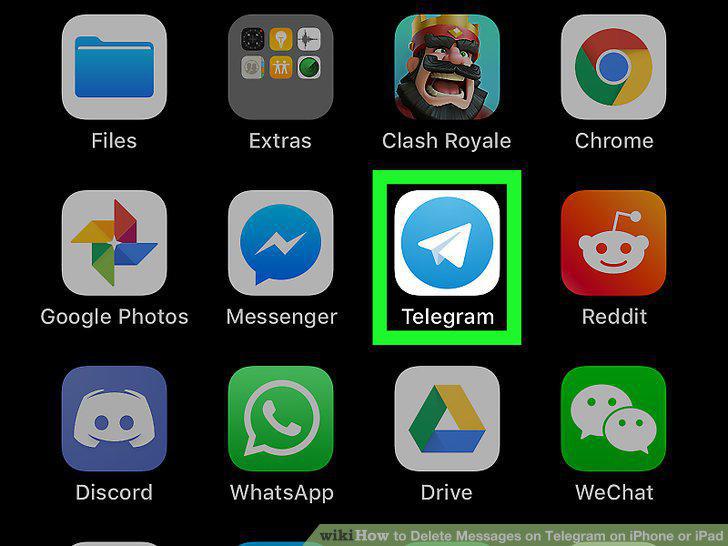
Open the Telegram app on your iPhone or iPad.
10
Tap the Chats tab.
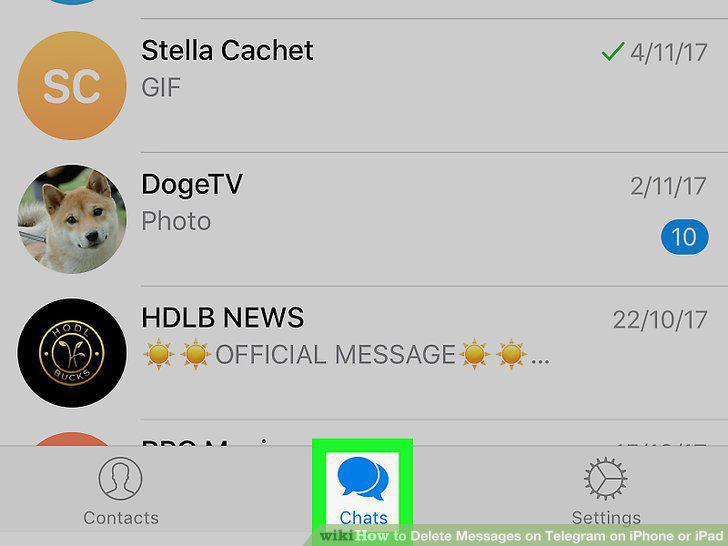
Tap the Chats tab.
11
Tap the Edit button.
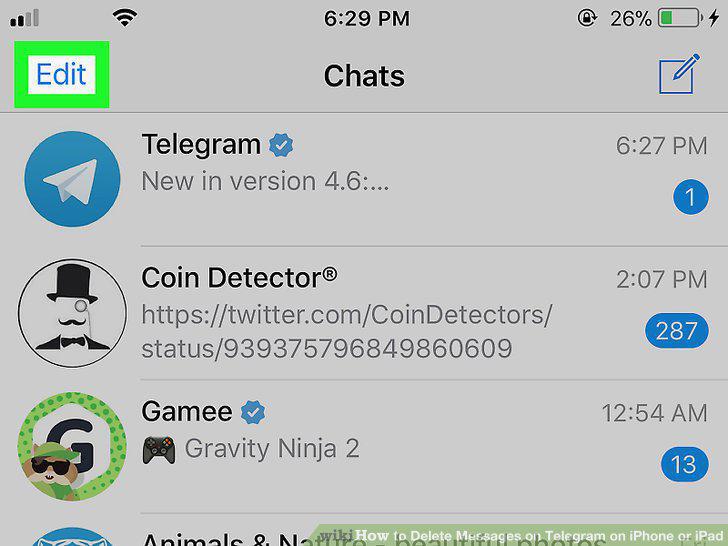
Tap the Edit button.
12
Tap the red circle icon next to a chat.
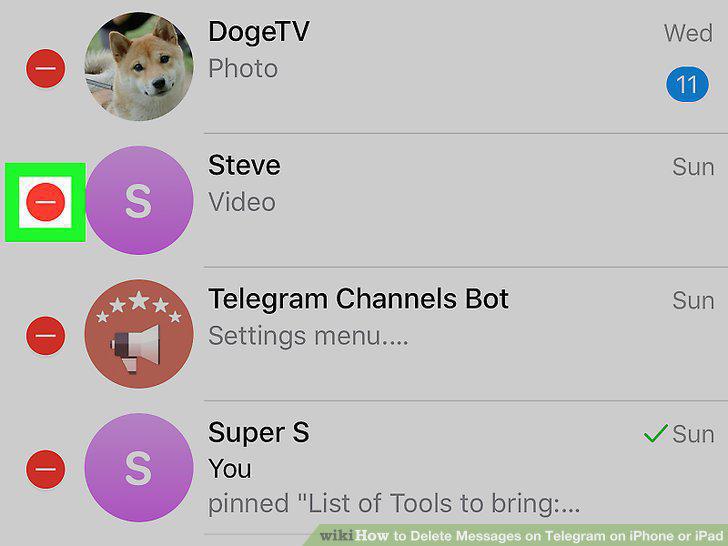
Tap the red circle icon next to a chat.
13
Tap the red Delete button.
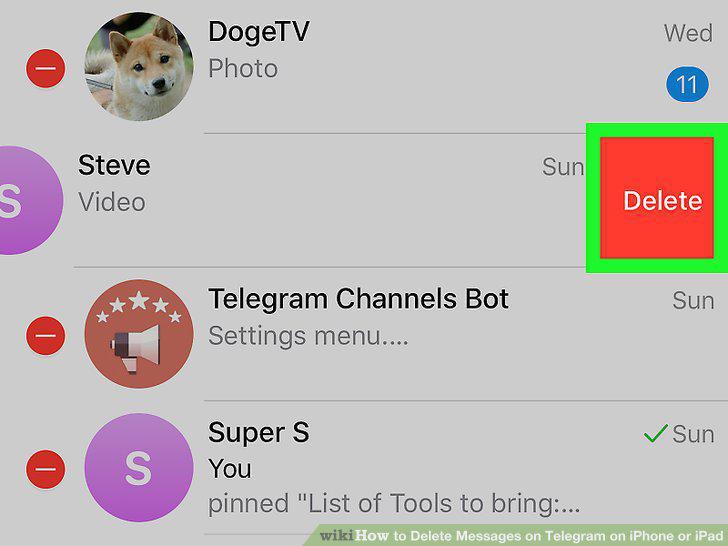
Tap the red Delete button.
14
Select Clear History on the pop-up menu.
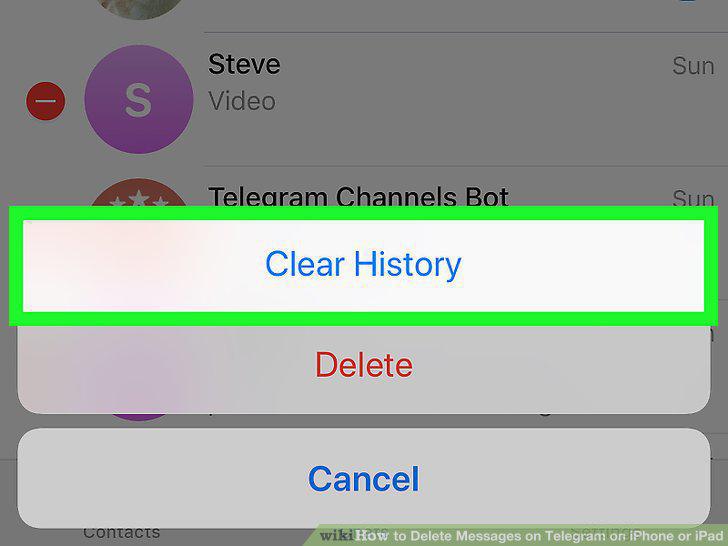
Select Clear History on the pop-up menu.
Comments (0)
No comments yet. Be the first to share your thoughts!