How to Use the Life360 App
Download Life360 from the App Store or Play Store .. Open Life360.. Tap Get Started to create an account.
Steps
Download Life360 from the App Store or Play Store .
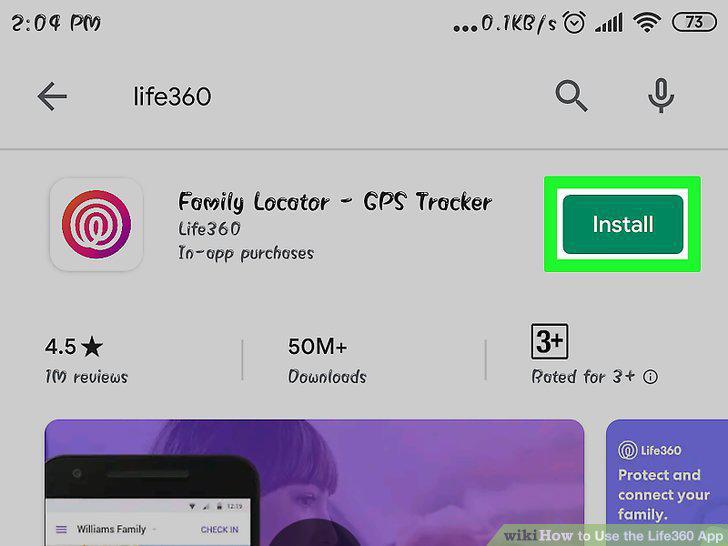
Download Life360 from the App Store or Play Store .
Open Life360.
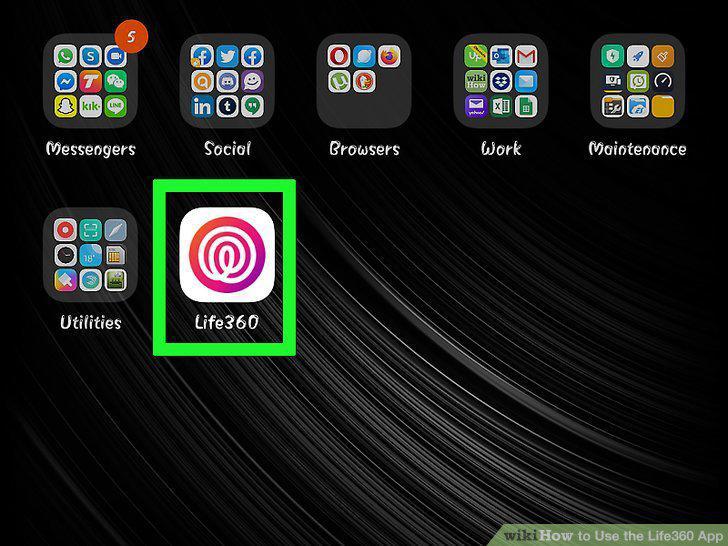
Open Life360.
Tap Get Started to create an account.
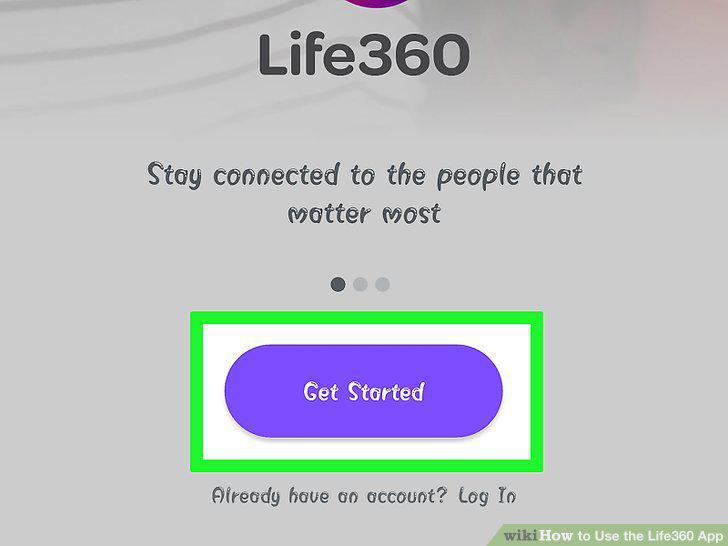
Tap Get Started to create an account.
Follow the on-screen instructions to create your account.
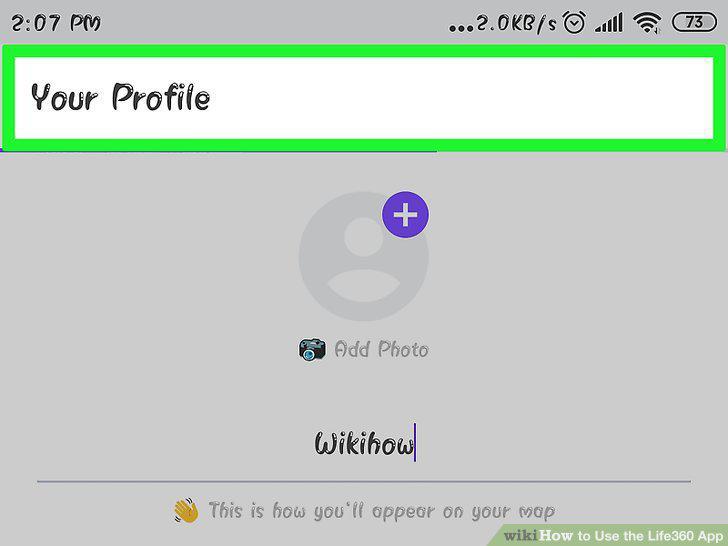
Follow the on-screen instructions to create your account.
Enable location sharing, notifications, and other features.
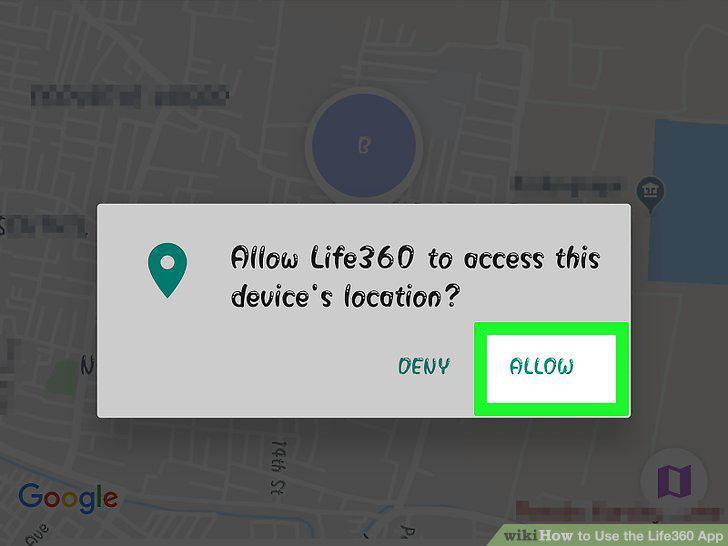
Enable location sharing, notifications, and other features.
Create or join a circle.
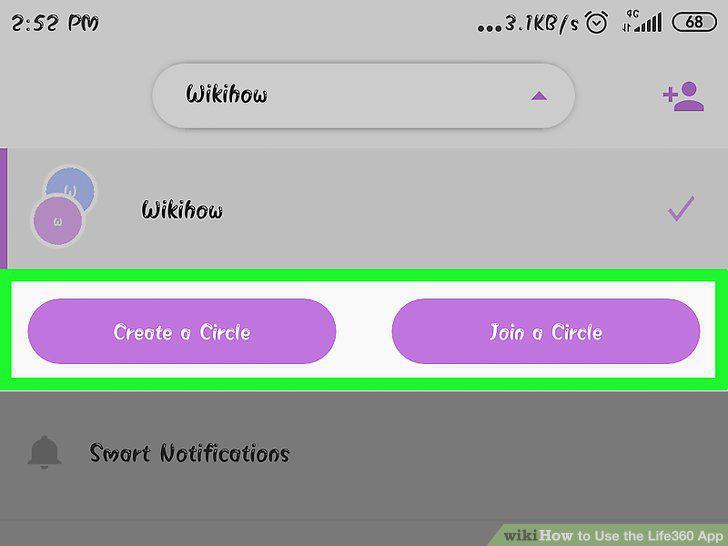
Create or join a circle.
Customize the map.
Customize the map.
Make sure you're an admin.
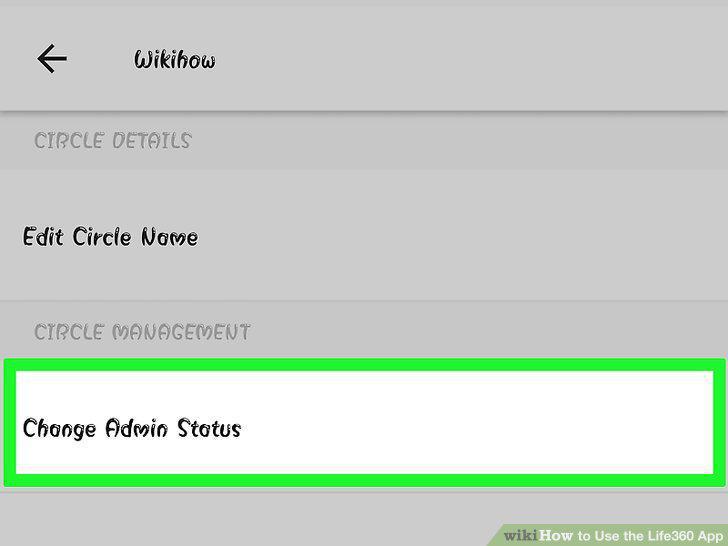
Make sure you're an admin.
Add someone to the circle.
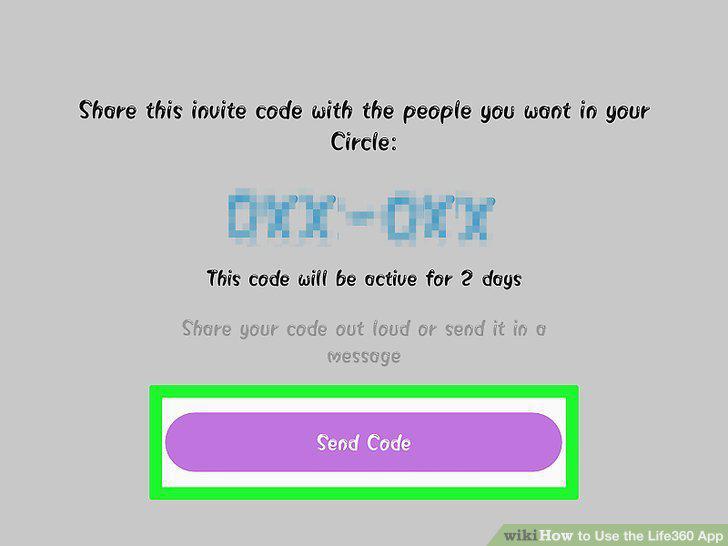
Add someone to the circle.
Add another circle.
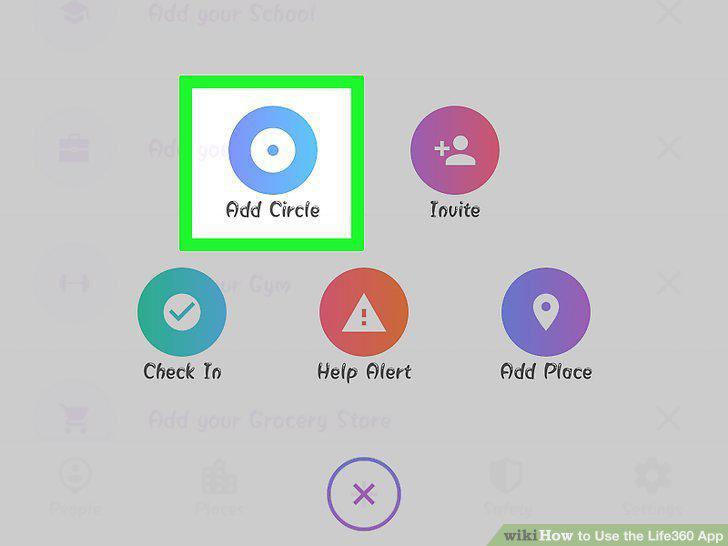
Add another circle.
Remove a circle member.
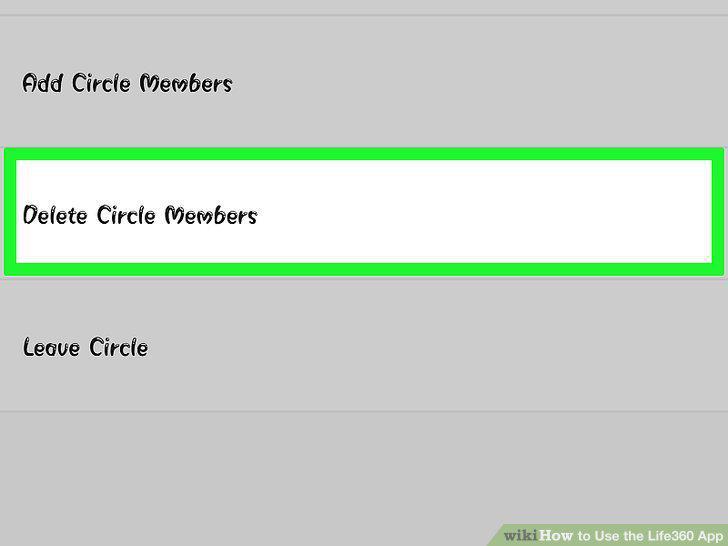
Remove a circle member.
Open Life360 on your phone or tablet.
Open Life360 on your phone or tablet.
Tap a circle member's location on the map to view their details.
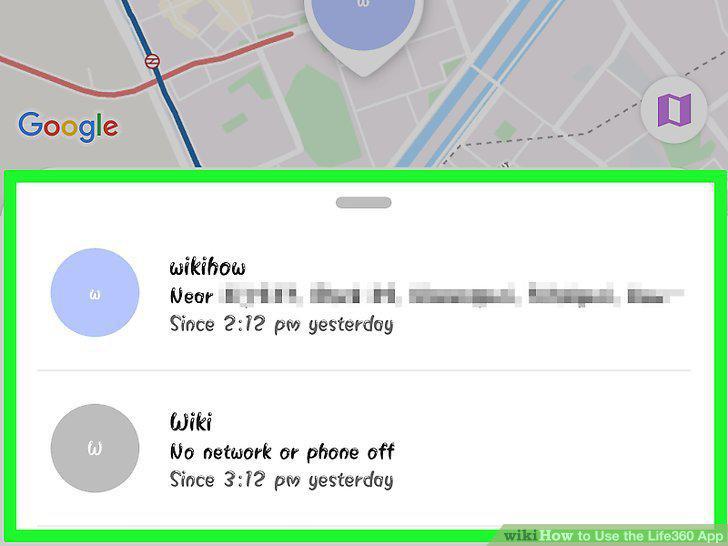
Tap a circle member's location on the map to view their details.
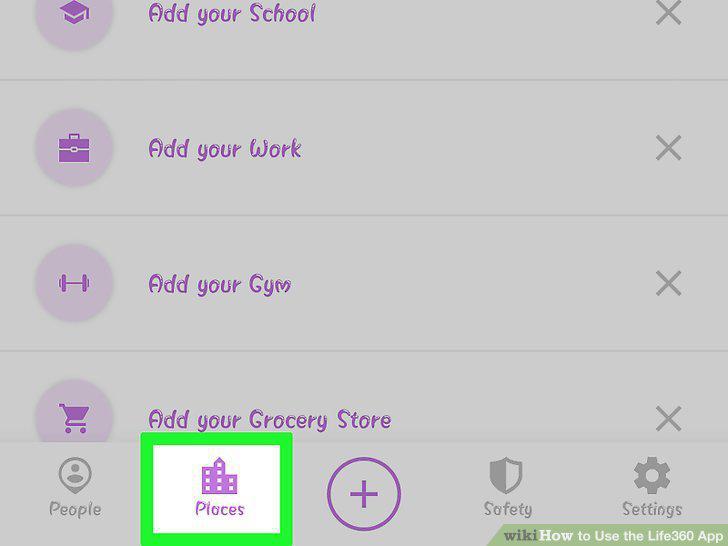
Tap the Places tab to manage family locations.
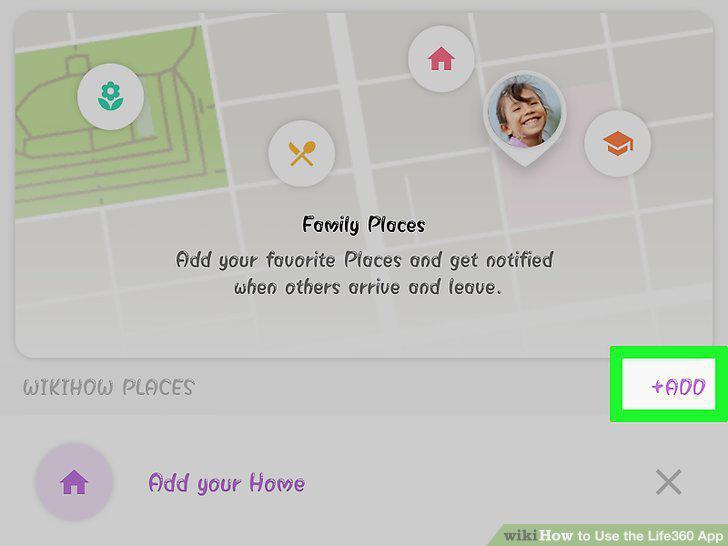
Tap the Places tab to manage family locations.
Tap the + and select Check In to announce your location.
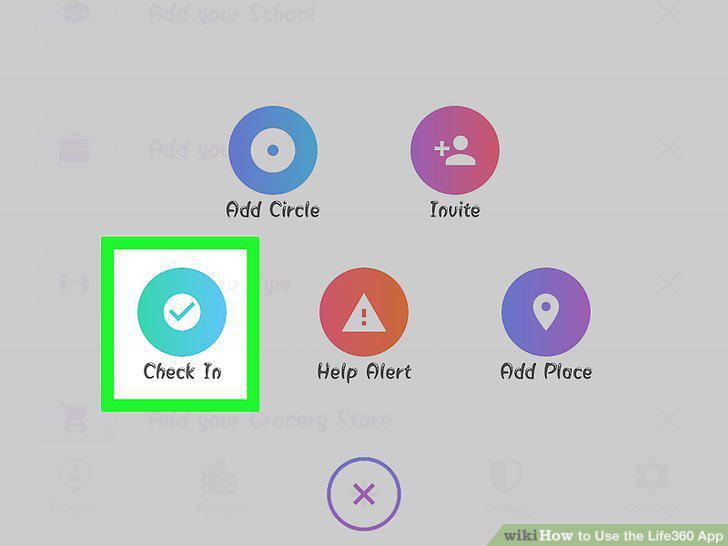
Tap the + and select Check In to announce your location.
Tap the Safety tab.
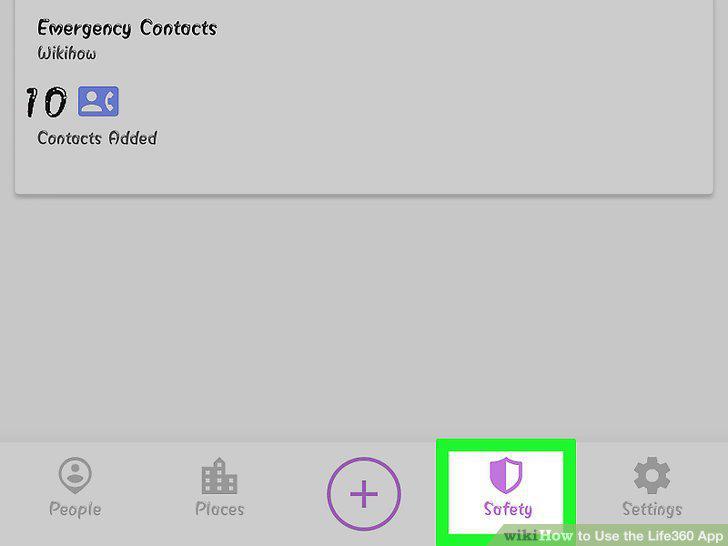
Tap the Safety tab.
Tap Trigger Help Alert in the event of an emergency.
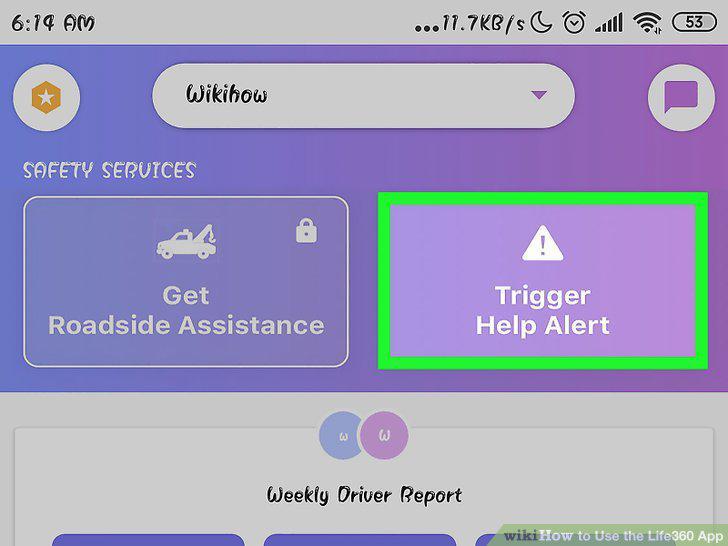
Tap Trigger Help Alert in the event of an emergency.
Tap Emergency Contacts to manage emergency contacts.
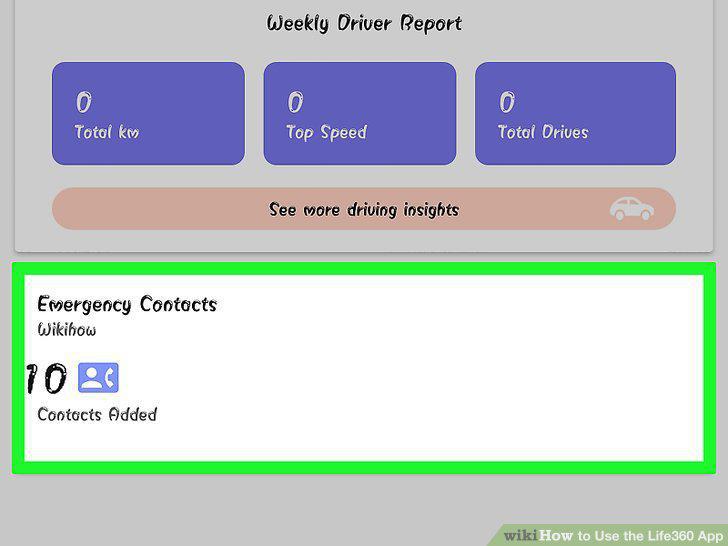
Tap Emergency Contacts to manage emergency contacts.
Tap Trigger Help Alert in the event of an emergency.
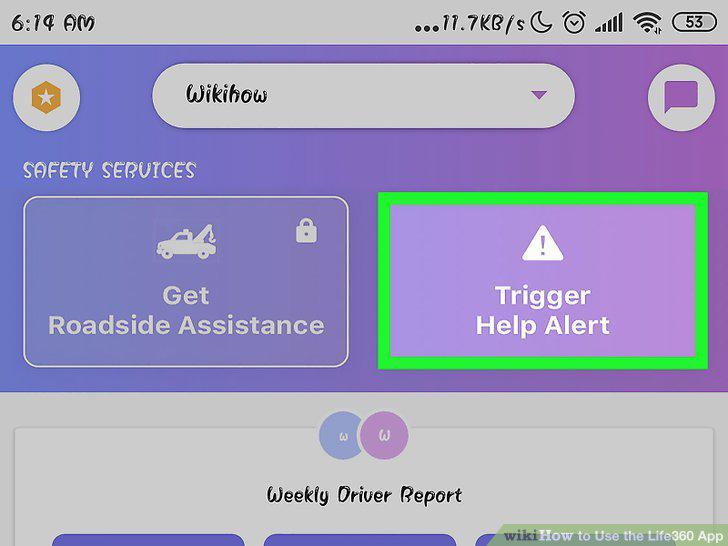
Tap Trigger Help Alert in the event of an emergency.
Tap Get Roadside Assistance if your vehicle is disabled.
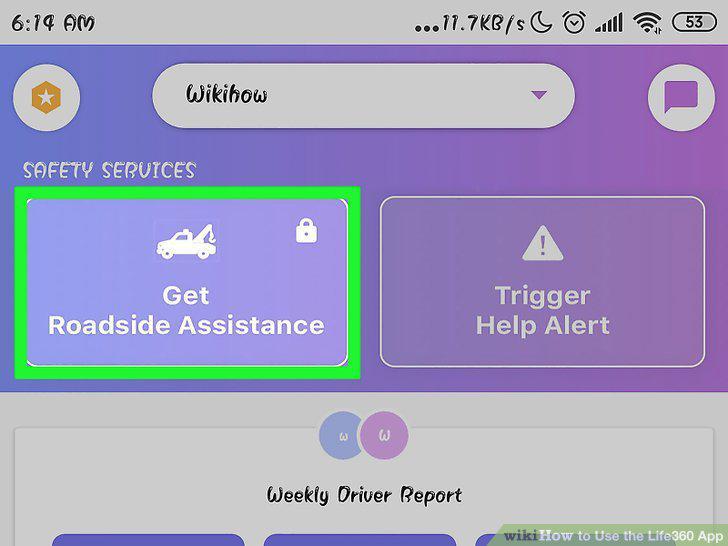
Tap Get Roadside Assistance if your vehicle is disabled.
Tap Weekly Driver Report to view driver insights for the circle.
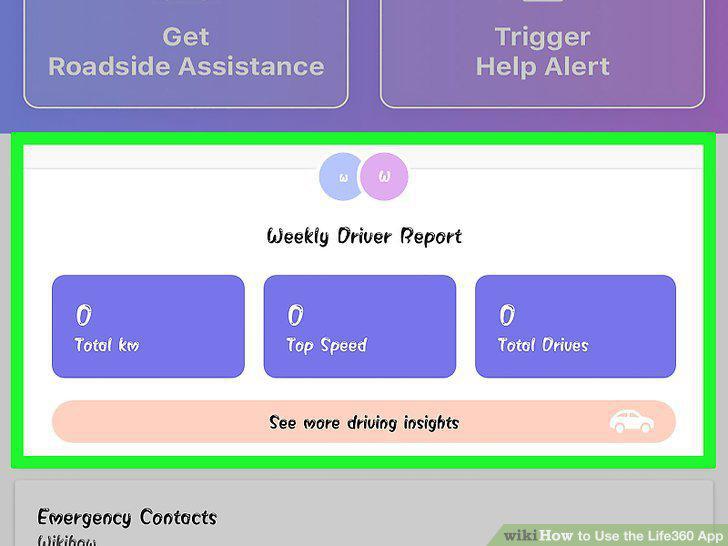
Tap Weekly Driver Report to view driver insights for the circle.
Comments (0)
No comments yet. Be the first to share your thoughts!