How to Set Contact Restrictions on an iPhone
Open your iPhone's Settings.. Scroll down and tap General.. Scroll down and tap Restrictions.
Steps
1
Open your iPhone's Settings.
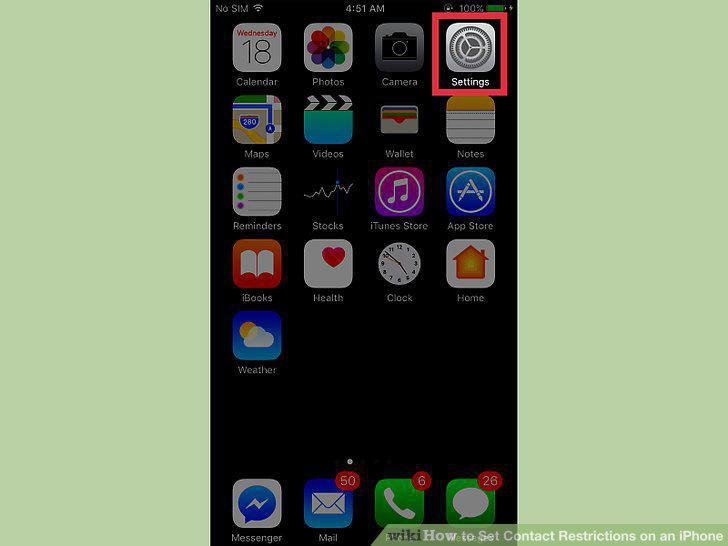
Open your iPhone's Settings.
2
Scroll down and tap General.
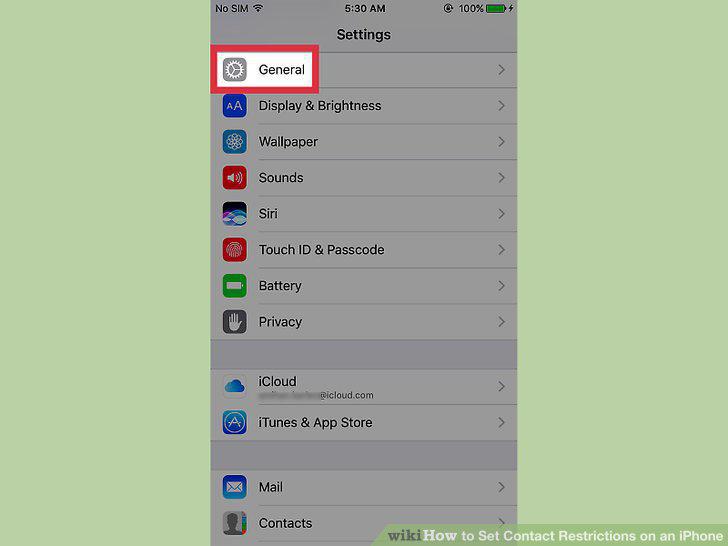
Scroll down and tap General.
3
Scroll down and tap Restrictions.
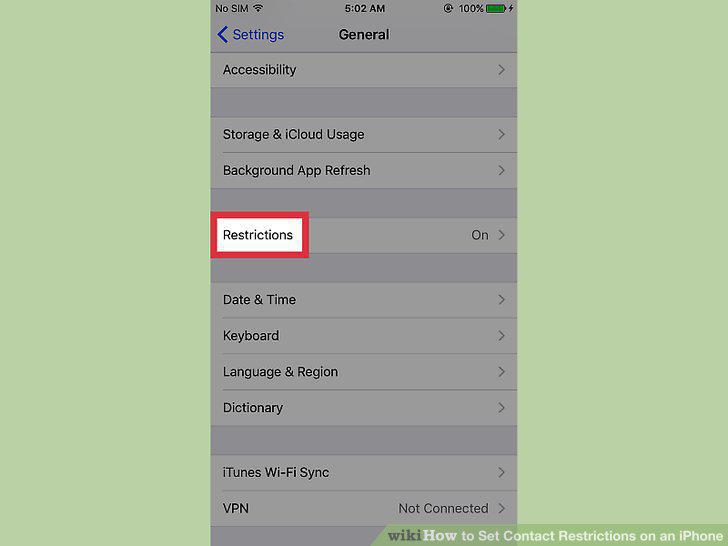
Scroll down and tap Restrictions.
4
Tap Enable Restrictions.
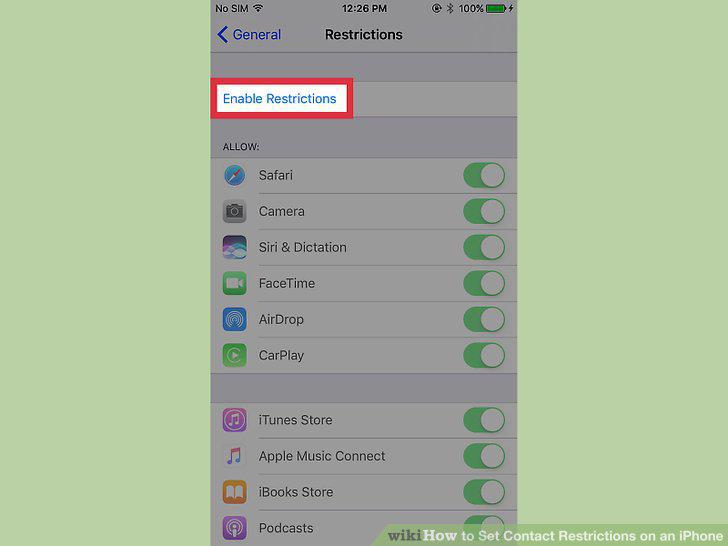
Tap Enable Restrictions.
5
Input a four digit passcode.
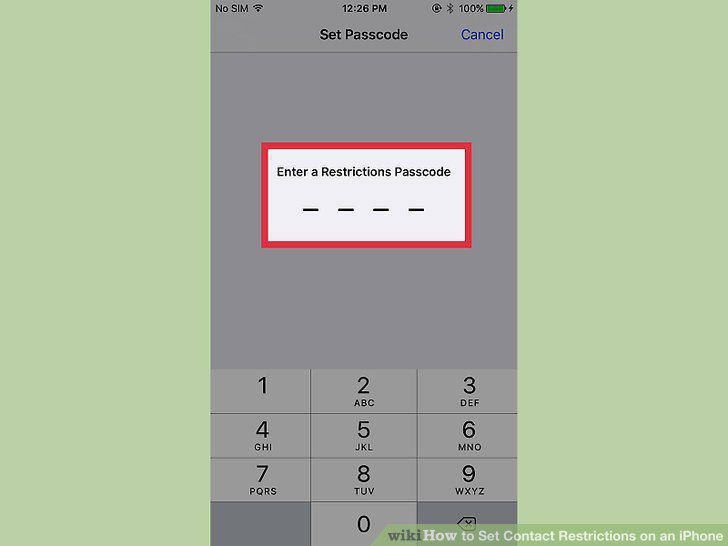
Input a four digit passcode.
6
Re-input the four digit passcode.
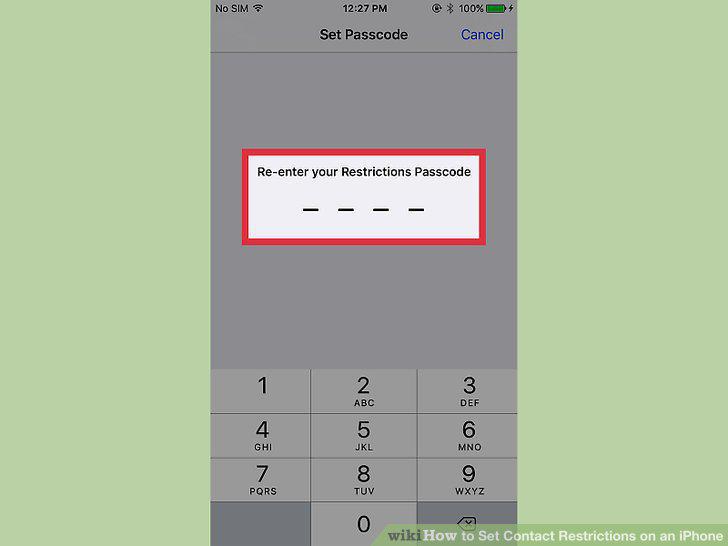
Re-input the four digit passcode.
7
Open your iPhone's Settings.
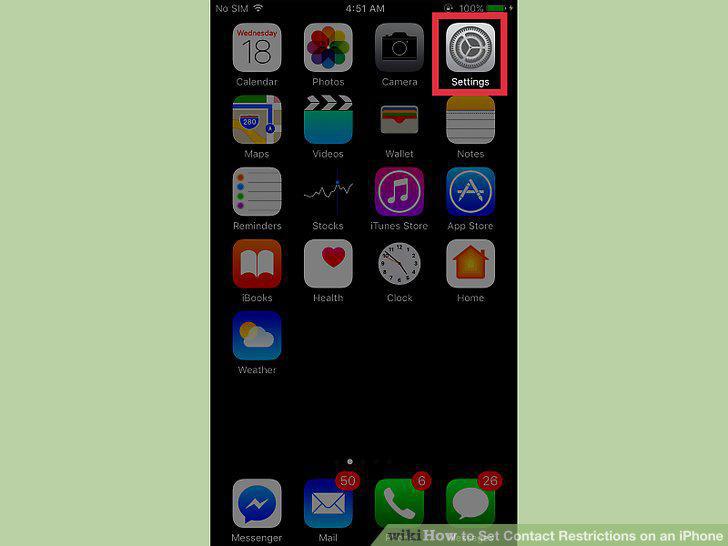
Open your iPhone's Settings.
8
Scroll down and tap General.
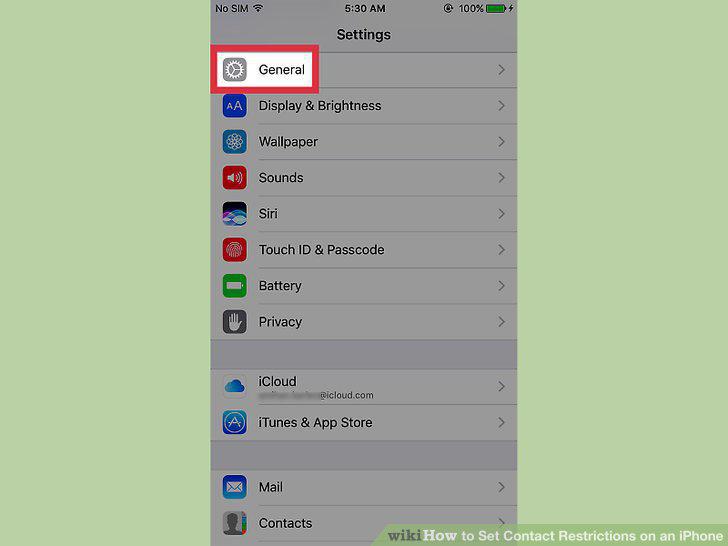
Scroll down and tap General.
9
Scroll down and tap Restrictions.
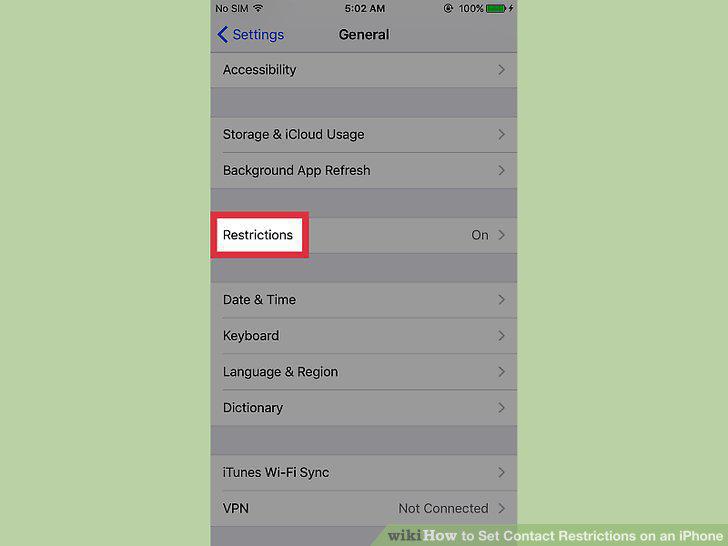
Scroll down and tap Restrictions.
10
Input your four digit passcode.
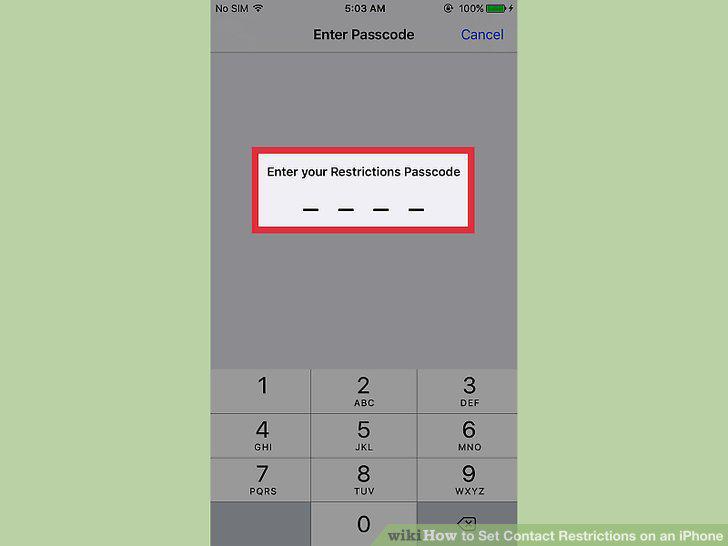
Input your four digit passcode.
11
Scroll down and tap Contacts.
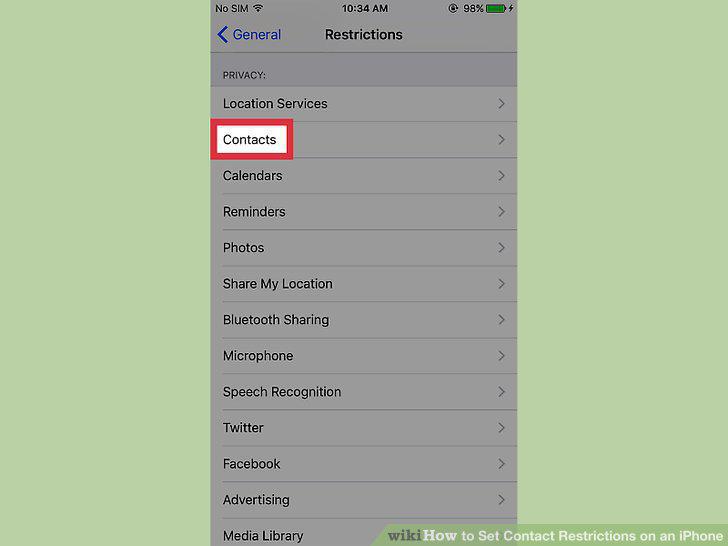
Scroll down and tap Contacts.
12
Tap Don't Allow Changes.
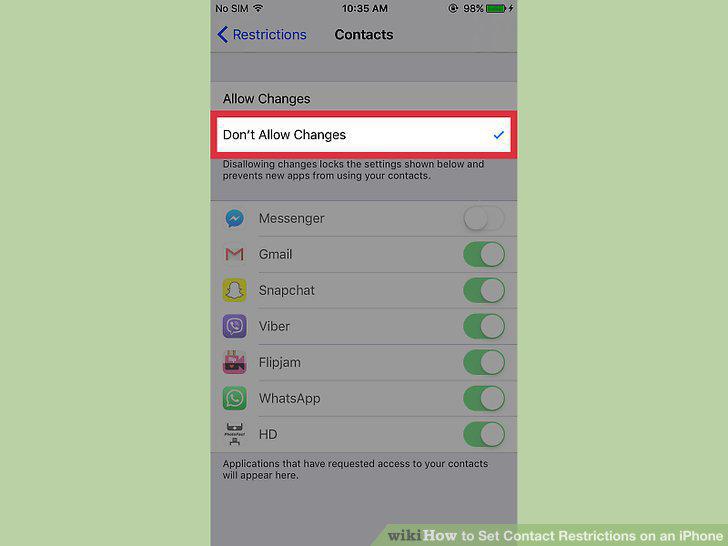
Tap Don't Allow Changes.
Comments (0)
No comments yet. Be the first to share your thoughts!