How to Take a Screenshot of an Android Device Using Android Studio
Download and install the Java Development Kit(JDK) from the Oracle website.. Download and extract (it's a ZIP file) the Developer's app (SDK) so the computer can detect your Android device.. Enable USB debugging on your phone.
Steps
Download and install the Java Development Kit(JDK) from the Oracle website.
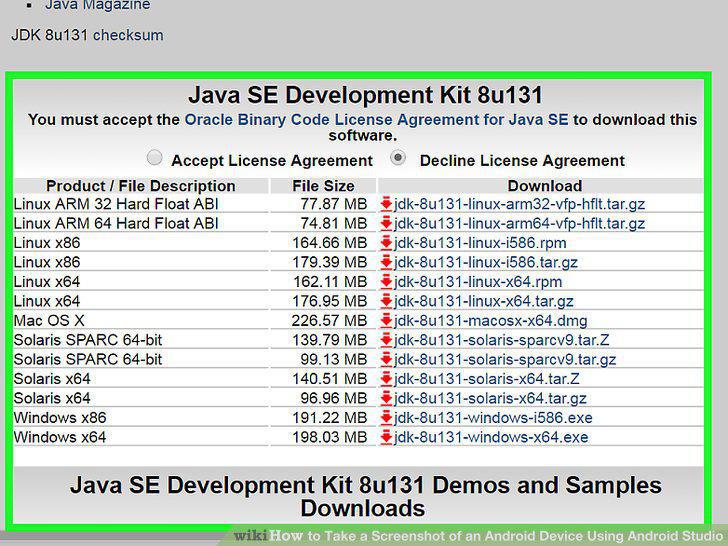
Download and install the Java Development Kit(JDK) from the Oracle website.
Download and extract (it's a ZIP file) the Developer's app (SDK) so the computer
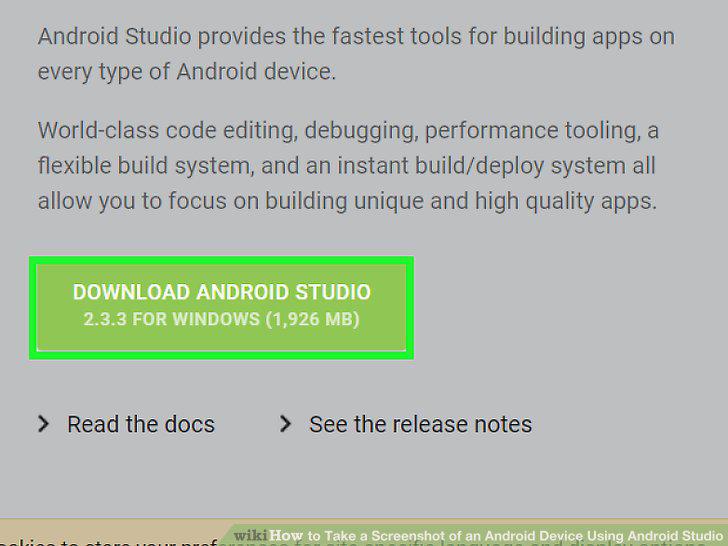
Download and extract (it's a ZIP file) the Developer's app (SDK) so the computer can detect your Android device.
Enable USB debugging on your phone.
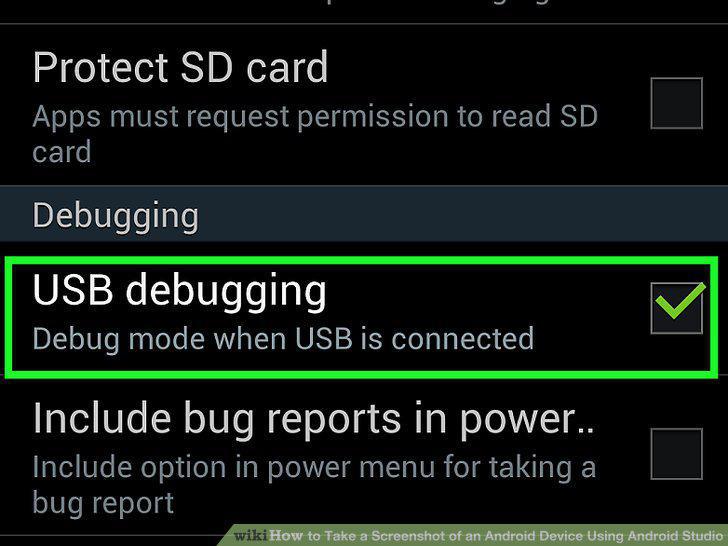
Enable USB debugging on your phone.
Plug in your phone with your USB cord.
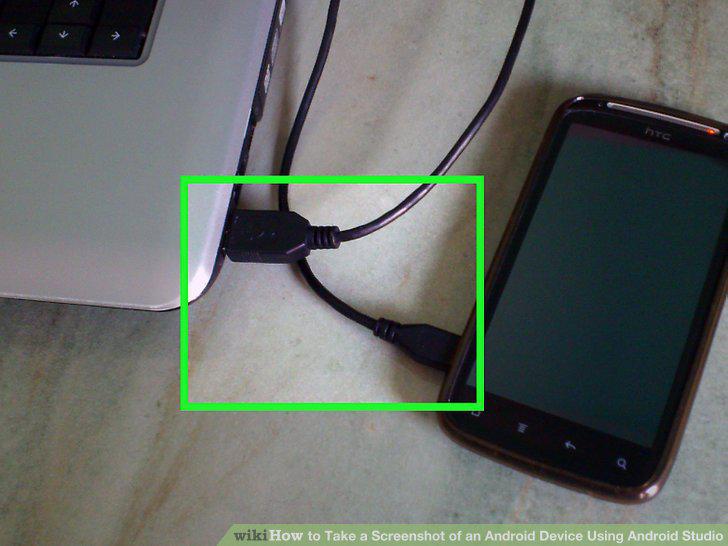
Plug in your phone with your USB cord.
Install the drivers for your phone onto your computer.
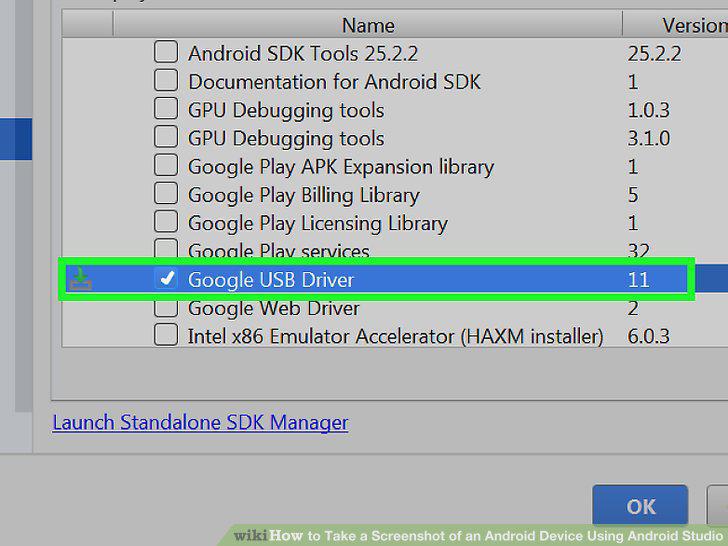
Install the drivers for your phone onto your computer.
Open the Android SDK Manager program.
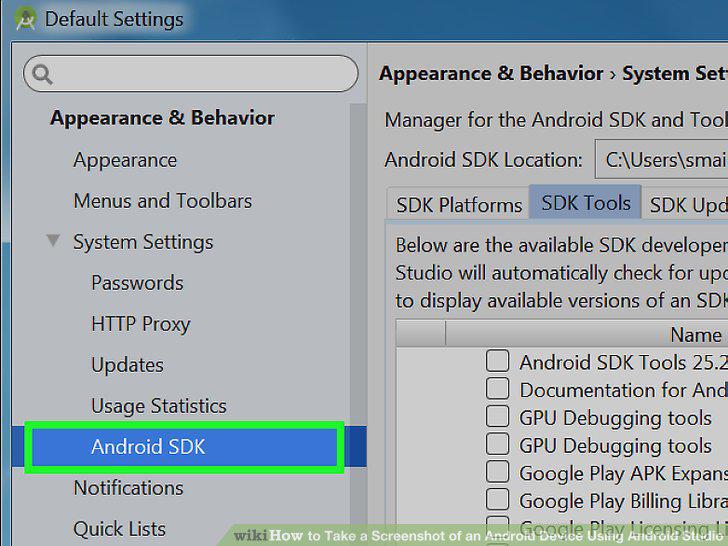
Open the Android SDK Manager program.
Open the Android Debug Monitor that is stored as the "monitor.bat" file in the f
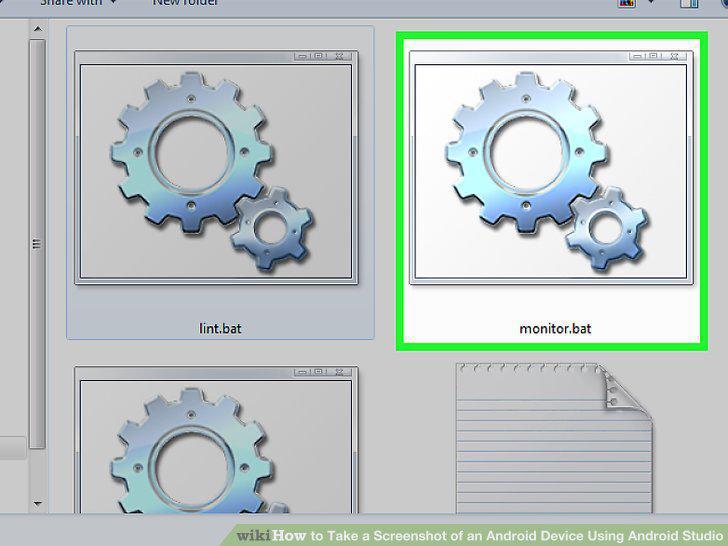
Open the Android Debug Monitor that is stored as the "monitor.bat" file in the folder for the SDK marked down earlier.
Single-click your device's name from the left hand column, when your device "Con
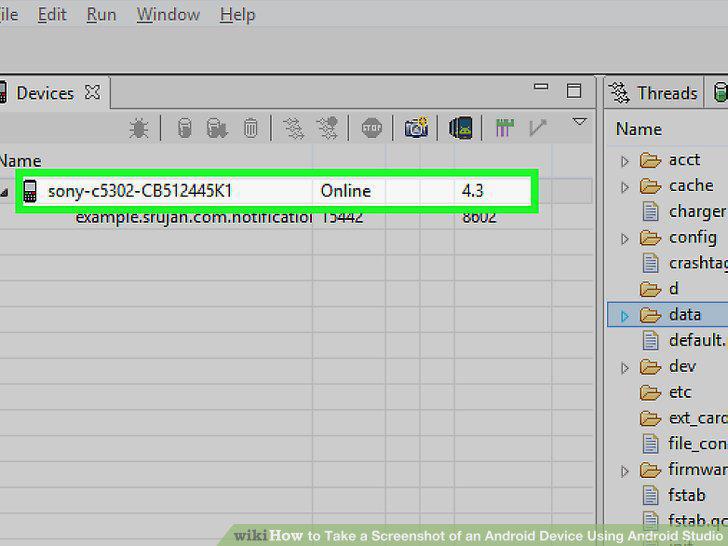
Single-click your device's name from the left hand column, when your device "Connects".
Click the "Screen Capture" box.
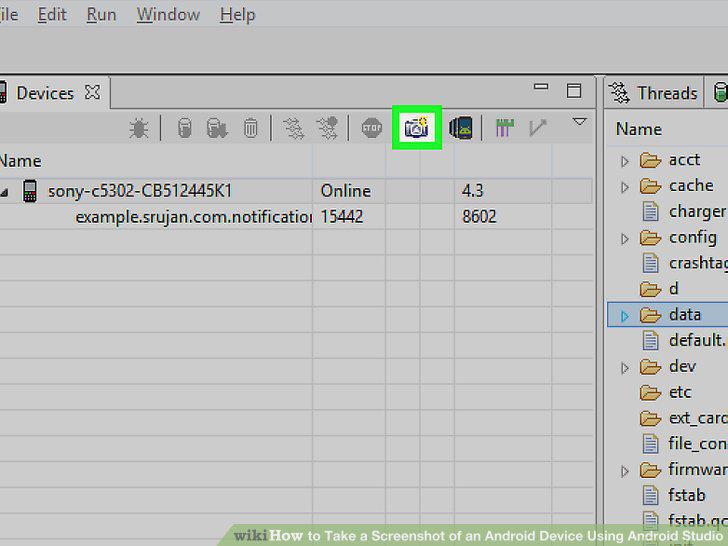
Click the "Screen Capture" box.
Save your file.
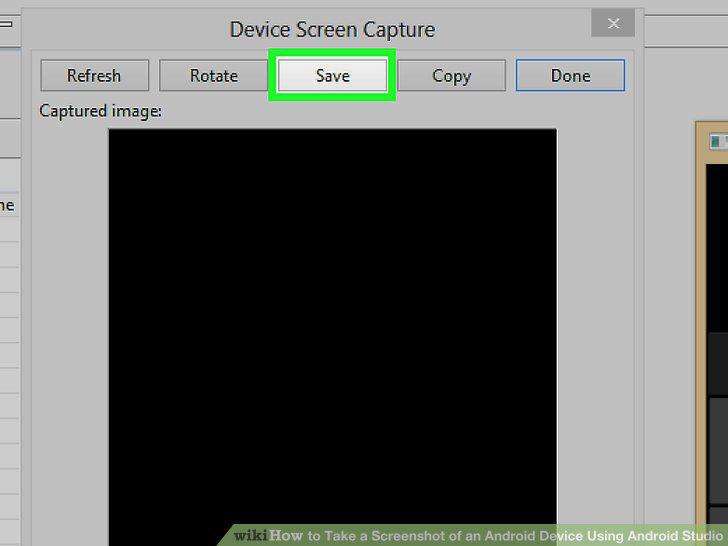
Save your file.
Comments (0)
No comments yet. Be the first to share your thoughts!