How to Pause a Twitch Stream on iPhone or iPad
Go to https://twitch.tv in a web browser.. Tap a category to select it.. Tap a live video to select it.
Steps
1
Go to https://twitch.tv in a web browser.
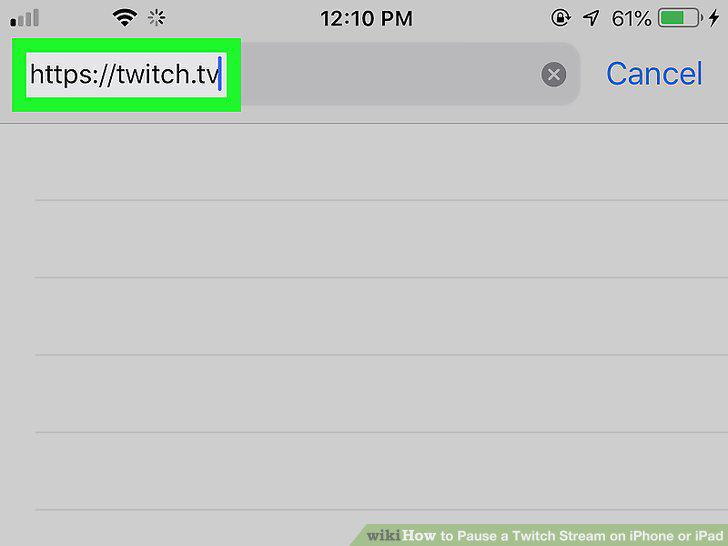
Go to https://twitch.tv in a web browser.
2
Tap a category to select it.

Tap a category to select it.
3
Tap a live video to select it.
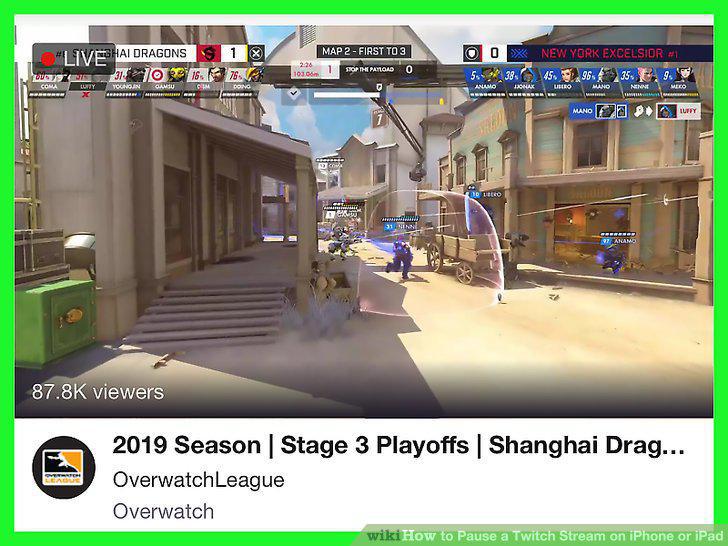
Tap a live video to select it.
4
Tap the pause icon.
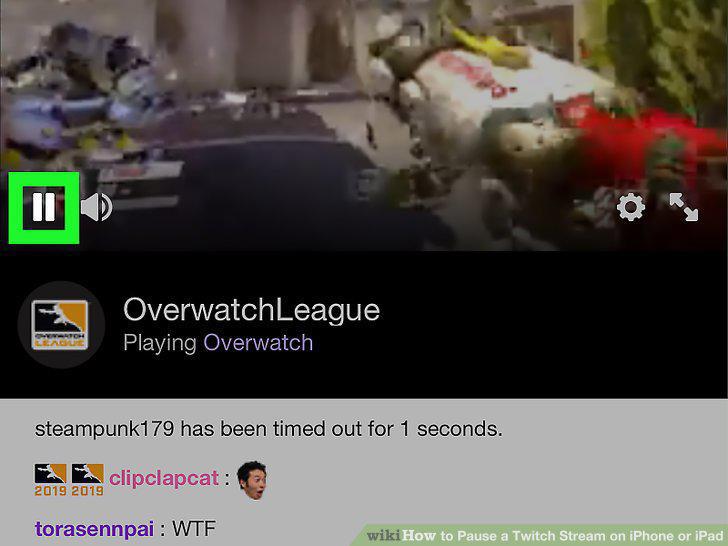
Tap the pause icon.
5
Open Twitch.
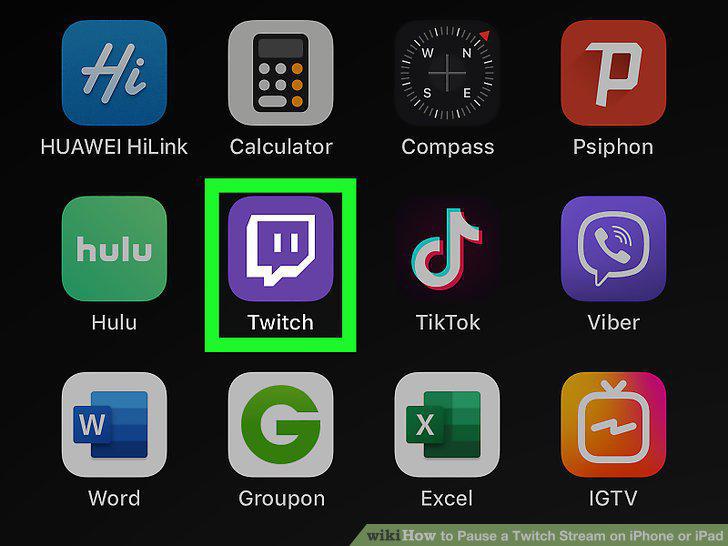
Open Twitch.
6
Tap Browse.
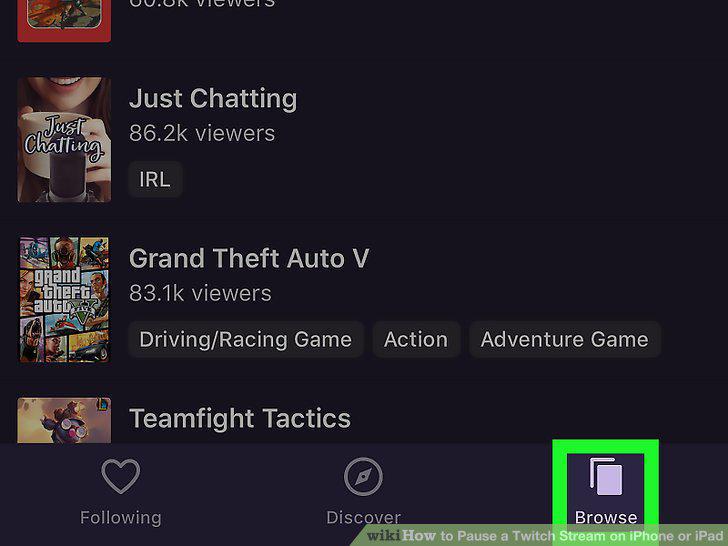
Tap Browse.
7
Tap a category to select it.
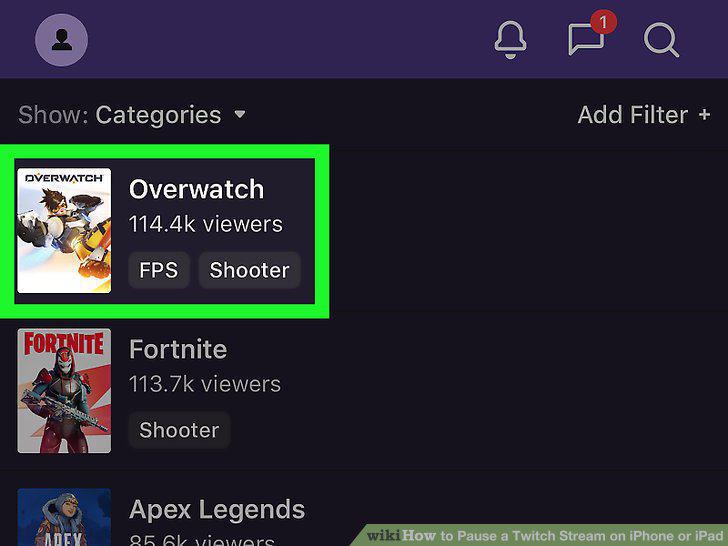
Tap a category to select it.
8
Tap the Live Channels tab.
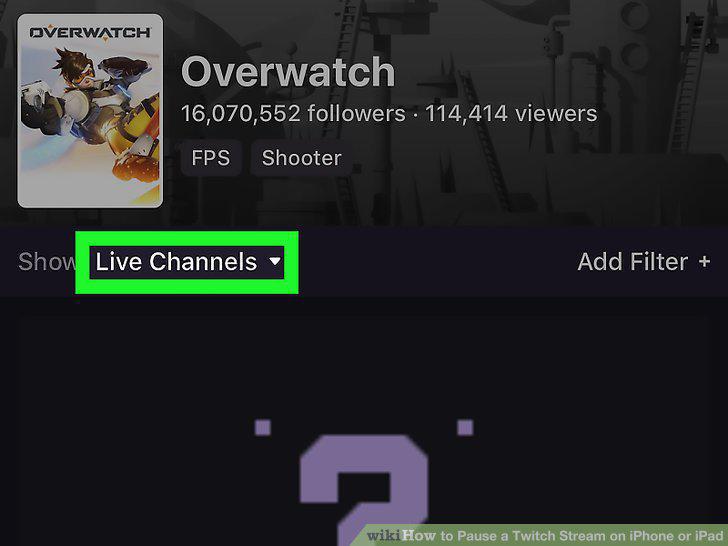
Tap the Live Channels tab.
9
Tap Videos.
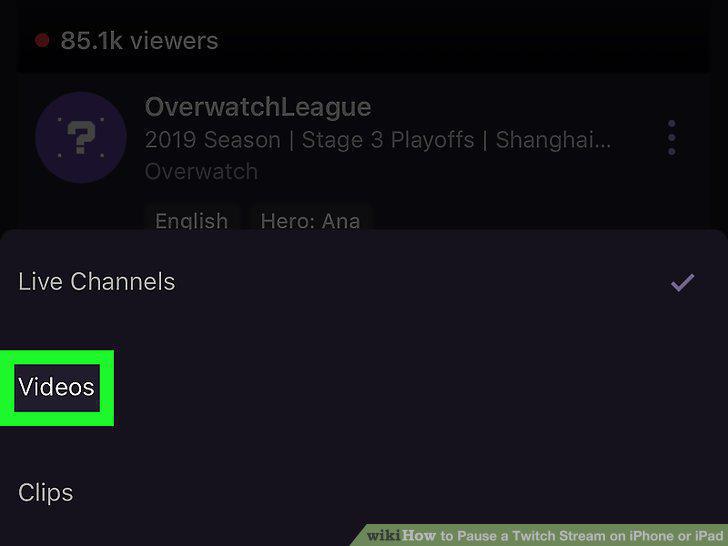
Tap Videos.
10
Tap a video to select it.
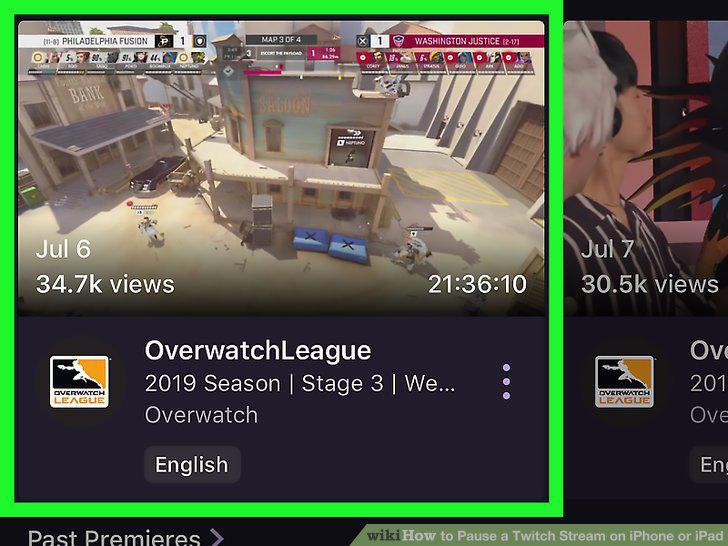
Tap a video to select it.
11
Tap the video again.
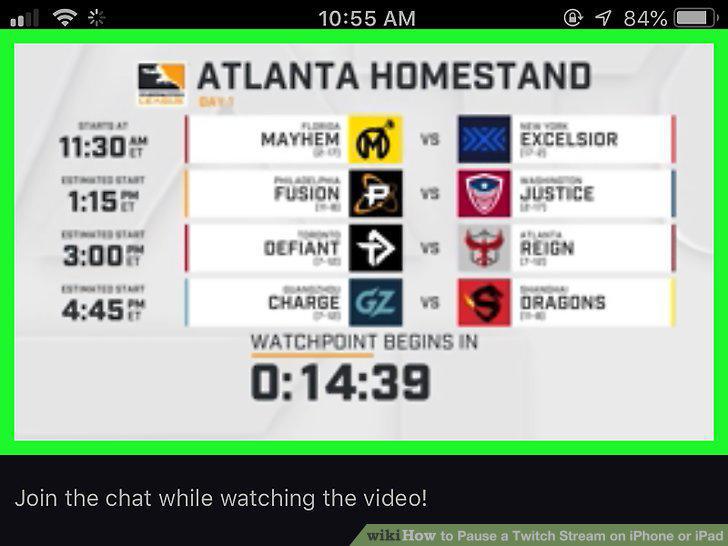
Tap the video again.
12
Tap the pause icon.
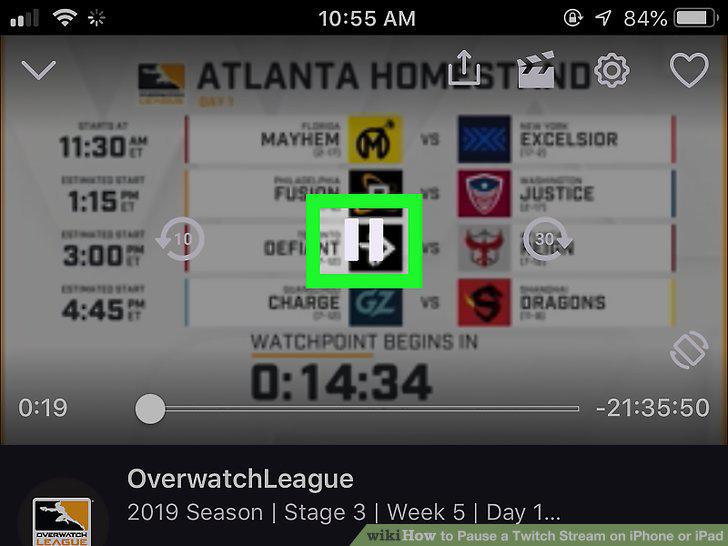
Tap the pause icon.
Comments (0)
No comments yet. Be the first to share your thoughts!