How to Fix a Webcam That Is Displaying a Black Screen on Windows
Make sure nothing is blocking the webcam lens.. Close all open apps and browser tabs.. Check the webcam options in the app or website.
Steps
Make sure nothing is blocking the webcam lens.
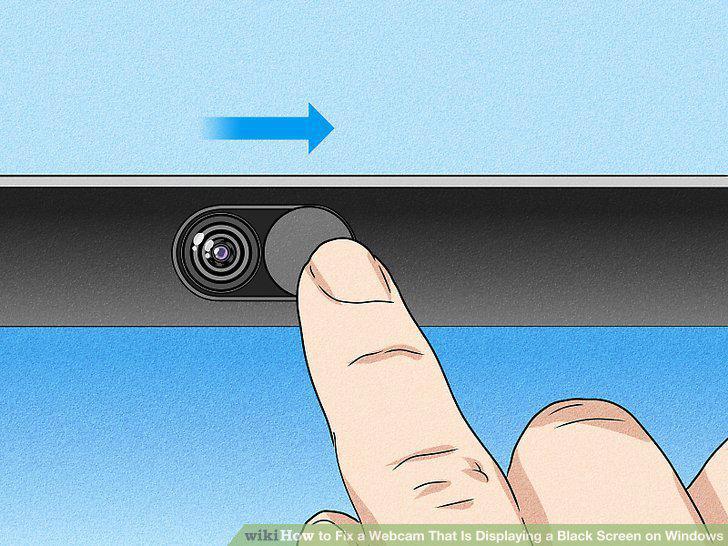
Make sure nothing is blocking the webcam lens.
Close all open apps and browser tabs.
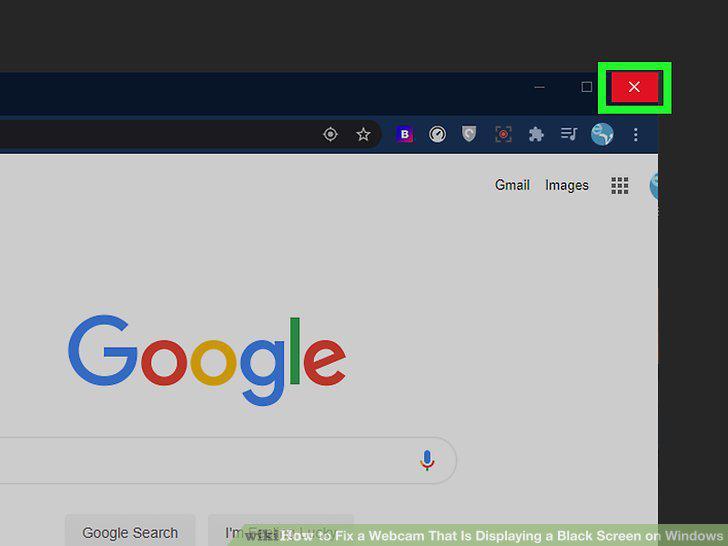
Close all open apps and browser tabs.
Check the webcam options in the app or website.
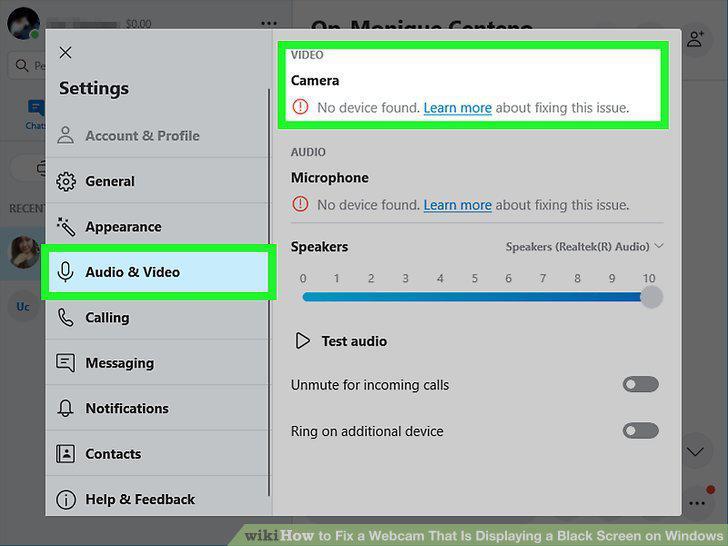
Check the webcam options in the app or website.
Adjust your permissions.
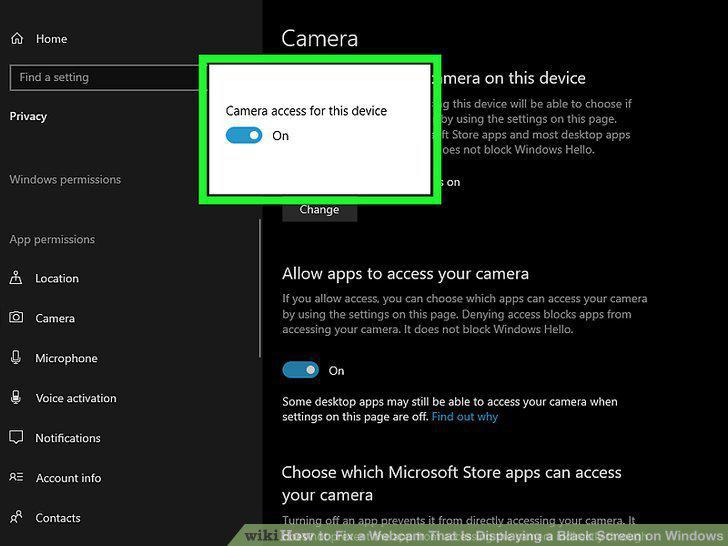
Adjust your permissions.
Try your webcam's official software.
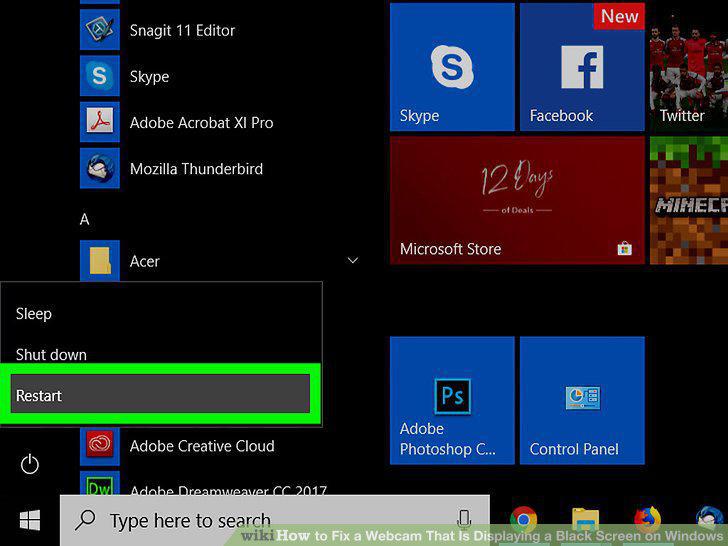
Try your webcam's official software.
Unplug other USB connections from your computer (USB webcams only).
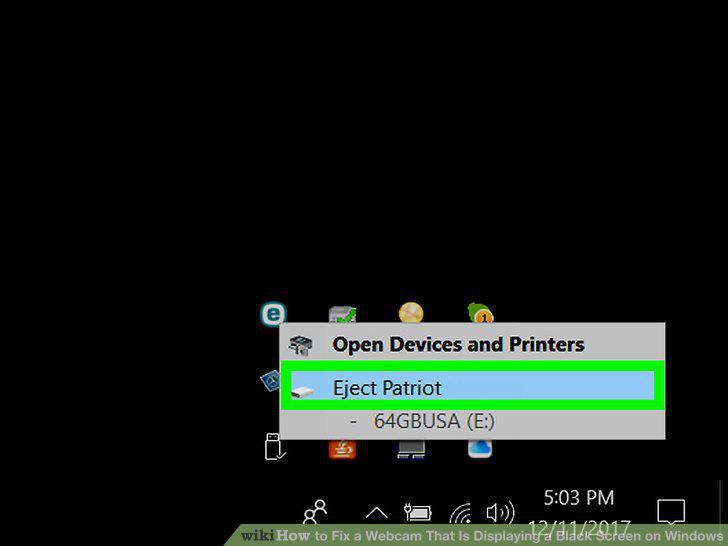
Unplug other USB connections from your computer (USB webcams only).
Restart your computer in Safe Mode.
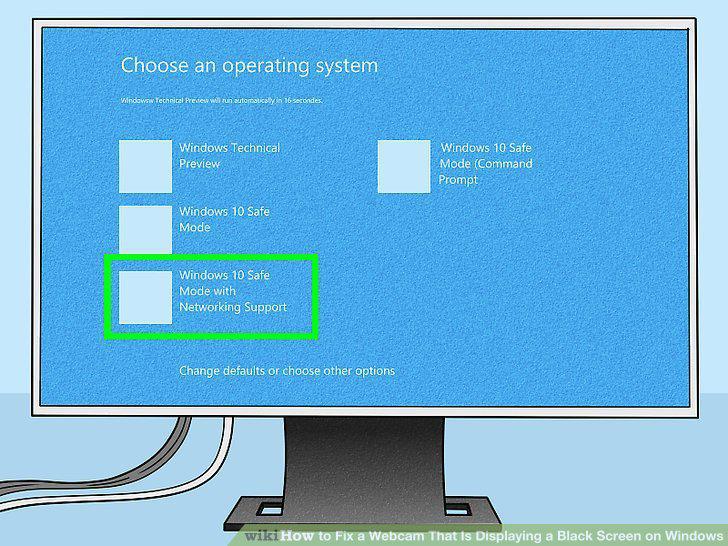
Restart your computer in Safe Mode.
Type device manager into the Windows search bar.
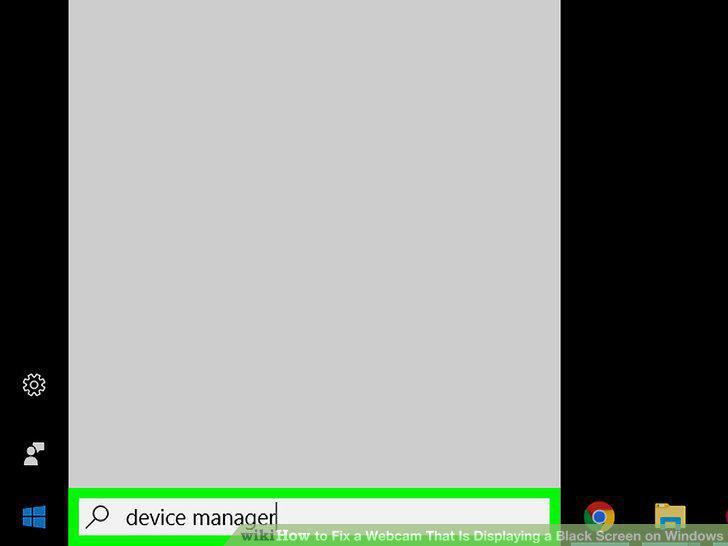
Type device manager into the Windows search bar.
Click Device Manager.
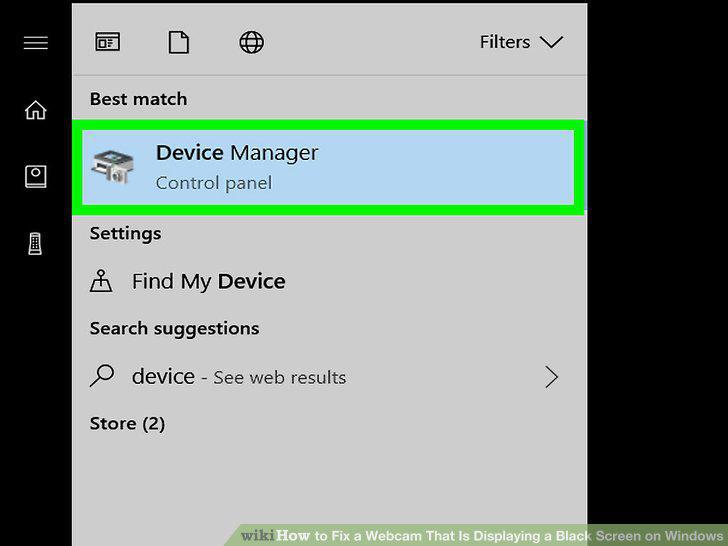
Click Device Manager.
Scroll down and double-click Cameras.
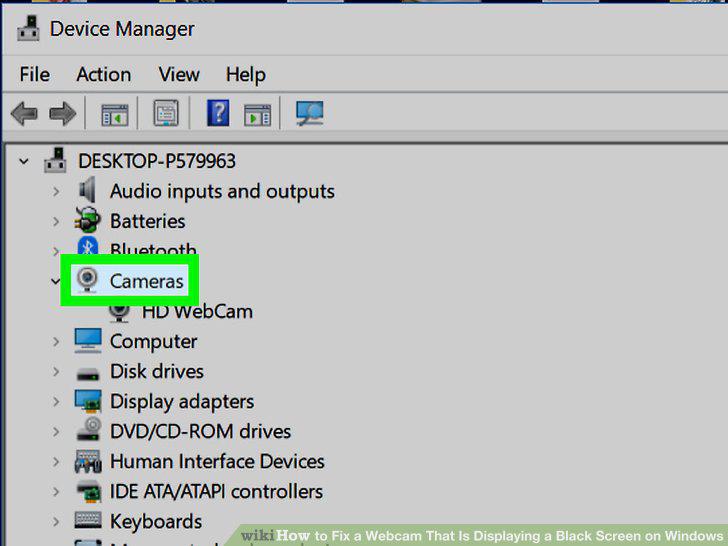
Scroll down and double-click Cameras.
Click your webcam's name once.
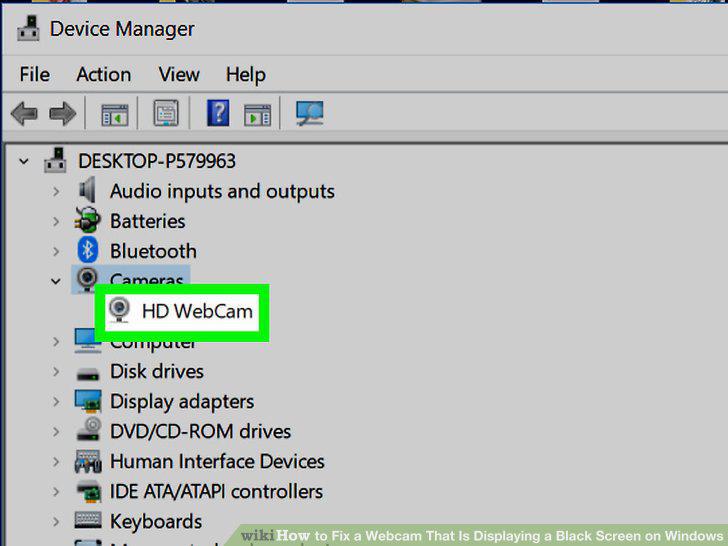
Click your webcam's name once.
Click the "Update" button.
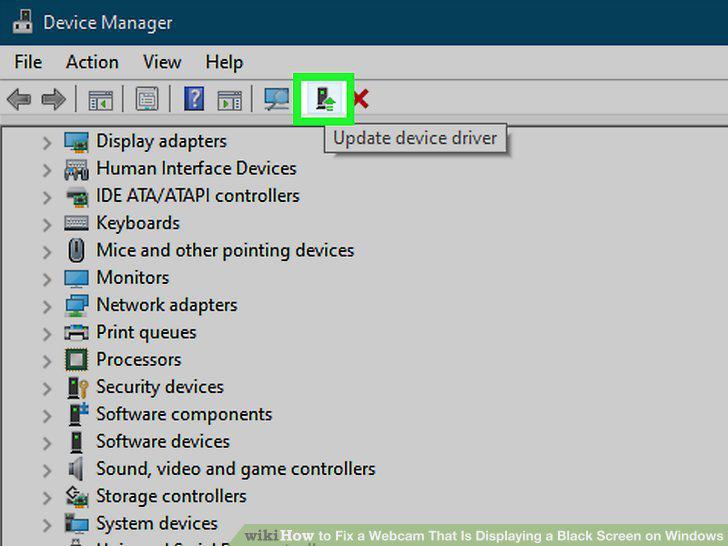
Click the "Update" button.
Click Search automatically for updated driver software.
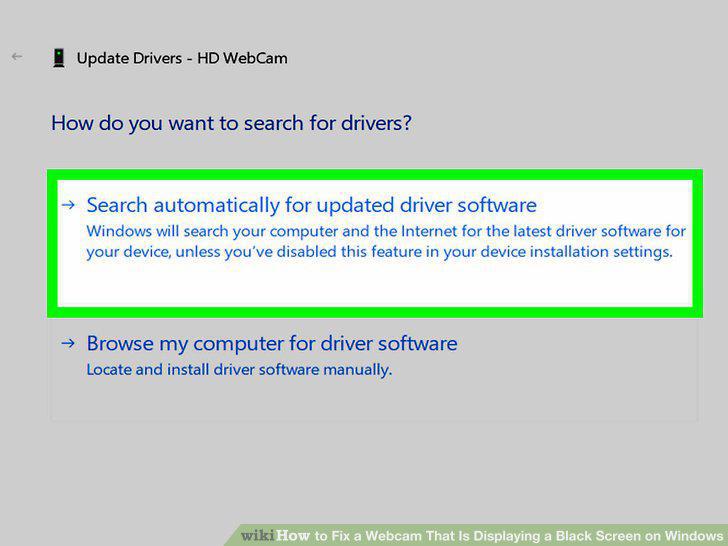
Click Search automatically for updated driver software.
Wait while Windows searches online for available and updated drivers.
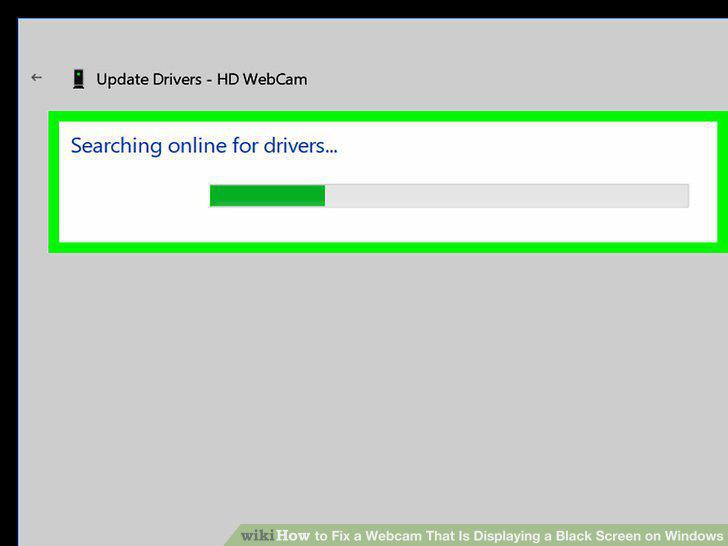
Wait while Windows searches online for available and updated drivers.
Install the updated drivers if found.
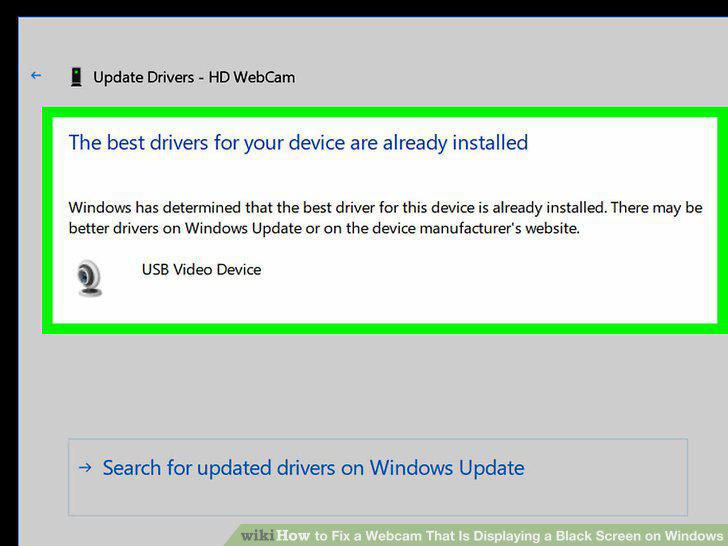
Install the updated drivers if found.
Install drivers manually.
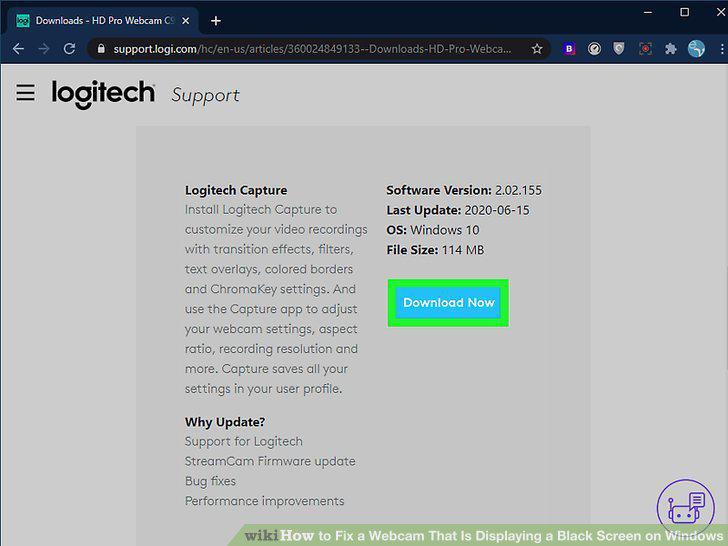
Install drivers manually.
Restart your computer.
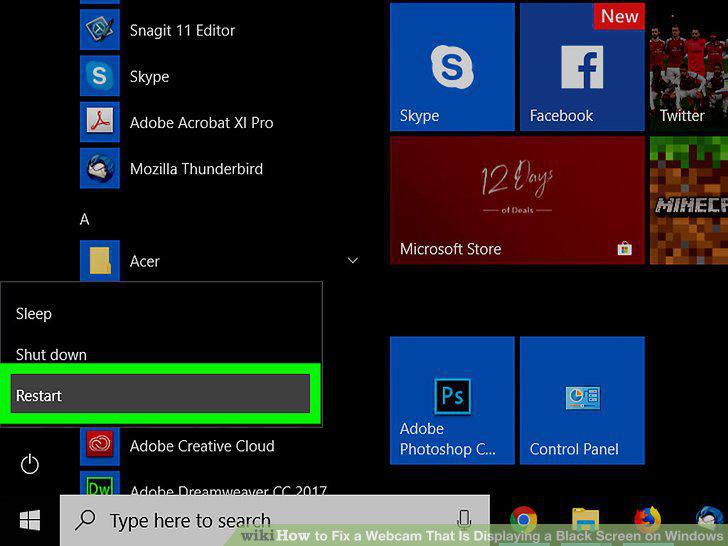
Restart your computer.
Comments (0)
No comments yet. Be the first to share your thoughts!