How to Turn Off Uber Notifications on an iPhone
Open your iPhone's Settings.. Tap on Notifications.. Scroll down and tap on "Uber".
Steps
1
Open your iPhone's Settings.
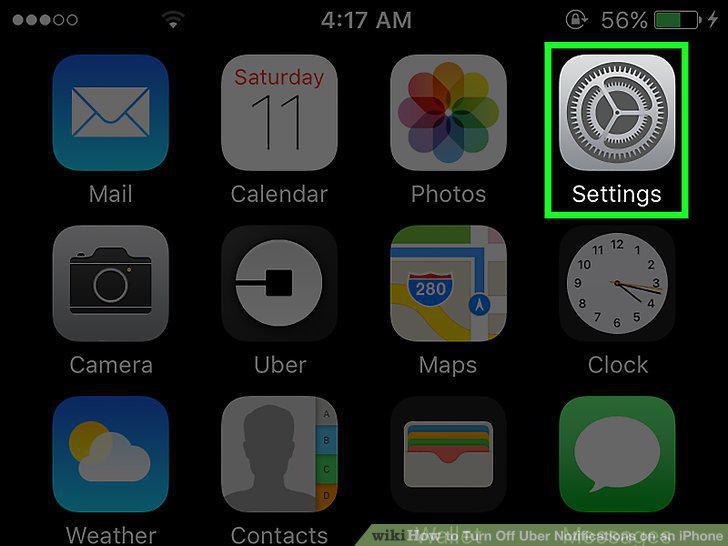
Open your iPhone's Settings.
2
Tap on Notifications.
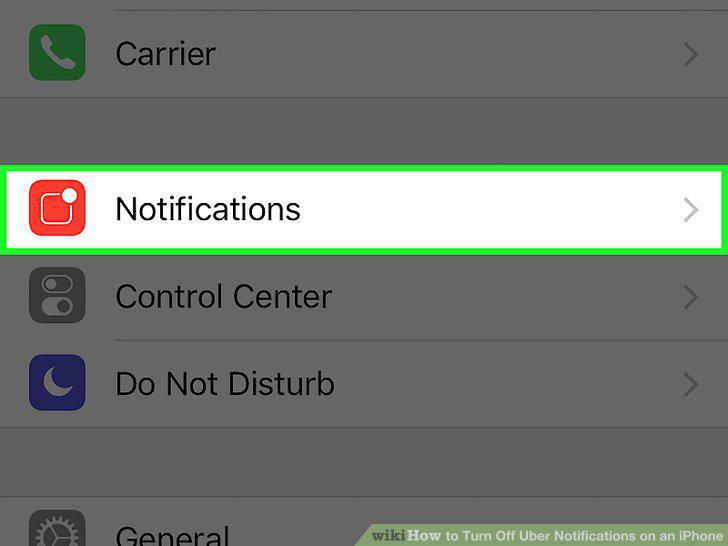
Tap on Notifications.
3
Scroll down and tap on "Uber".
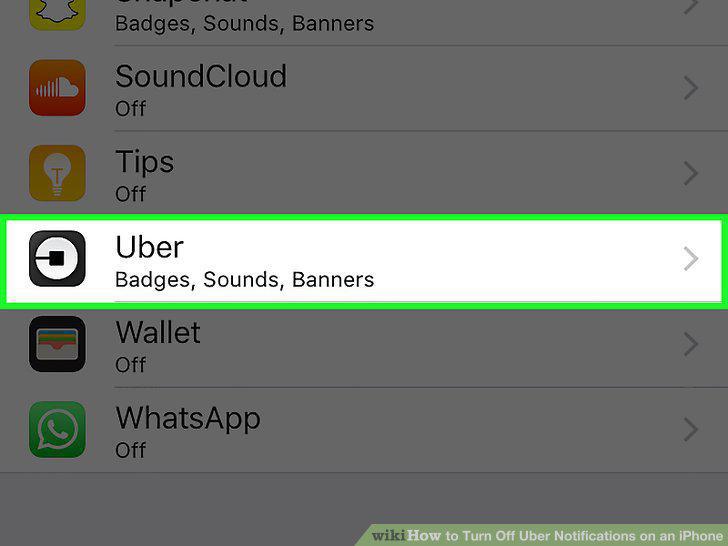
Scroll down and tap on "Uber".
4
Slide the "Allow Notifications" button to the off position.
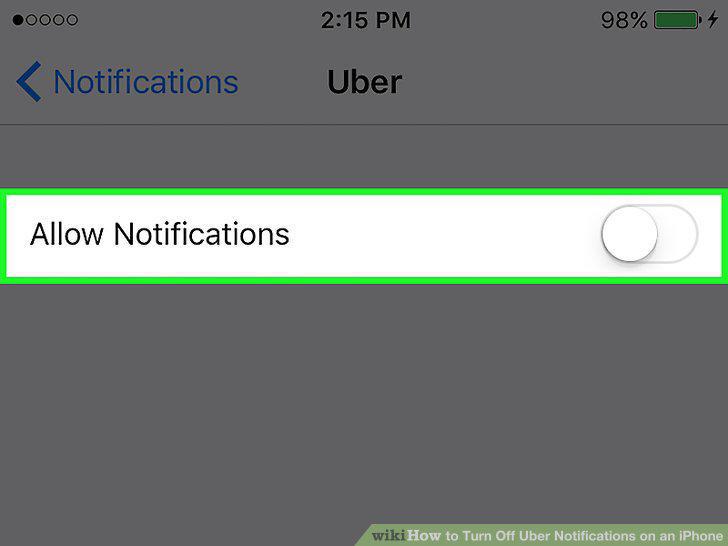
Slide the "Allow Notifications" button to the off position.
5
Open your iPhone's Settings.
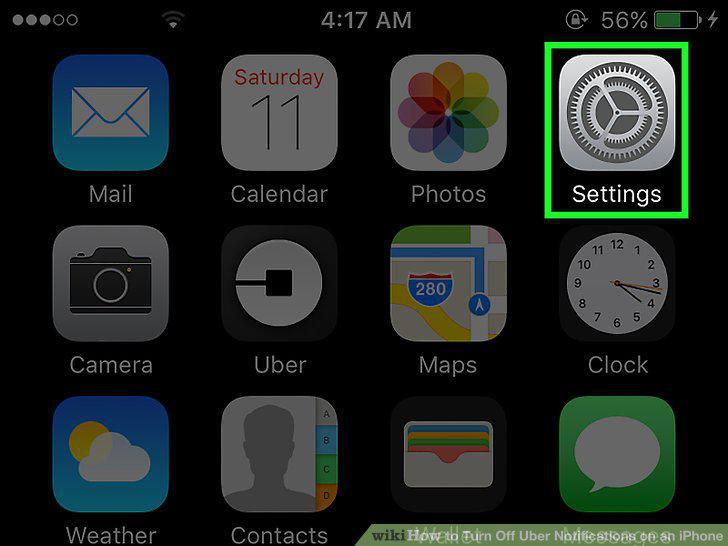
Open your iPhone's Settings.
6
Tap on Notifications.
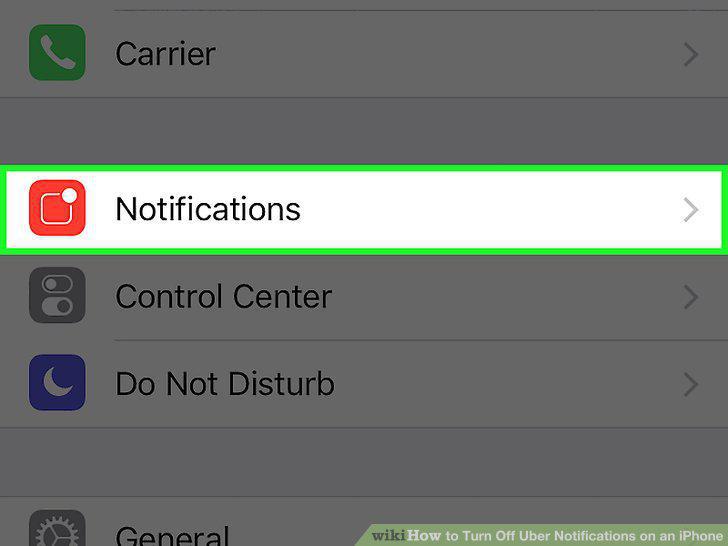
Tap on Notifications.
7
Scroll down and tap on "Uber".
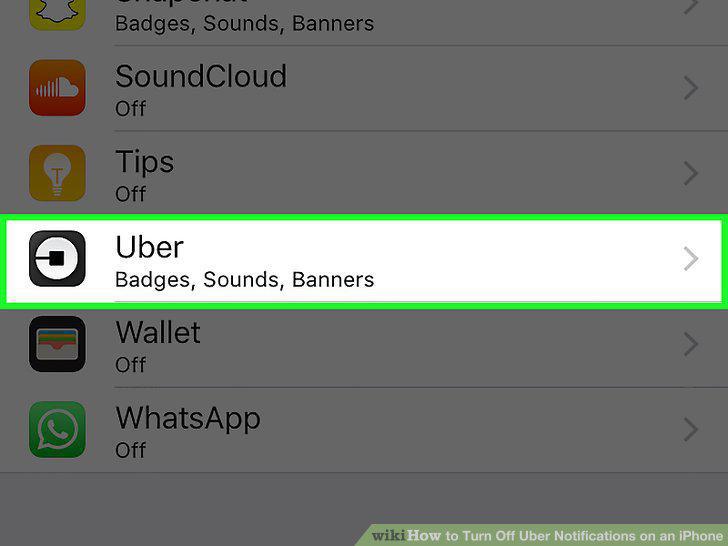
Scroll down and tap on "Uber".
8
Slide the "Show in Notification Center" button to the off position.
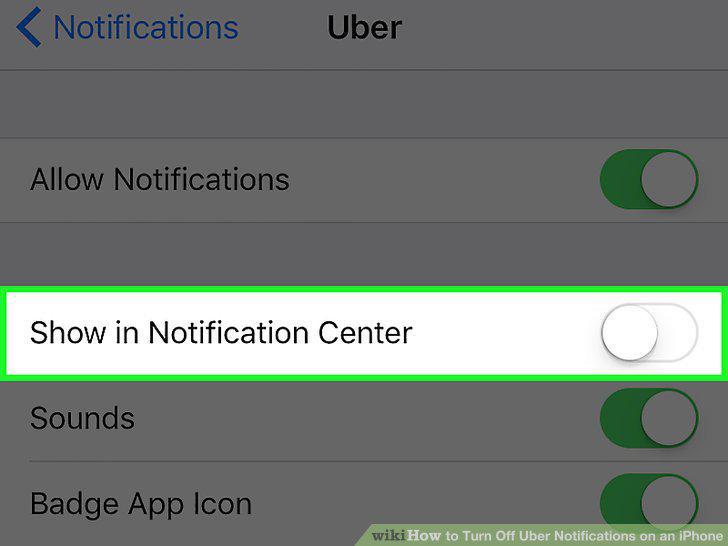
Slide the "Show in Notification Center" button to the off position.
9
Slide the "Sounds" button to the off position.
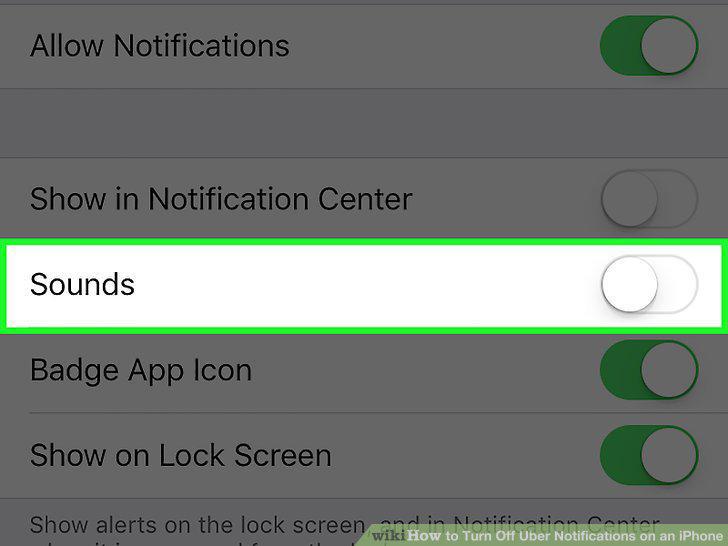
Slide the "Sounds" button to the off position.
10
Slide the "Badge App Icon" button to off.
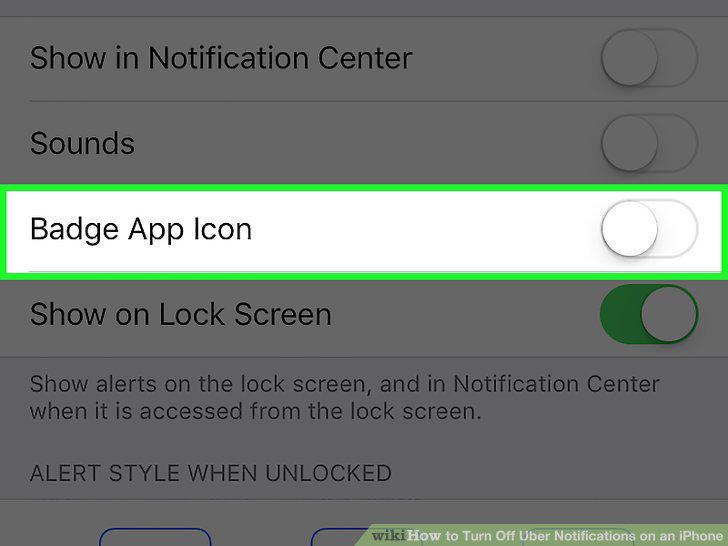
Slide the "Badge App Icon" button to off.
11
Slide the "Show on Lock Screen" button to the off position.
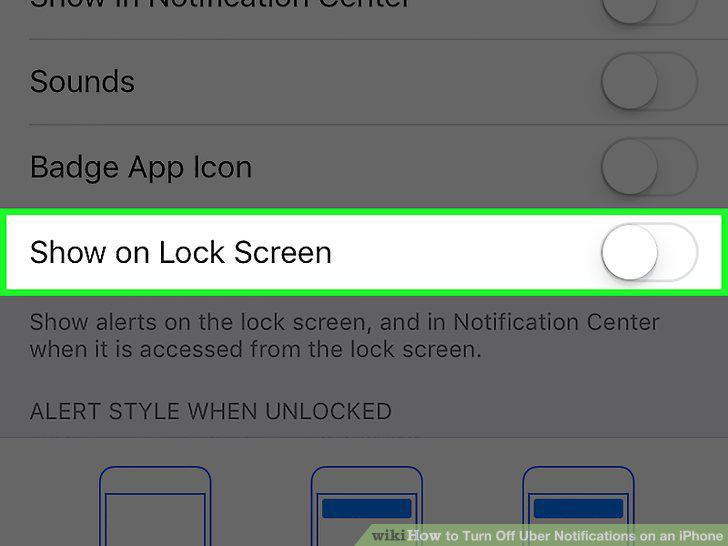
Slide the "Show on Lock Screen" button to the off position.
12
Select an "Alert Style When Unlocked".
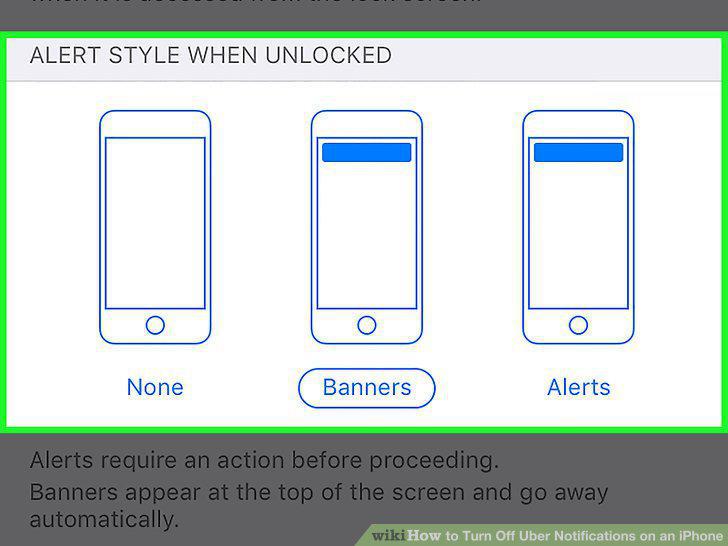
Select an "Alert Style When Unlocked".
Comments (0)
No comments yet. Be the first to share your thoughts!