How to Change the Time Zone in Outlook
Open Microsoft Outlook on your PC.. Click the File tab on the top-left.. Click Options on the left-menu.
Steps
Open Microsoft Outlook on your PC.
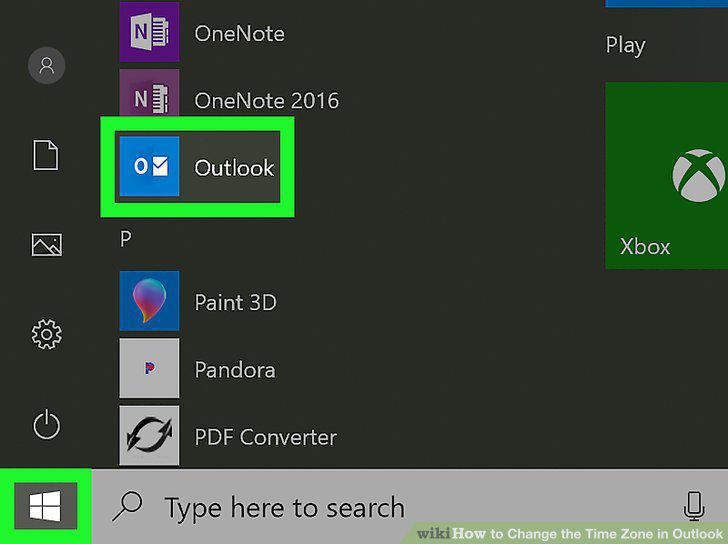
Open Microsoft Outlook on your PC.
Click the File tab on the top-left.
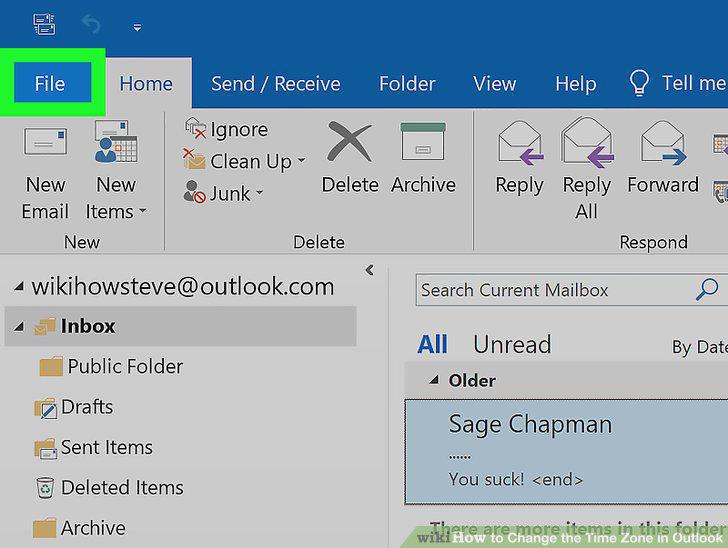
Click the File tab on the top-left.
Click Options on the left-menu.
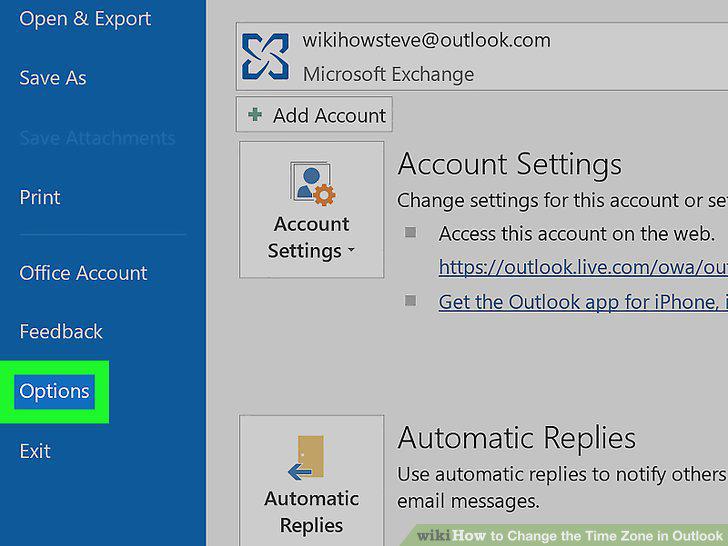
Click Options on the left-menu.
Click Calendar on the left panel in the Options window.
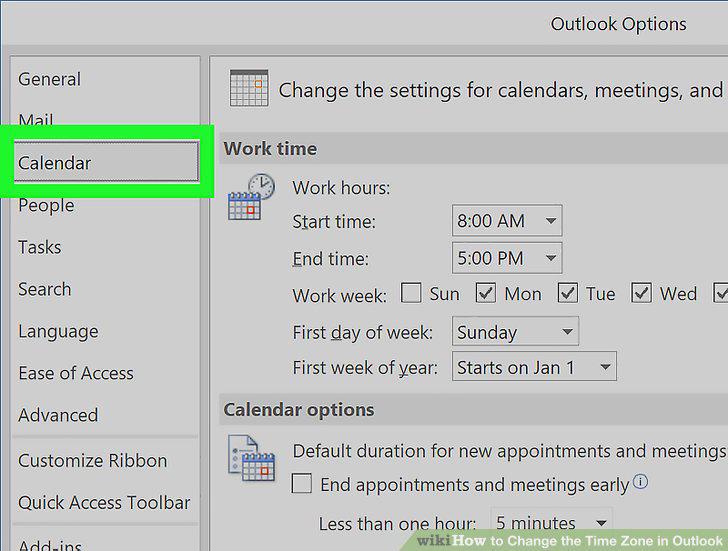
Click Calendar on the left panel in the Options window.
Scroll down and click the Time zone drop-down.
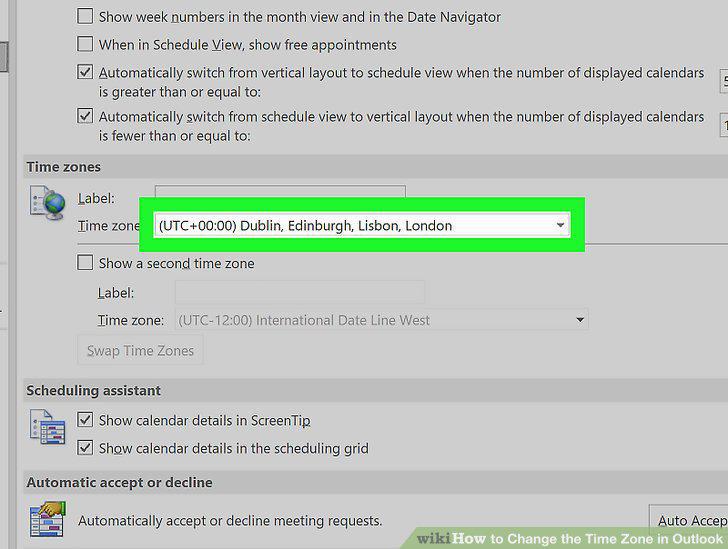
Scroll down and click the Time zone drop-down.
Select the time zone you want to use.
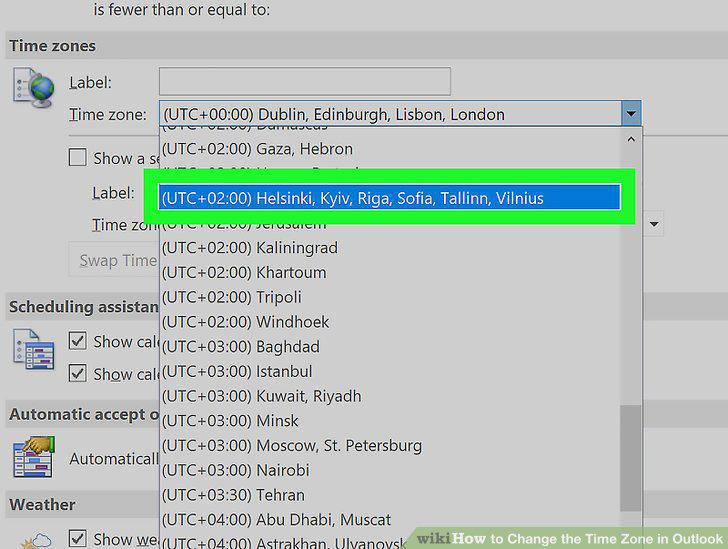
Select the time zone you want to use.
Click the OK button.
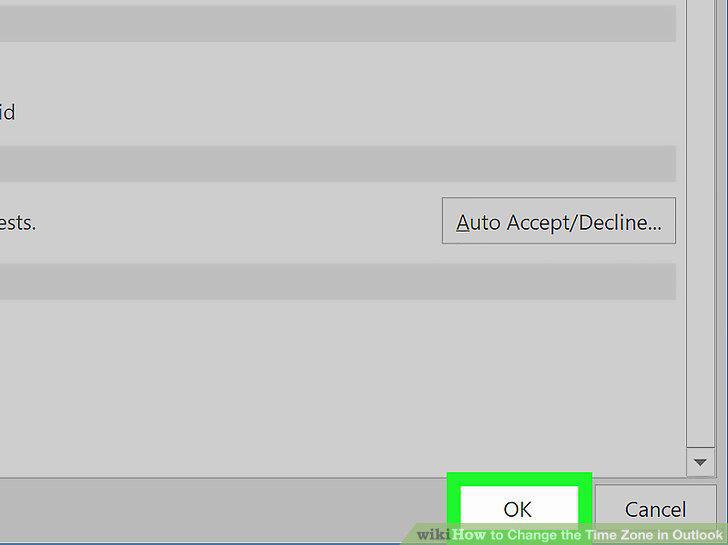
Click the OK button.
Open Microsoft Outlook on your Mac.
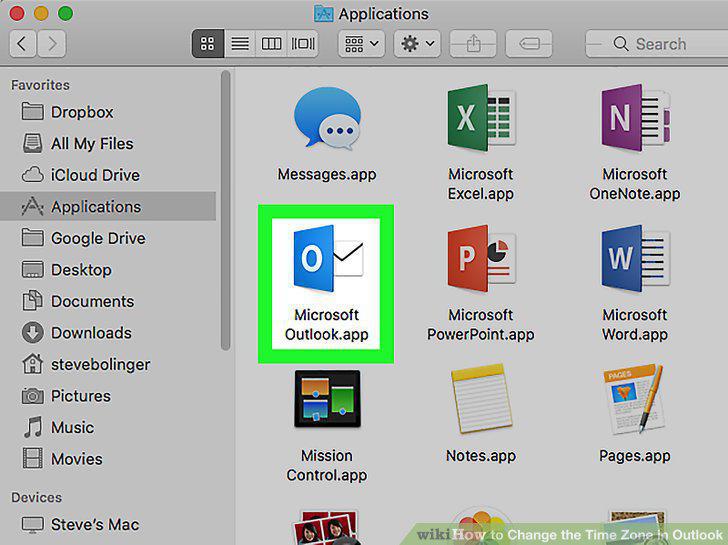
Open Microsoft Outlook on your Mac.
Click the Outlook tab on the menu bar.
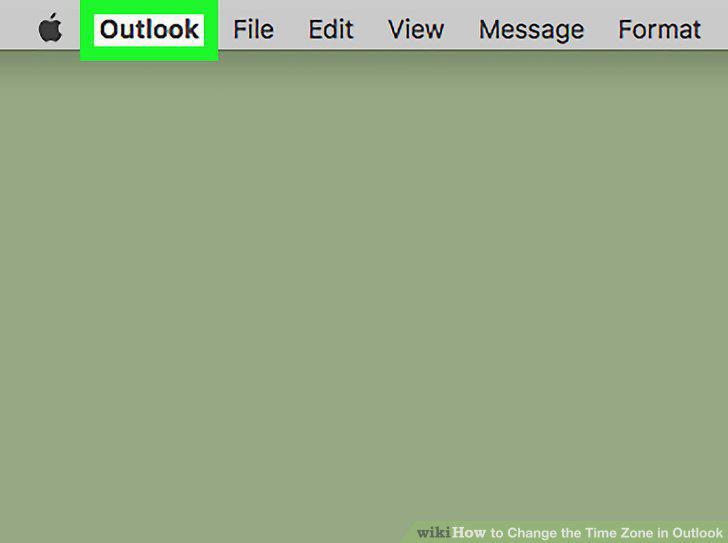
Click the Outlook tab on the menu bar.
Click Preferences on the menu.
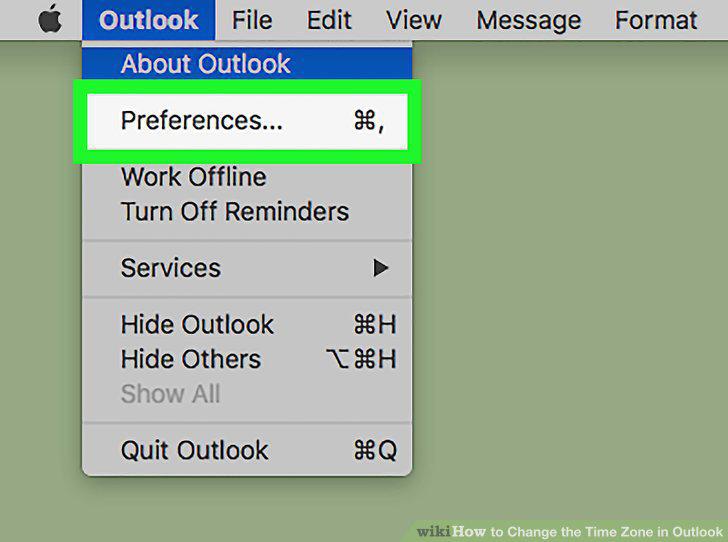
Click Preferences on the menu.
Click Calendar in Preferences.
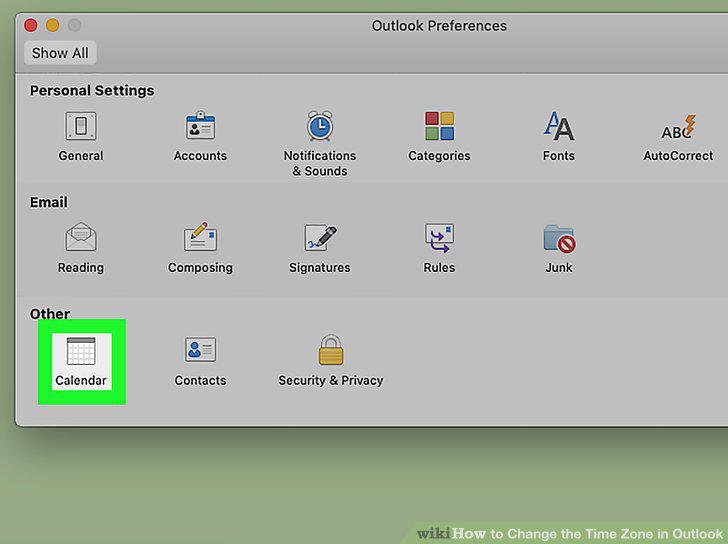
Click Calendar in Preferences.
Click the drop-down menu under "Time zones.
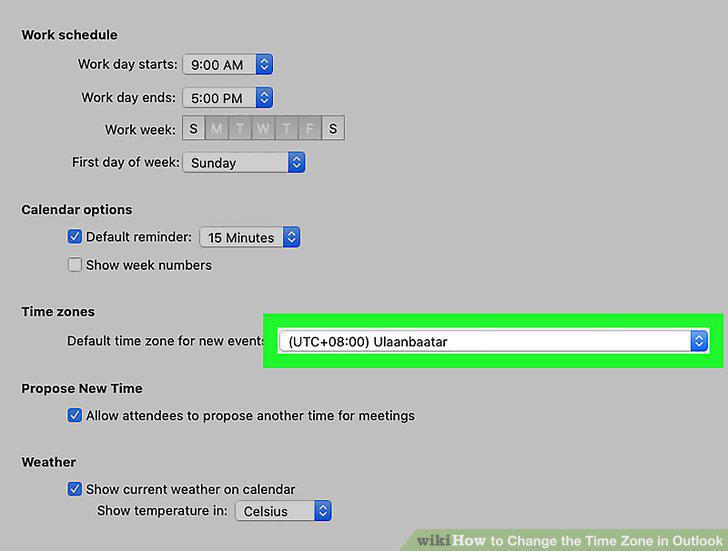
Click the drop-down menu under "Time zones.
Select the time zone you want to use.
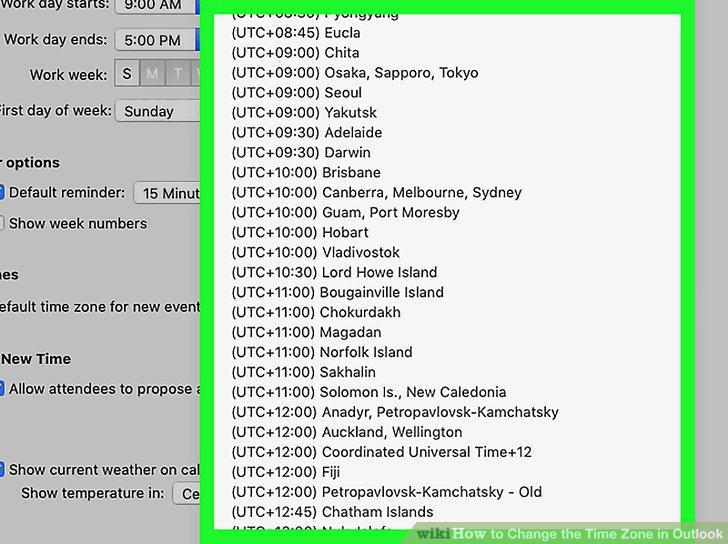
Select the time zone you want to use.
Open Outlook.com in your internet browser.
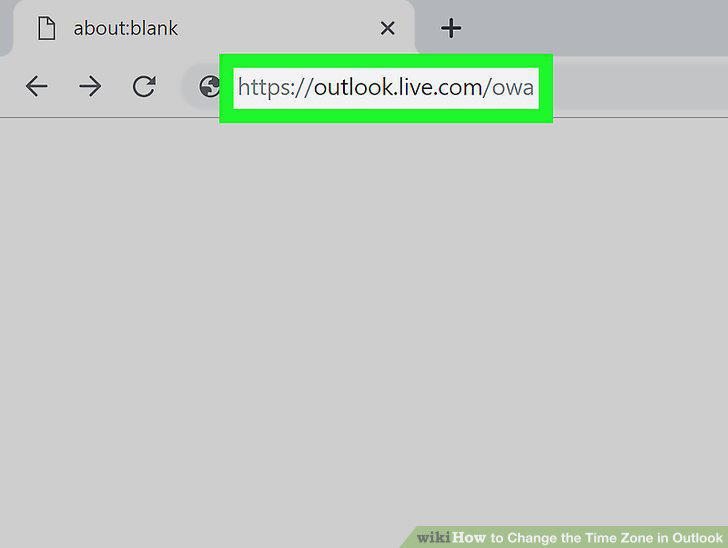
Open Outlook.com in your internet browser.
Click Sign in on the top-right.
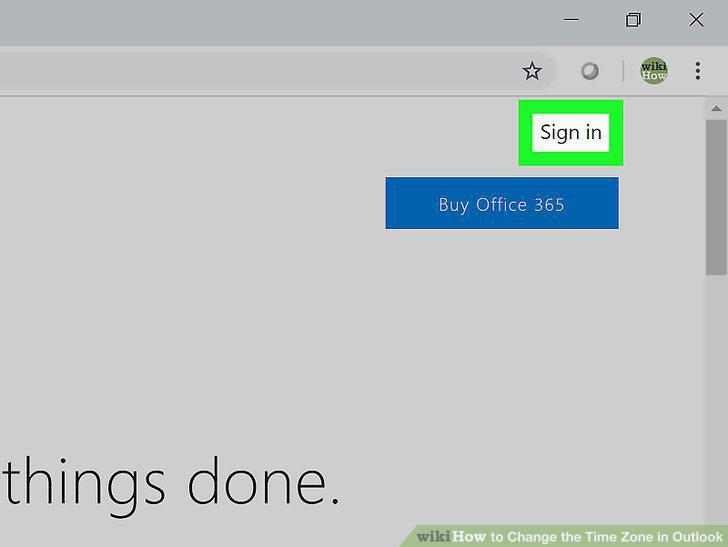
Click Sign in on the top-right.
Sign in to your Outlook account.
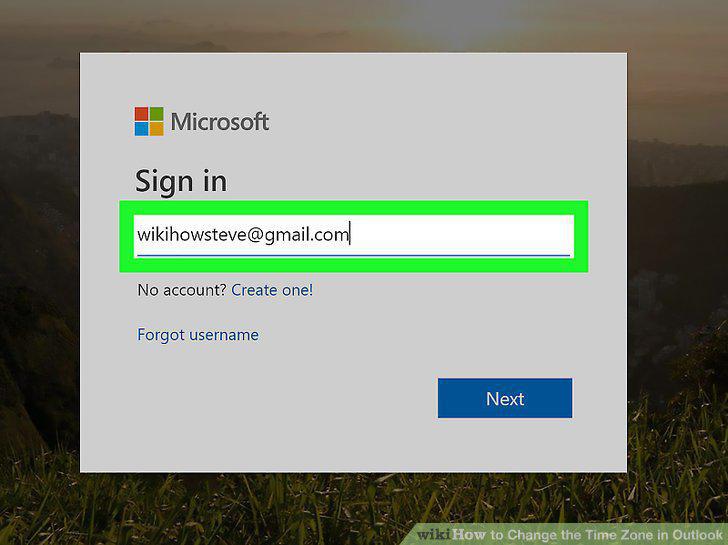
Sign in to your Outlook account.
Click the gear icon on the top-right.
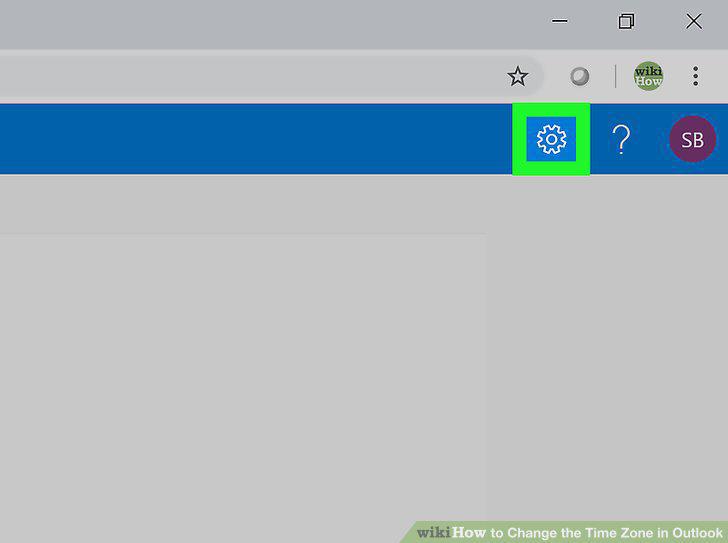
Click the gear icon on the top-right.
Click View all Outlook settings at the bottom.
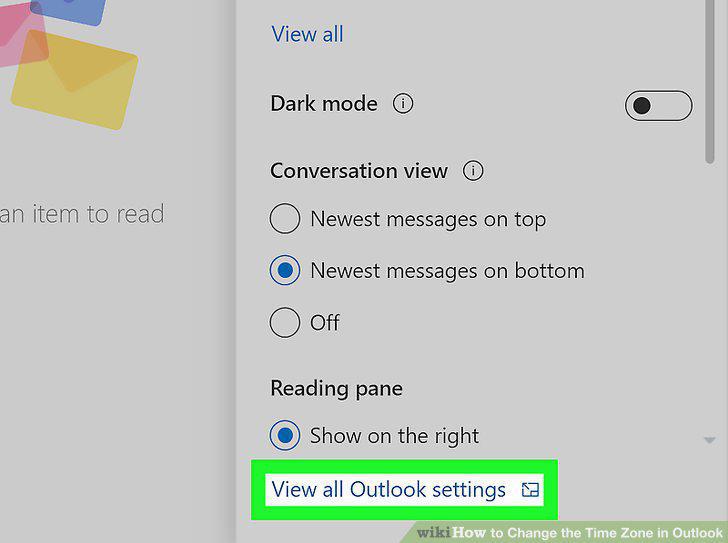
Click View all Outlook settings at the bottom.
Click General on the Settings menu.
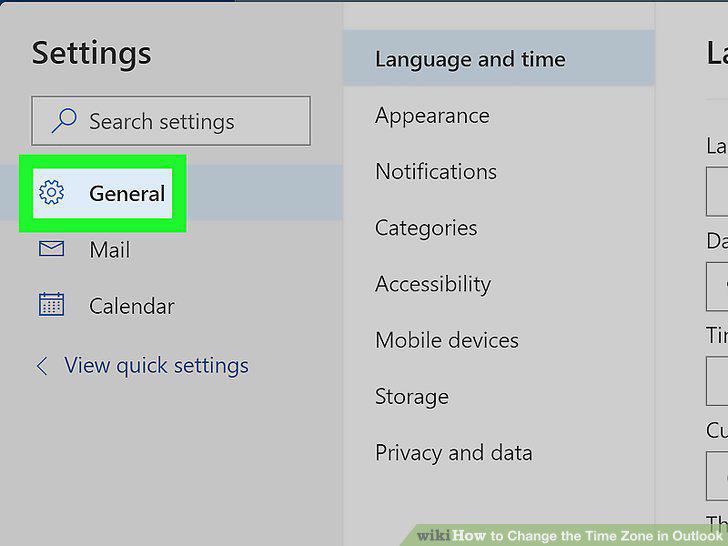
Click General on the Settings menu.
Click the Current time zone drop-down under "Language and time.
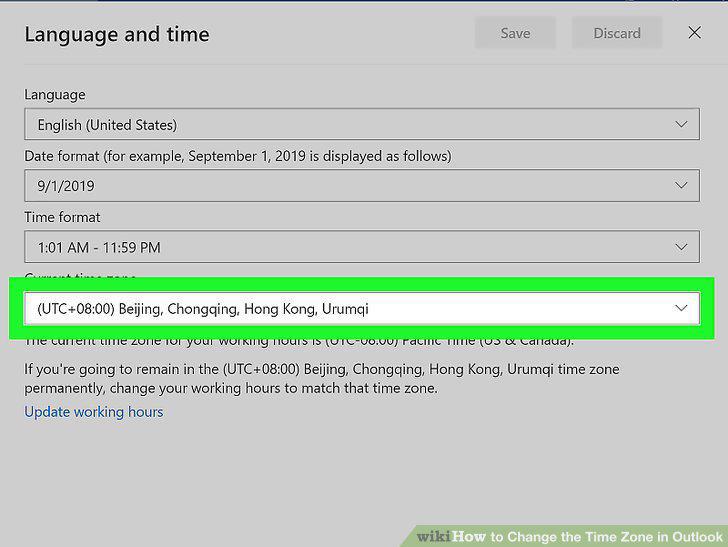
Click the Current time zone drop-down under "Language and time.
Select the time zone you want to use.
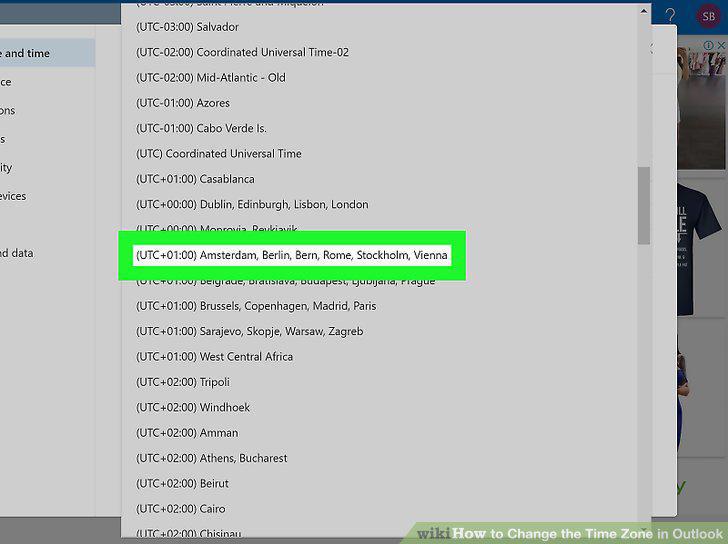
Select the time zone you want to use.
Click the Save button.
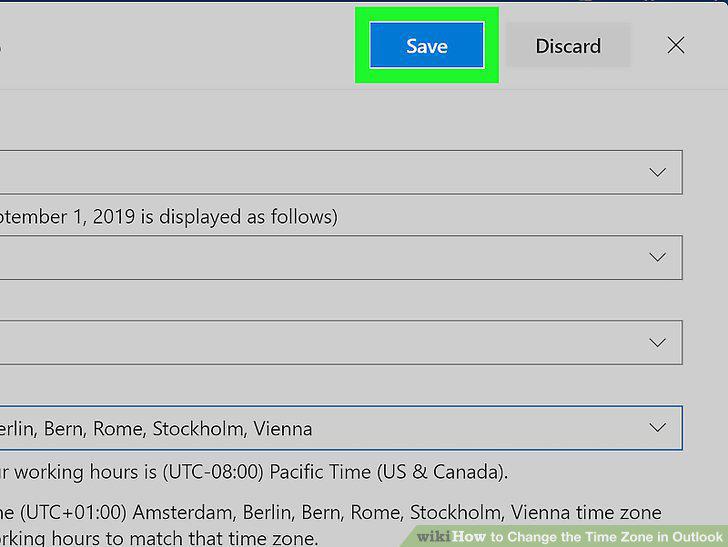
Click the Save button.
Comments (0)
No comments yet. Be the first to share your thoughts!