How to Update Safari on Mac
Make sure your Mac can run OS X 10.6.. Purchase a copy of Mac OS X 10.6 (Snow Leopard).. Install OS X 10.6 on your Mac.
Steps
1
Make sure your Mac can run OS X 10.6.
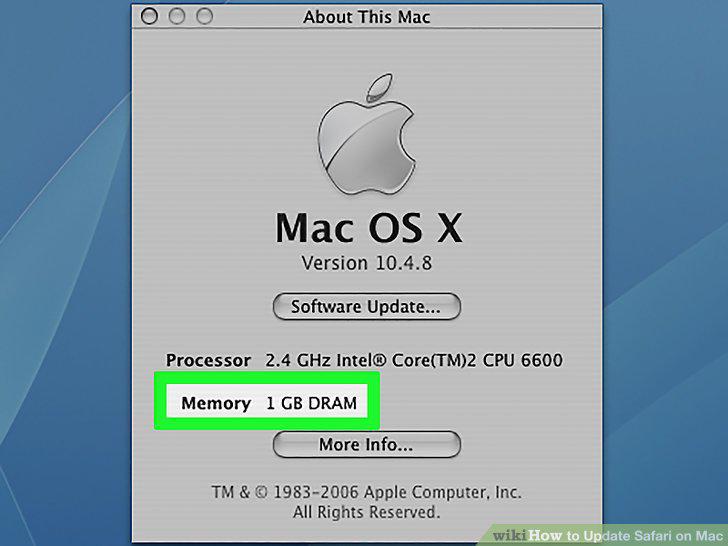
Make sure your Mac can run OS X 10.6.
2
Purchase a copy of Mac OS X 10.6 (Snow Leopard).
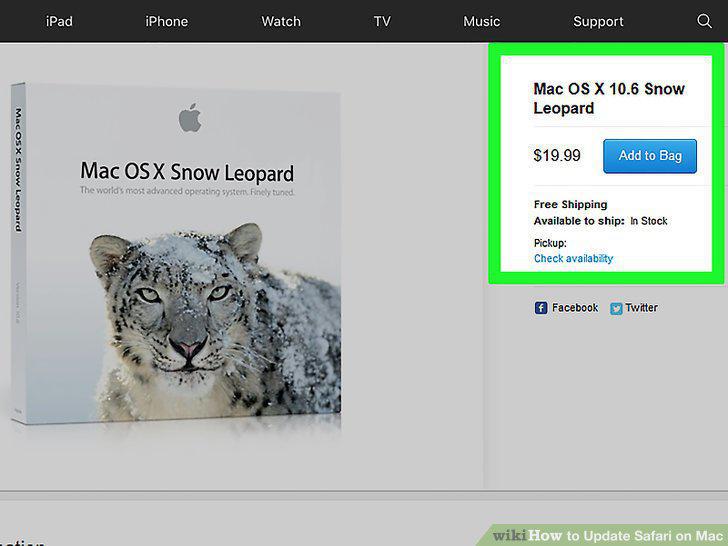
Purchase a copy of Mac OS X 10.6 (Snow Leopard).
3
Install OS X 10.6 on your Mac.
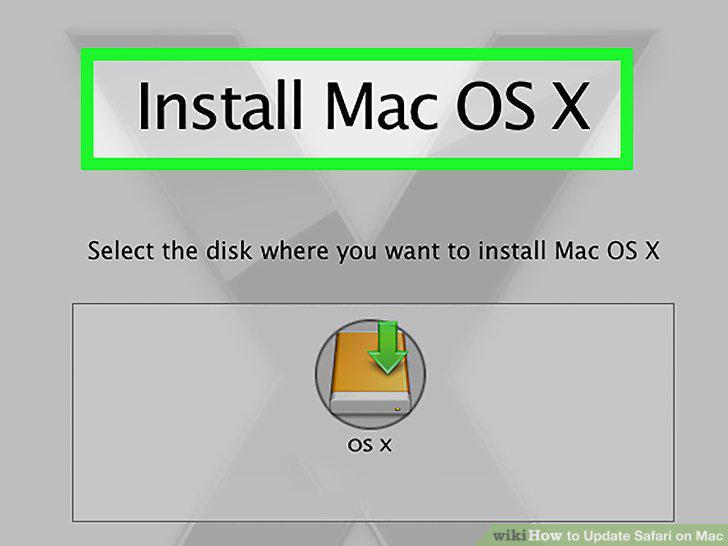
Install OS X 10.6 on your Mac.
4
Click the Apple Menu icon.
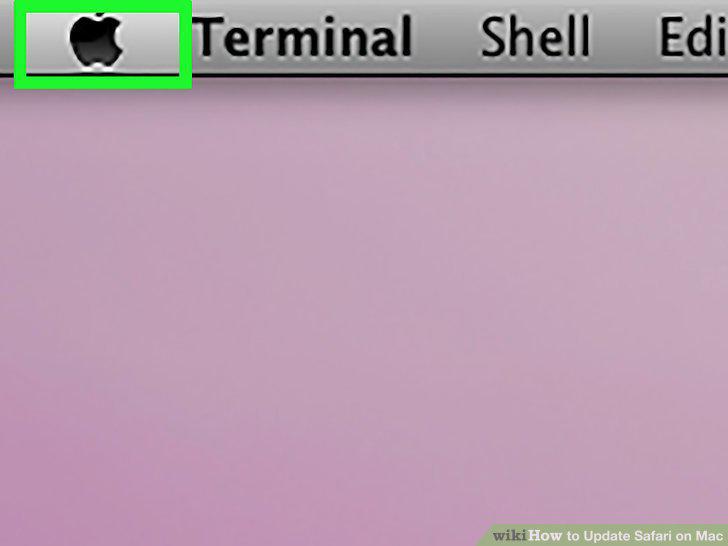
Click the Apple Menu icon.
5
Click Software Update.
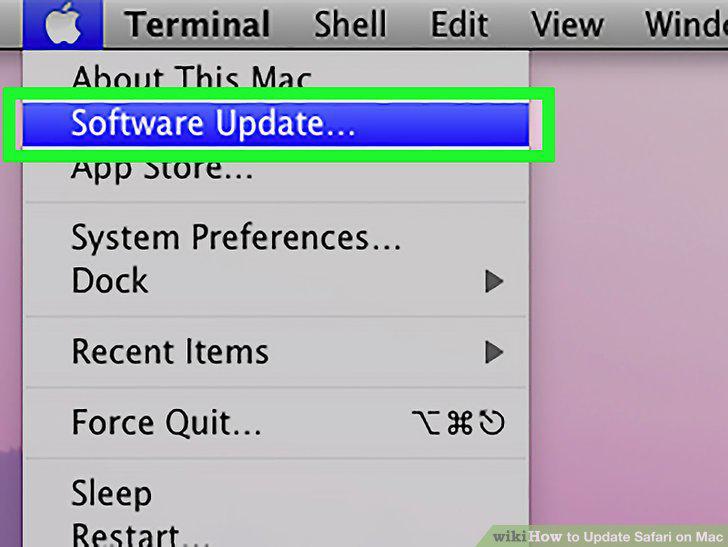
Click Software Update.
6
Make sure the "Safari" box is checked.
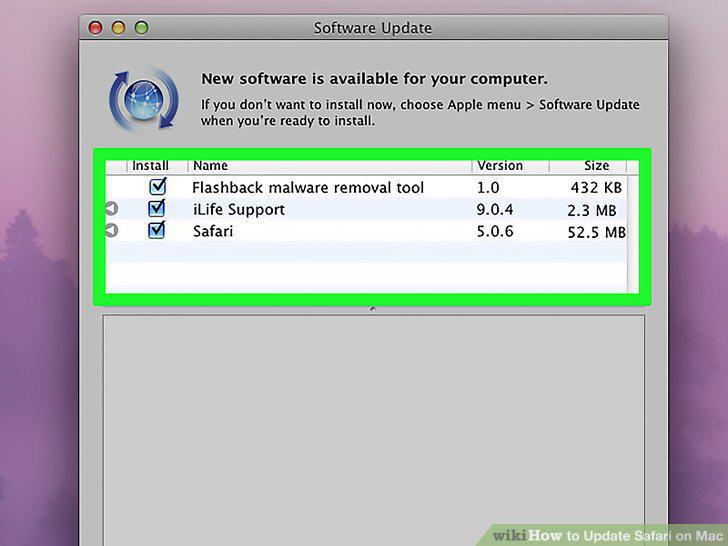
Make sure the "Safari" box is checked.
7
Click Install [number] Items.
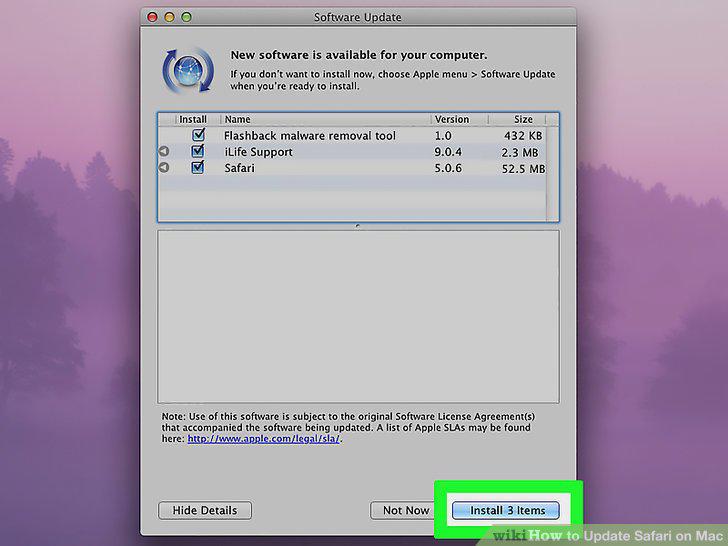
Click Install [number] Items.
8
Wait for the updates to finish installing.
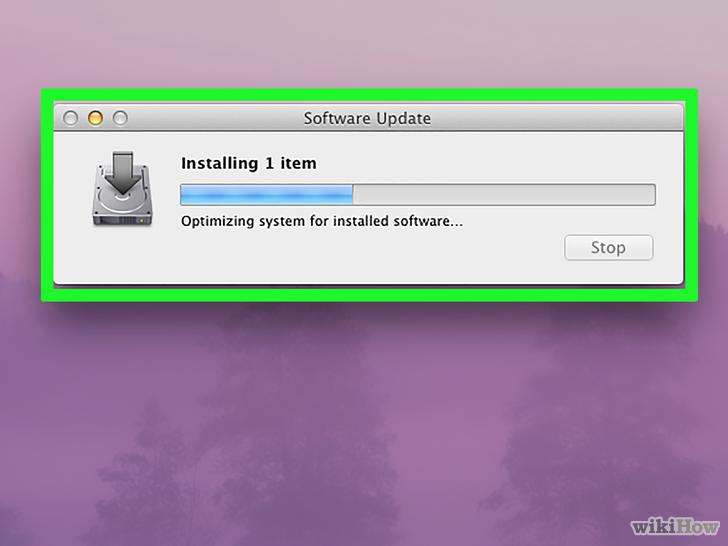
Wait for the updates to finish installing.
9
Open your Mac's App Store.
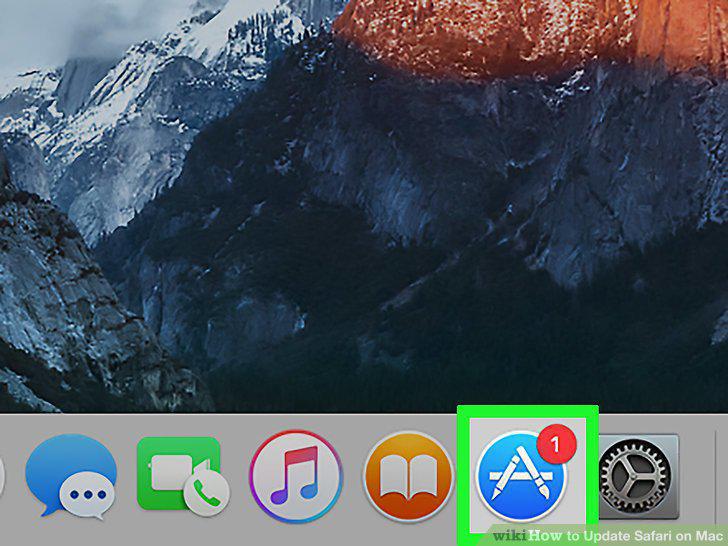
Open your Mac's App Store.
10
Click the Updates tab.
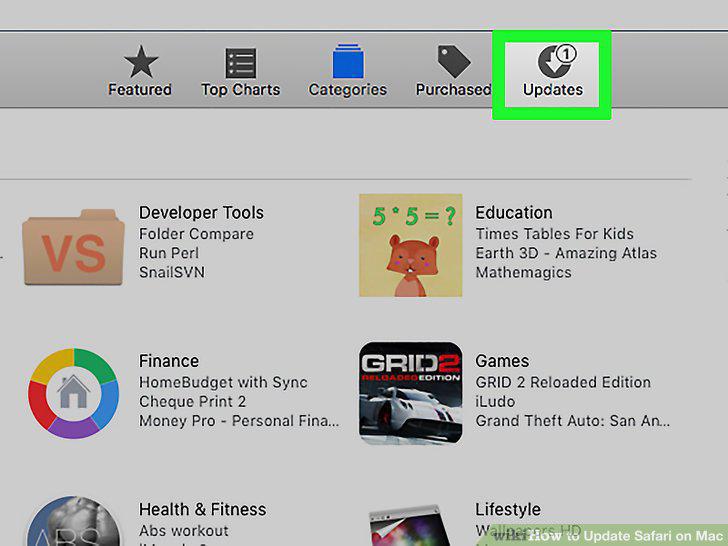
Click the Updates tab.
11
Click Update right of the "Safari" option.
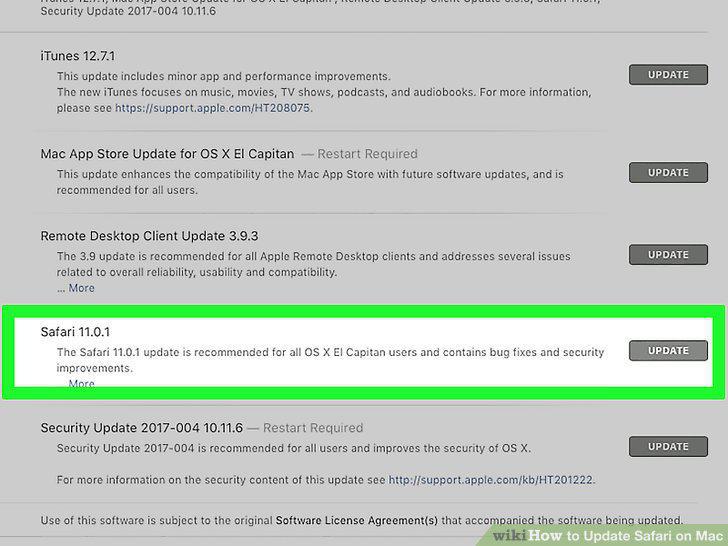
Click Update right of the "Safari" option.
12
Ensure that automatic updates are enabled.
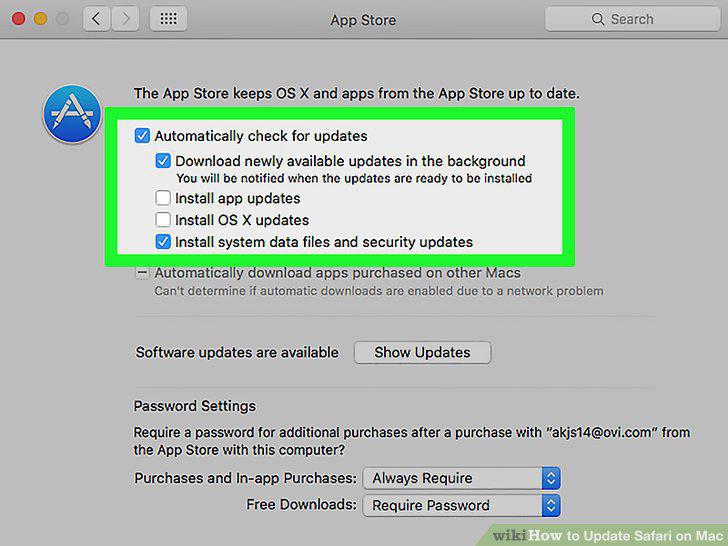
Ensure that automatic updates are enabled.
Comments (0)
No comments yet. Be the first to share your thoughts!