How to Block Senders in the Mail App on iPhone or iPad
Open the Mail app on your iPhone or iPad.. Tap a message from the person you want to block.. Tap the sender's profile image.
Steps
1
Open the Mail app on your iPhone or iPad.
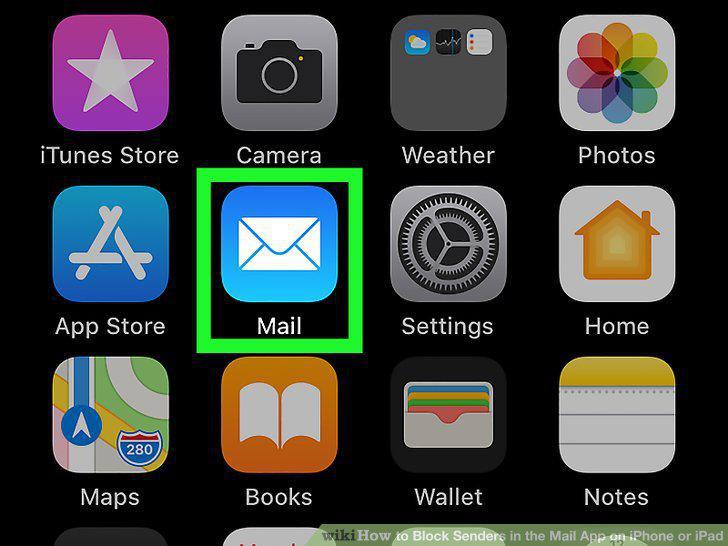
Open the Mail app on your iPhone or iPad.
2
Tap a message from the person you want to block.
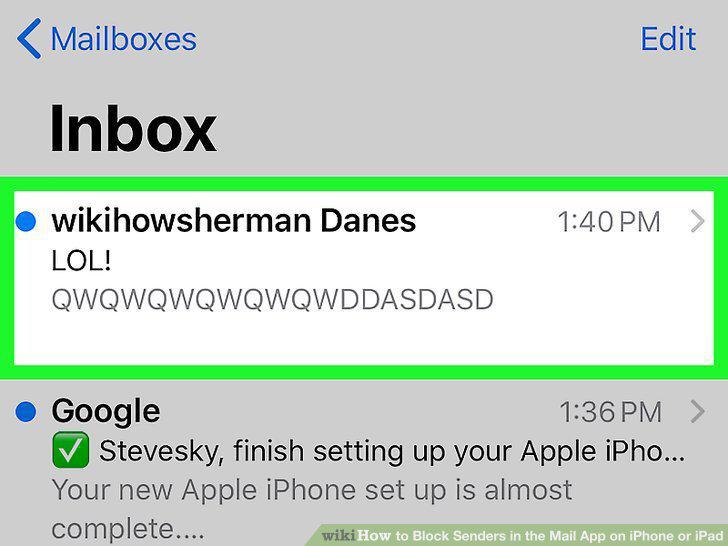
Tap a message from the person you want to block.
3
Tap the sender's profile image.
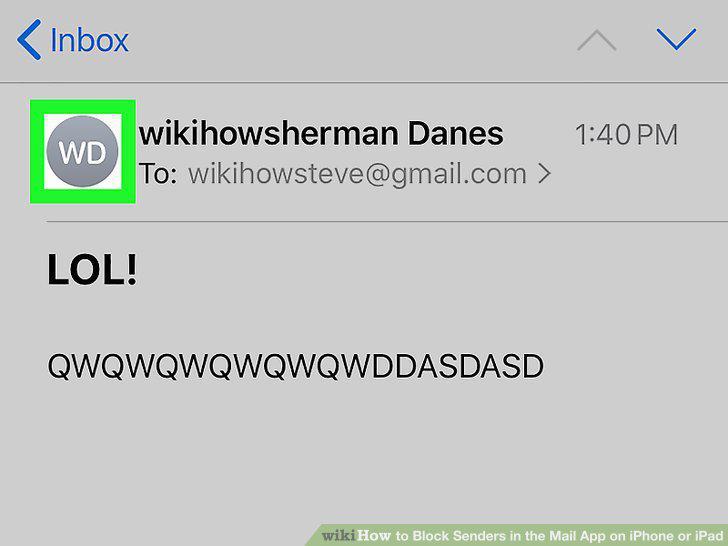
Tap the sender's profile image.
4
Tap the sender's name in the "From" field.
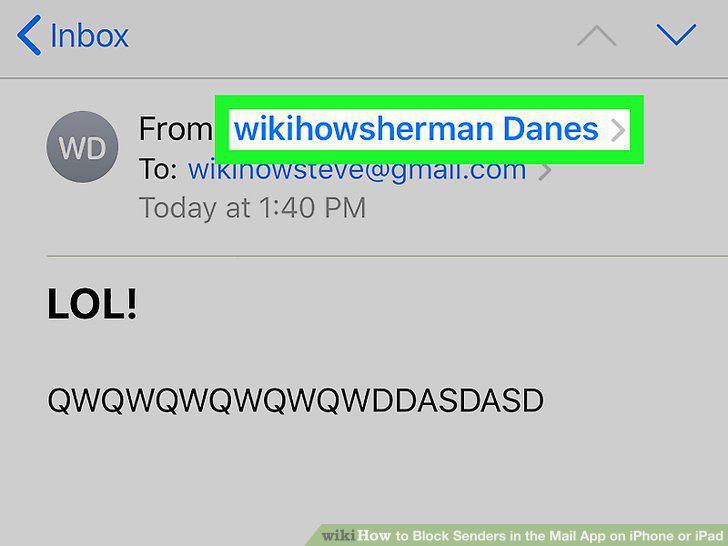
Tap the sender's name in the "From" field.
5
Tap Block this Contact.
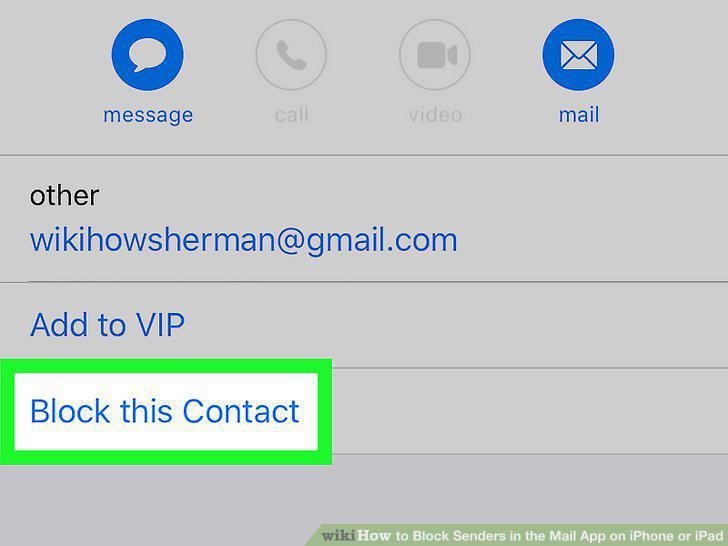
Tap Block this Contact.
6
Tap Block this Contact to confirm.
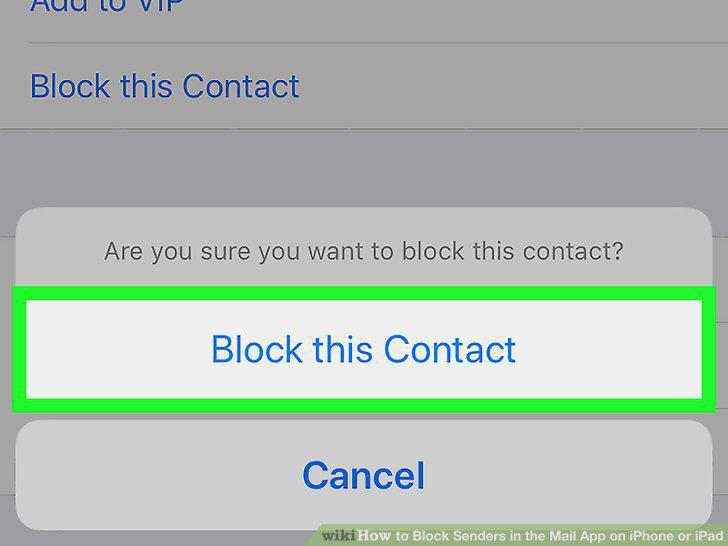
Tap Block this Contact to confirm.
7
Open your iPhone or iPad's Settings .
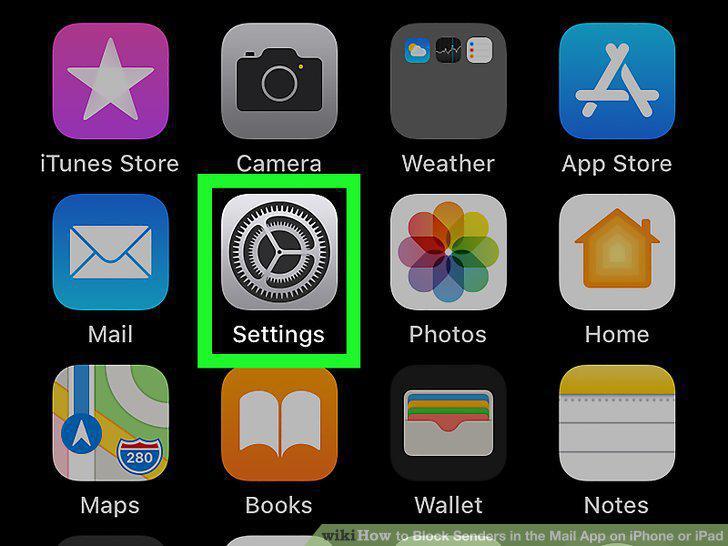
Open your iPhone or iPad's Settings .
8
Scroll down and tap Mail.
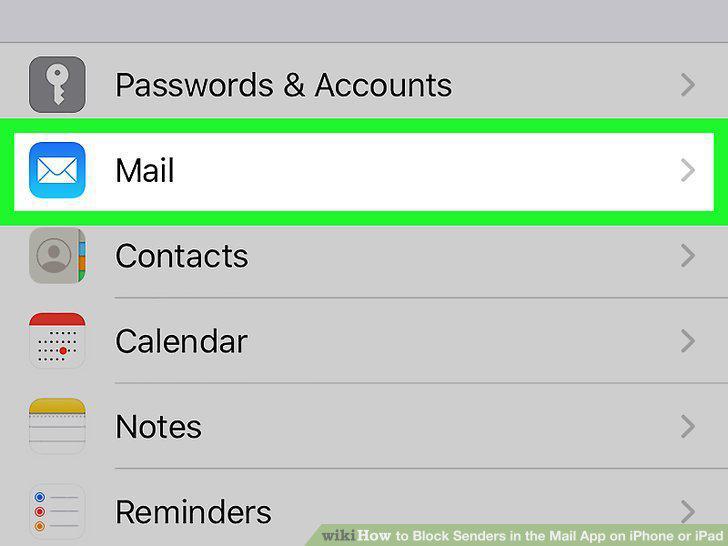
Scroll down and tap Mail.
9
Scroll down and tap Blocked Sender Options.
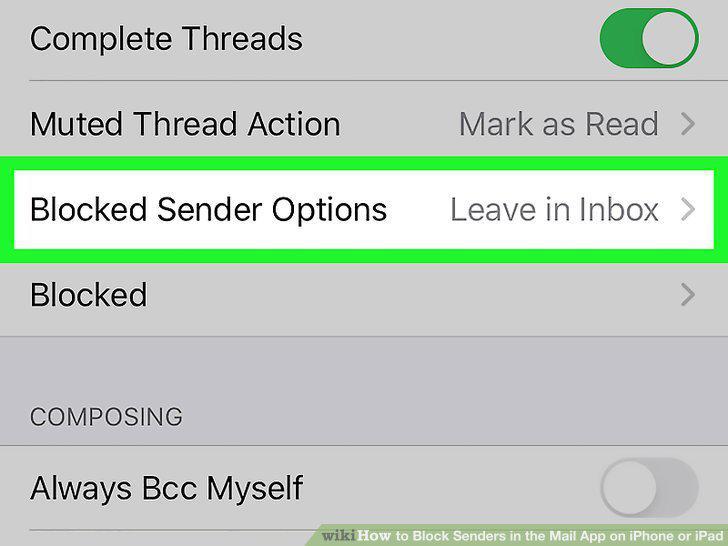
Scroll down and tap Blocked Sender Options.
10
Tap Move to Trash.
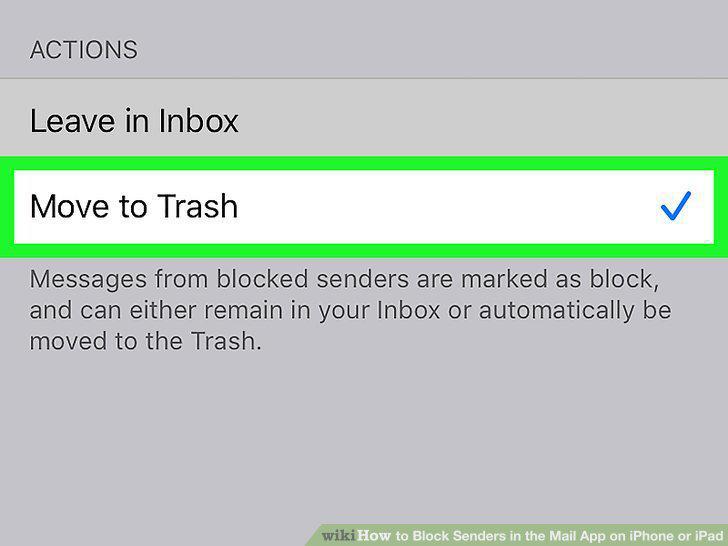
Tap Move to Trash.
Comments (0)
No comments yet. Be the first to share your thoughts!