How to Make Straight Lines in Photoshop
Open a new or saved project in Photoshop.. Click the pen tool.. Click on the canvas where you want your line to start.
Steps
1
Open a new or saved project in Photoshop.
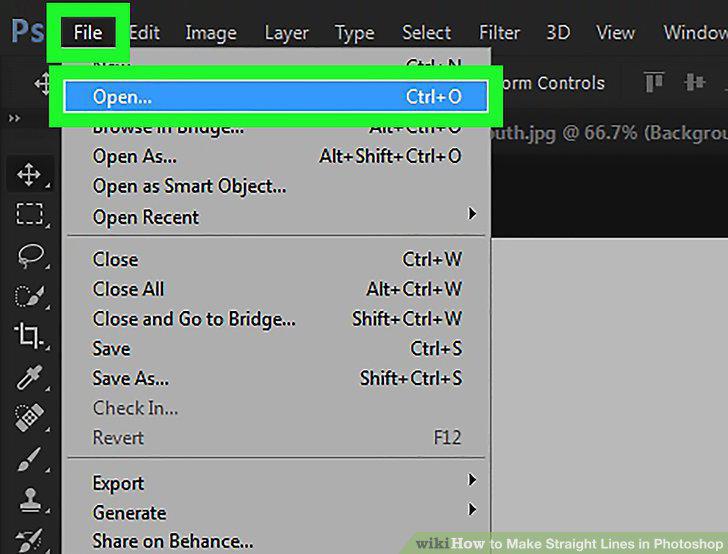
Open a new or saved project in Photoshop.
2
Click the pen tool.
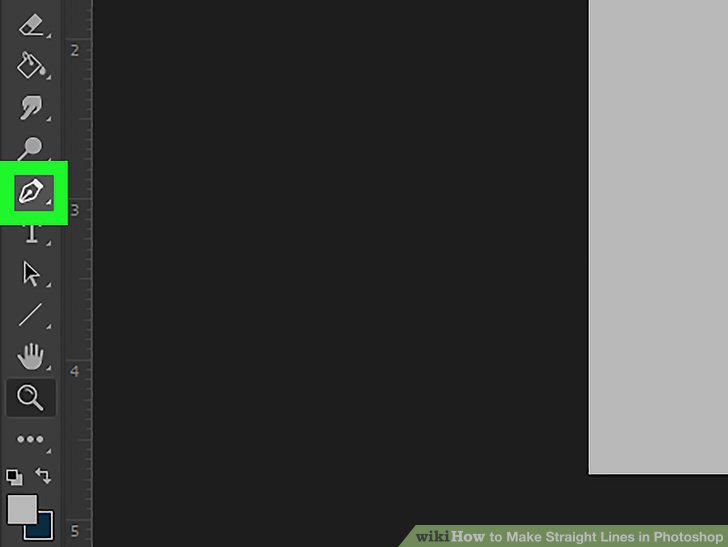
Click the pen tool.
3
Click on the canvas where you want your line to start.
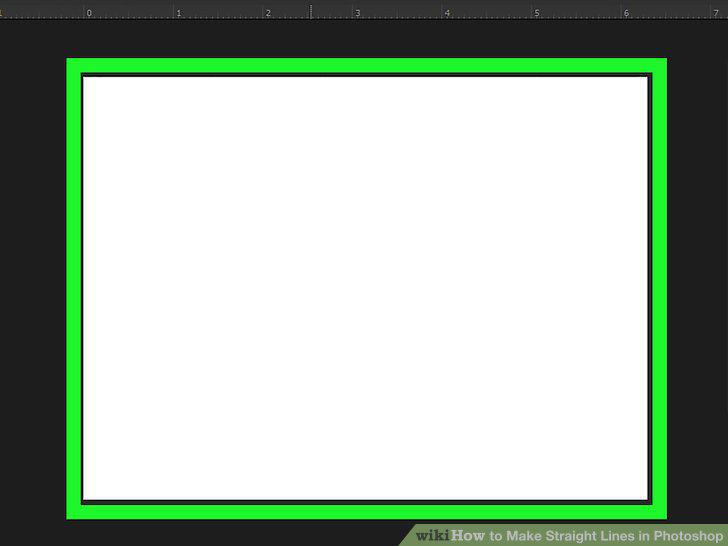
Click on the canvas where you want your line to start.
4
Click on the canvas where you want your line to end.
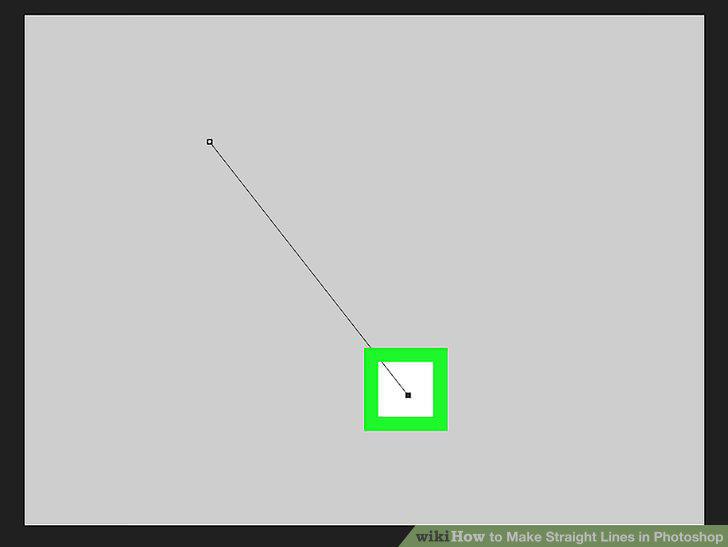
Click on the canvas where you want your line to end.
5
Open a new or saved project in Photoshop.
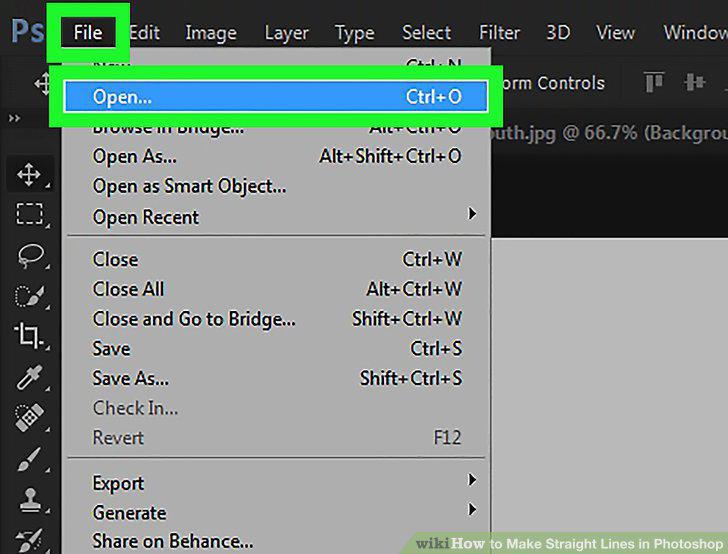
Open a new or saved project in Photoshop.
6
Click the brush tool.
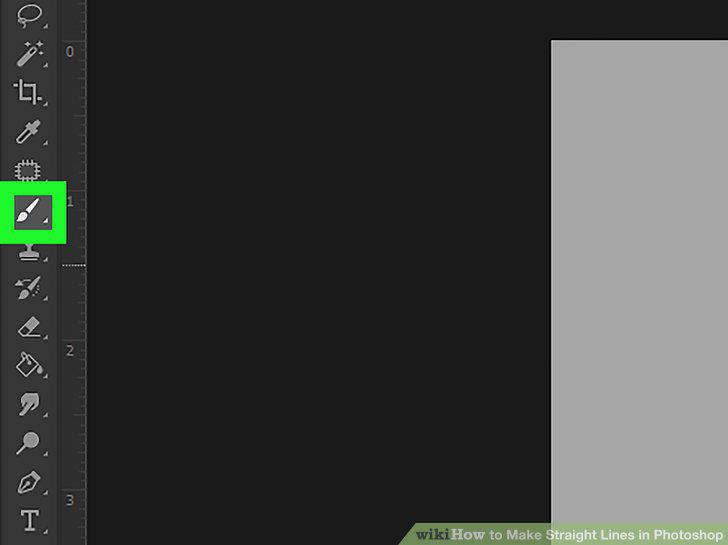
Click the brush tool.
7
Hold down Shift.
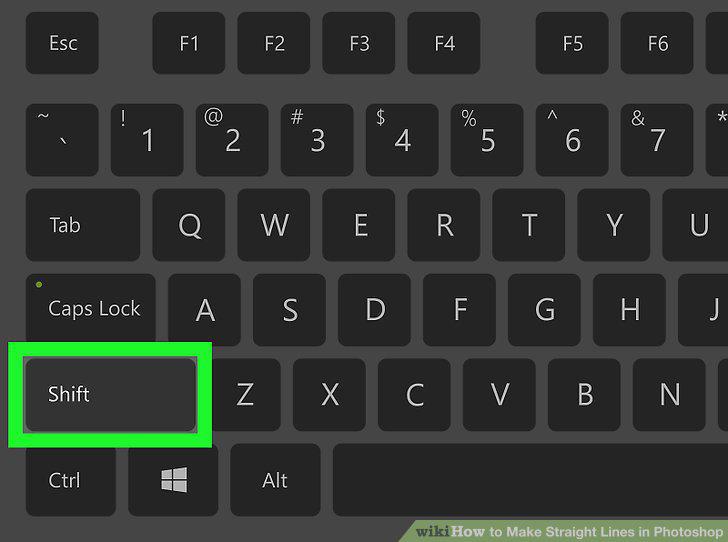
Hold down Shift.
8
Click twice on the canvas to create beginning and ending points.
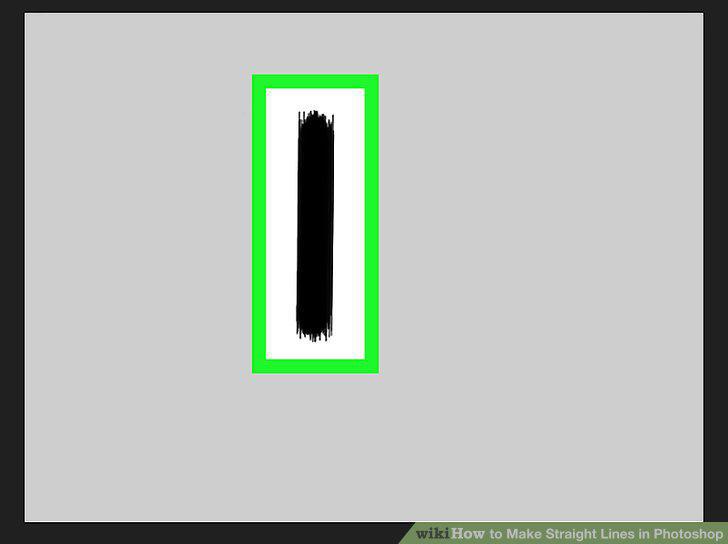
Click twice on the canvas to create beginning and ending points.
Comments (0)
No comments yet. Be the first to share your thoughts!