How to Disable the "While you were away" Feature on Twitter on iPhone or iPad
Open Twitter on your iPhone or iPad.. Tap your profile picture.. Tap Settings and privacy on the navigation panel.
Steps
1
Open Twitter on your iPhone or iPad.
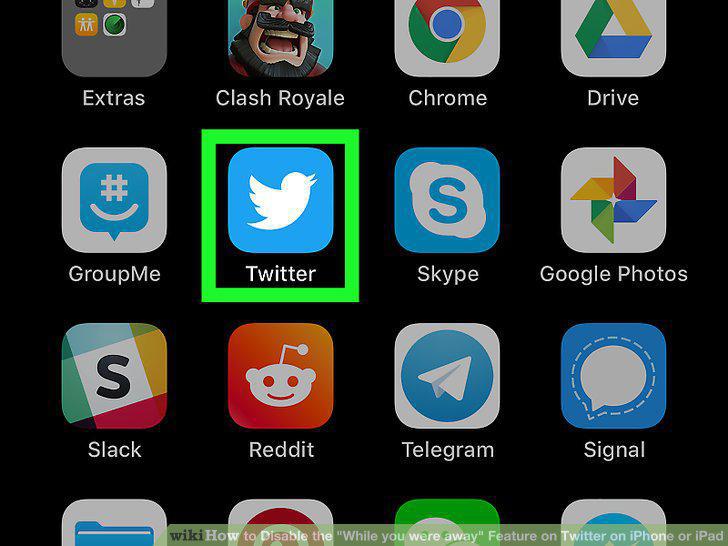
Open Twitter on your iPhone or iPad.
2
Tap your profile picture.
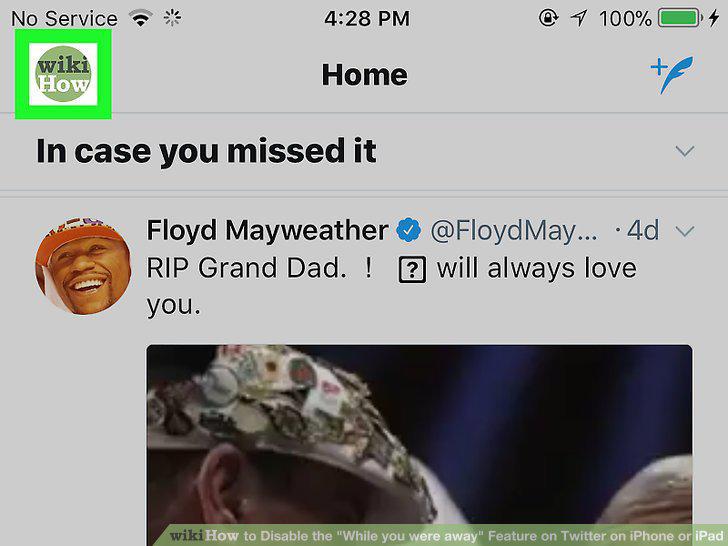
Tap your profile picture.
3
Tap Settings and privacy on the navigation panel.
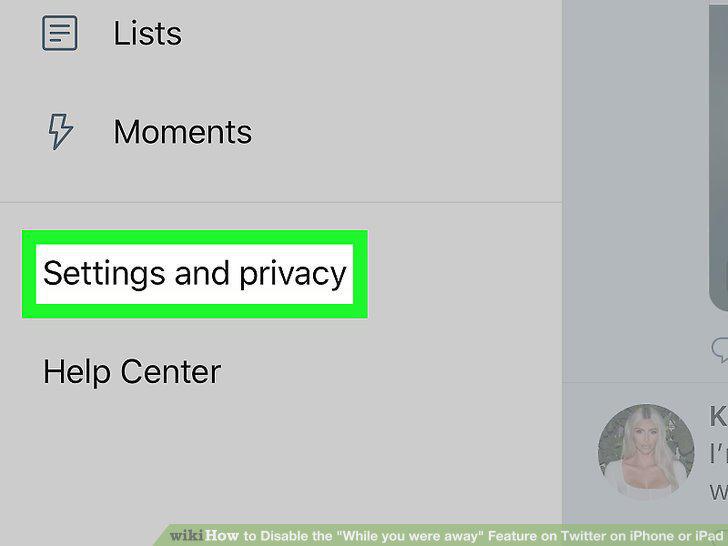
Tap Settings and privacy on the navigation panel.
4
Tap Content preferences.
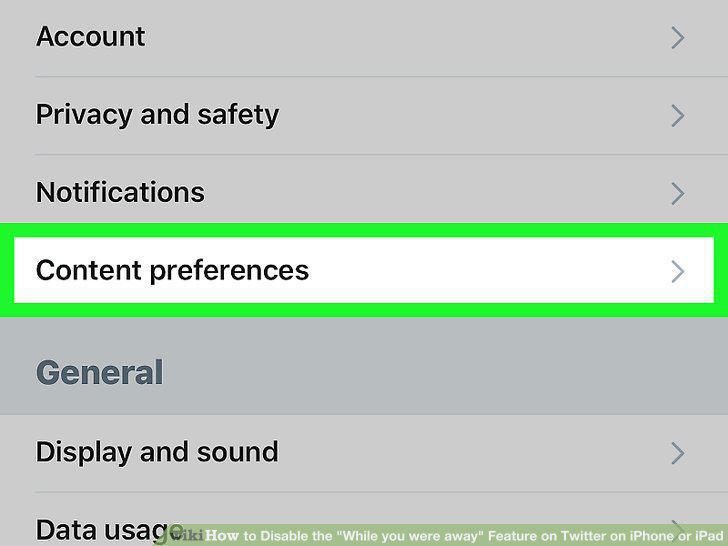
Tap Content preferences.
5
Slide the Show the best Tweets first switch to .
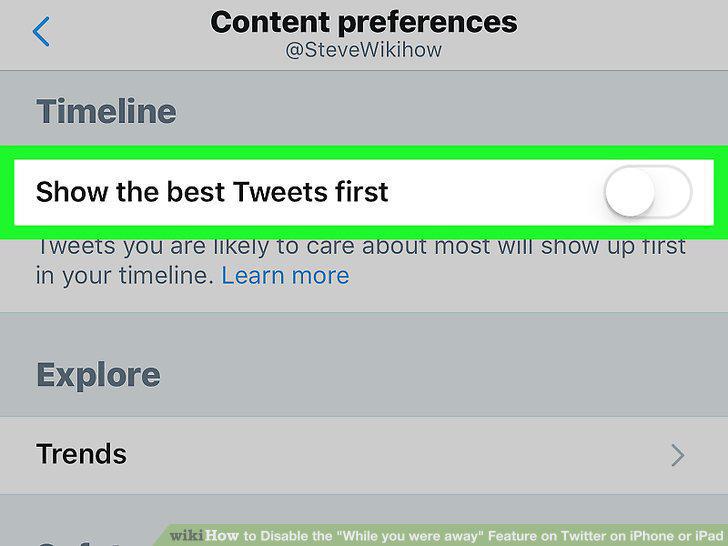
Slide the Show the best Tweets first switch to .
6
Open Twitter on your iPhone or iPad.
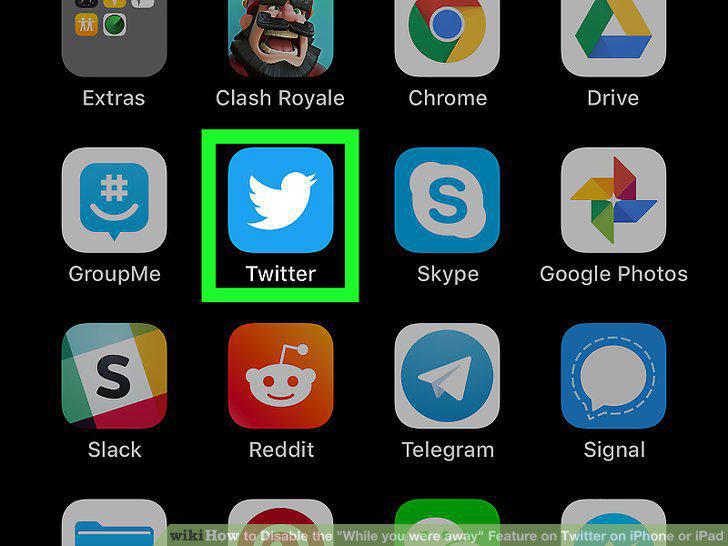
Open Twitter on your iPhone or iPad.
7
Tap the Home icon.

Tap the Home icon.
8
Scroll down and find the "In case you missed it" section.
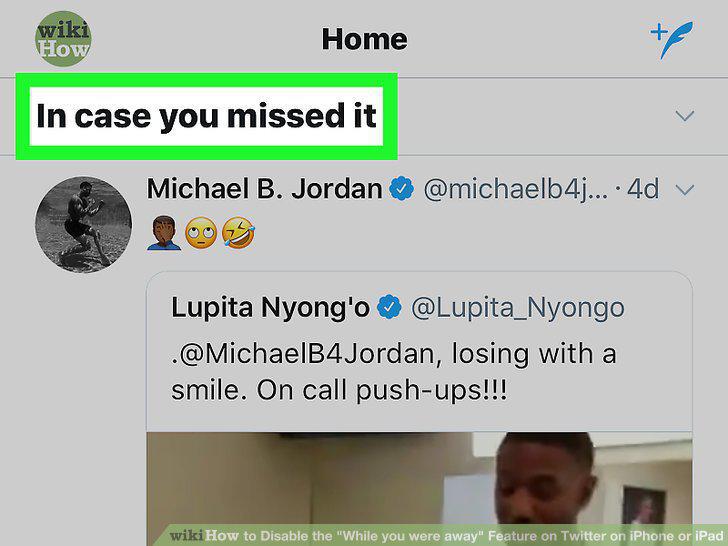
Scroll down and find the "In case you missed it" section.
9
Tap the button next to "In case you missed it.

Tap the button next to "In case you missed it.
10
Tap See less often on the pop-up menu.
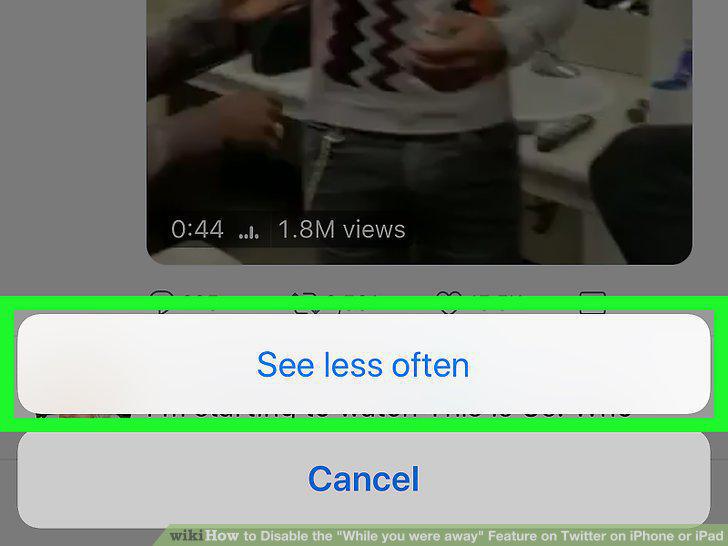
Tap See less often on the pop-up menu.
Comments (0)
No comments yet. Be the first to share your thoughts!