How to Save an Email As a PDF on iPhone or iPad
Open the Mail app.. Tap the message you want to save.. Tap the left-pointing arrow.
Steps
1
Open the Mail app.
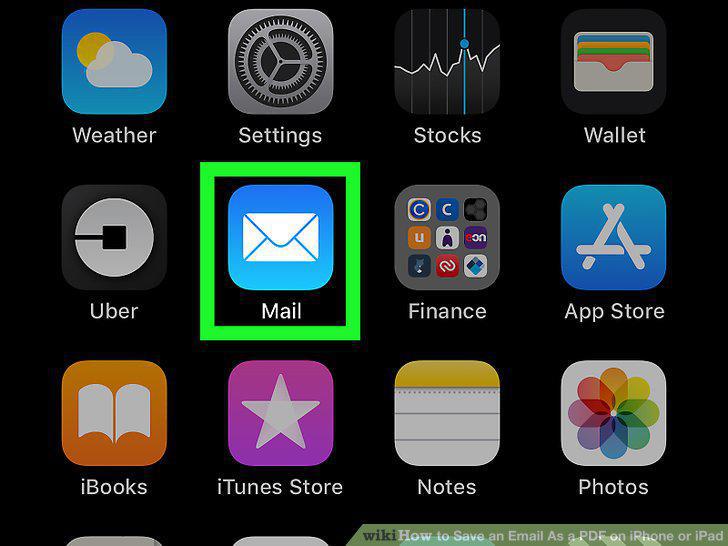
Open the Mail app.
2
Tap the message you want to save.

Tap the message you want to save.
3
Tap the left-pointing arrow.
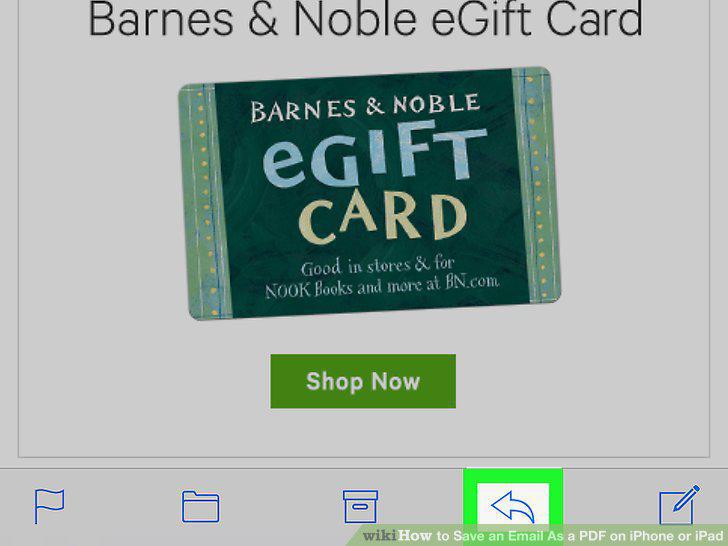
Tap the left-pointing arrow.
4
Tap Print.
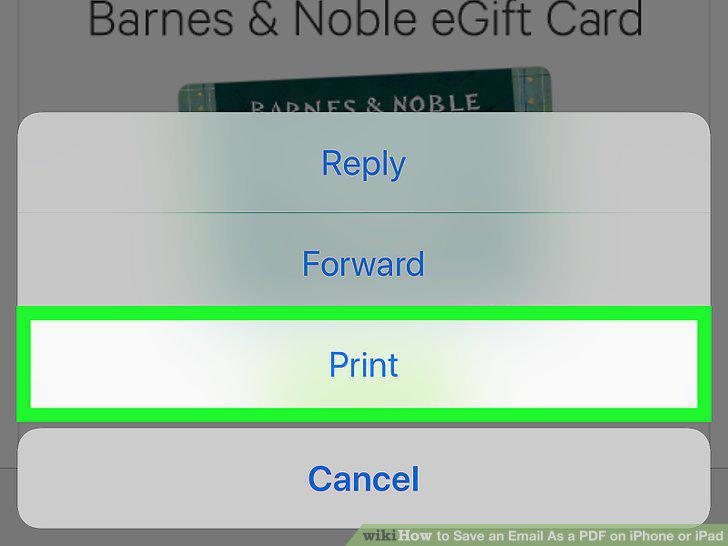
Tap Print.
5
Zoom in on the thumbnail.
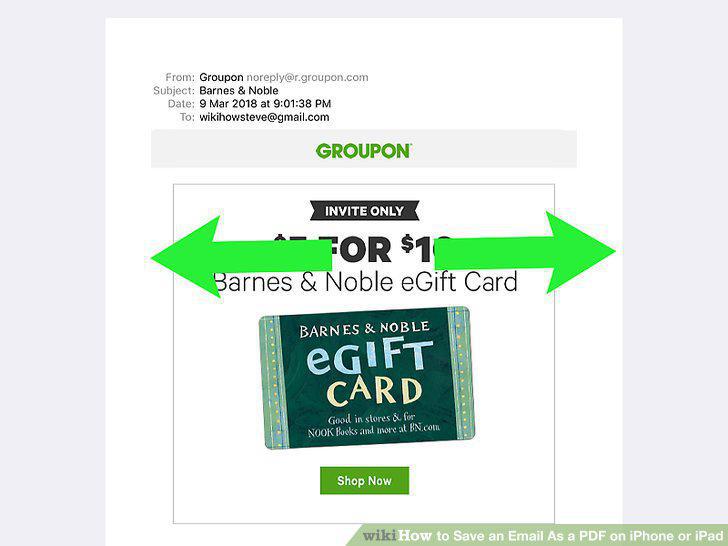
Zoom in on the thumbnail.
6
Tap .
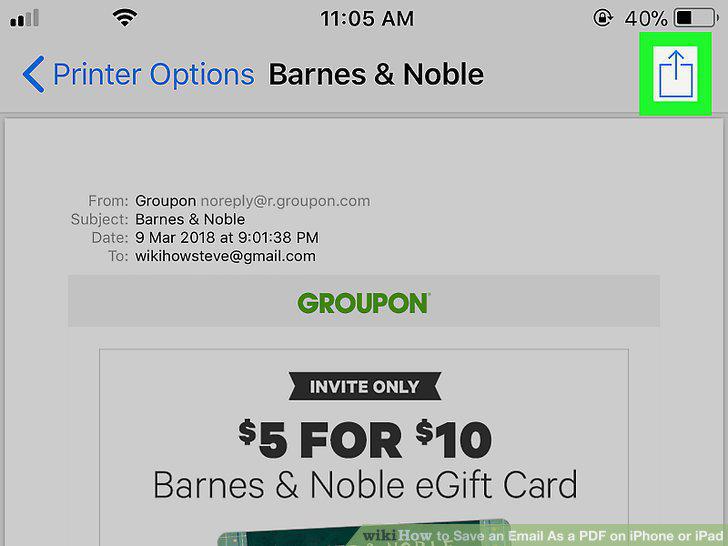
Tap .
7
Tap Save to Files.
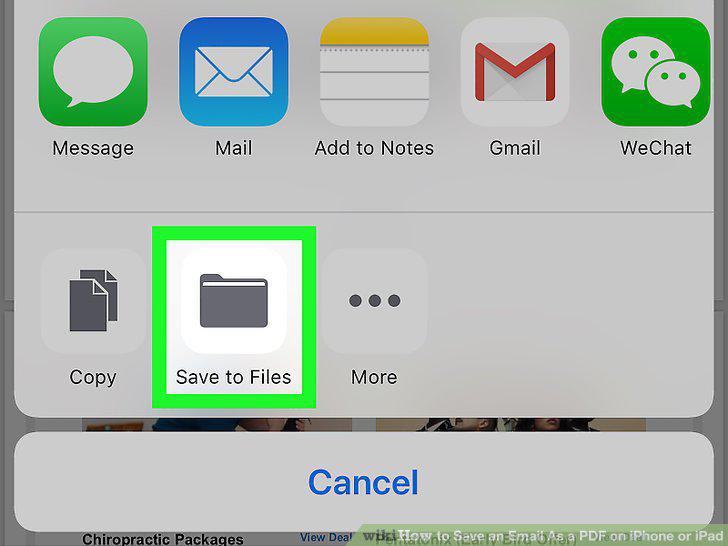
Tap Save to Files.
8
Select a folder.
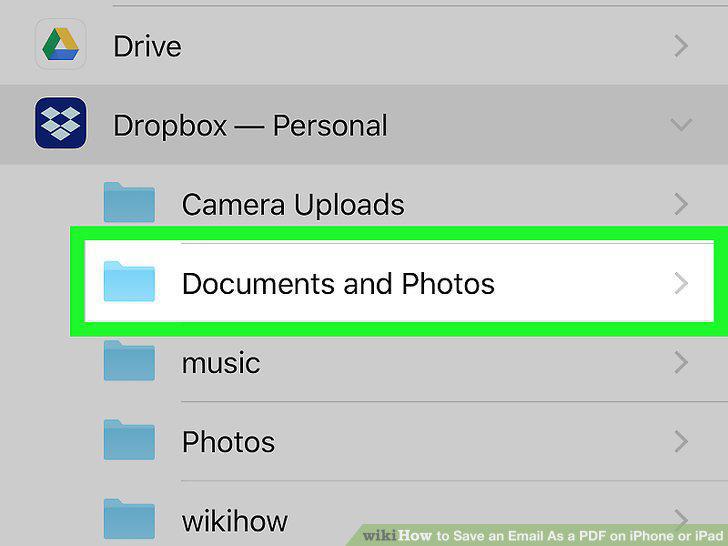
Select a folder.
9
Tap Add.
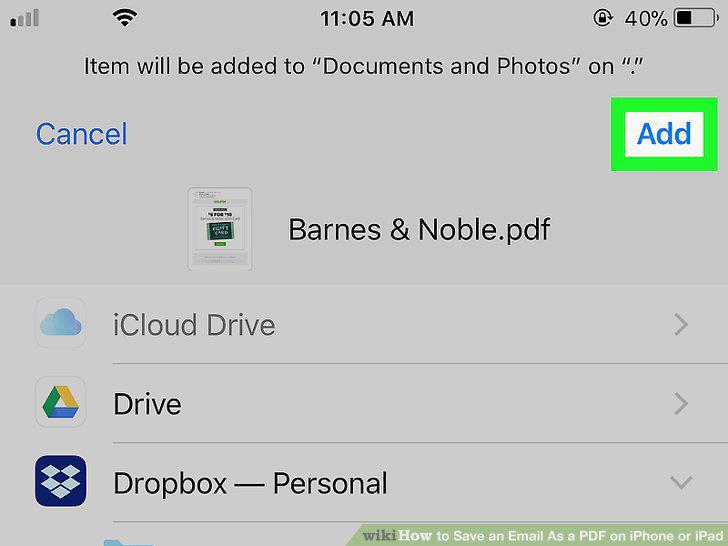
Tap Add.
Comments (0)
No comments yet. Be the first to share your thoughts!