How to Update Outlook on PC or Mac
Open Microsoft Outlook on your computer.. Click the File tab.. Click Account on the File menu.
Steps
1
Open Microsoft Outlook on your computer.
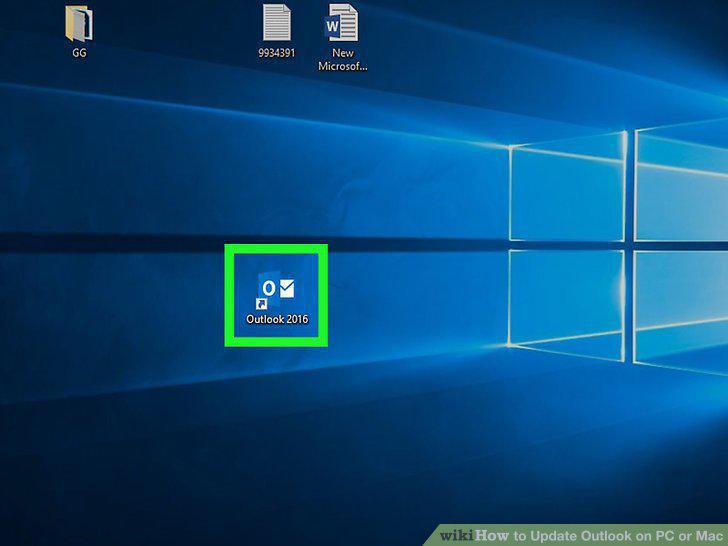
Open Microsoft Outlook on your computer.
2
Click the File tab.
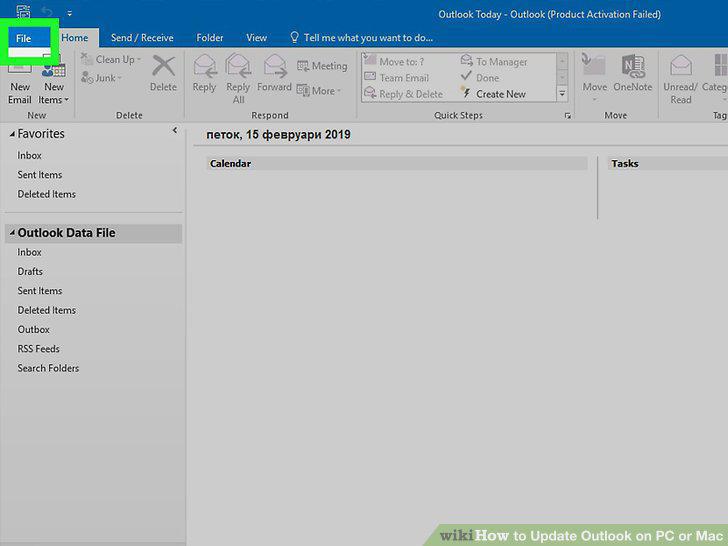
Click the File tab.
3
Click Account on the File menu.
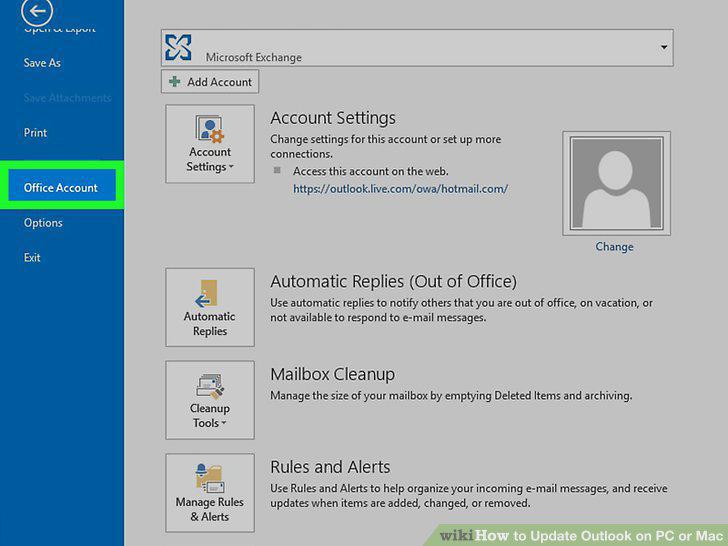
Click Account on the File menu.
4
Click the Update Options button under Product Information.
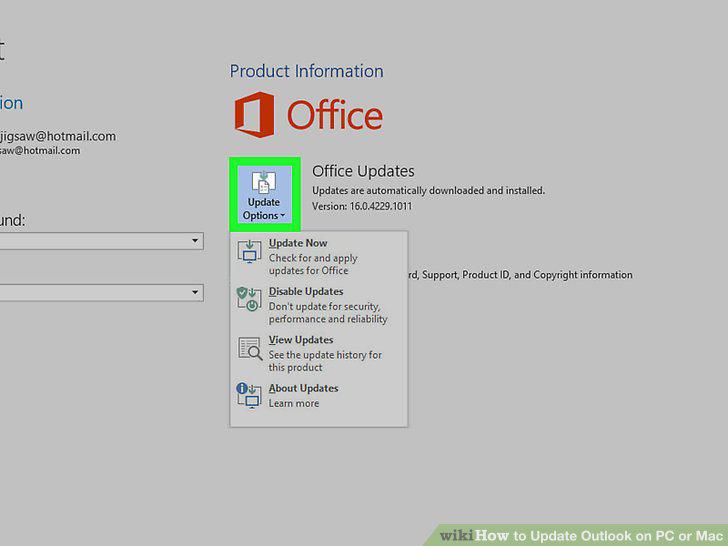
Click the Update Options button under Product Information.
5
Click Update Now on the menu.
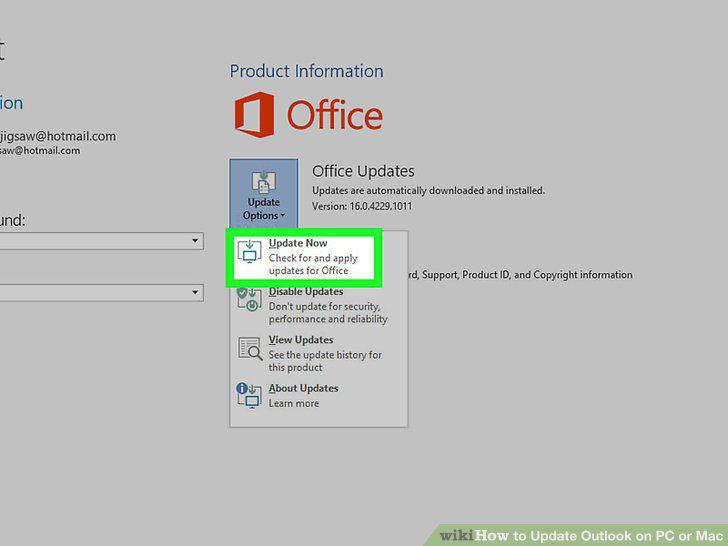
Click Update Now on the menu.
6
Open Microsoft Outlook on your computer.
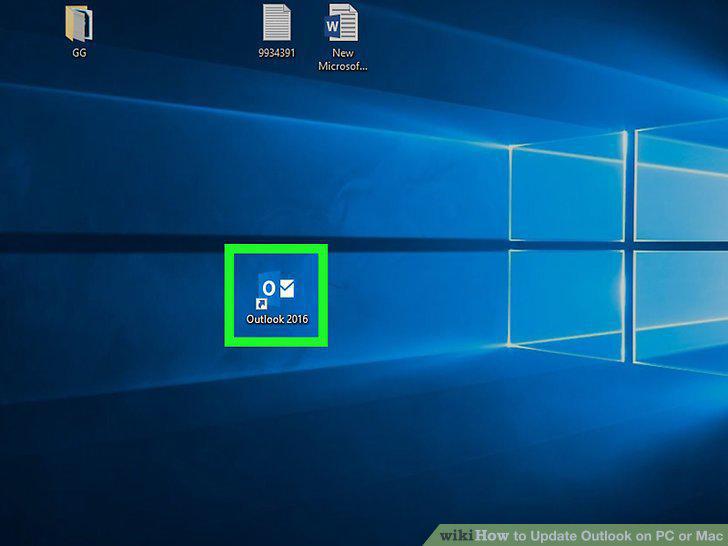
Open Microsoft Outlook on your computer.
7
Click the File tab.
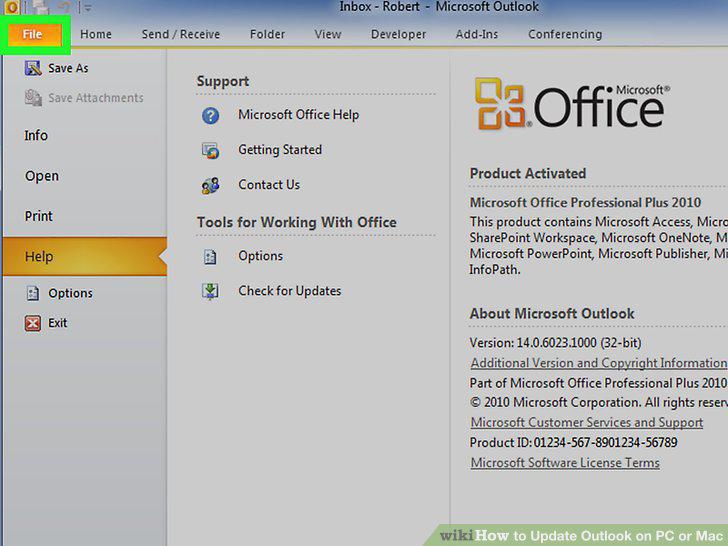
Click the File tab.
8
Click Help on the File menu.
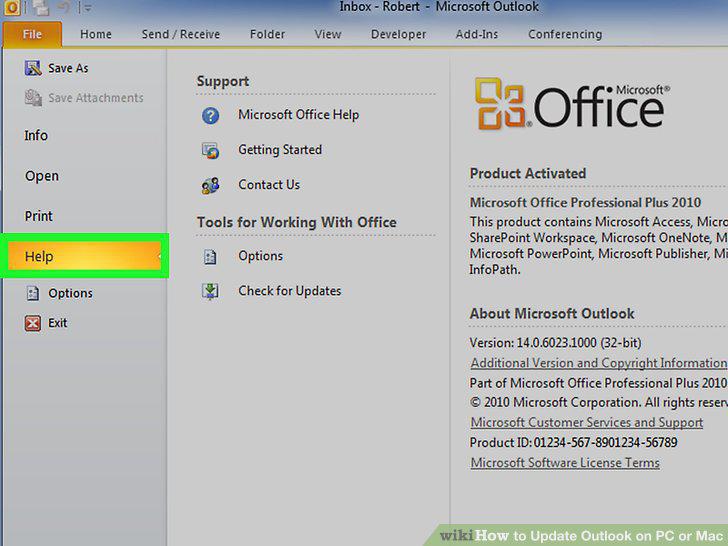
Click Help on the File menu.
9
Click Check for Updates on the Help menu.
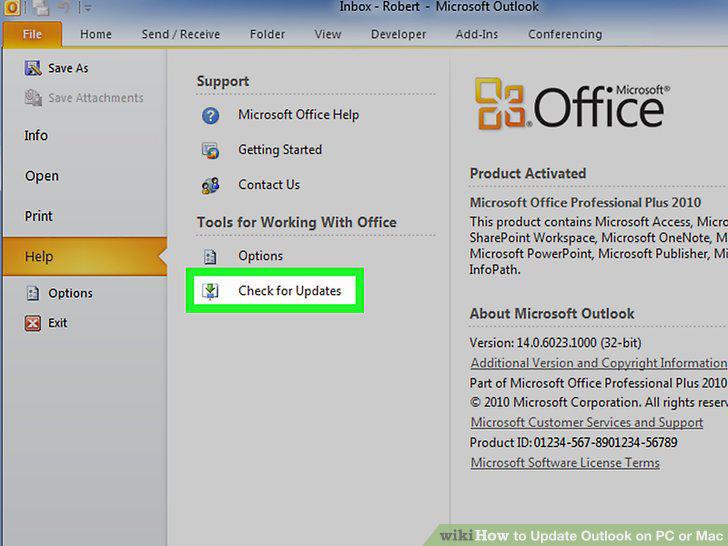
Click Check for Updates on the Help menu.
10
Open Microsoft Outlook on your computer.
Open Microsoft Outlook on your computer.
11
Click the Help tab.
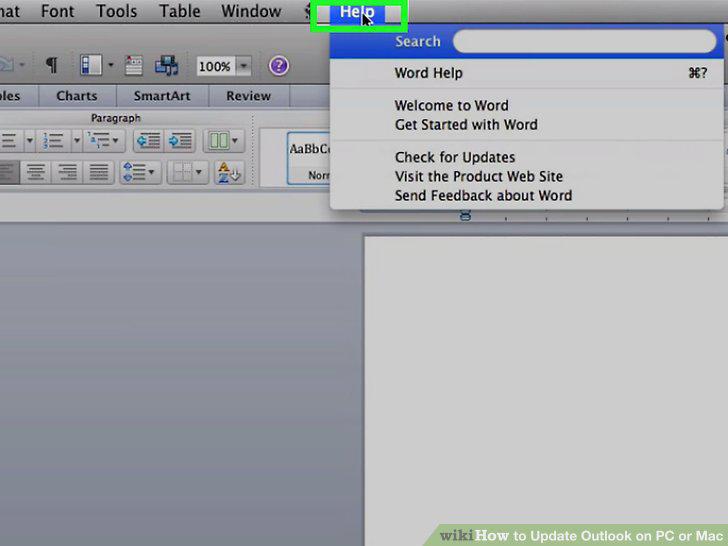
Click the Help tab.
12
Click Check for Updates.
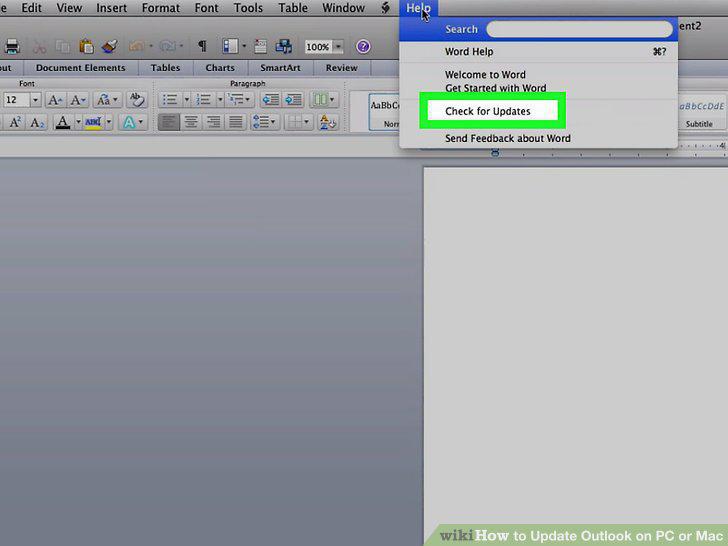
Click Check for Updates.
13
Select Manually in the AutoUpdate window.
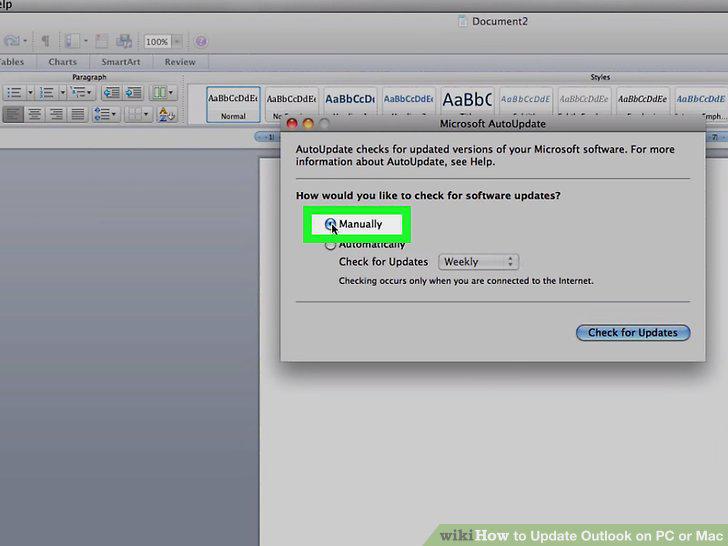
Select Manually in the AutoUpdate window.
14
Click the Check for Updates button.
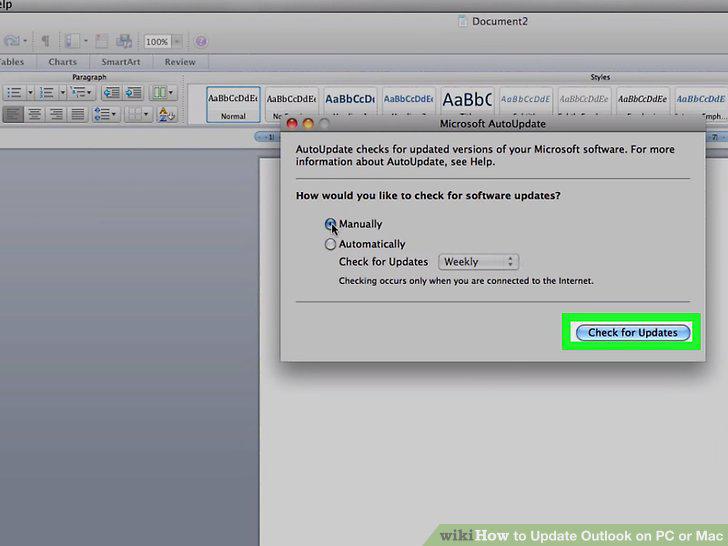
Click the Check for Updates button.
Comments (0)
No comments yet. Be the first to share your thoughts!