How to Make a Shutdown Shortcut in Windows
Open Desktop Mode (Windows 8).. Create a new shortcut on the desktop.. Enter the shutdown command.
Steps
1
Open Desktop Mode (Windows 8).
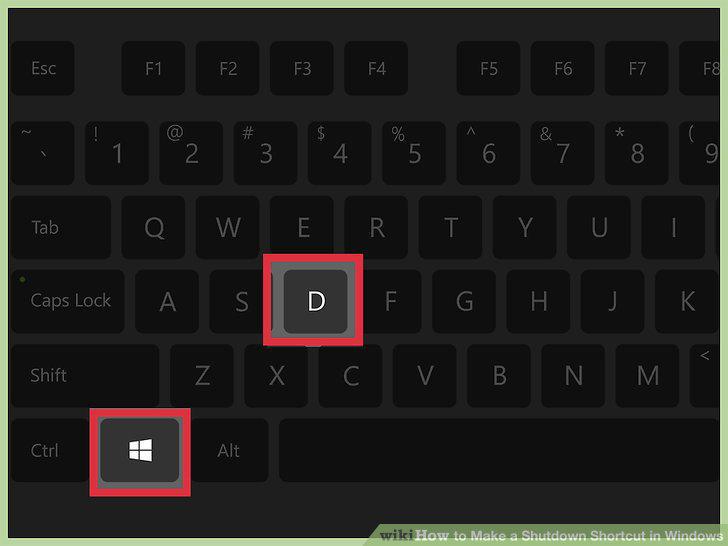
Open Desktop Mode (Windows 8).
2
Create a new shortcut on the desktop.
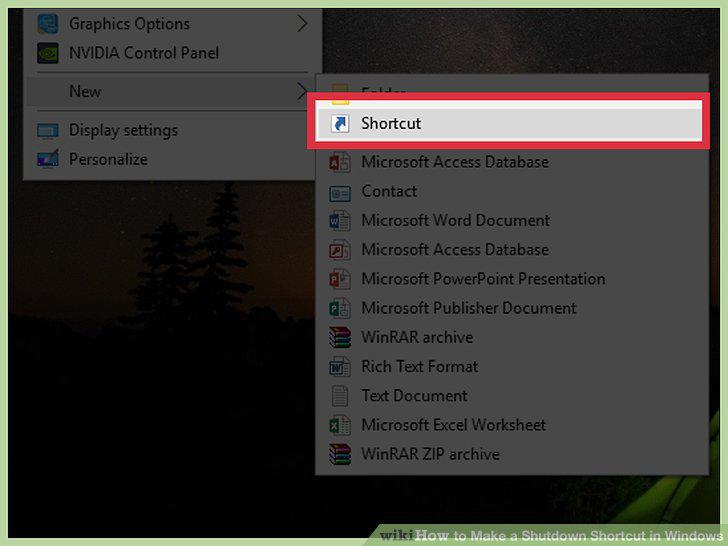
Create a new shortcut on the desktop.
3
Enter the shutdown command.
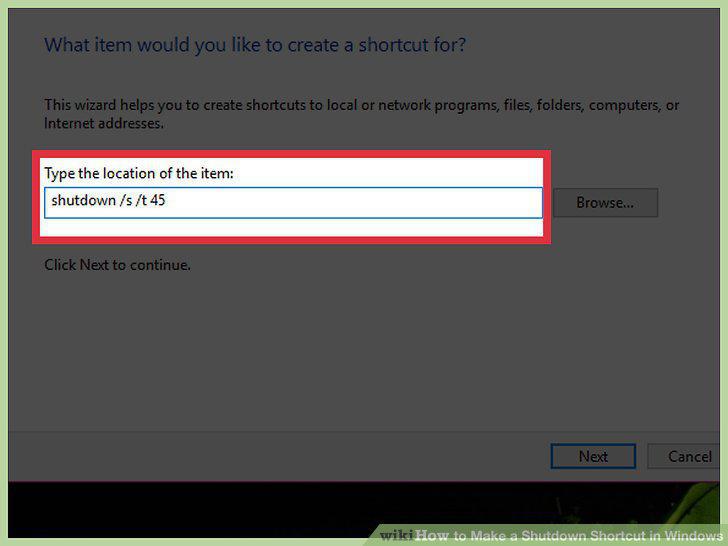
Enter the shutdown command.
4
Rename your shortcut.
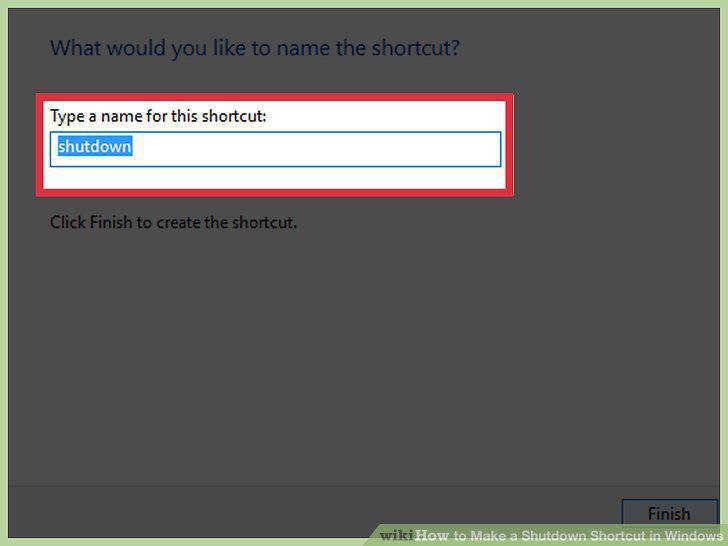
Rename your shortcut.
5
Change the icon.
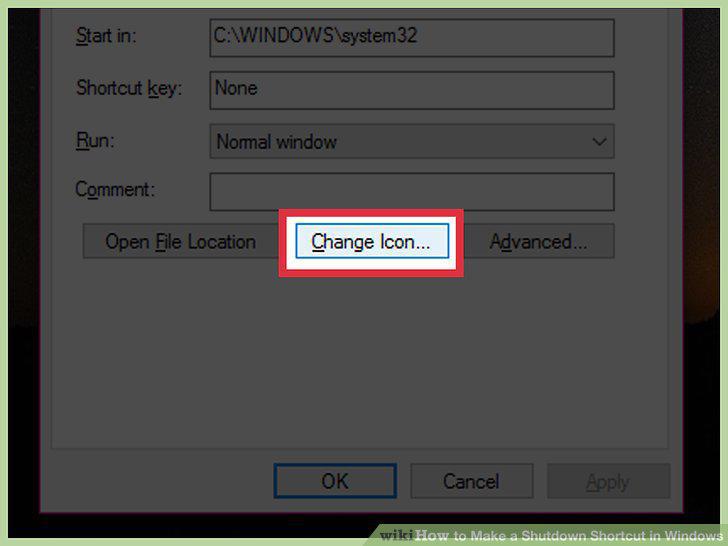
Change the icon.
6
Pin the shortcut to your Start menu or taskbar.
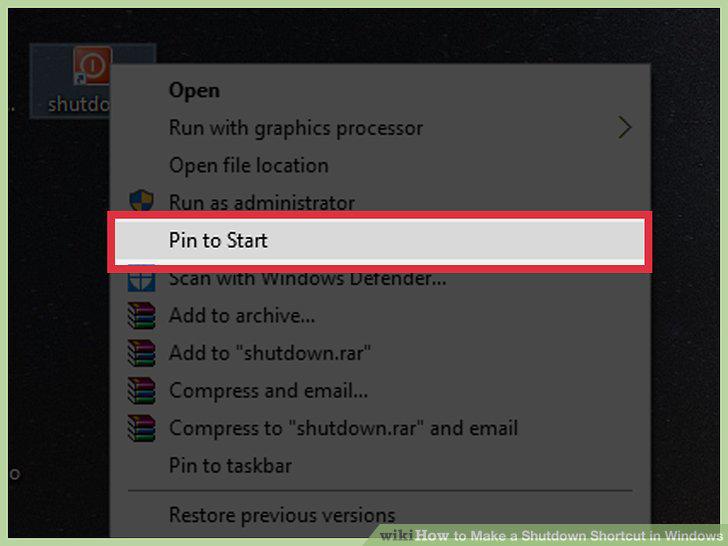
Pin the shortcut to your Start menu or taskbar.
7
Create a new shortcut on your desktop.
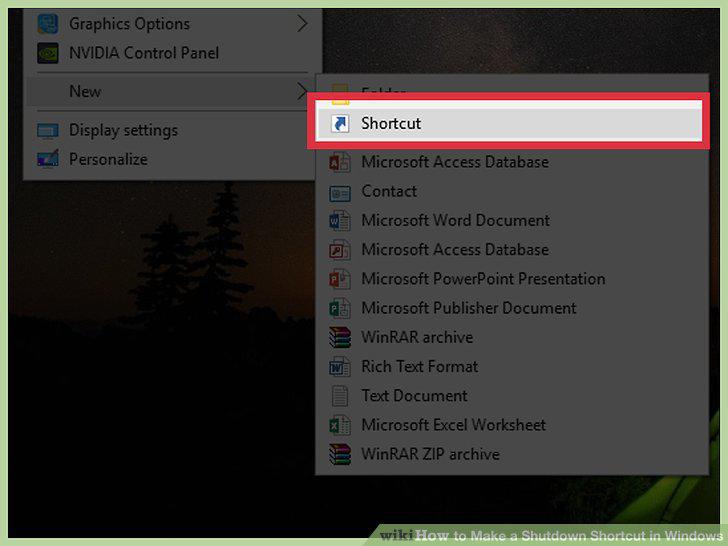
Create a new shortcut on your desktop.
8
Enter the shutdown command.
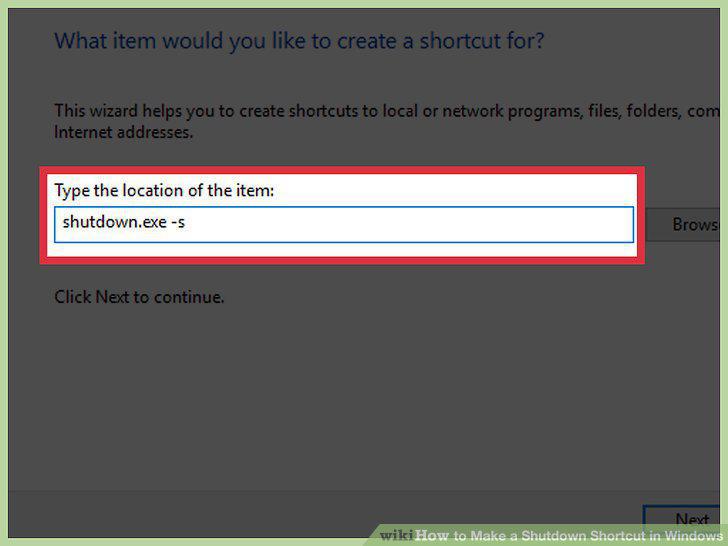
Enter the shutdown command.
9
Adjust the shutdown timer.
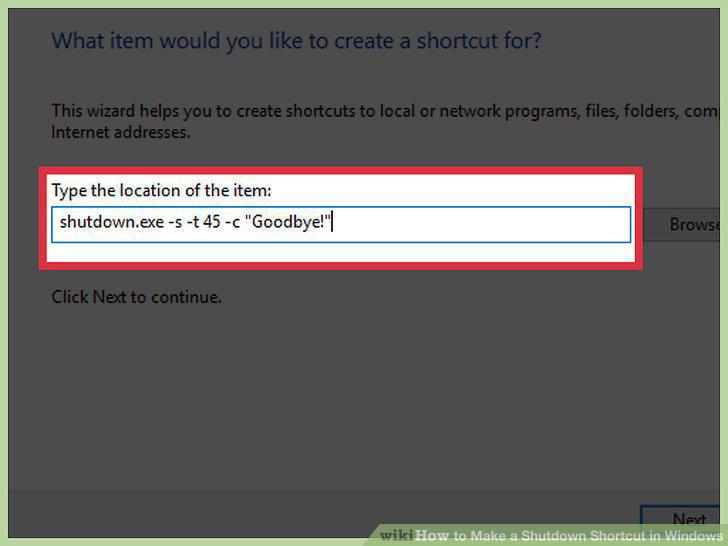
Adjust the shutdown timer.
10
Type a name for the shortcut.
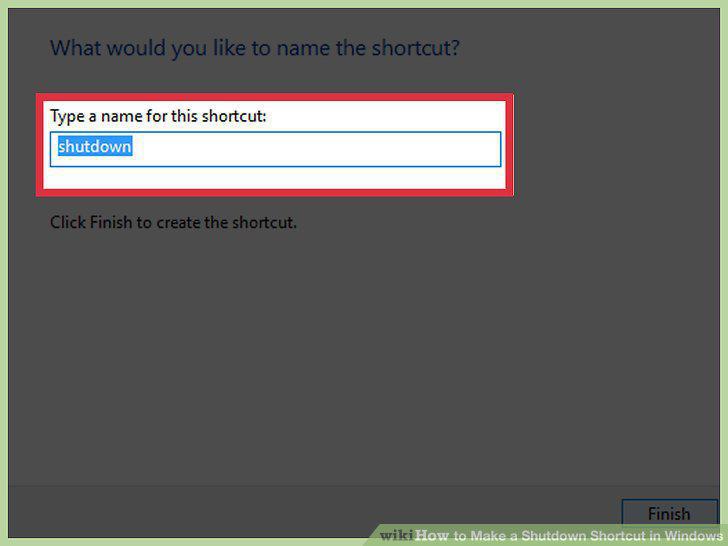
Type a name for the shortcut.
11
Change the icon.
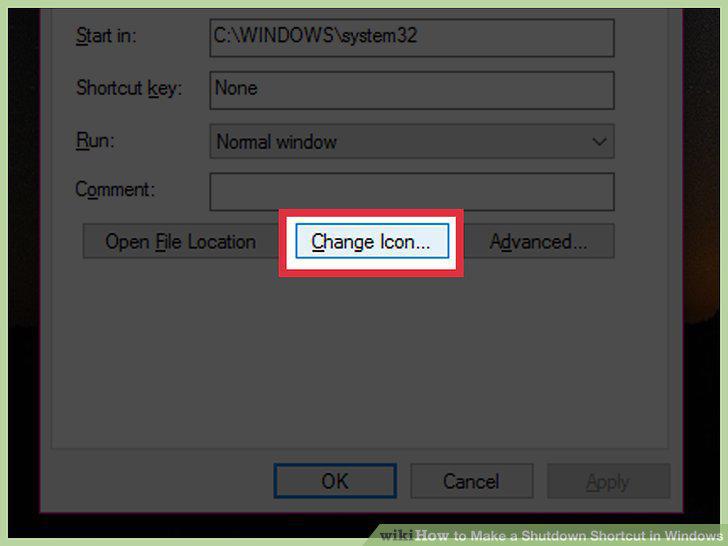
Change the icon.
12
Double-click the shortcut to initiate shutdown.
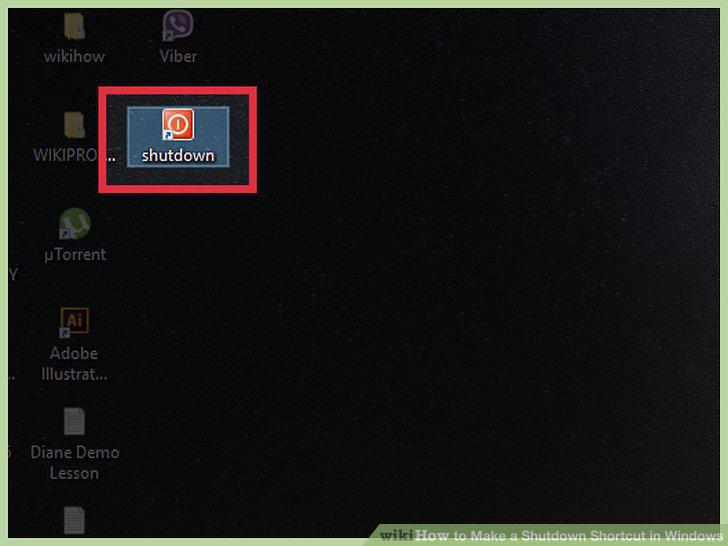
Double-click the shortcut to initiate shutdown.
Comments (0)
No comments yet. Be the first to share your thoughts!