How to Delete a Discord Channel on Android
Open the Discord app on your Android.. Tap the three horizontal lines icon.. Tap a server icon.
Steps
1
Open the Discord app on your Android.
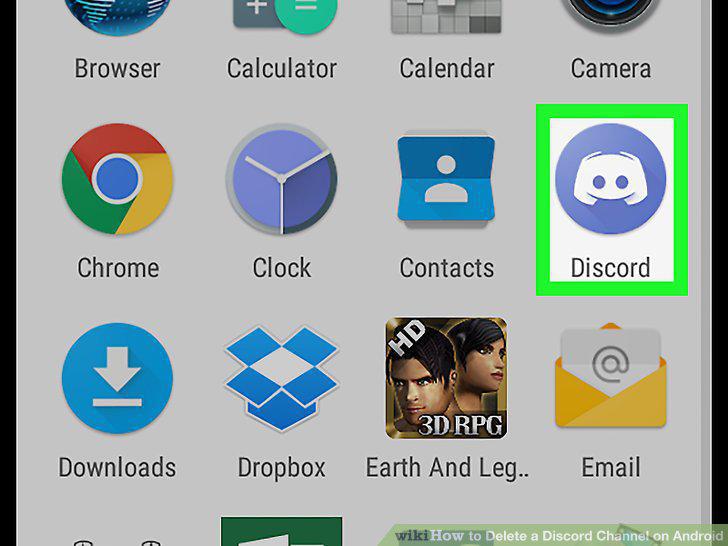
Open the Discord app on your Android.
2
Tap the three horizontal lines icon.
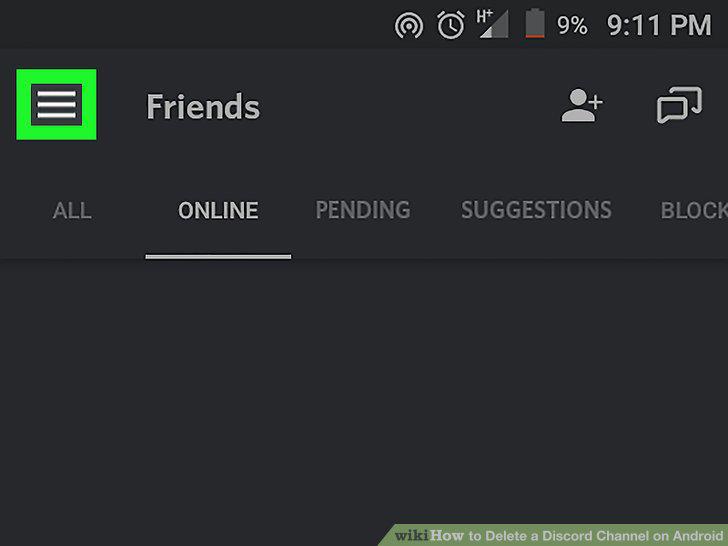
Tap the three horizontal lines icon.
3
Tap a server icon.
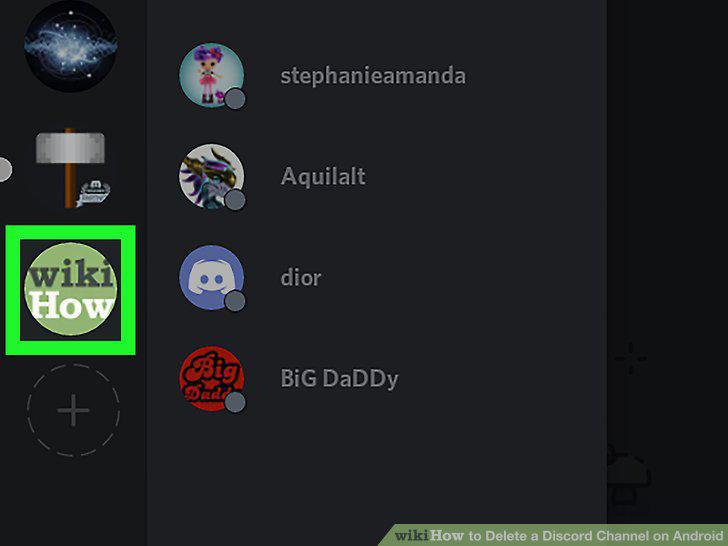
Tap a server icon.
4
Tap a chat channel.
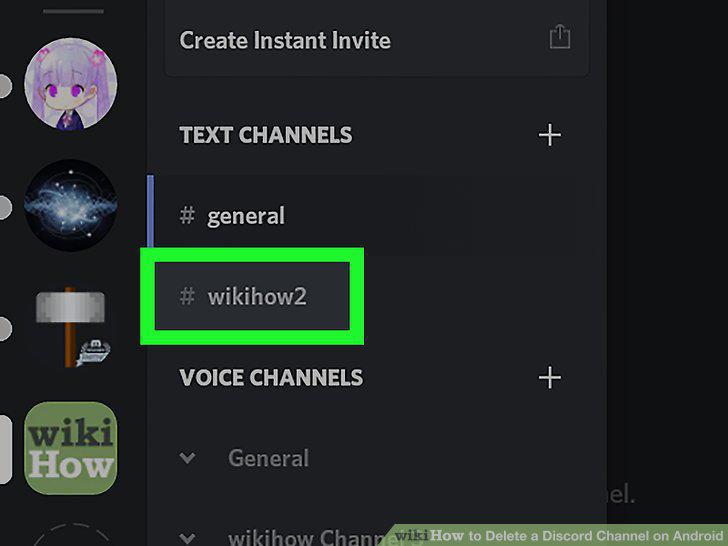
Tap a chat channel.
5
Tap the three vertical dots icon.
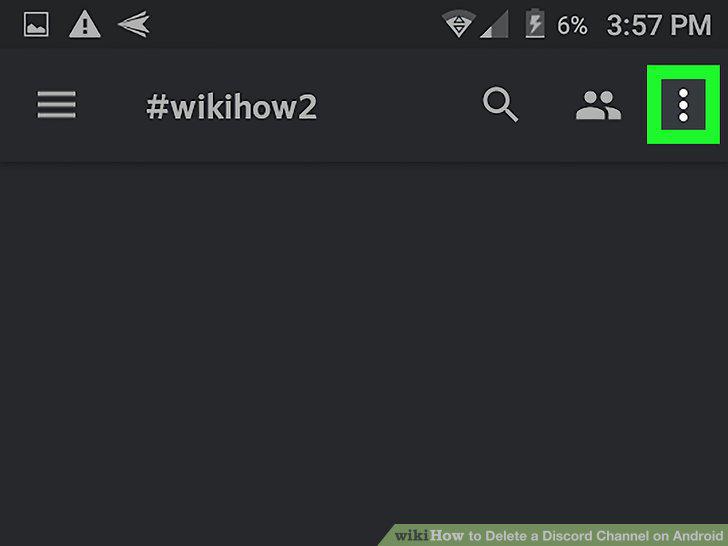
Tap the three vertical dots icon.
6
Select Channel Settings on the drop-down menu.
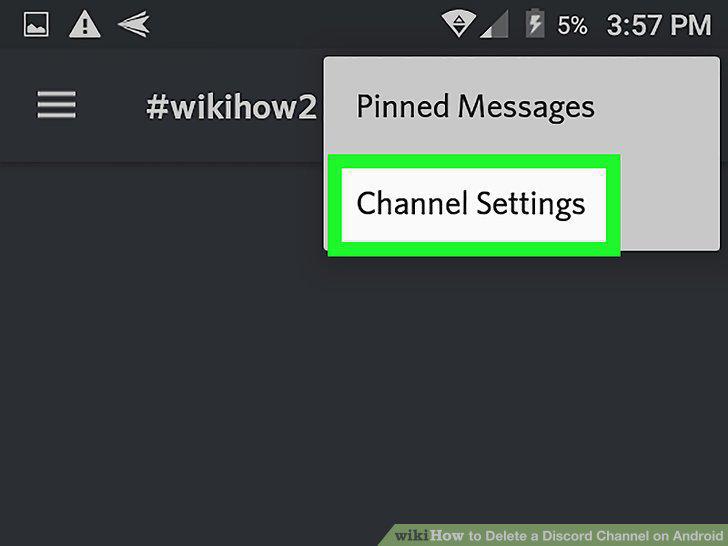
Select Channel Settings on the drop-down menu.
7
Tap the three vertical dots icon.
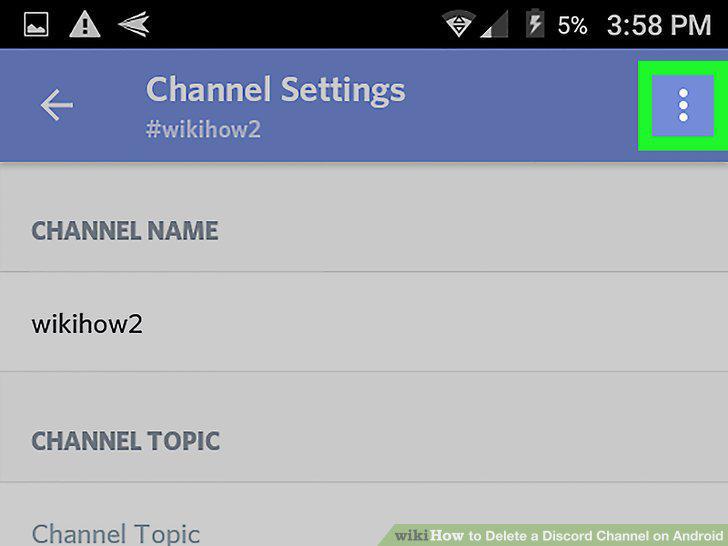
Tap the three vertical dots icon.
8
Select Delete Channel on the drop-down menu.
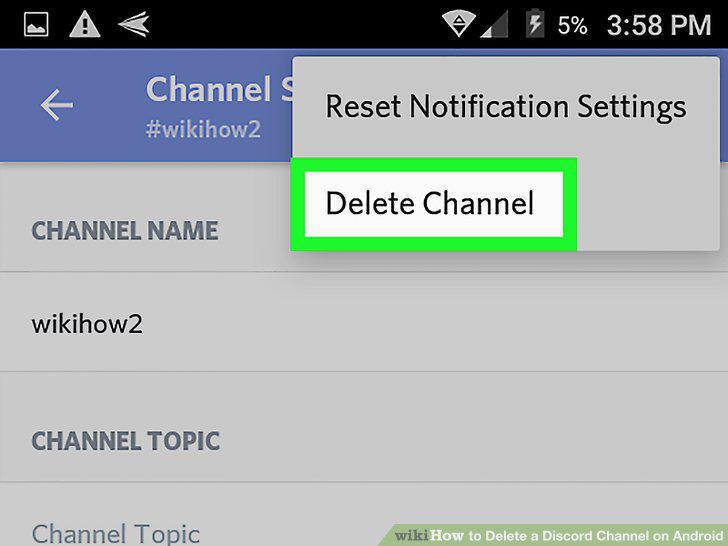
Select Delete Channel on the drop-down menu.
9
Tap OKAY in the pop-up.
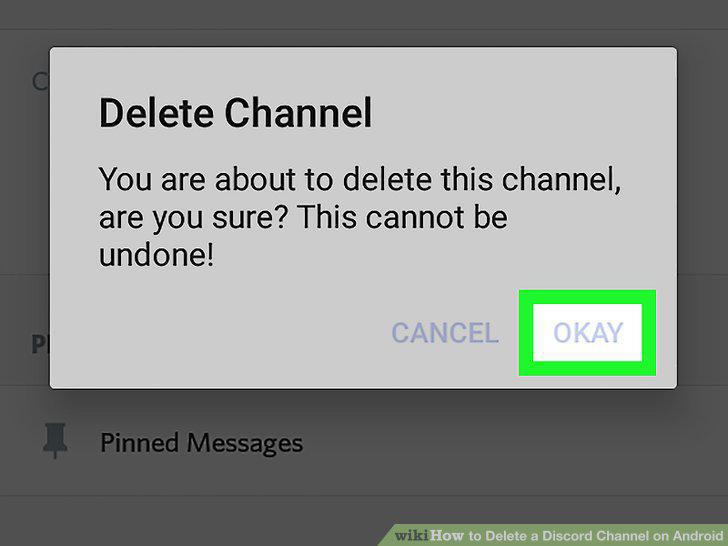
Tap OKAY in the pop-up.
Comments (0)
No comments yet. Be the first to share your thoughts!