How to Save Pictures to Your MacBook
Go to a photo that you want to save.. Open the image if necessary.. Place your Mac's mouse pointer on the image.
Steps
1
Go to a photo that you want to save.
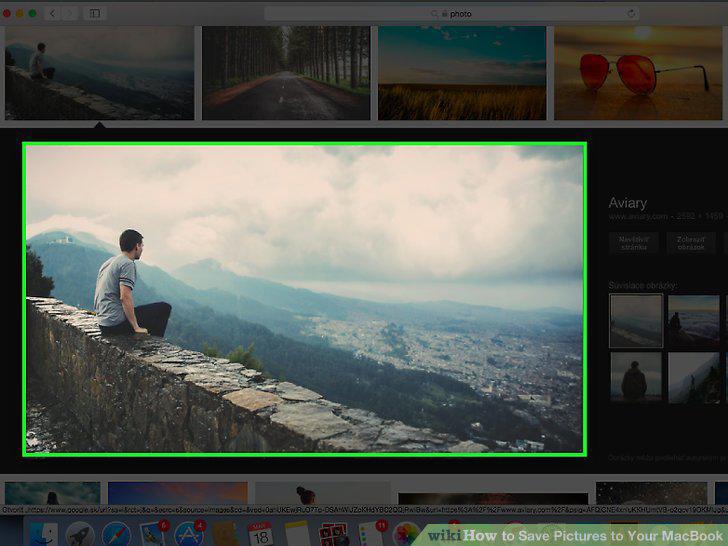
Go to a photo that you want to save.
2
Open the image if necessary.
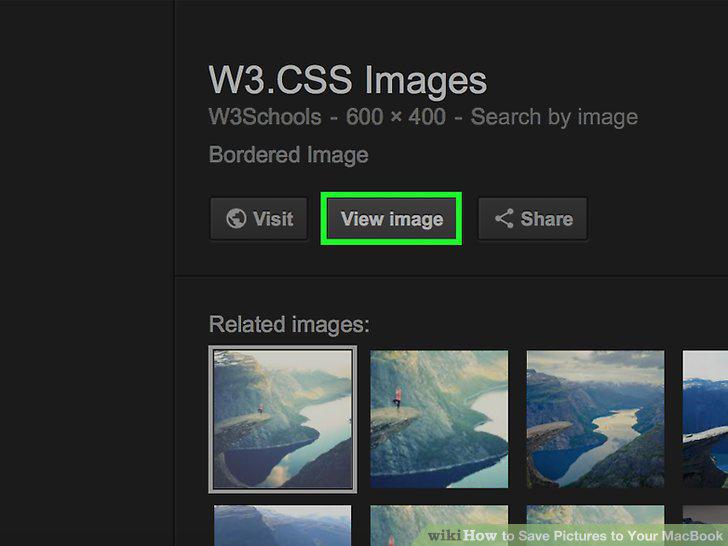
Open the image if necessary.
3
Place your Mac's mouse pointer on the image.
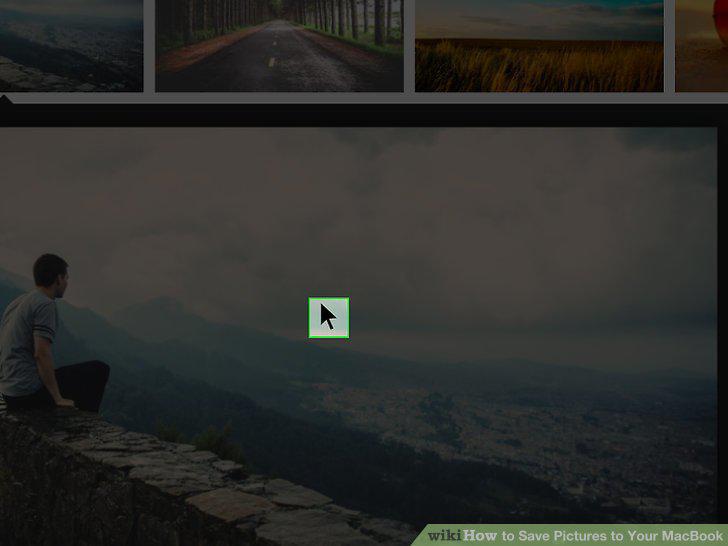
Place your Mac's mouse pointer on the image.
4
Open the context menu.
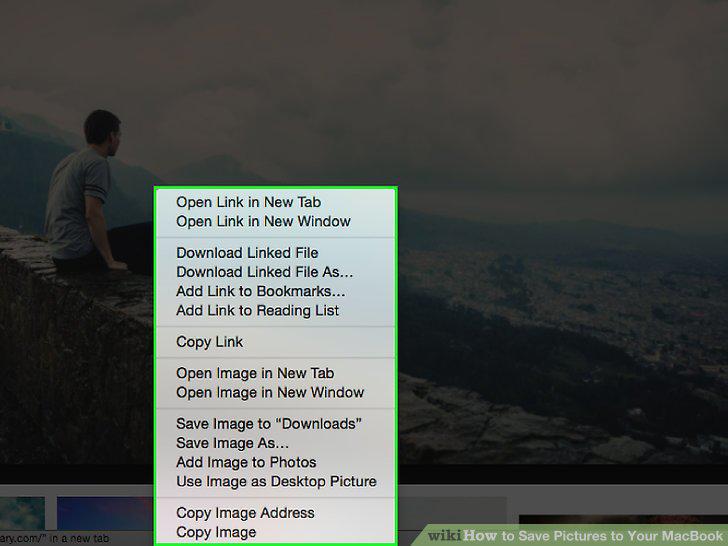
Open the context menu.
5
Click Save Image to "Downloads".
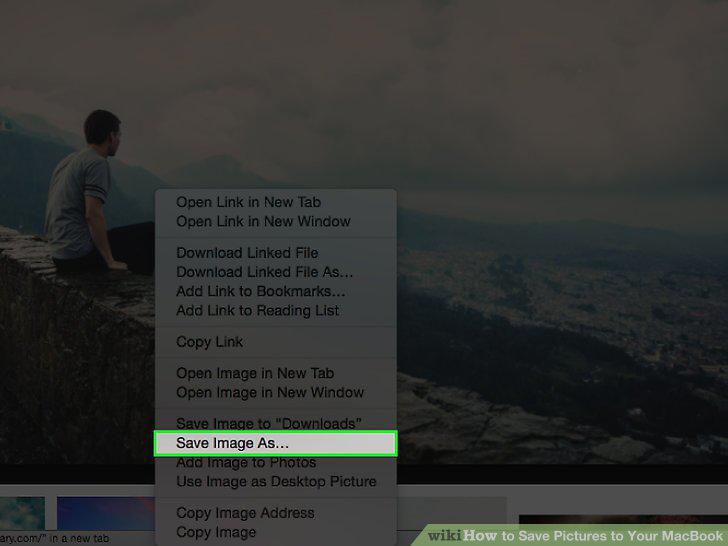
Click Save Image to "Downloads".
6
Go to a photo that you want to save.
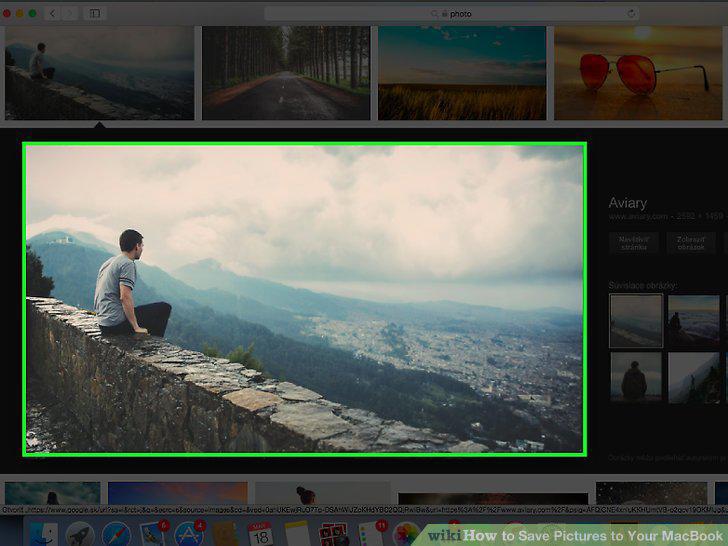
Go to a photo that you want to save.
7
Open the image if necessary.
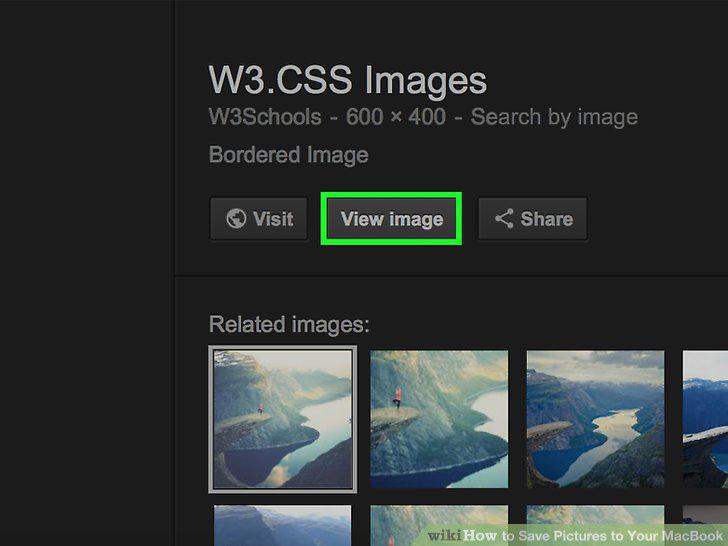
Open the image if necessary.
8
Resize your browser window.
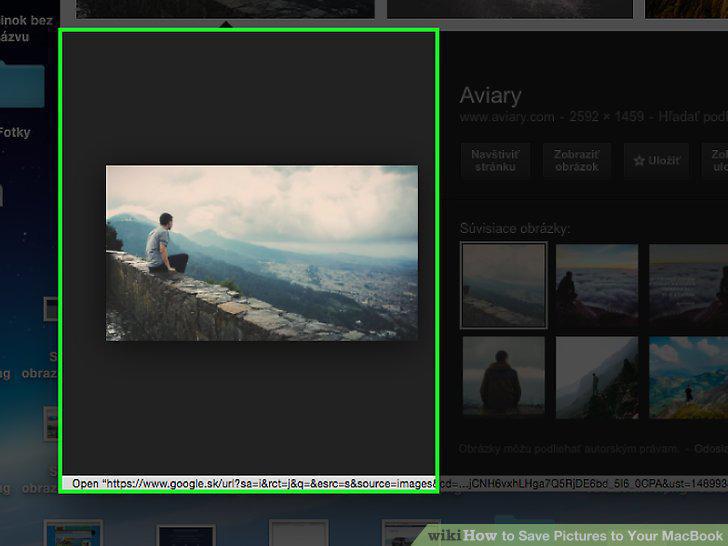
Resize your browser window.
9
Click and drag the photo onto your desktop.
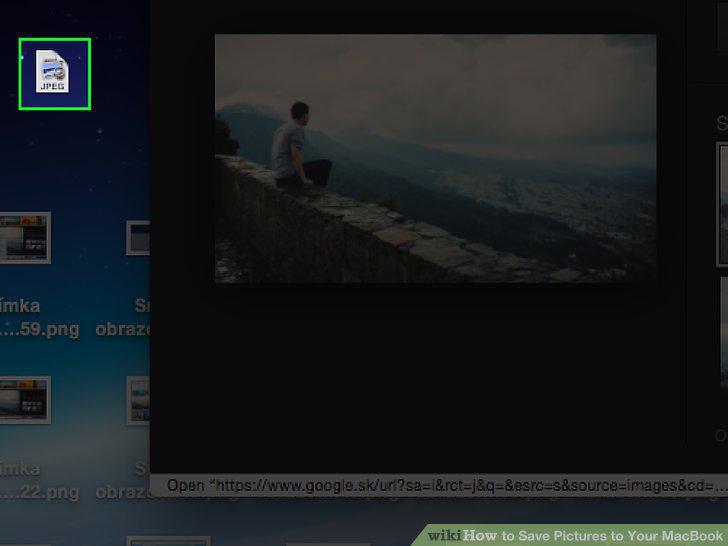
Click and drag the photo onto your desktop.
10
Release the click.
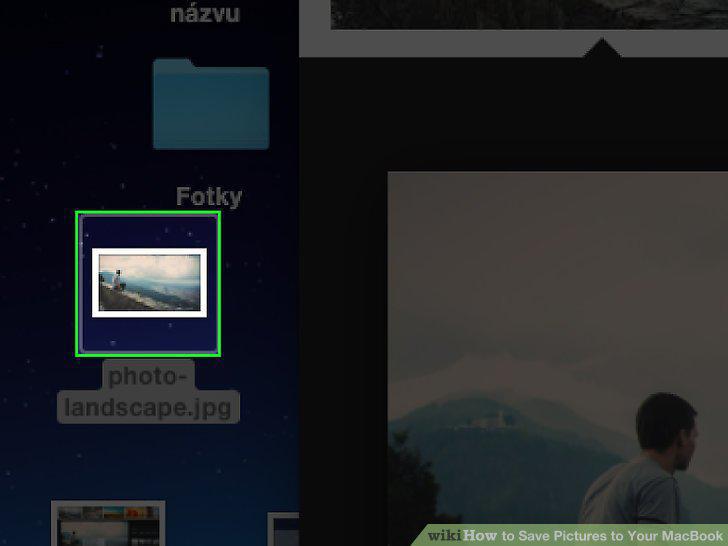
Release the click.
Comments (0)
No comments yet. Be the first to share your thoughts!