How to Fix a Keyboard
Increase the repeat delay if a key presses multiple times.. Turn off Sticky Keys so buttons aren't being "held down.. Unselect the Filter Keys or Slow Keys setting if it takes a while for letters to appear.
Steps
Increase the repeat delay if a key presses multiple times.
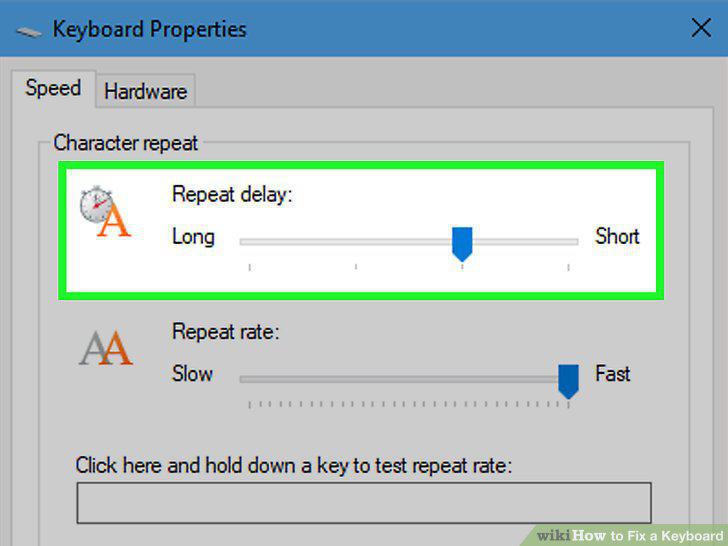
Increase the repeat delay if a key presses multiple times.
Turn off Sticky Keys so buttons aren't being "held down.
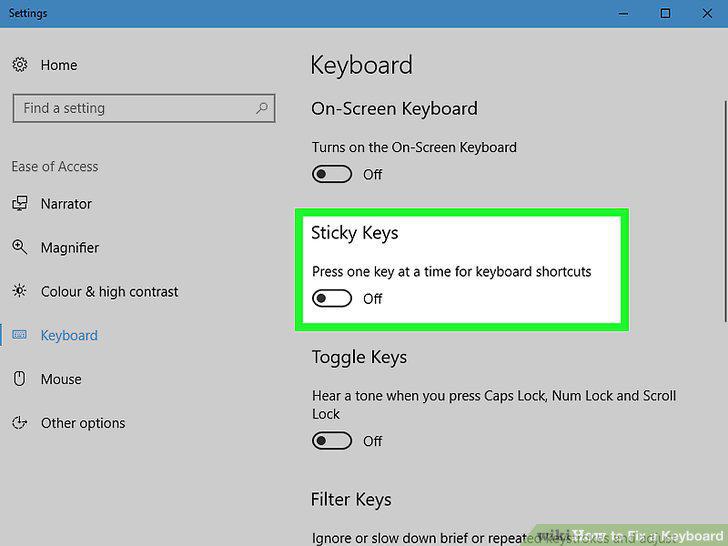
Turn off Sticky Keys so buttons aren't being "held down.
Unselect the Filter Keys or Slow Keys setting if it takes a while for letters to
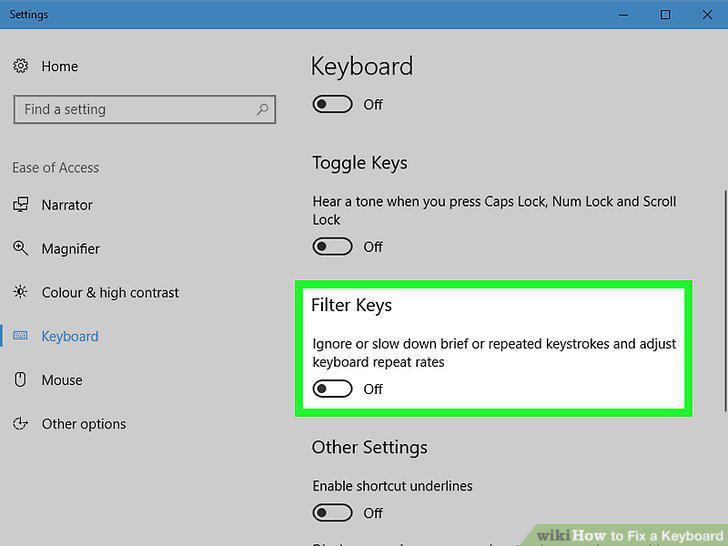
Unselect the Filter Keys or Slow Keys setting if it takes a while for letters to appear.
Change the input language if you're typing the wrong characters.

Change the input language if you're typing the wrong characters.
Access the Device Manager from the Start Menu to find the keyboard driver.
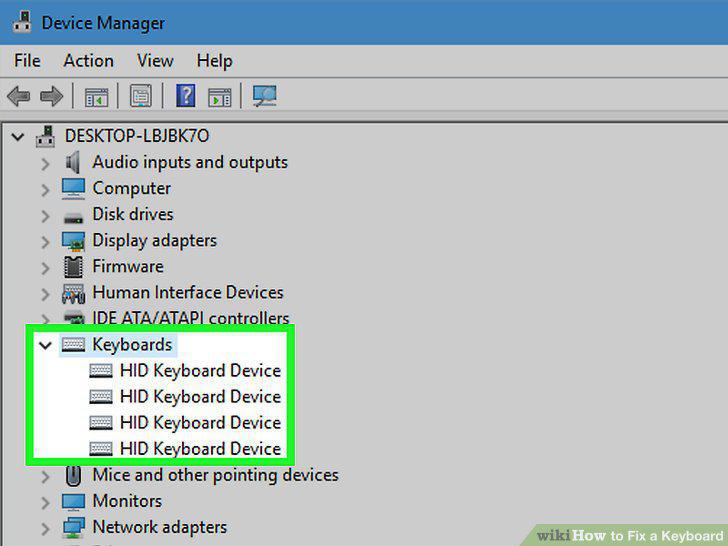
Access the Device Manager from the Start Menu to find the keyboard driver.
Uninstall the keyboard software from your computer.
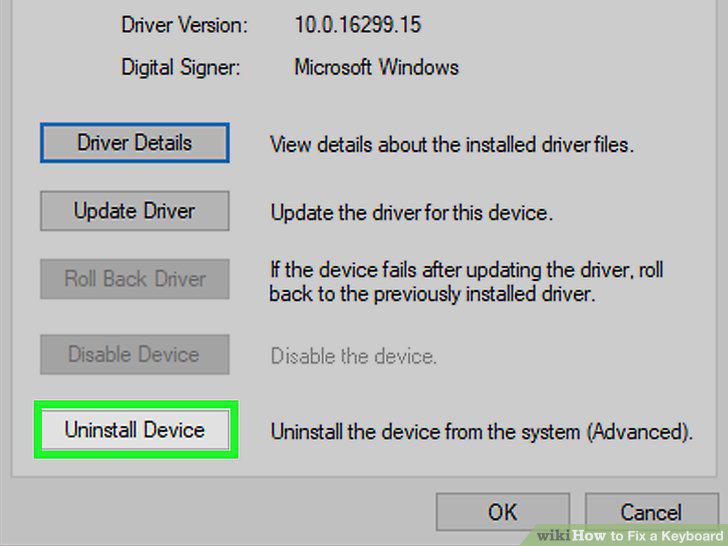
Uninstall the keyboard software from your computer.
Restart your computer to see if the drivers reinstall automatically.
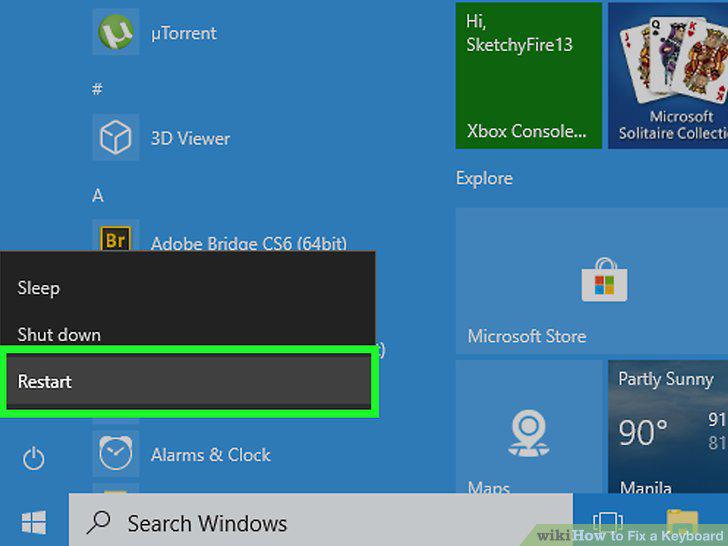
Restart your computer to see if the drivers reinstall automatically.
Install the keyboard drivers manually if you need to.
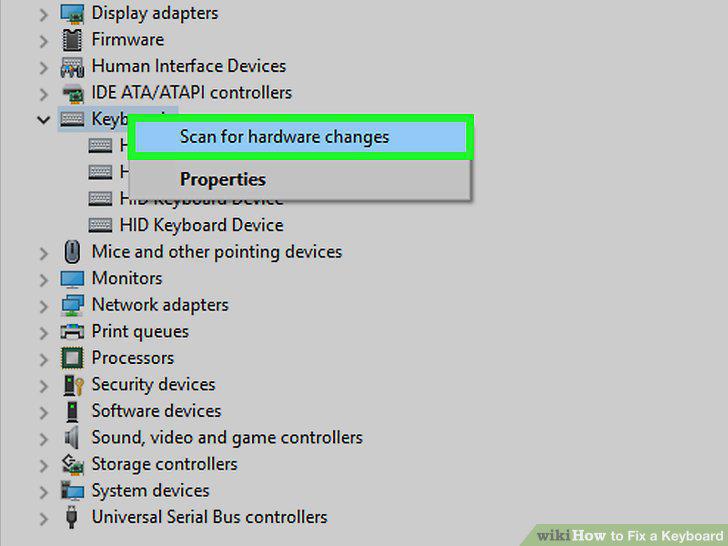
Install the keyboard drivers manually if you need to.
Unplug the keyboard from your computer.
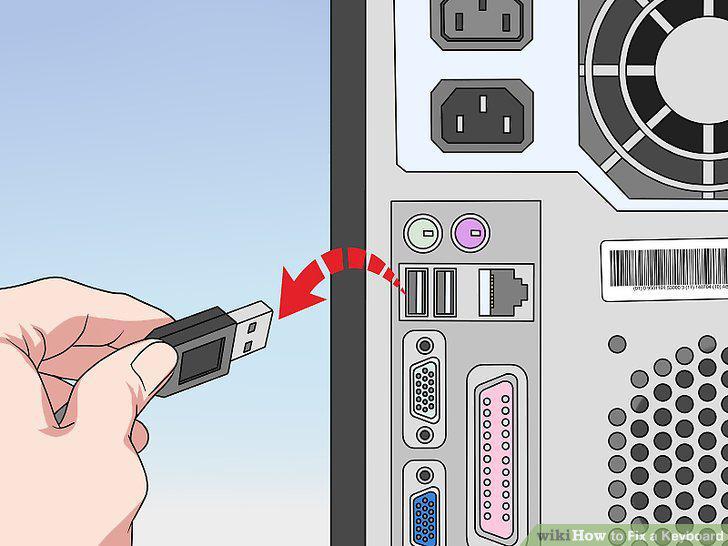
Unplug the keyboard from your computer.
Slide a flathead screwdriver underneath the key that's sticking to pop it out.
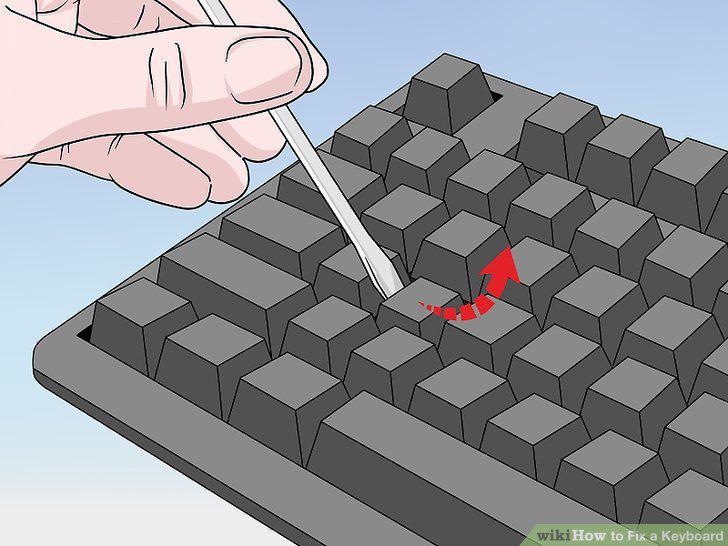
Slide a flathead screwdriver underneath the key that's sticking to pop it out.
Wipe the area under the key with a cotton swab soaked with rubbing alcohol.
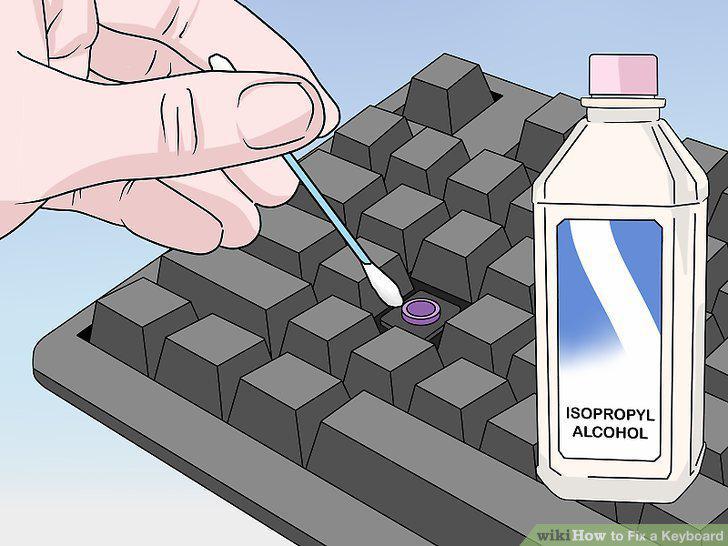
Wipe the area under the key with a cotton swab soaked with rubbing alcohol.
Clean the bottom of the key you pulled out to remove any dirt.
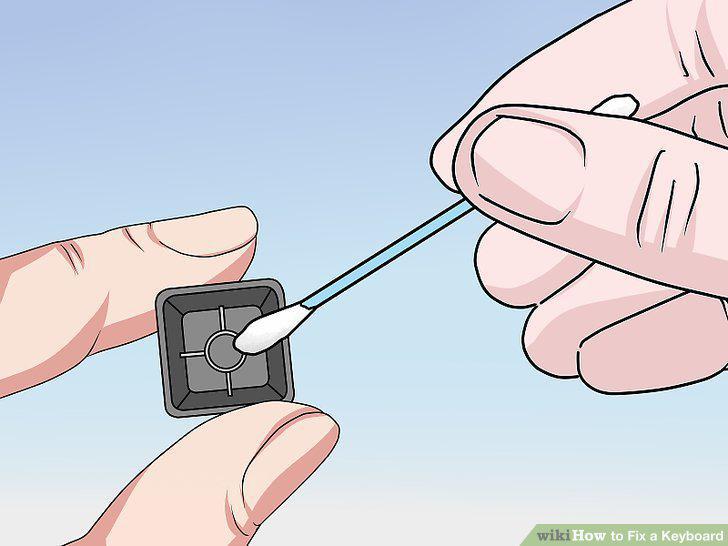
Clean the bottom of the key you pulled out to remove any dirt.
Let the rubbing alcohol dry completely before popping the key back in.
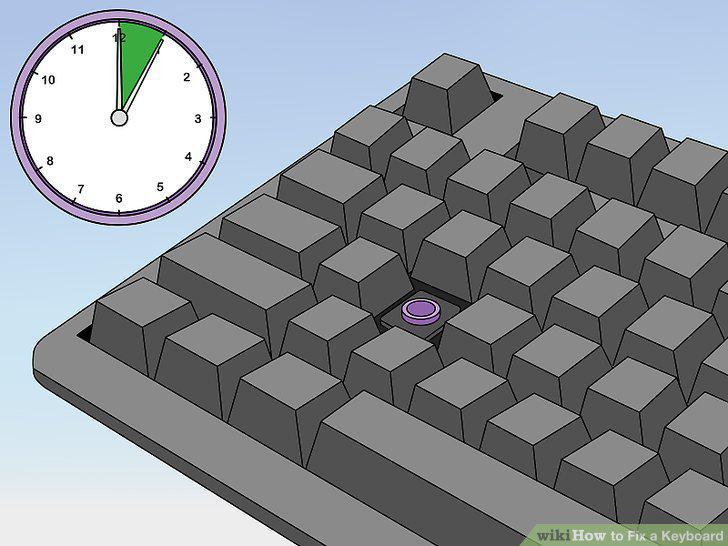
Let the rubbing alcohol dry completely before popping the key back in.
Unscrew the back of the keyboard to separate the top and bottom.
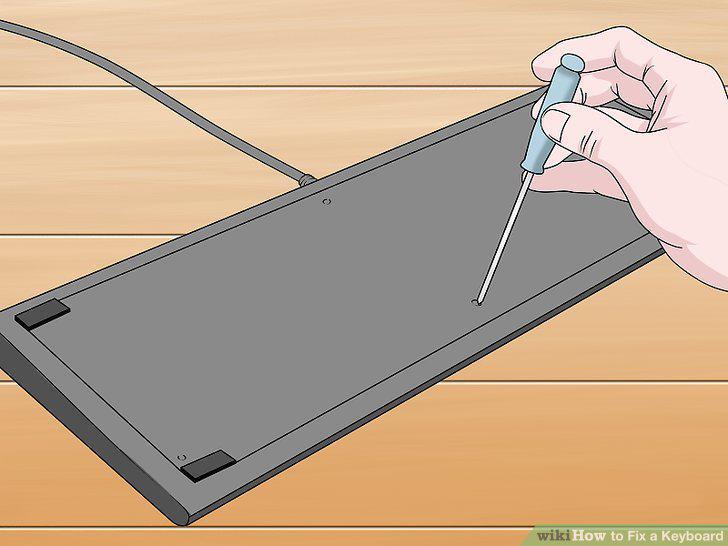
Unscrew the back of the keyboard to separate the top and bottom.
Remove the rubber piece covering the circuits.
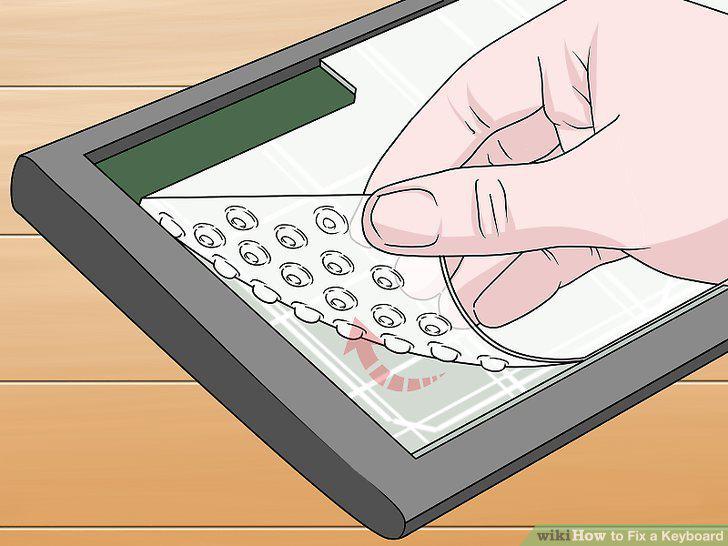
Remove the rubber piece covering the circuits.
Separate the circuit sheets to clean between them.
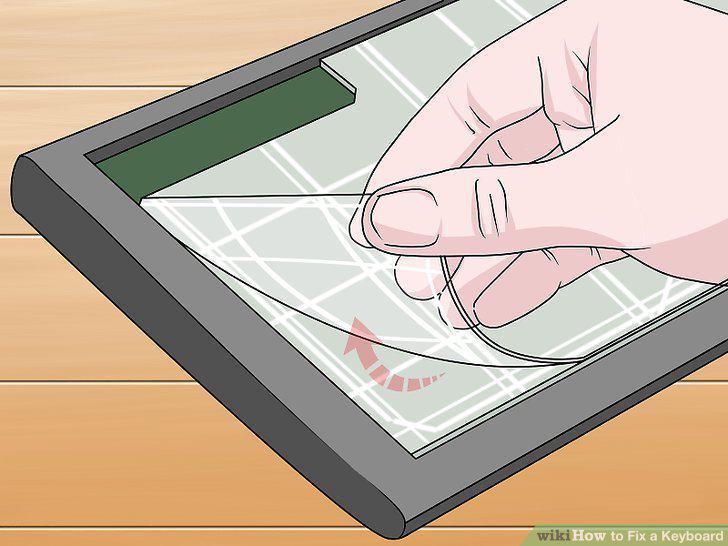
Separate the circuit sheets to clean between them.
Wipe the circuits with a soft microfiber cloth.
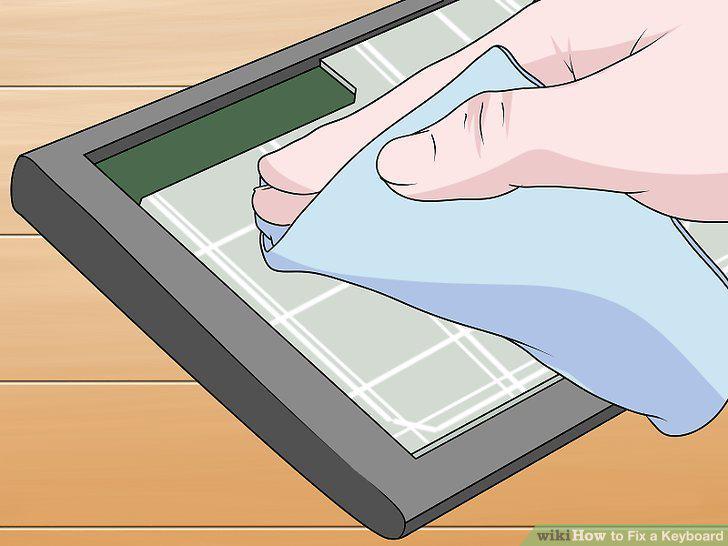
Wipe the circuits with a soft microfiber cloth.
Put the keyboard back together to test it.
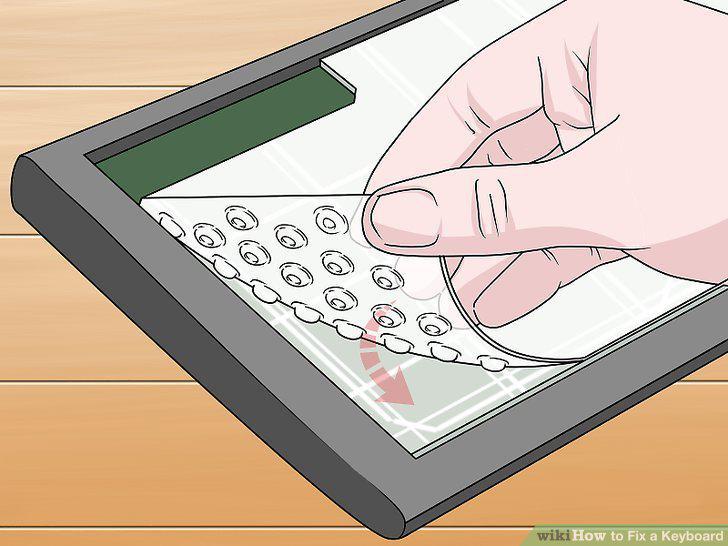
Put the keyboard back together to test it.
Comments (0)
No comments yet. Be the first to share your thoughts!