How to Change Your Equifax Password
Open the Equifax Member Center in an internet browser.. Click or tap the Forgot User Name or Password link.. Enter your last name, social security number, and date of birth.
Steps
Open the Equifax Member Center in an internet browser.
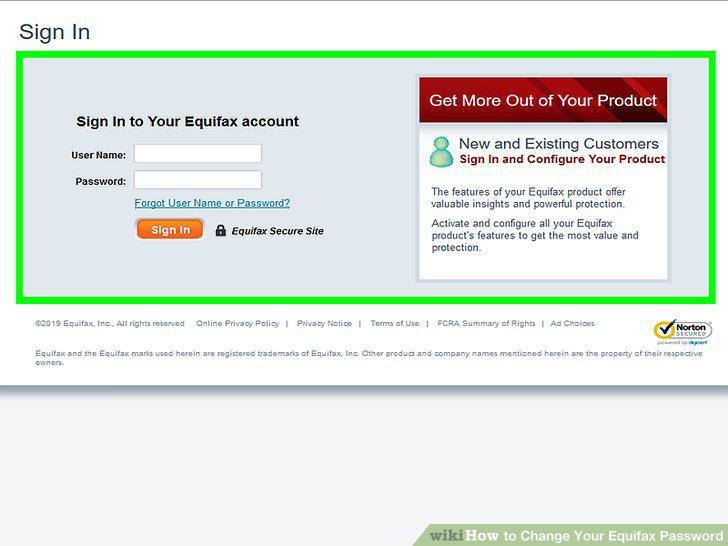
Open the Equifax Member Center in an internet browser.
Click or tap the Forgot User Name or Password link.
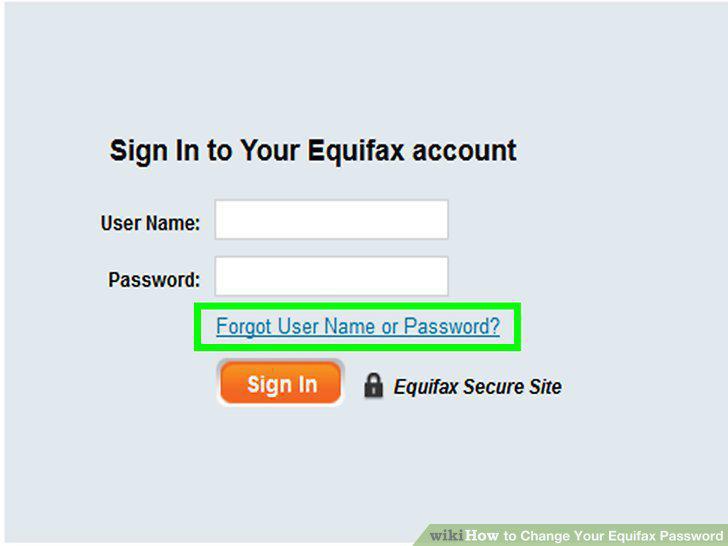
Click or tap the Forgot User Name or Password link.
Enter your last name, social security number, and date of birth.
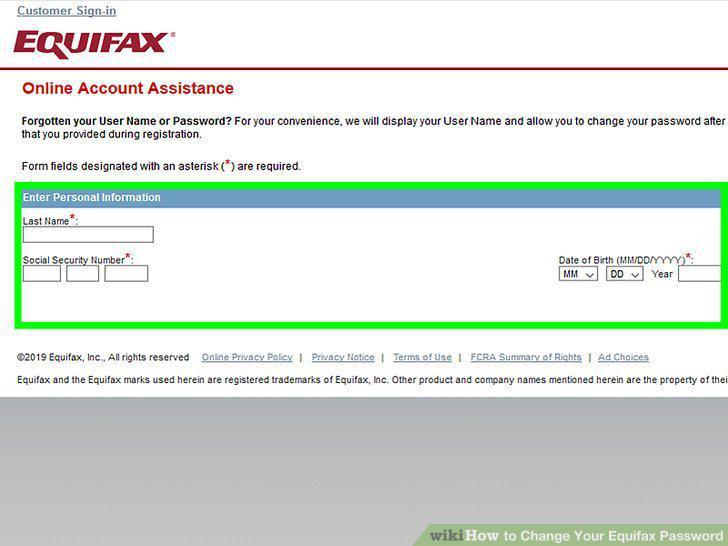
Enter your last name, social security number, and date of birth.
Click or tap the Continue button.
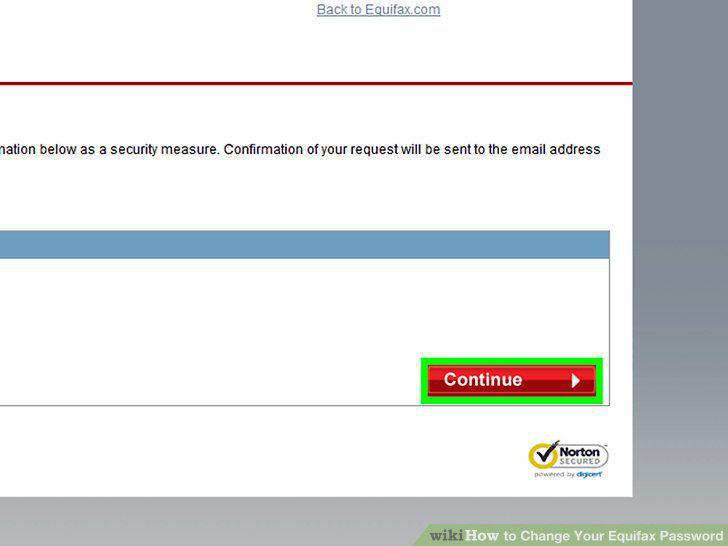
Click or tap the Continue button.
Enter the correct answer to your secret question.
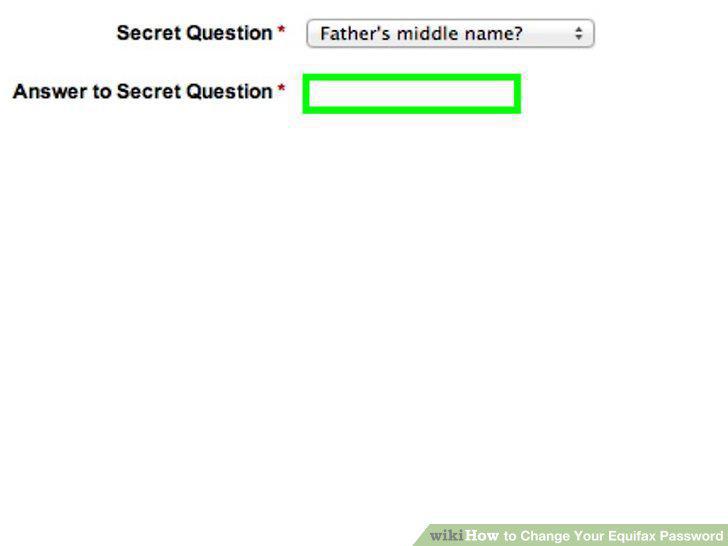
Enter the correct answer to your secret question.
Select a new account password.
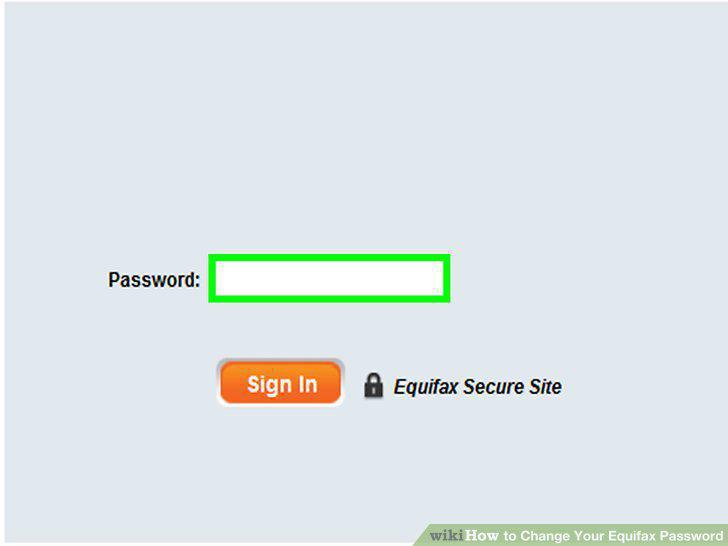
Select a new account password.
Click or tap the Save or Update button.
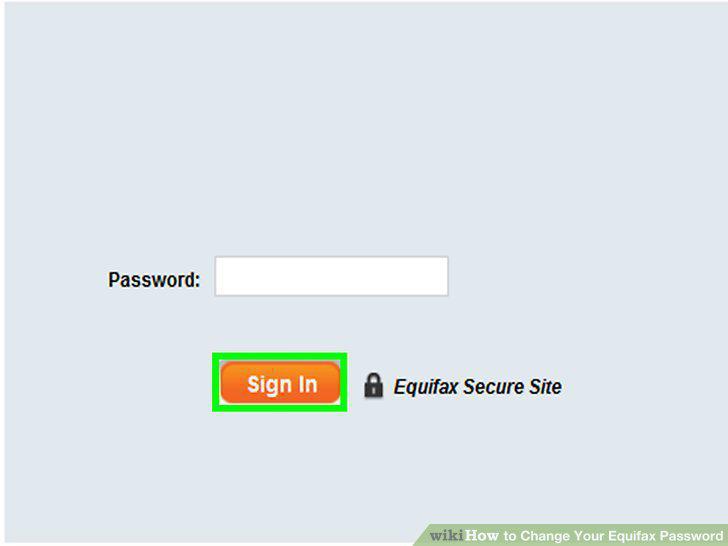
Click or tap the Save or Update button.
Open the Equifax Member Center in an internet browser.
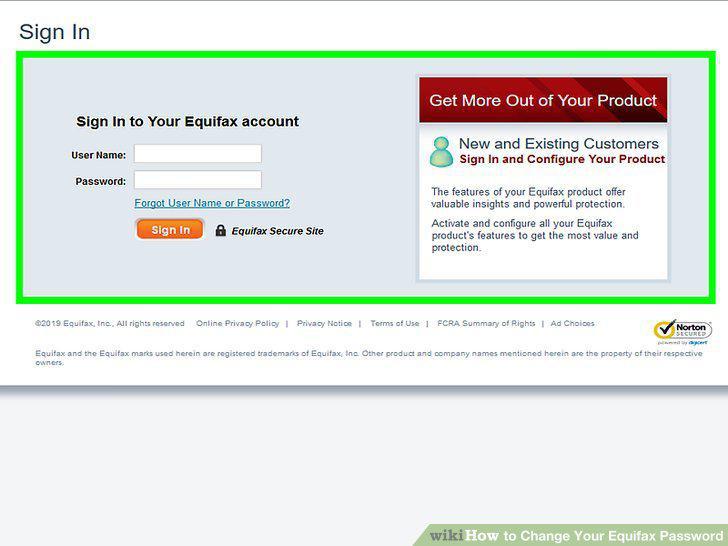
Open the Equifax Member Center in an internet browser.
Sign in to your Equifax account.
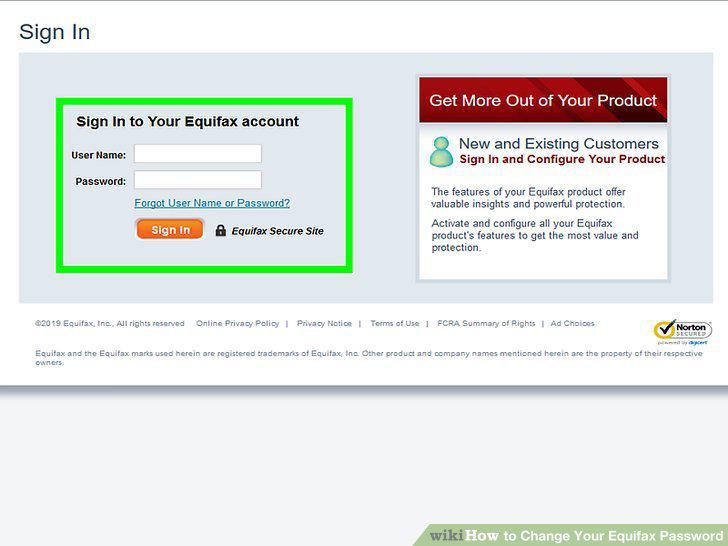
Sign in to your Equifax account.
Click or tap My Account.
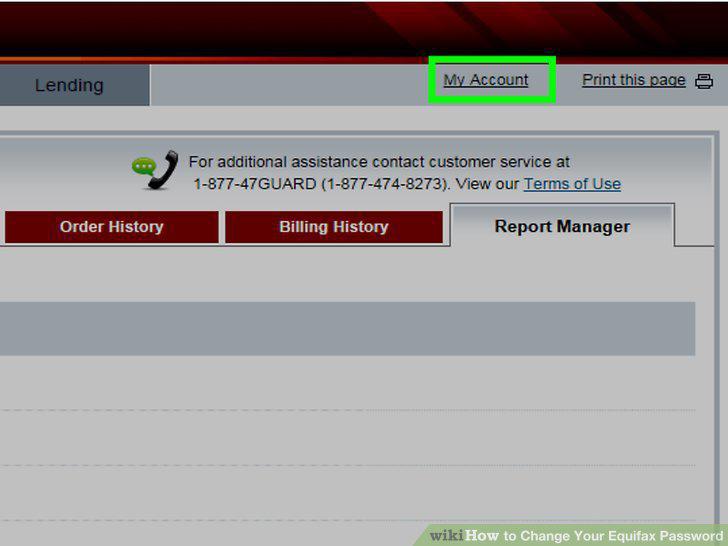
Click or tap My Account.
Select My Profile.
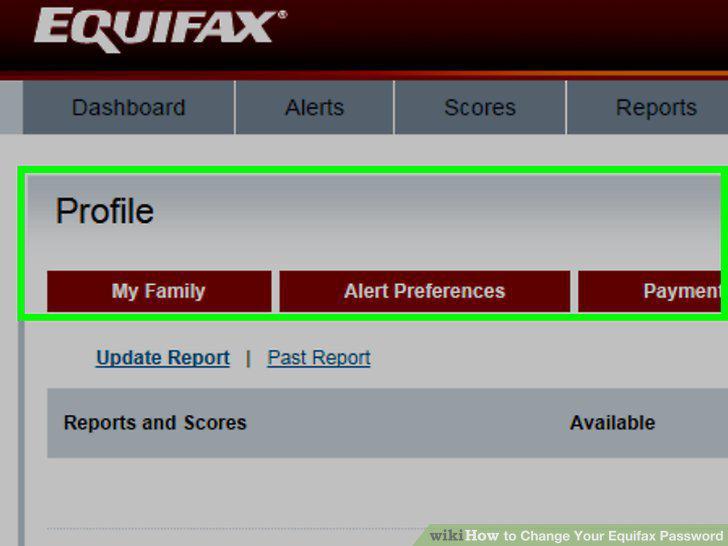
Select My Profile.
Find the Password field on the "My Profile" page.
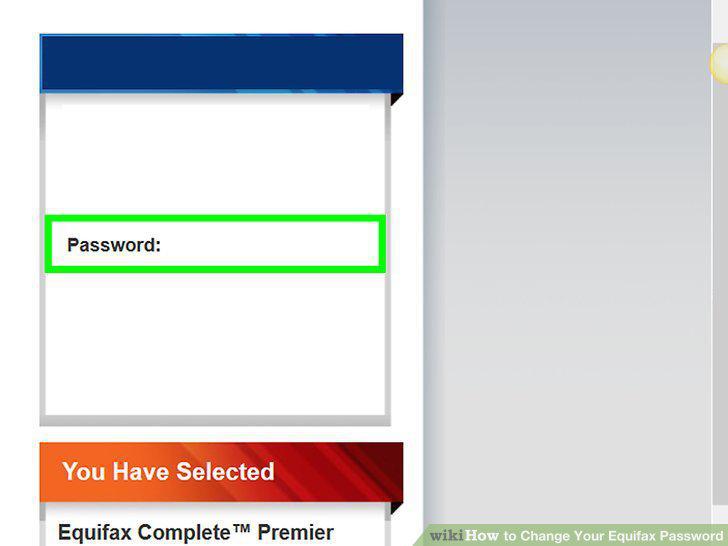
Find the Password field on the "My Profile" page.
Enter a new password into the Password box.
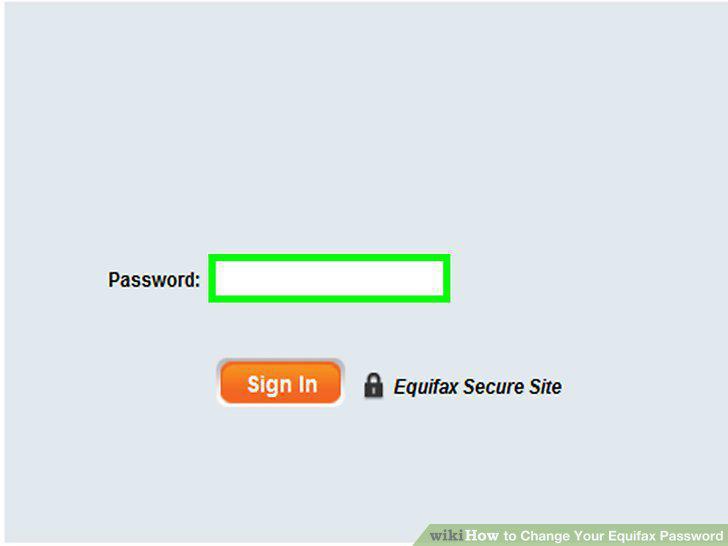
Enter a new password into the Password box.
Click or tap the Save or Update button.
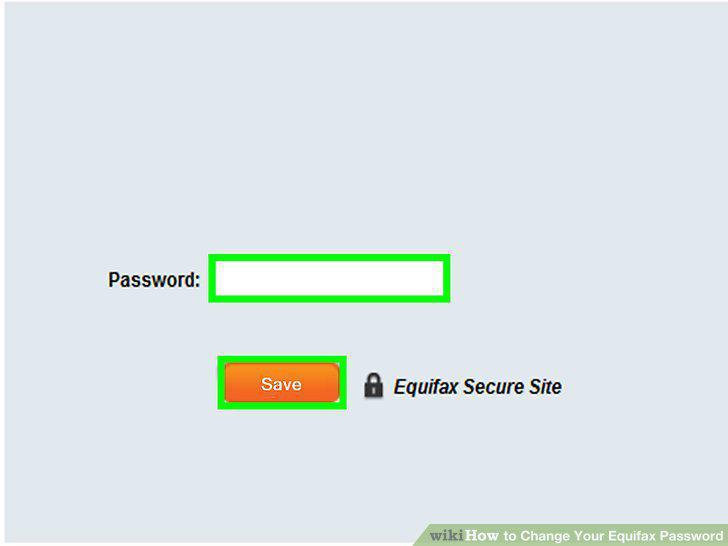
Click or tap the Save or Update button.
Call a customer representative at 888-548-7878 (optional).
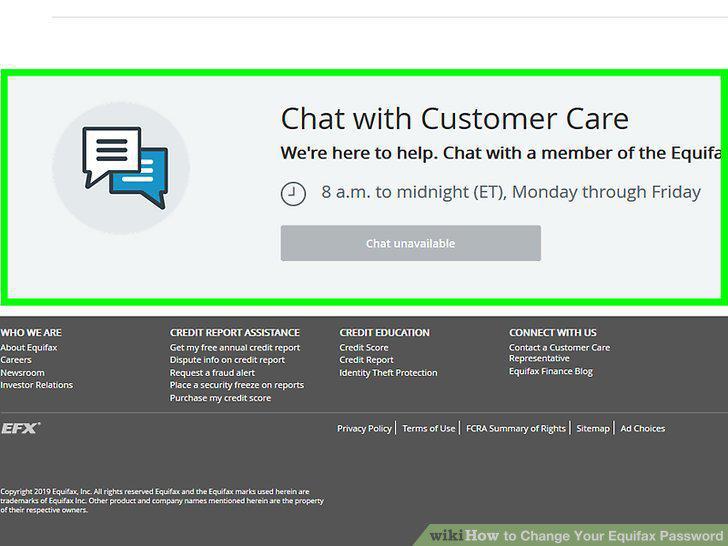
Call a customer representative at 888-548-7878 (optional).
Comments (0)
No comments yet. Be the first to share your thoughts!