How to Change Microsoft Outlook Password
Click the "File" tab and select "Info.". Click the "Account Settings" button and select "Account Settings.". Select the account you want to change the password for.
Steps
Click the "File" tab and select "Info."
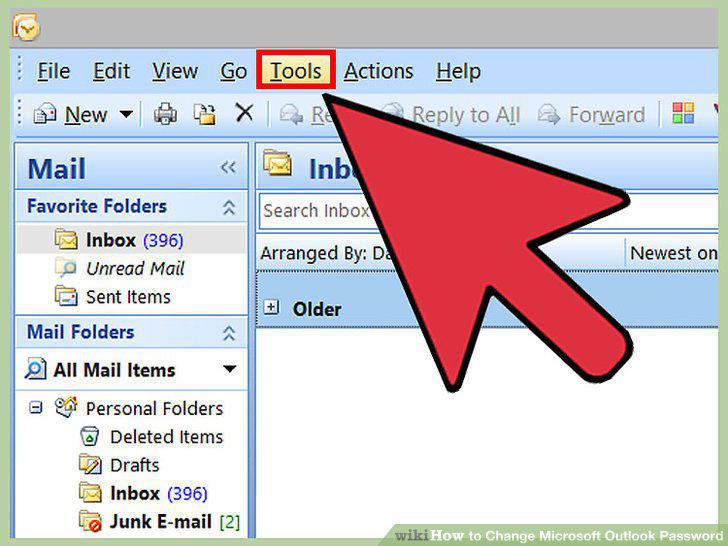
Click the "File" tab and select "Info."
Click the "Account Settings" button and select "Account Settings."
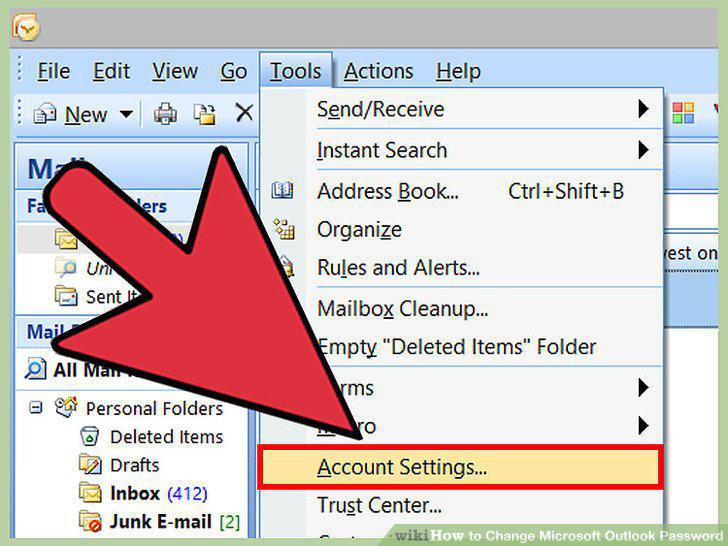
Click the "Account Settings" button and select "Account Settings."
Select the account you want to change the password for.
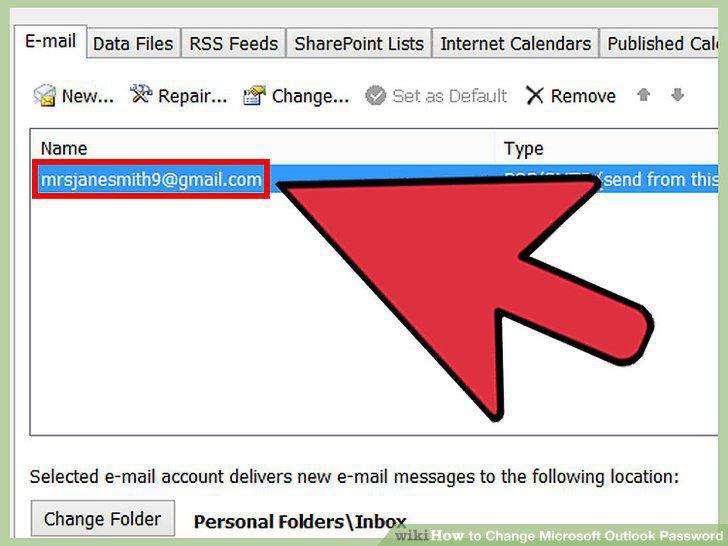
Select the account you want to change the password for.
Click the "Change" button.
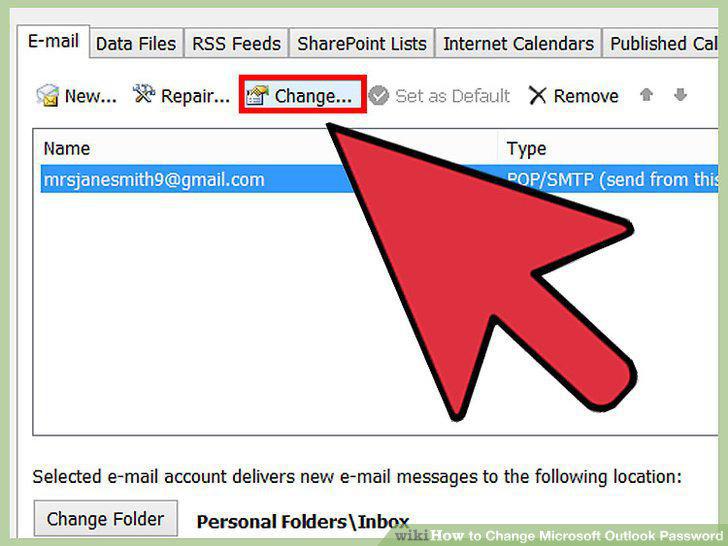
Click the "Change" button.
Type the correct password into the "Password" field.
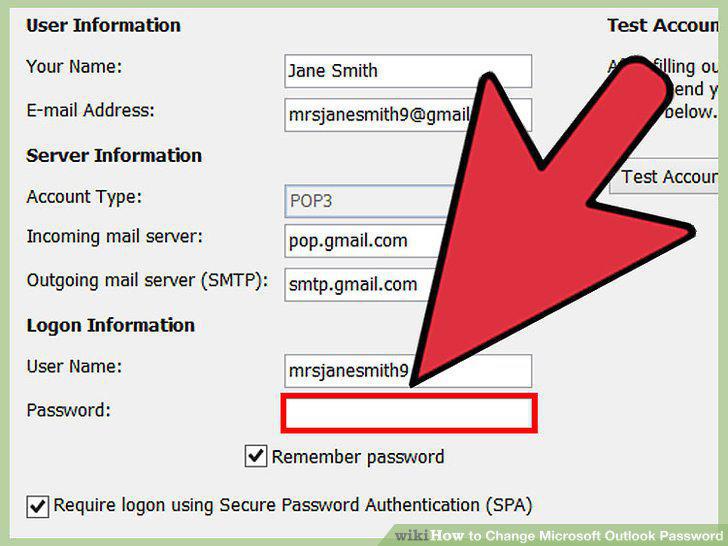
Type the correct password into the "Password" field.
Click "Next" to save your settings and test the password.
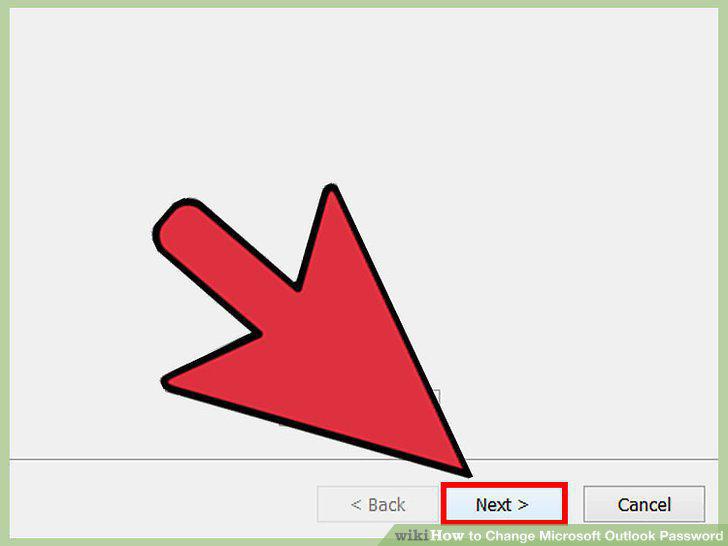
Click "Next" to save your settings and test the password.
Click the "File" tab and select "Info."
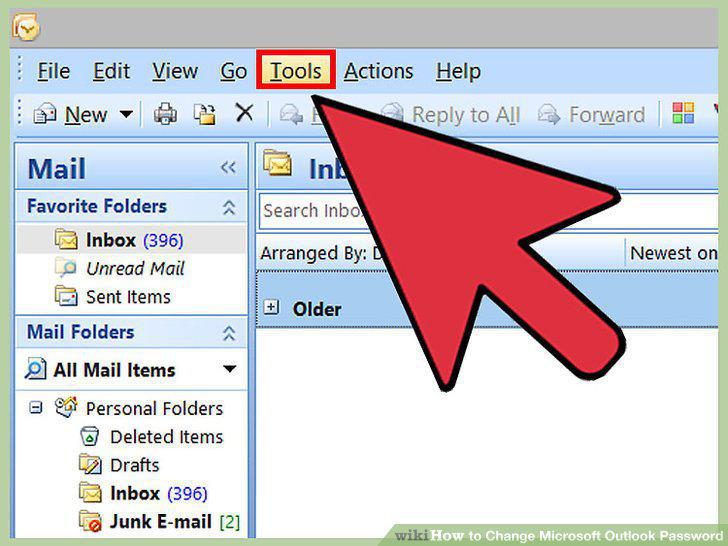
Click the "File" tab and select "Info."
Click "Account Settings" then select "Account Settings."
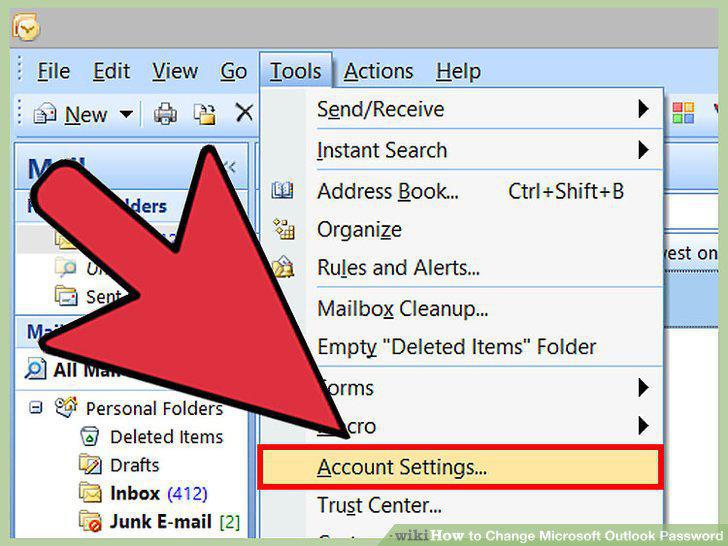
Click "Account Settings" then select "Account Settings."
Click the "Data File" tab.
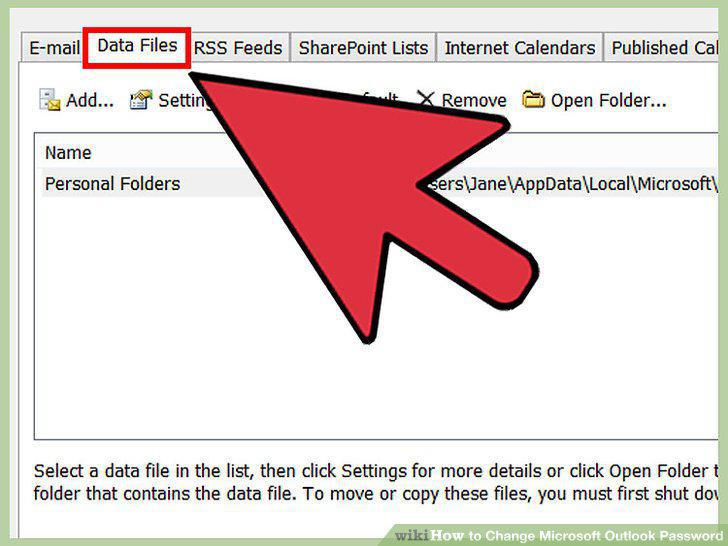
Click the "Data File" tab.
Select "Outlook Data File" and click "Settings."
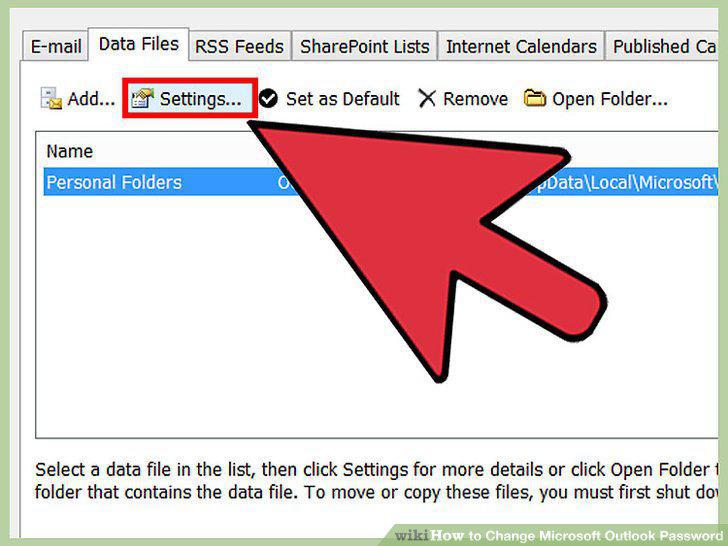
Select "Outlook Data File" and click "Settings."
Click the "Change Password" button.
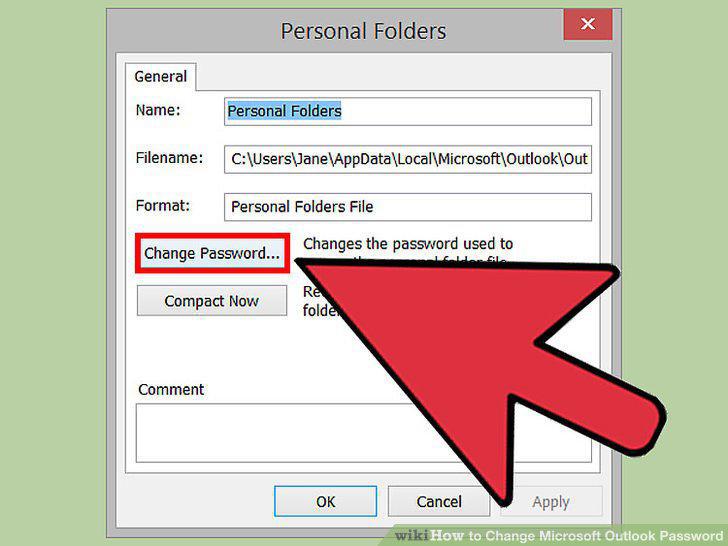
Click the "Change Password" button.
Enter your old password and create a new one.
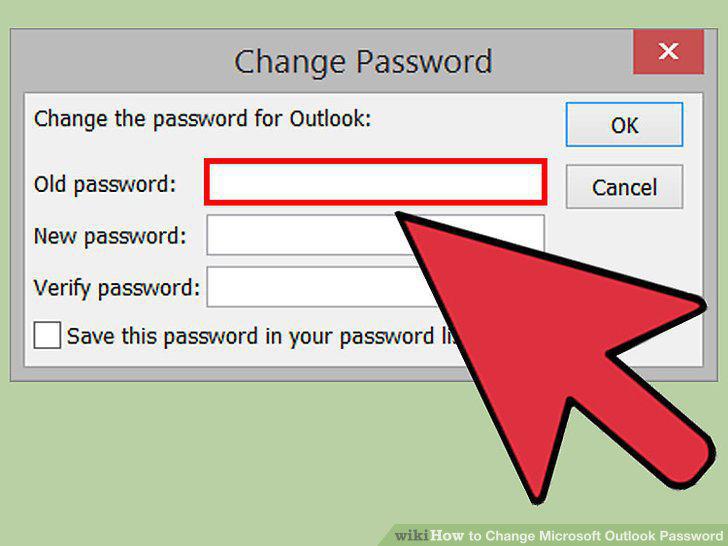
Enter your old password and create a new one.
Visit the Microsoft Account password reset page.
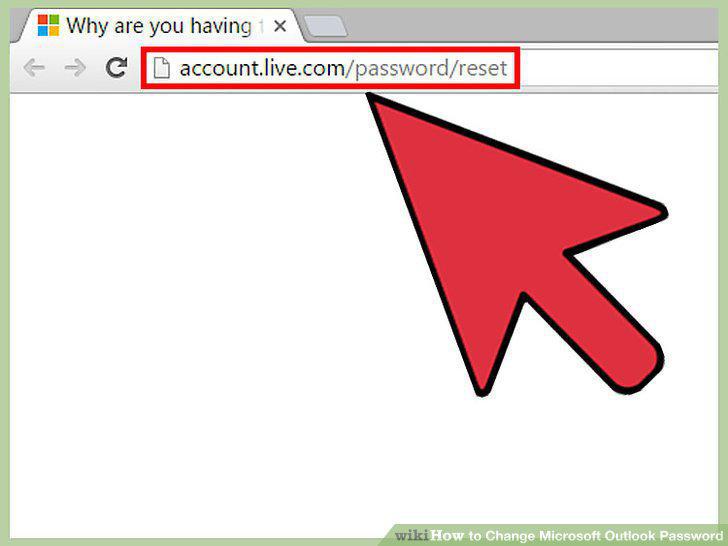
Visit the Microsoft Account password reset page.
Select "I forgot my password" and click "Next."
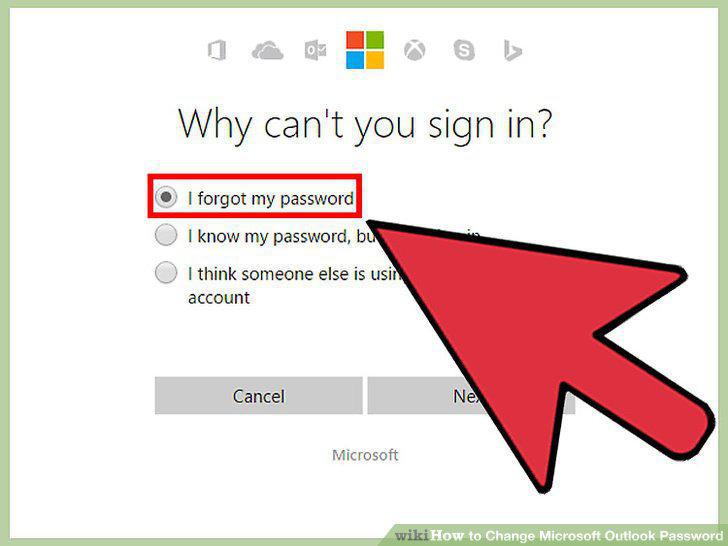
Select "I forgot my password" and click "Next."
Enter your Microsoft Account and complete the captcha.
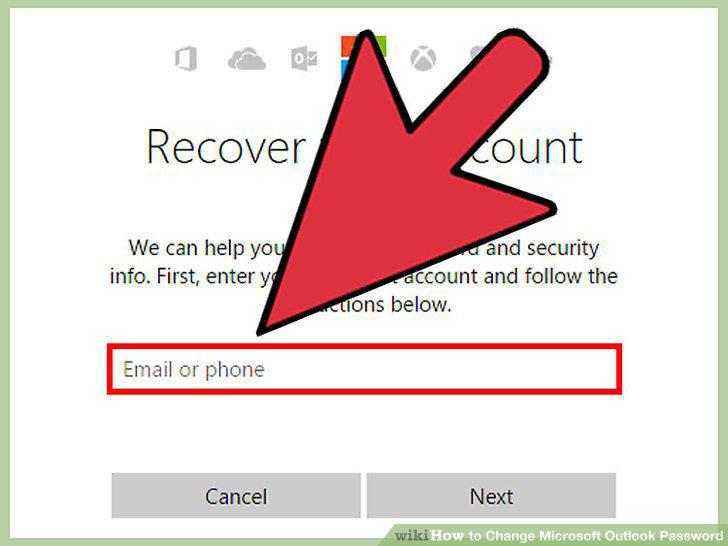
Enter your Microsoft Account and complete the captcha.
Select how you want to receive your reset code.
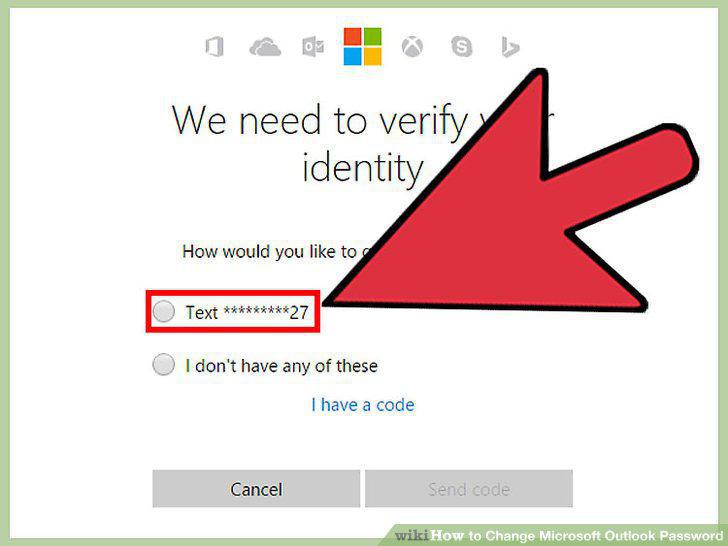
Select how you want to receive your reset code.
Enter the code that you receive.
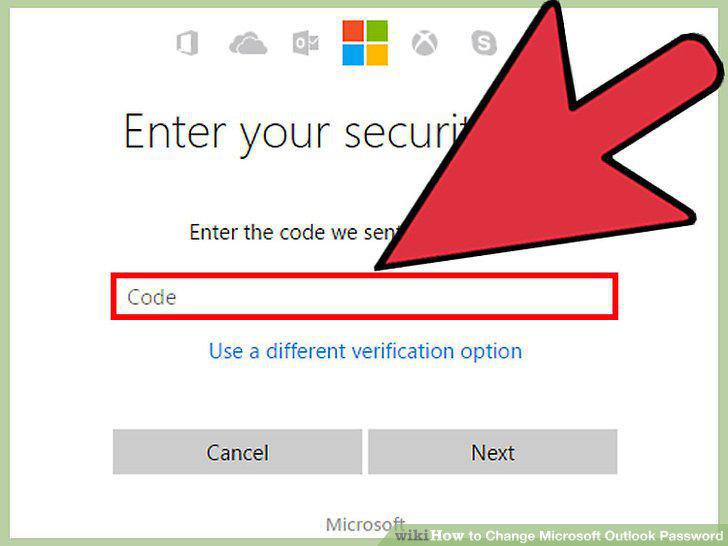
Enter the code that you receive.
Enter your new password.
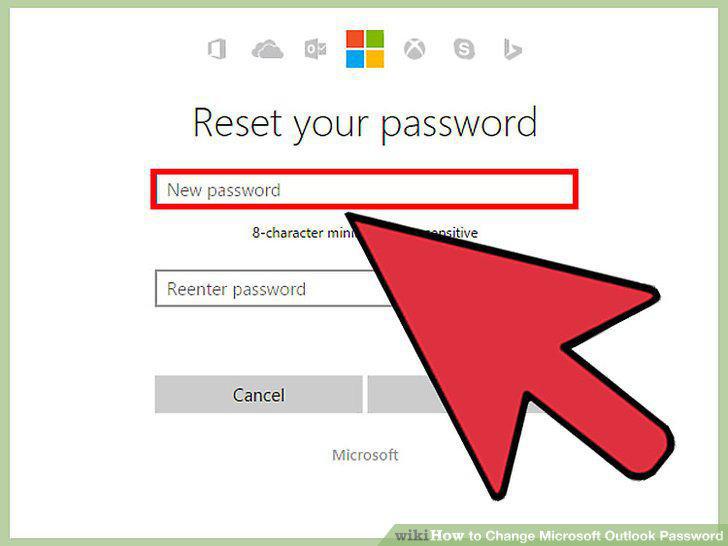
Enter your new password.
Comments (0)
No comments yet. Be the first to share your thoughts!