How to Delete All Messages in Yahoo Mail
Open the Yahoo!. Tap and hold the first message.. Tap the "Select All" checkmark.
Steps
1
Open the Yahoo!
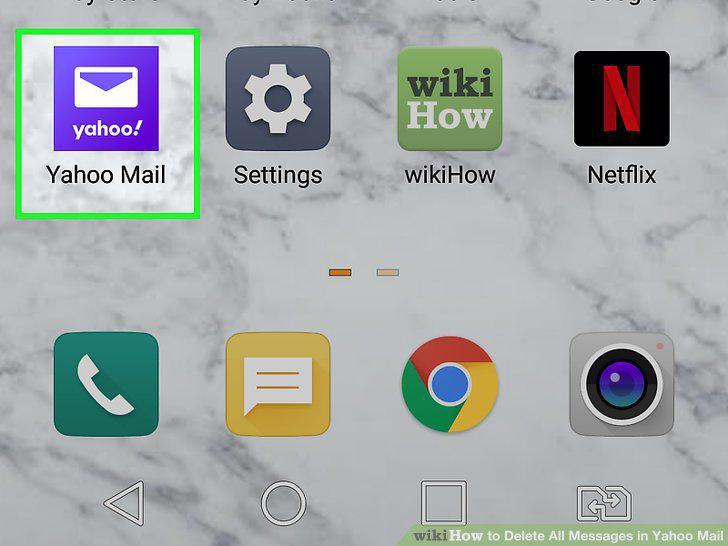
Open the Yahoo!
2
Tap and hold the first message.

Tap and hold the first message.
3
Tap the "Select All" checkmark.

Tap the "Select All" checkmark.
4
Tap the trash can icon.
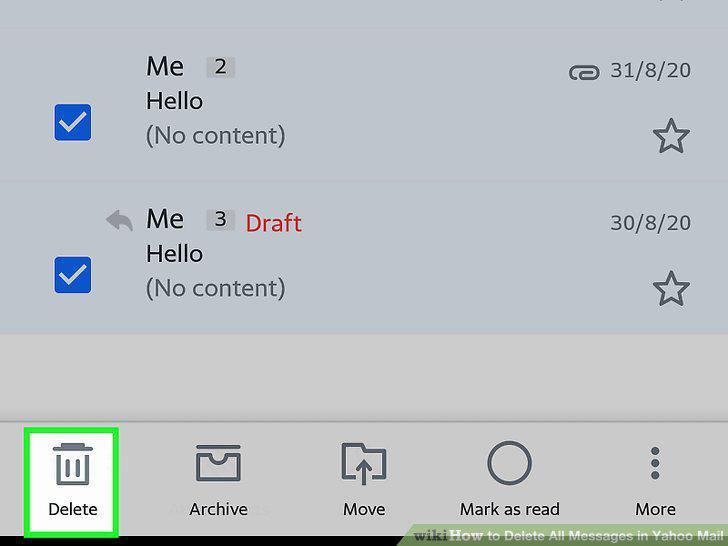
Tap the trash can icon.
5
Tap the mailbox selector.
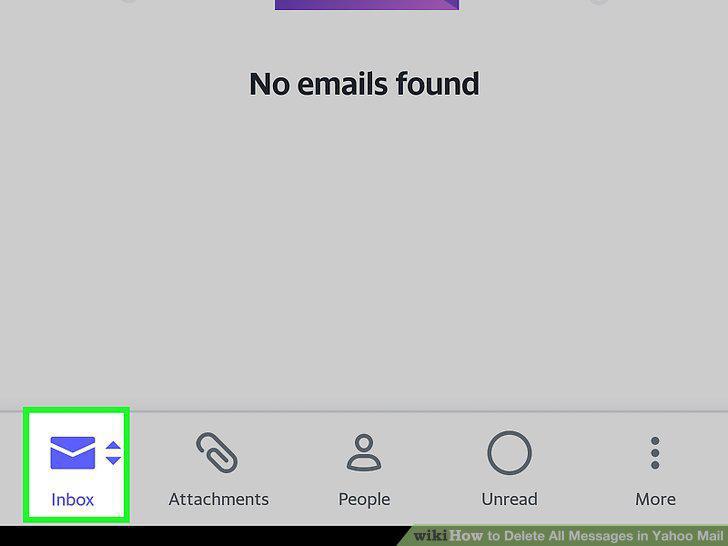
Tap the mailbox selector.
6
Tap the trash icon to the right of "Trash.
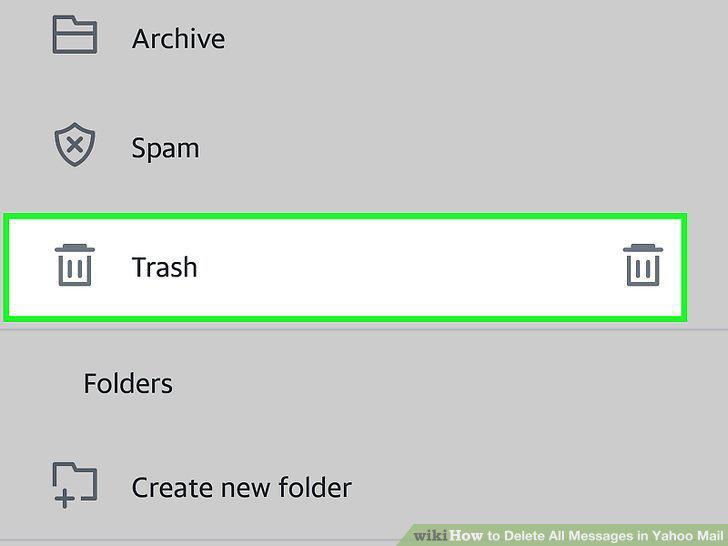
Tap the trash icon to the right of "Trash.
7
Tap OK to confirm.
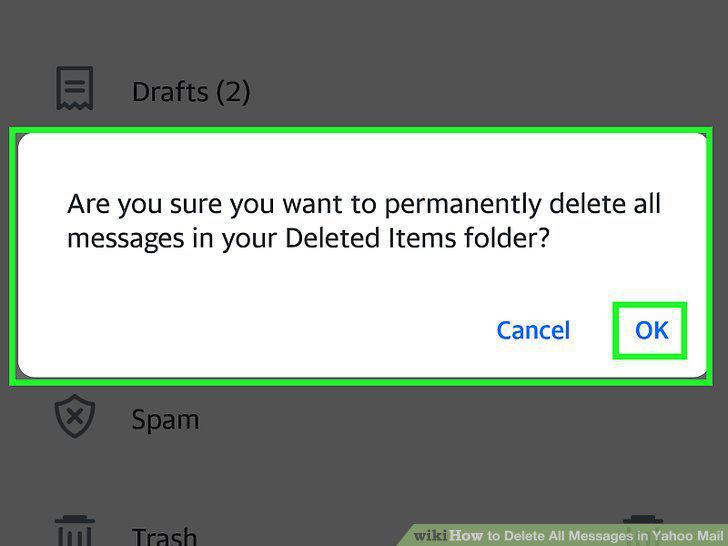
Tap OK to confirm.
8
Go to http://mail.yahoo.com in a Web browser.
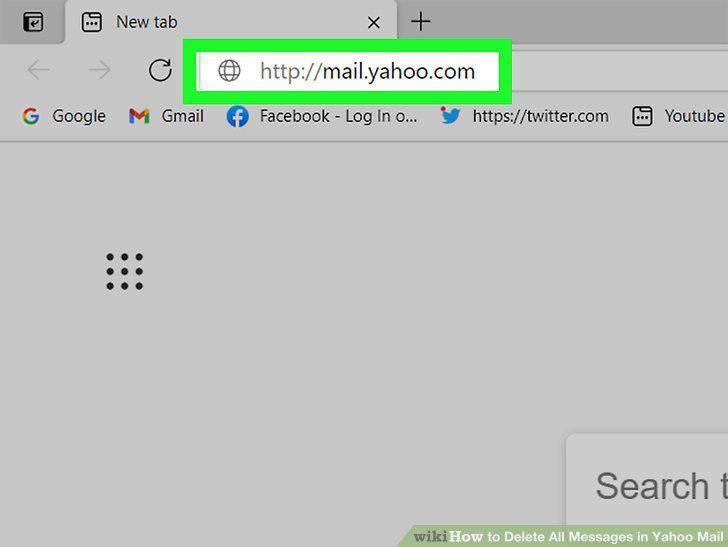
Go to http://mail.yahoo.com in a Web browser.
9
Click the Select All checkbox.
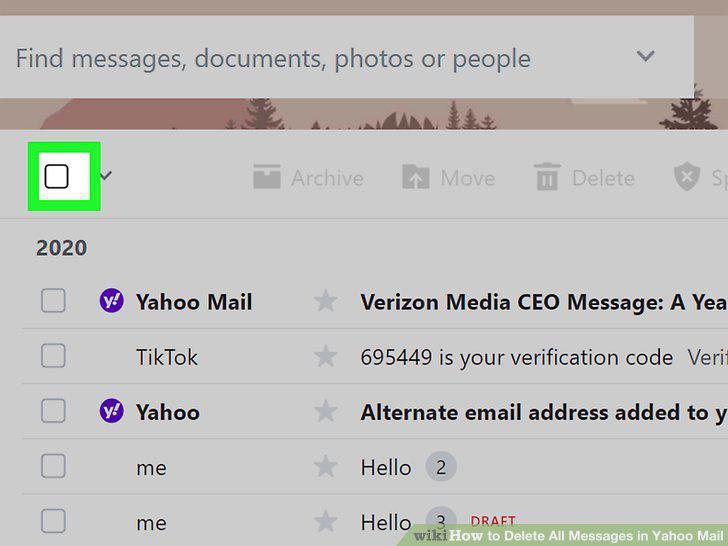
Click the Select All checkbox.
10
Scroll down farther in your inbox.
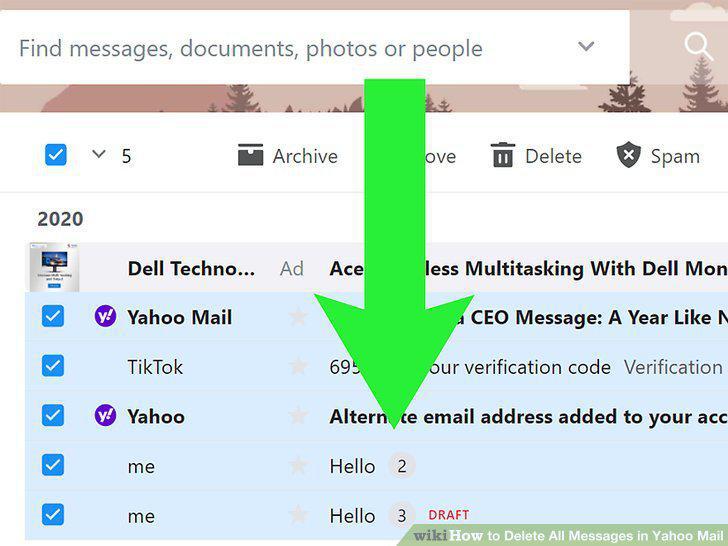
Scroll down farther in your inbox.
11
Click the Select All checkbox again.
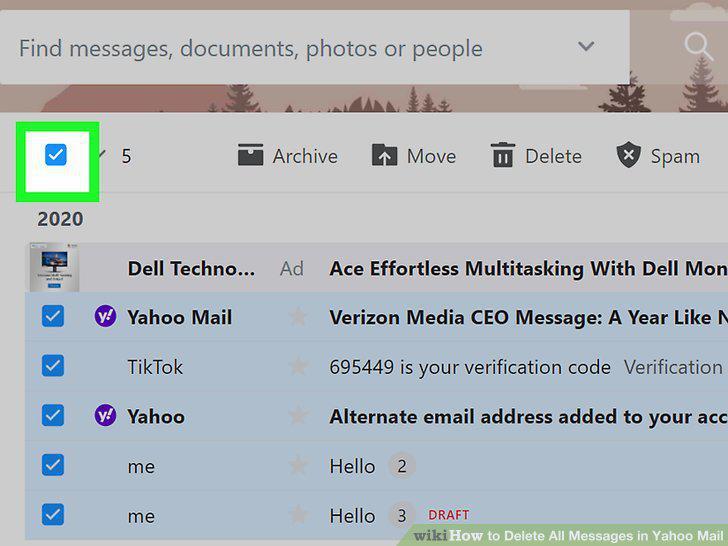
Click the Select All checkbox again.
12
Click the Select All checkbox one more time.
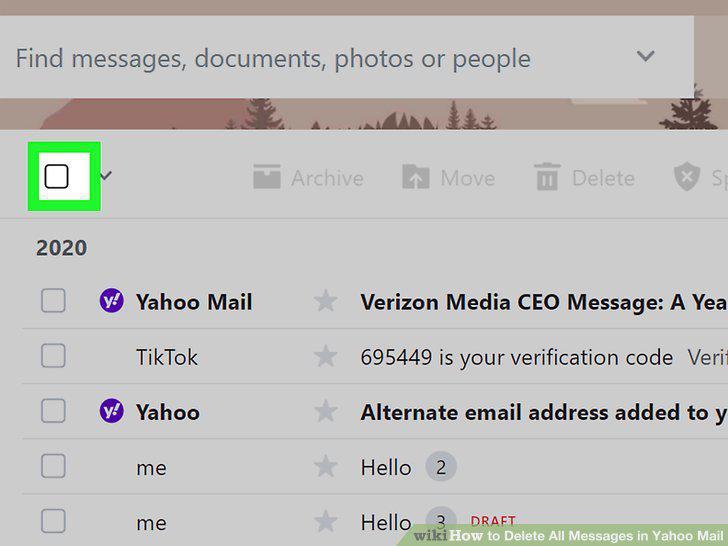
Click the Select All checkbox one more time.
13
Click Delete.
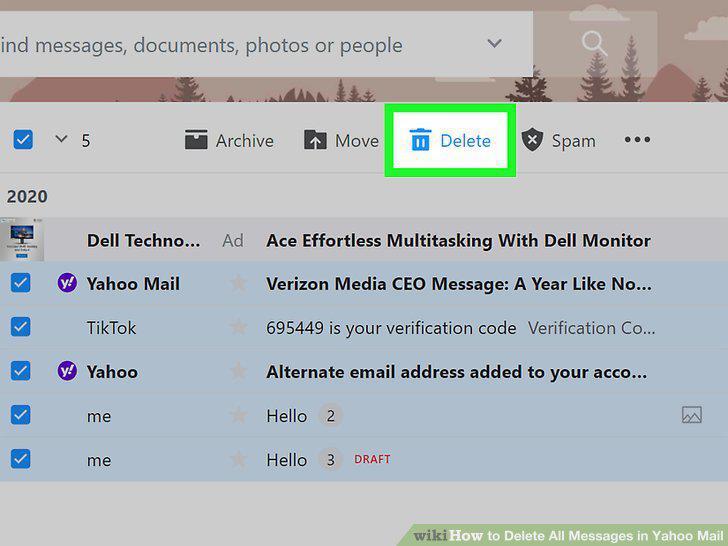
Click Delete.
14
Click OK to confirm deletion.
Click OK to confirm deletion.
15
Hover your pointer over Trash.
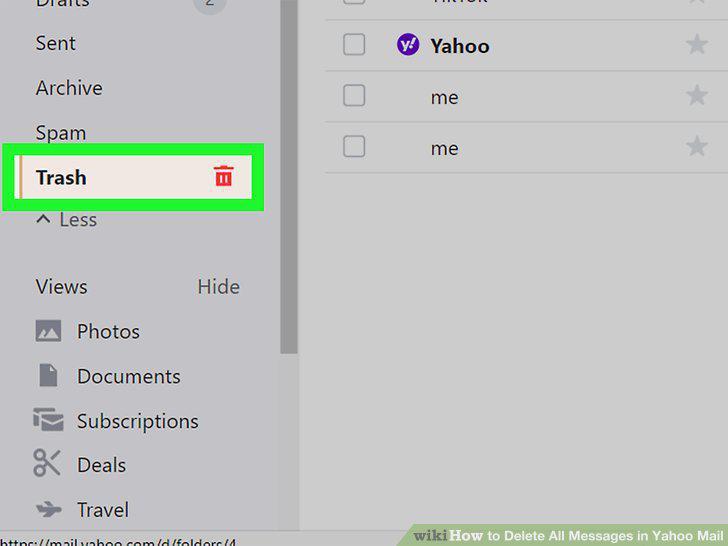
Hover your pointer over Trash.
16
Click the small trash can icon.
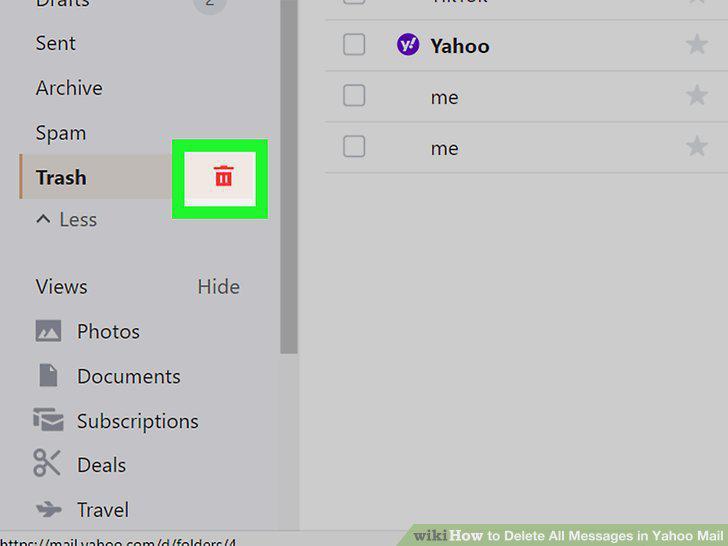
Click the small trash can icon.
17
Click OK to confirm deletion.
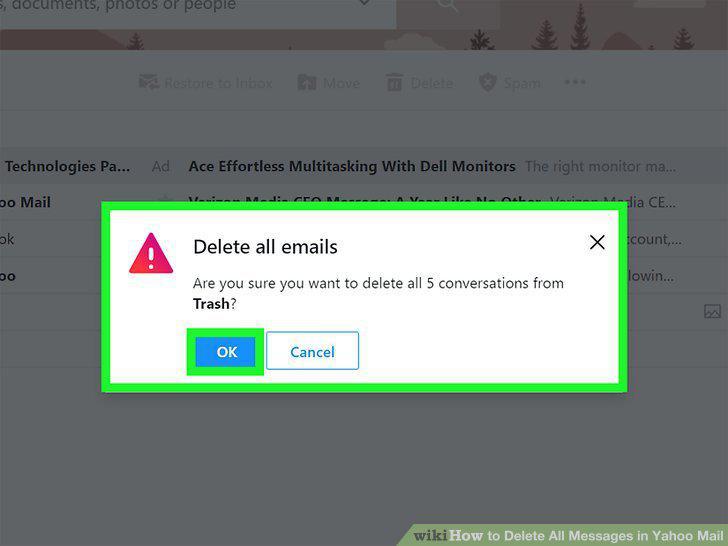
Click OK to confirm deletion.
Comments (0)
No comments yet. Be the first to share your thoughts!