How to Use YouTube Without a Gmail Account
Navigate to https://accounts.google.com/SignUpWithoutGmail.. Complete the New Account form.. Click "Next Step".
Steps
1
Navigate to https://accounts.google.com/SignUpWithoutGmail.
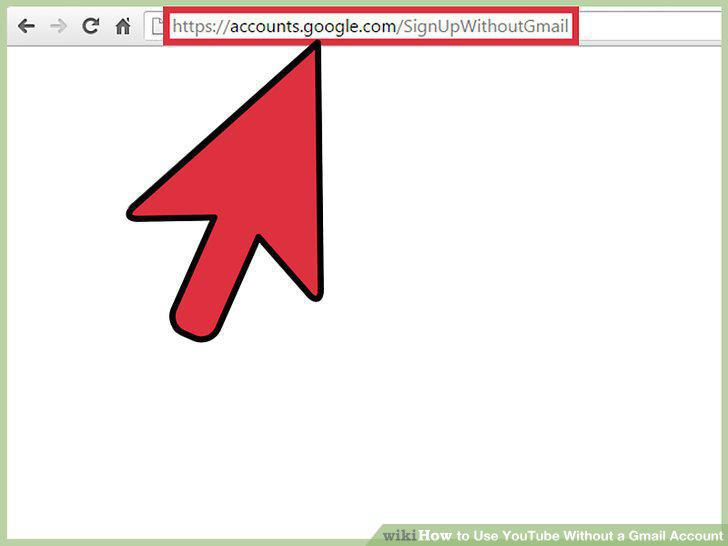
Navigate to https://accounts.google.com/SignUpWithoutGmail.
2
Complete the New Account form.
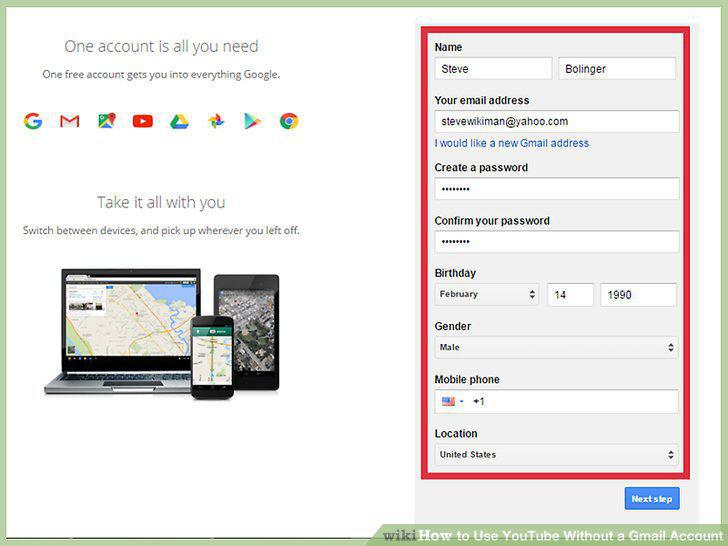
Complete the New Account form.
3
Click "Next Step".
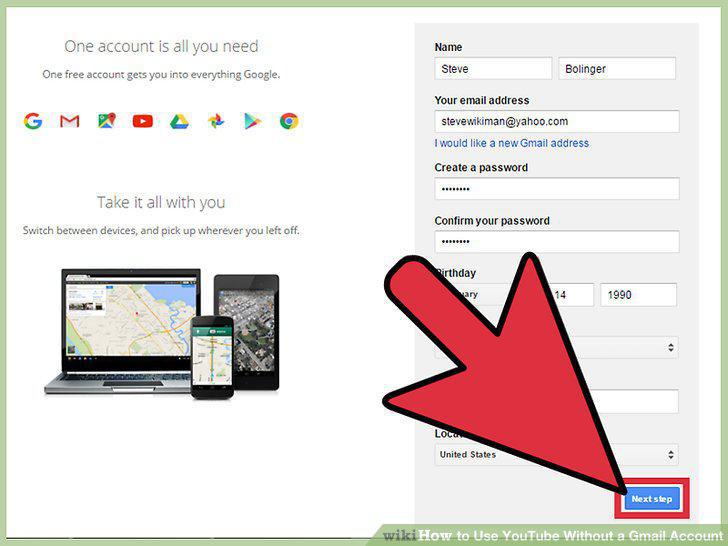
Click "Next Step".
4
Scroll down to the bottom of page and click "I Agree".
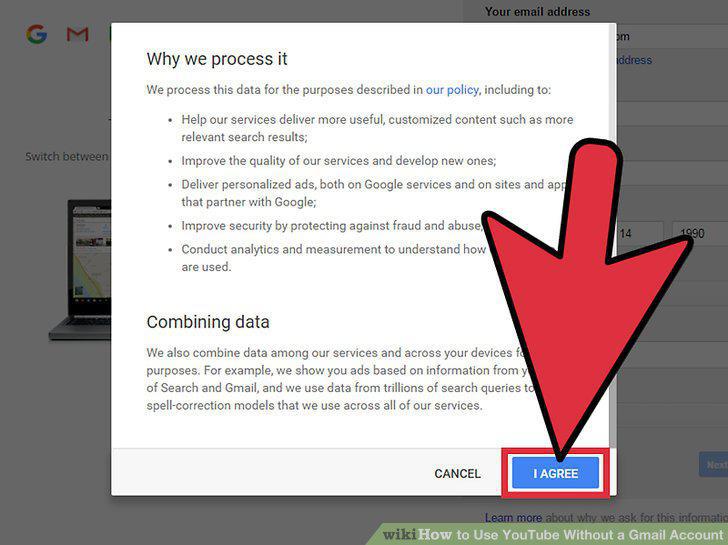
Scroll down to the bottom of page and click "I Agree".
5
Click "Verify Now".
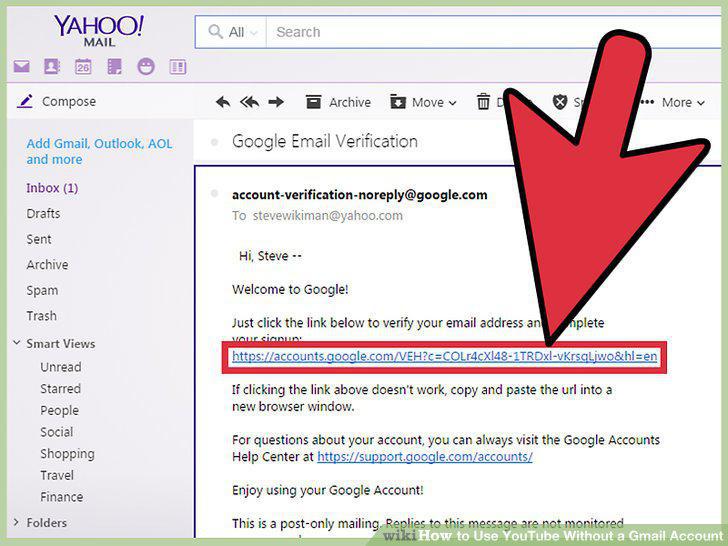
Click "Verify Now".
6
Sign in using the email account used to sign up.
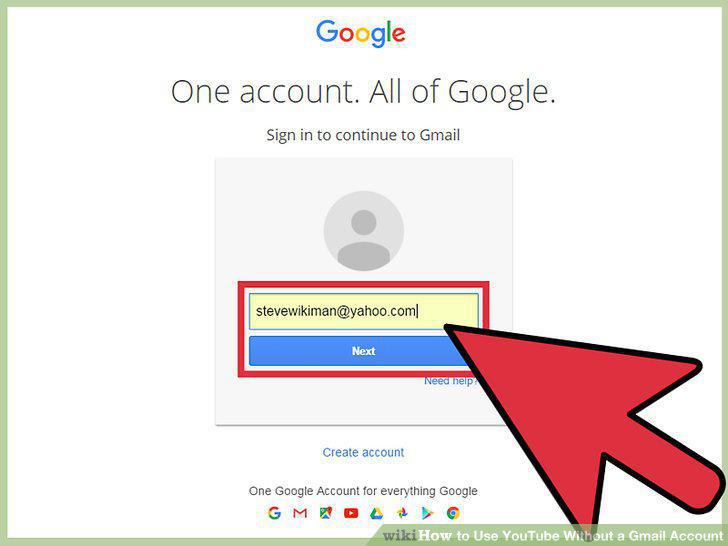
Sign in using the email account used to sign up.
7
Go to https://www.youtube.com/.
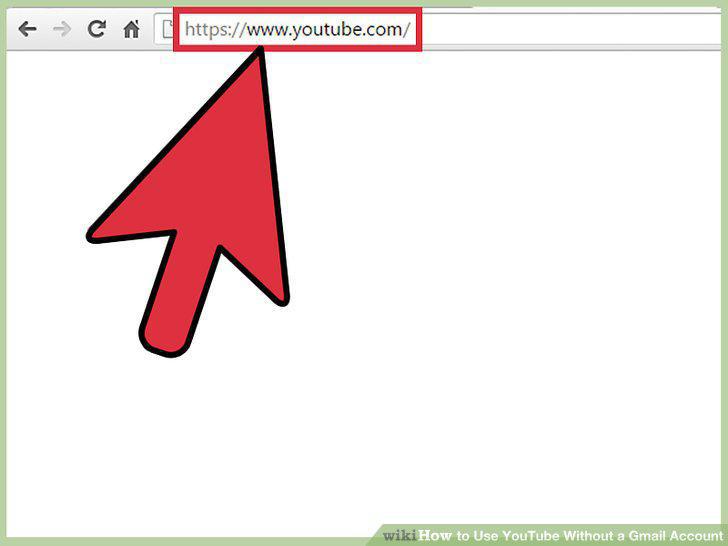
Go to https://www.youtube.com/.
8
Sign in to your new Google account.
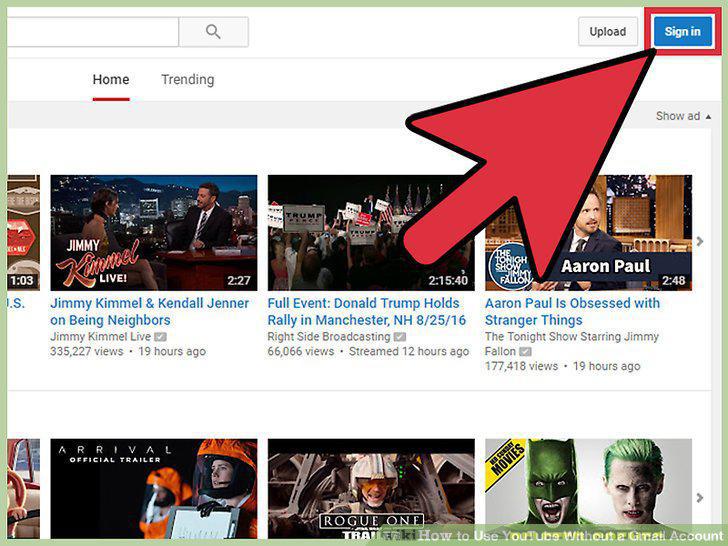
Sign in to your new Google account.
9
Review your registered account privileges.
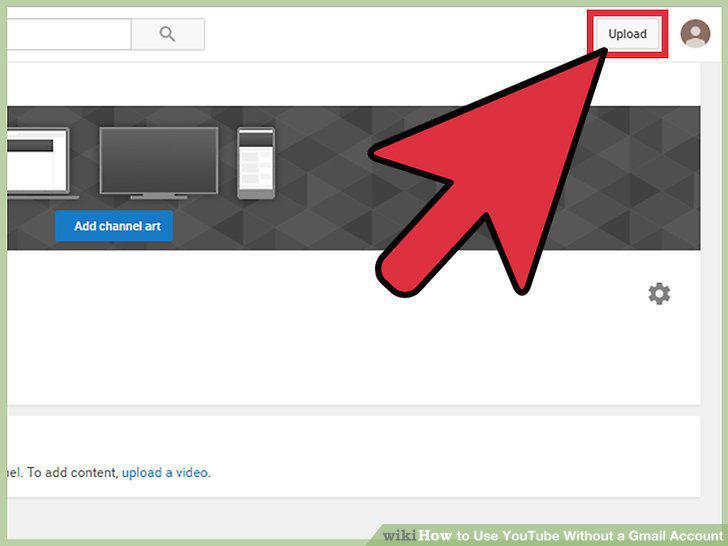
Review your registered account privileges.
10
Browse and view videos.
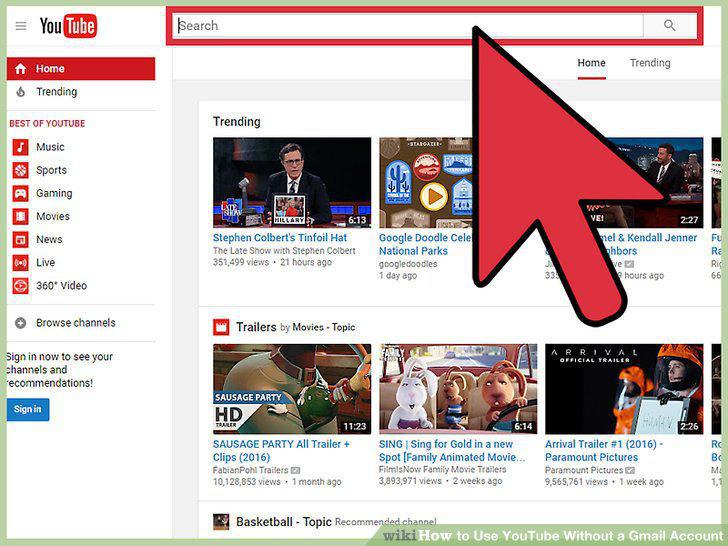
Browse and view videos.
11
Watch live video games streams at https://gaming.youtube.com/.
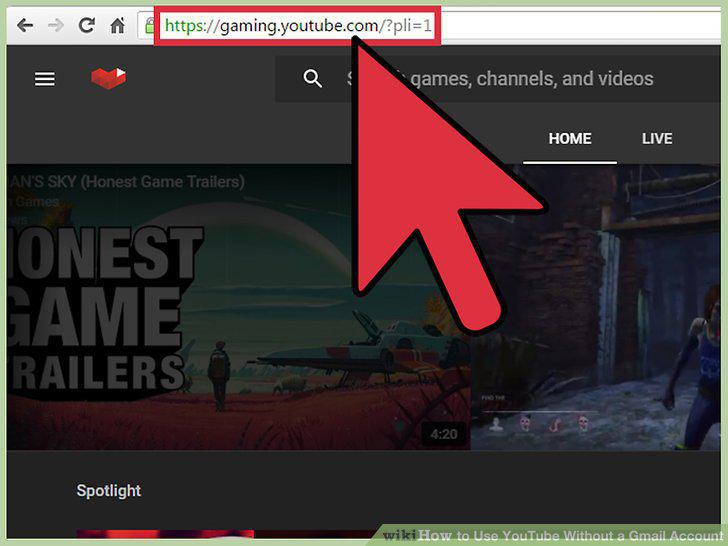
Watch live video games streams at https://gaming.youtube.com/.
12
Share videos with friends.
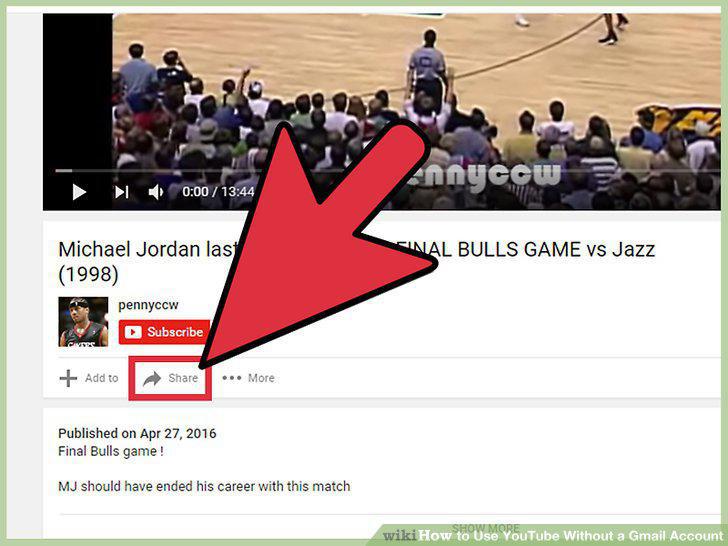
Share videos with friends.
13
Watch videos on your tv.
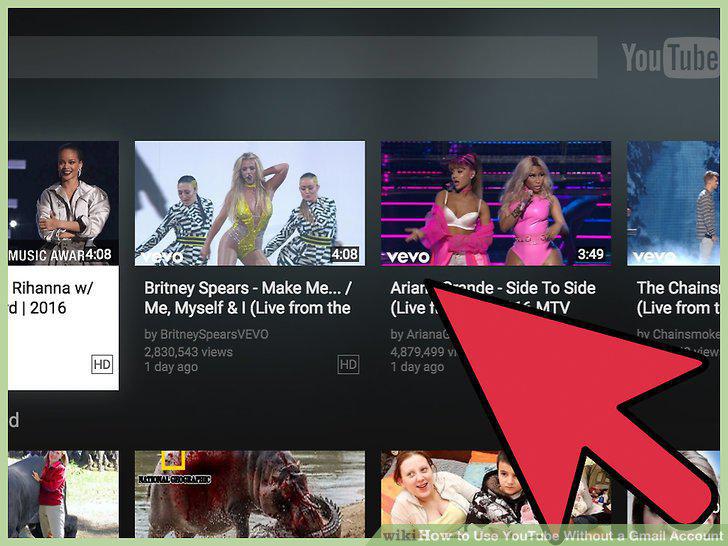
Watch videos on your tv.
Comments (0)
No comments yet. Be the first to share your thoughts!