How to Change Your Profile Picture on YouTube
Open the YouTube app on your phone or tablet.. Tap your current profile picture.. Tap Manage your Google Account.
Steps
1
Open the YouTube app on your phone or tablet.
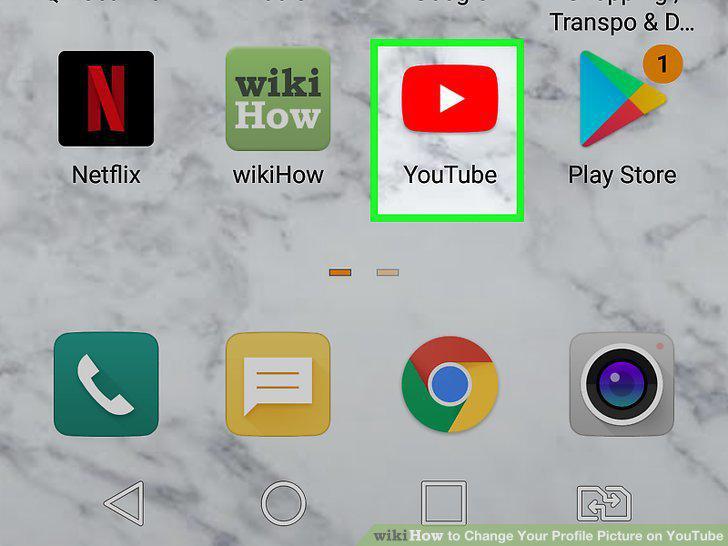
Open the YouTube app on your phone or tablet.
2
Tap your current profile picture.
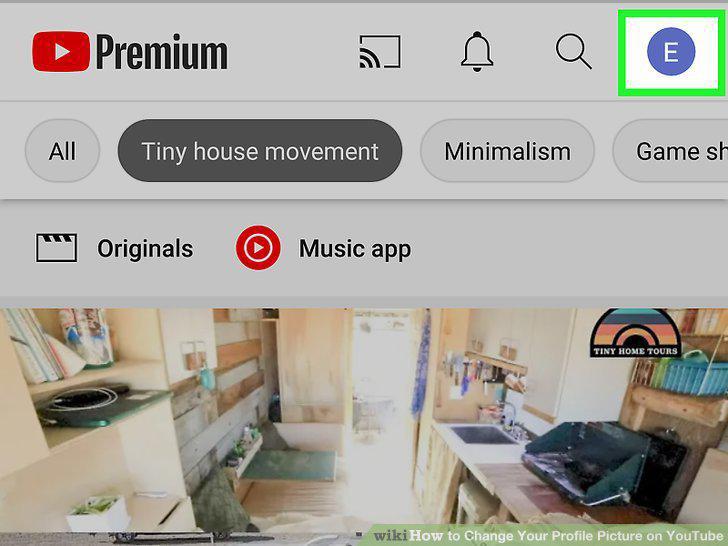
Tap your current profile picture.
3
Tap Manage your Google Account.
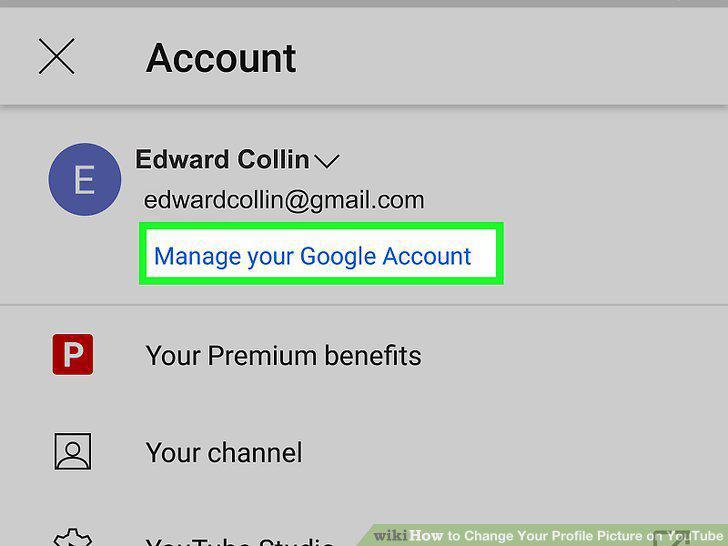
Tap Manage your Google Account.
4
Tap your current photo.
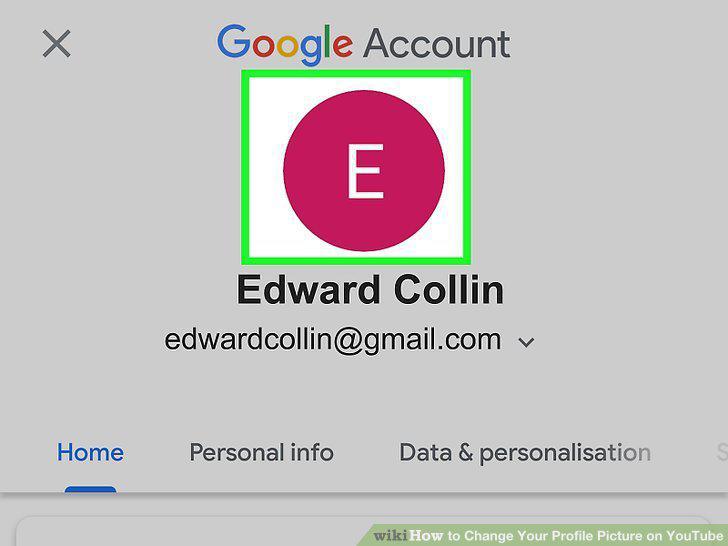
Tap your current photo.
5
Tap Set Profile Picture on the pop-up.
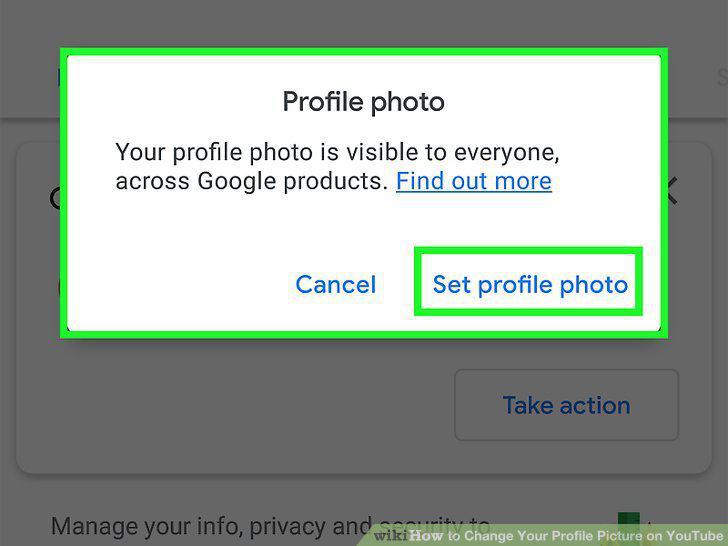
Tap Set Profile Picture on the pop-up.
6
Tap Choose from photos to upload a photo from your phone or tablet.
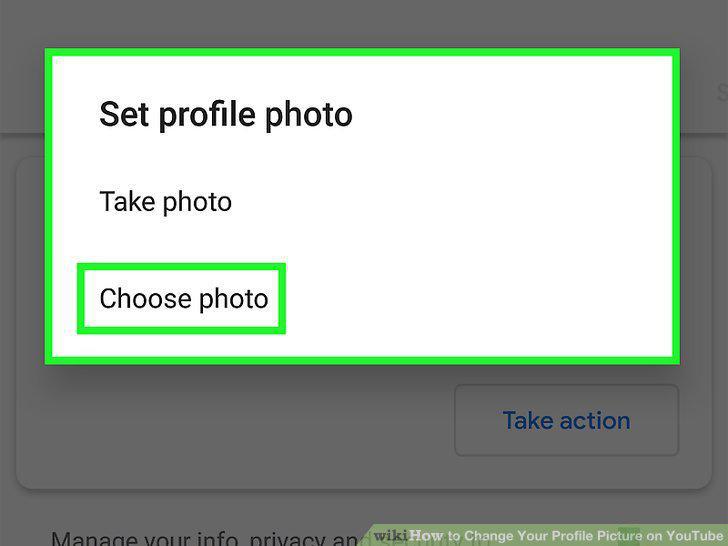
Tap Choose from photos to upload a photo from your phone or tablet.
7
Select a photo and tap Accept.
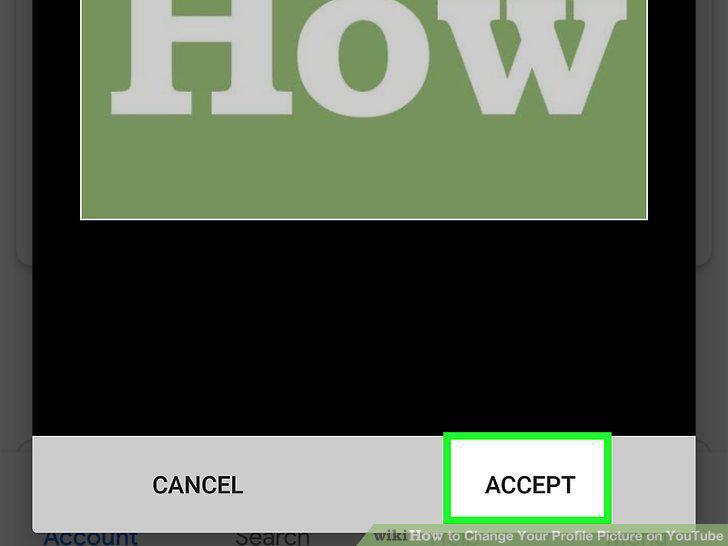
Select a photo and tap Accept.
8
Go to https://www.youtube.com in a web browser.
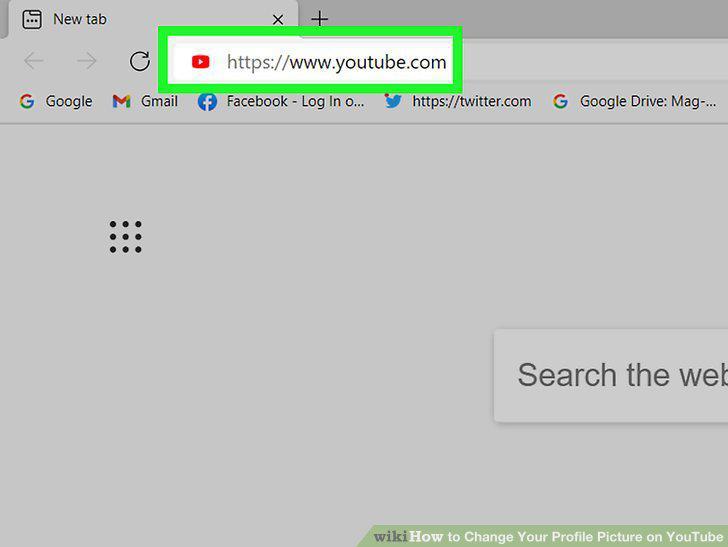
Go to https://www.youtube.com in a web browser.
9
Click your current profile photo or initial.
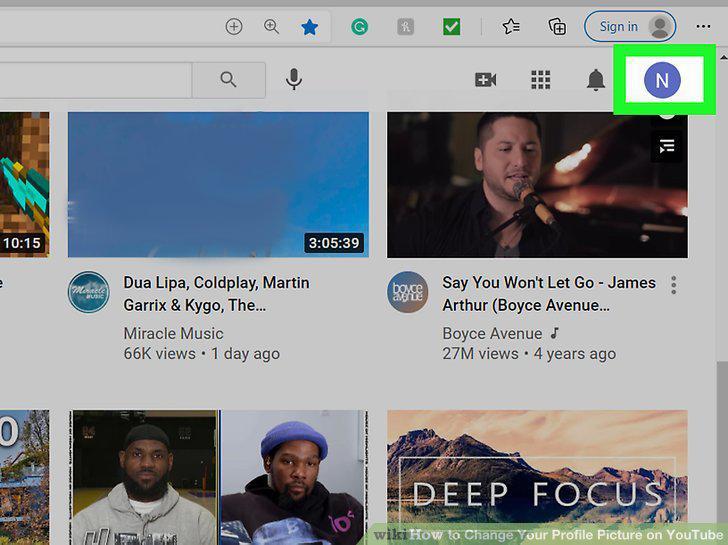
Click your current profile photo or initial.
10
Click Manage your Google Account.
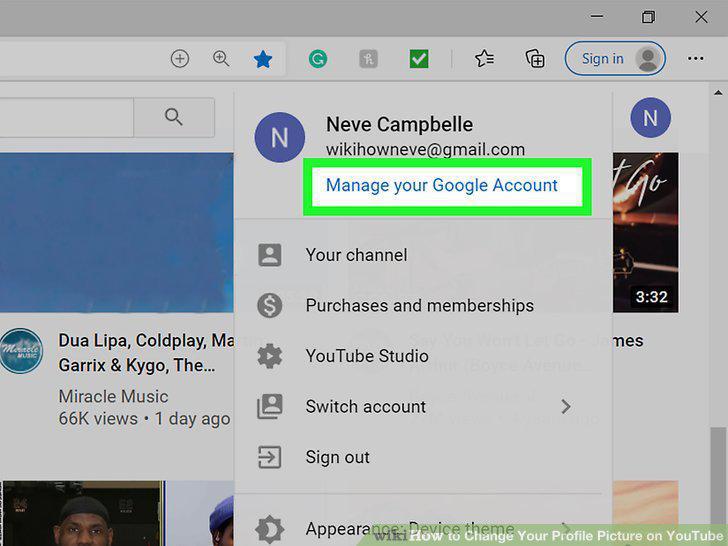
Click Manage your Google Account.
11
Hover the mouse cursor over your current profile photo.
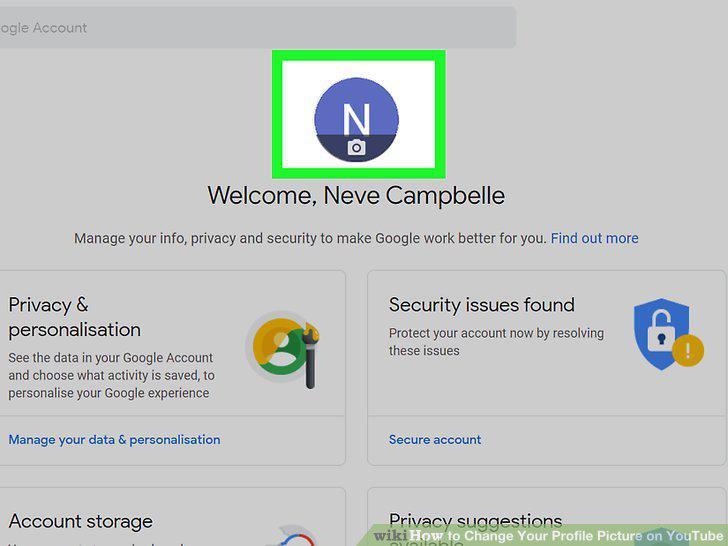
Hover the mouse cursor over your current profile photo.
12
Click the camera icon on your profile photo .
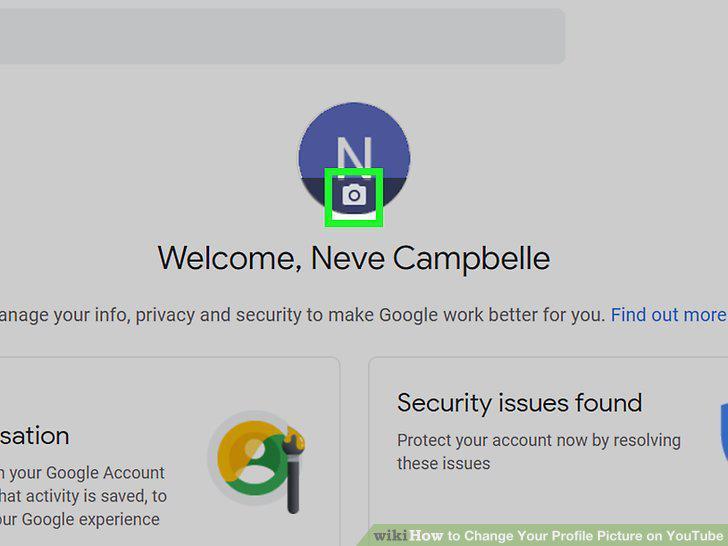
Click the camera icon on your profile photo .
13
Select the photo you want to use.
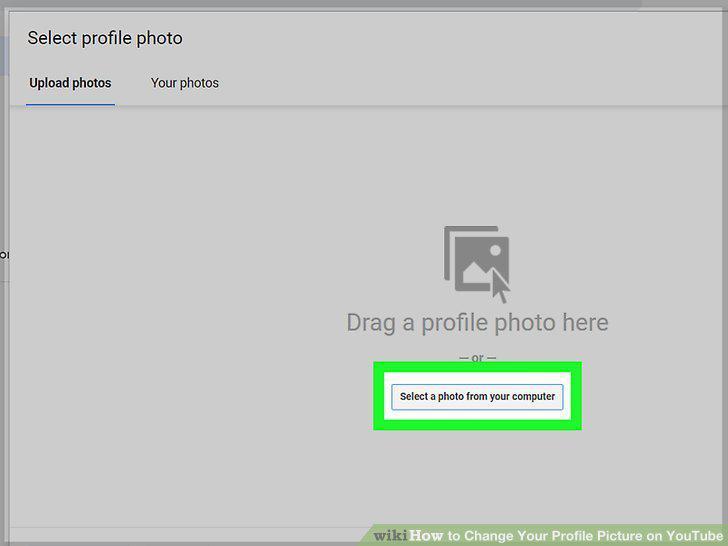
Select the photo you want to use.
14
Click Set as profile photo.
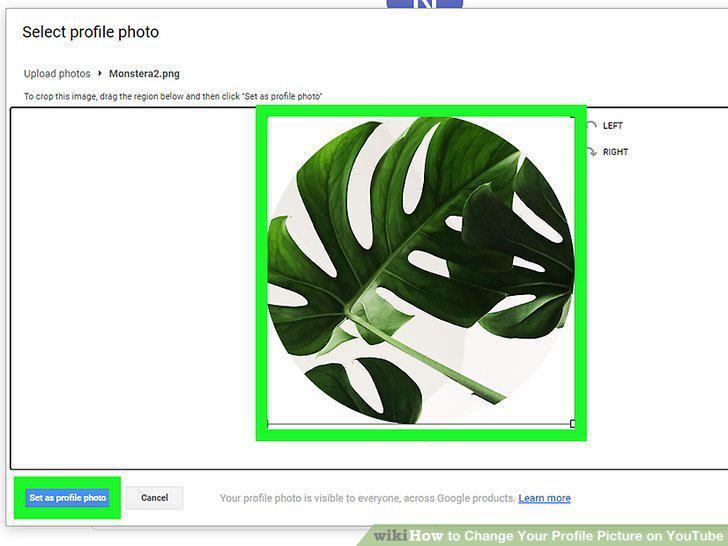
Click Set as profile photo.
Comments (0)
No comments yet. Be the first to share your thoughts!