Steps
1
Open OneDrive.
Open OneDrive.
2
Sign in to OneDrive.

Sign in to OneDrive.
3
Select the Files tab.
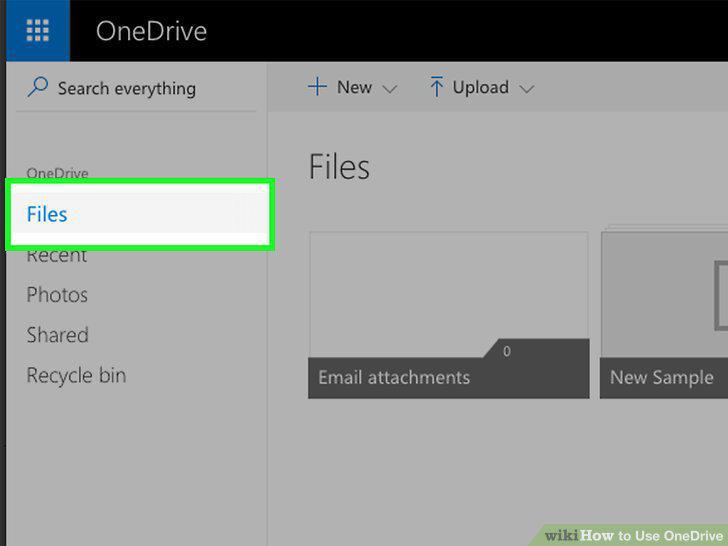
Select the Files tab.
4
Select the Photos tab.
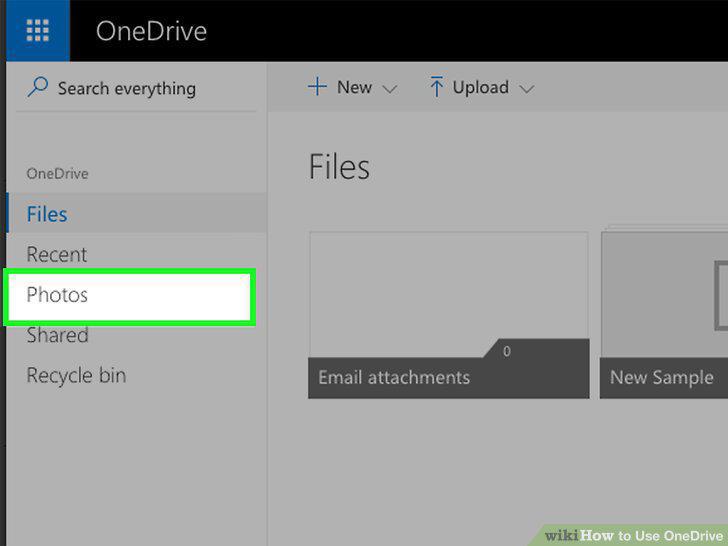
Select the Photos tab.
5
Select the Recent tab.
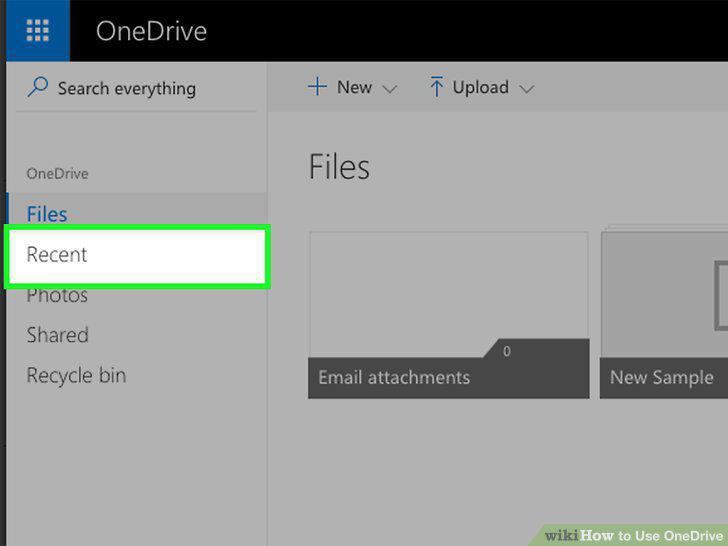
Select the Recent tab.
6
Select the Shared tab.
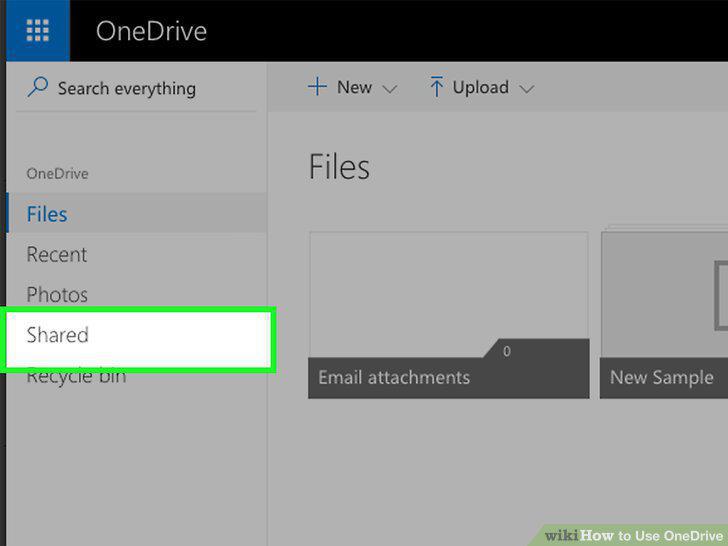
Select the Shared tab.
7
Re-open the Files tab.
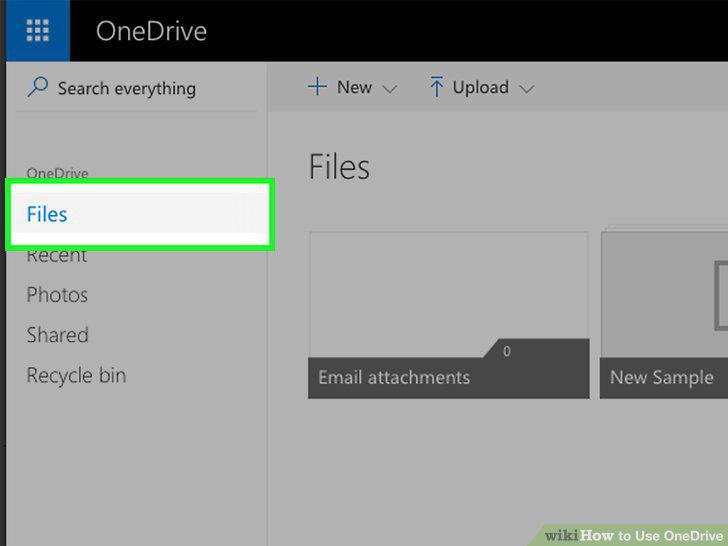
Re-open the Files tab.
8
Open a folder if necessary.
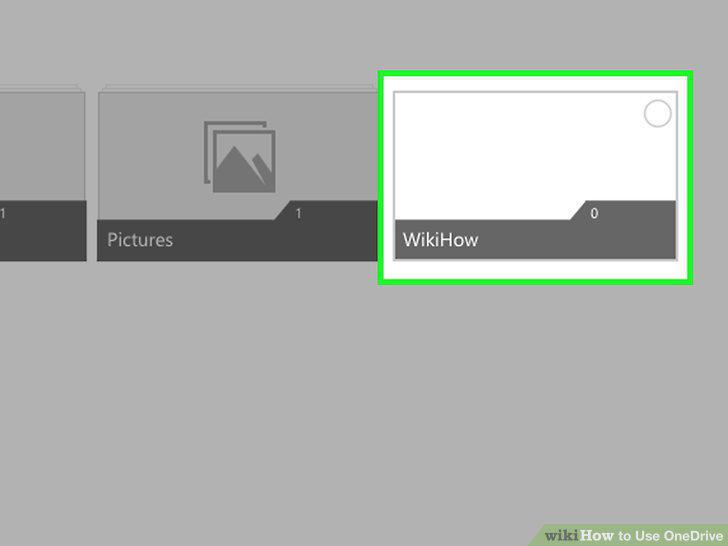
Open a folder if necessary.
9
Click the "Upload" button.
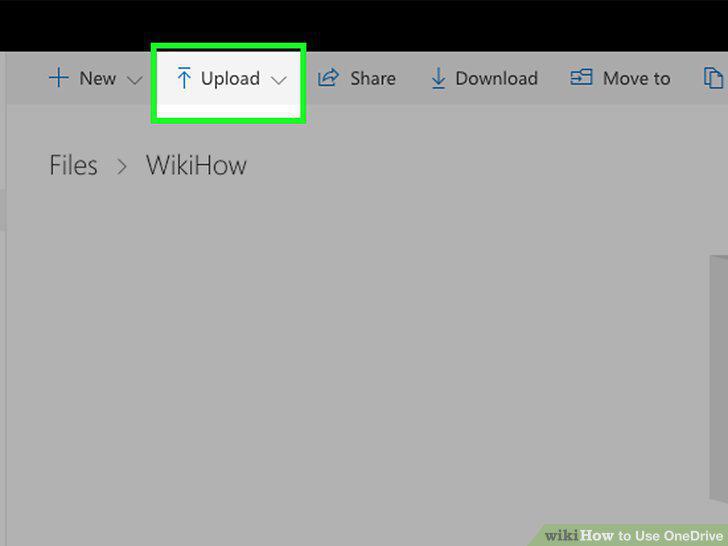
Click the "Upload" button.
10
Click Files, then select a file to upload.
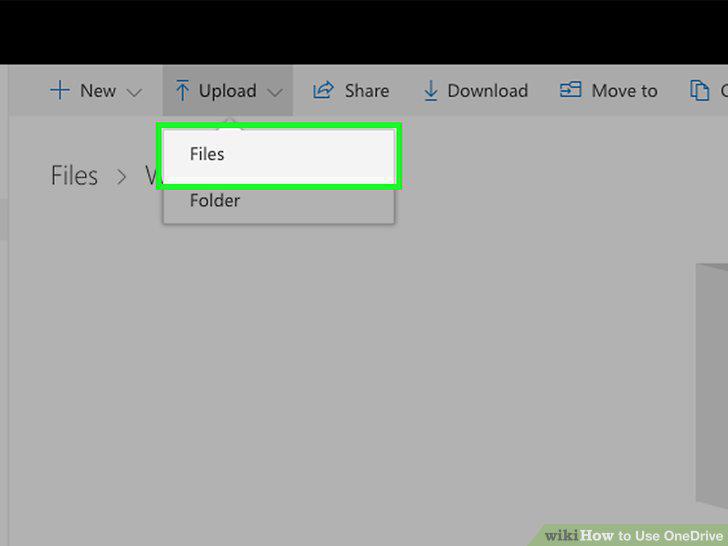
Click Files, then select a file to upload.
11
Double-click or tap the item you wish to upload.
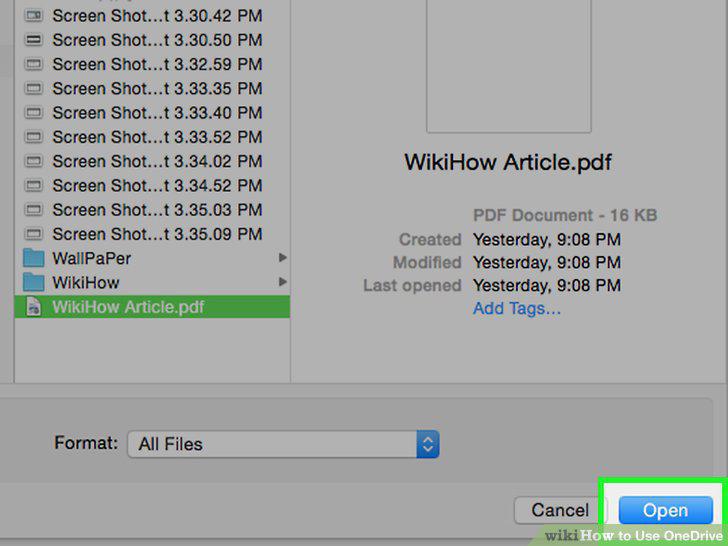
Double-click or tap the item you wish to upload.
12
Wait for your upload to finish.
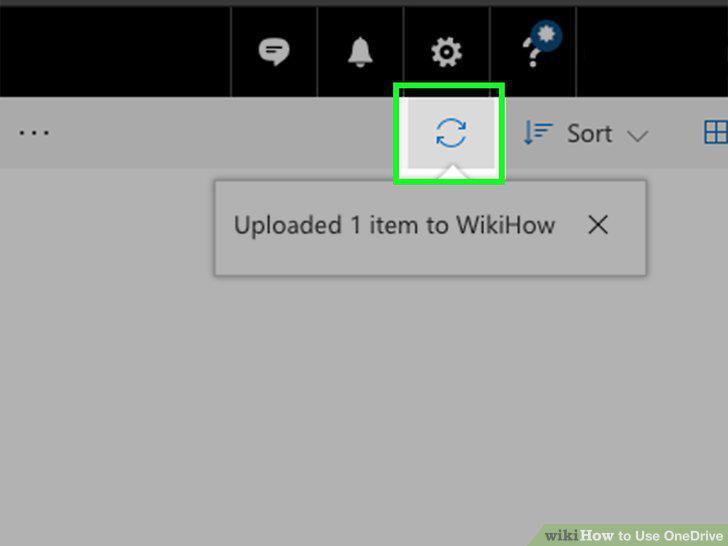
Wait for your upload to finish.
13
Click the circle in the top-right corner of a file or folder.
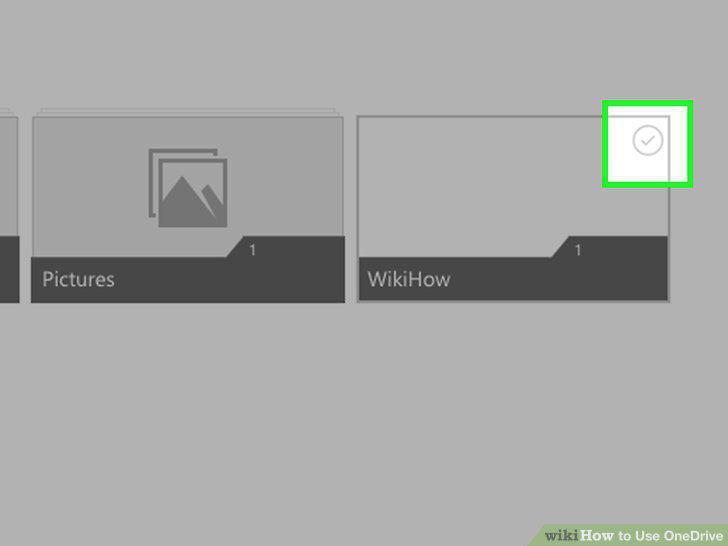
Click the circle in the top-right corner of a file or folder.
14
Review the file and folder options.
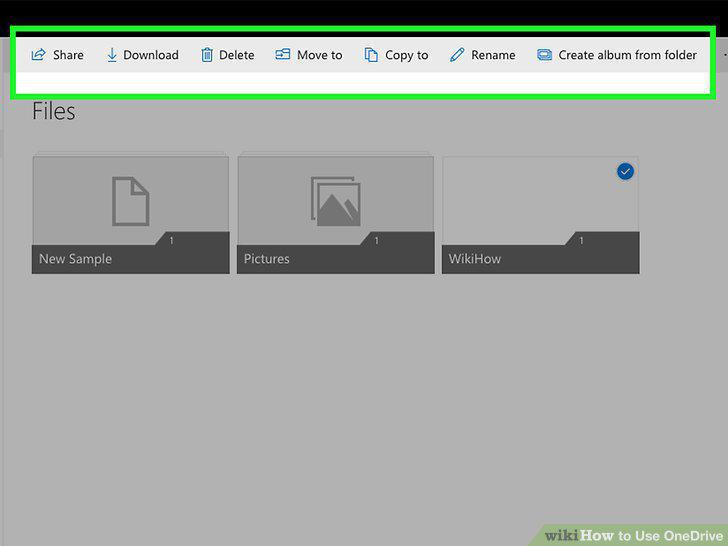
Review the file and folder options.
15
Double-click or tap a file or folder.
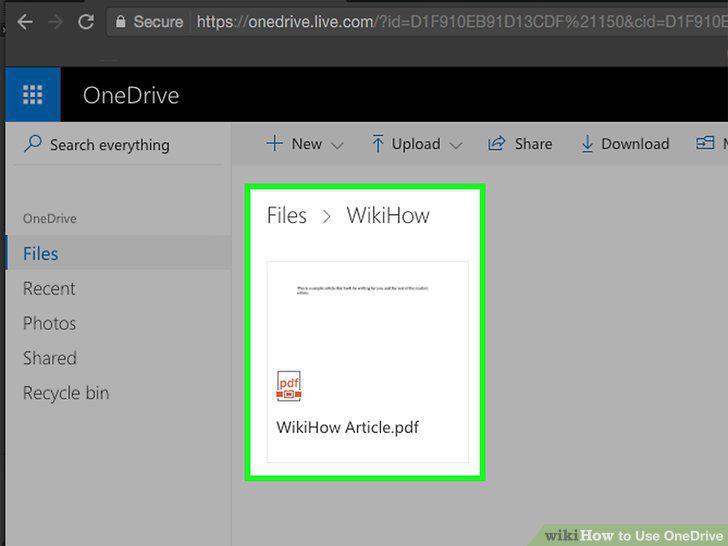
Double-click or tap a file or folder.
16
Click or tap the "Back" button.
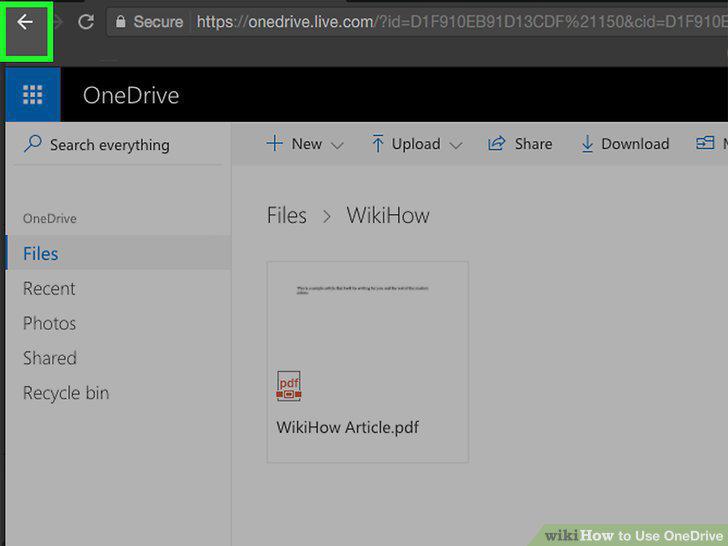
Click or tap the "Back" button.
Comments (0)
No comments yet. Be the first to share your thoughts!