How to Upgrade Windows 10 to Pro
Confirm that your software is up-to-date.. Click on the Start button .. Click on Settings .
Steps
1
Confirm that your software is up-to-date.
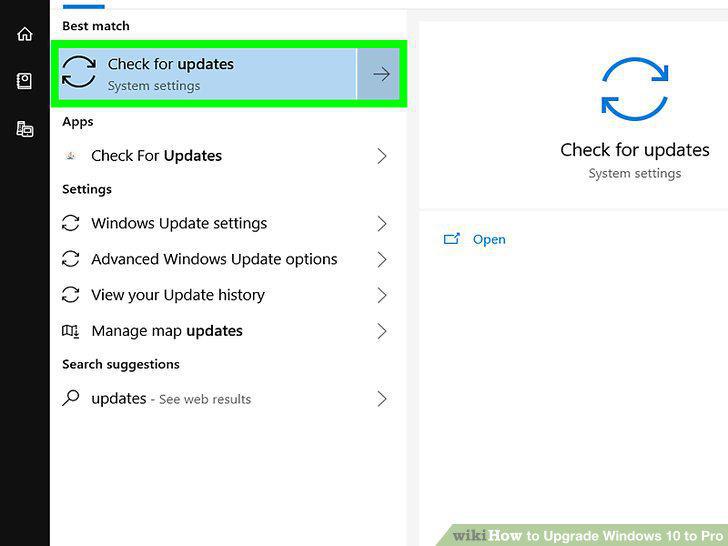
Confirm that your software is up-to-date.
2
Click on the Start button .
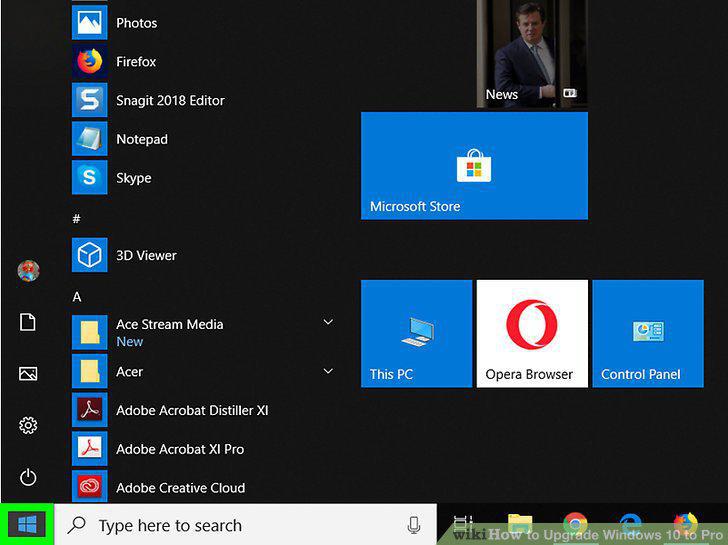
Click on the Start button .
3
Click on Settings .
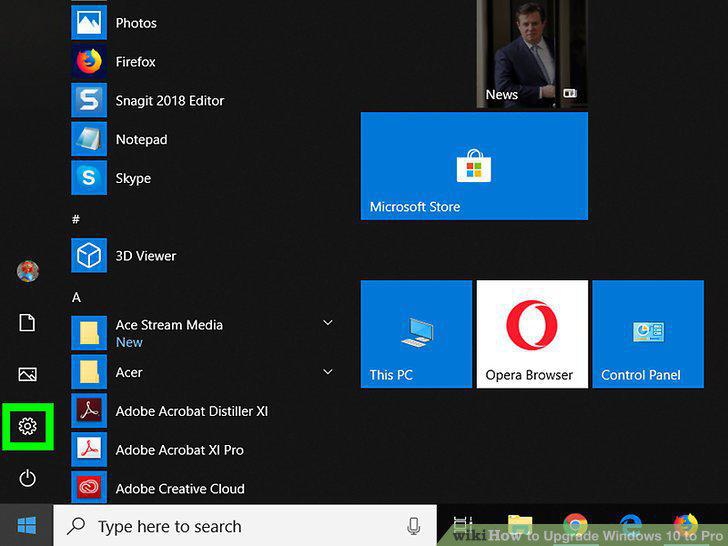
Click on Settings .
4
Click on Update and Security.
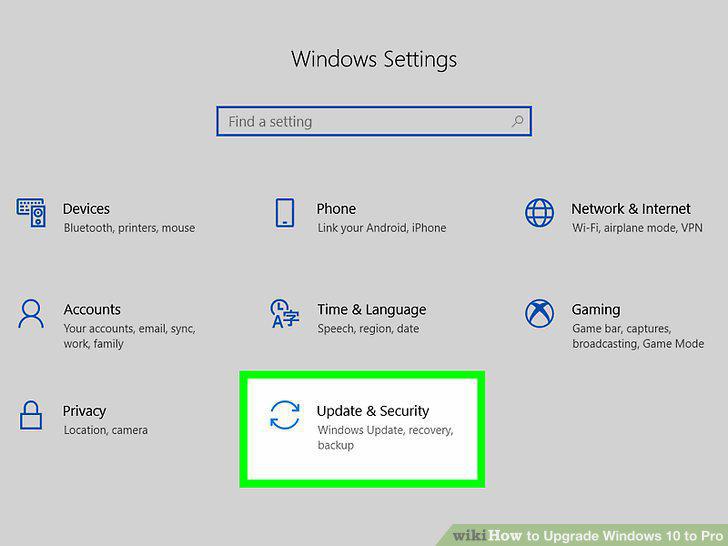
Click on Update and Security.
5
Click on Activation.
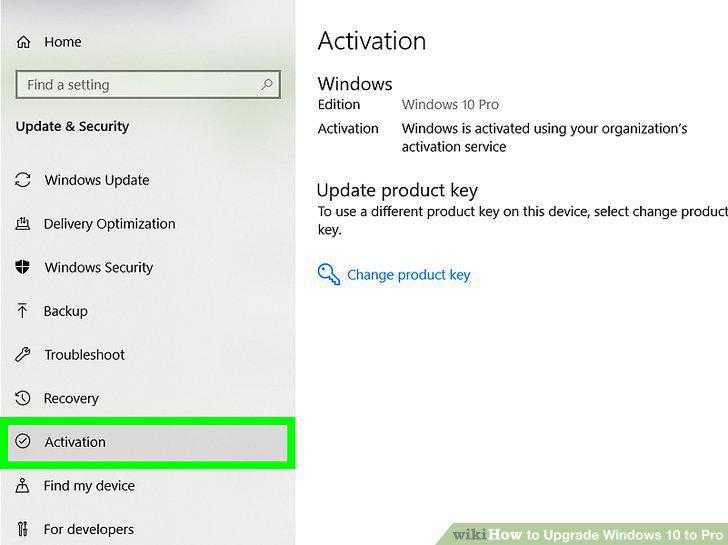
Click on Activation.
6
Click on Change product key.
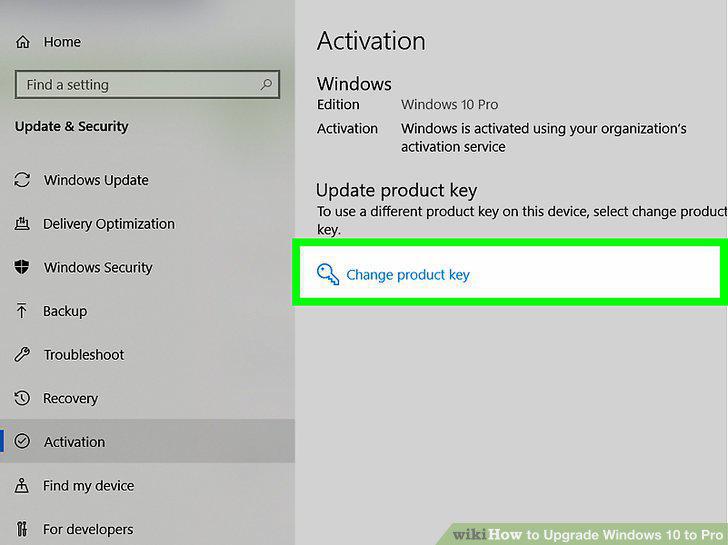
Click on Change product key.
7
Enter the 25-character Windows 10 Pro product key.
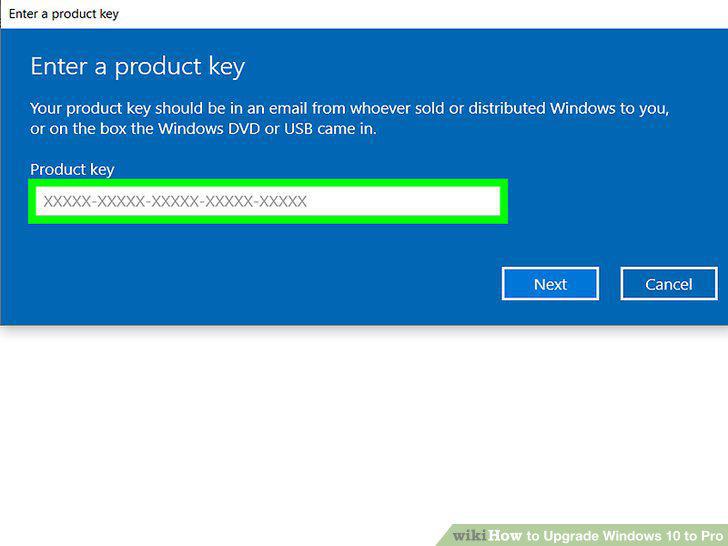
Enter the 25-character Windows 10 Pro product key.
8
Select Next to start the upgrade to Windows 10 Pro.
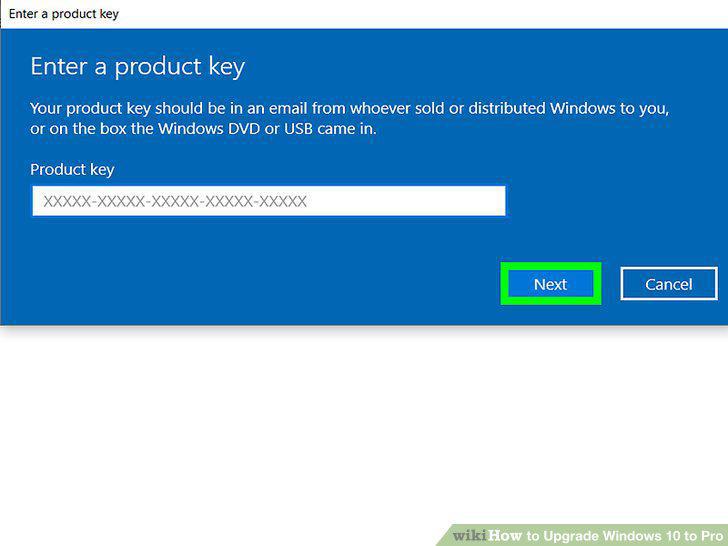
Select Next to start the upgrade to Windows 10 Pro.
9
Follow along with the prompts to finish installation.
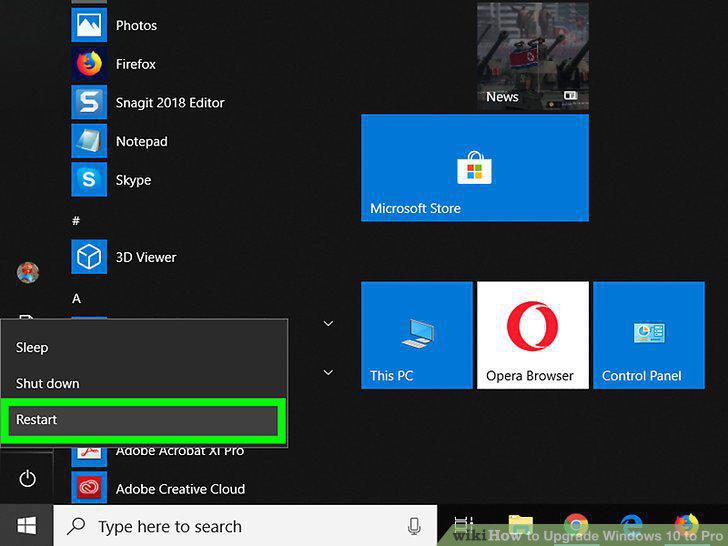
Follow along with the prompts to finish installation.
10
Click on the Start button .
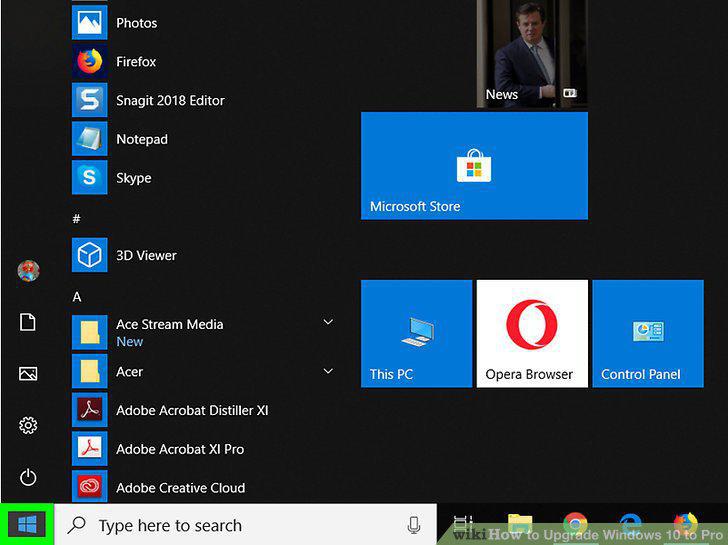
Click on the Start button .
11
Click on Settings .
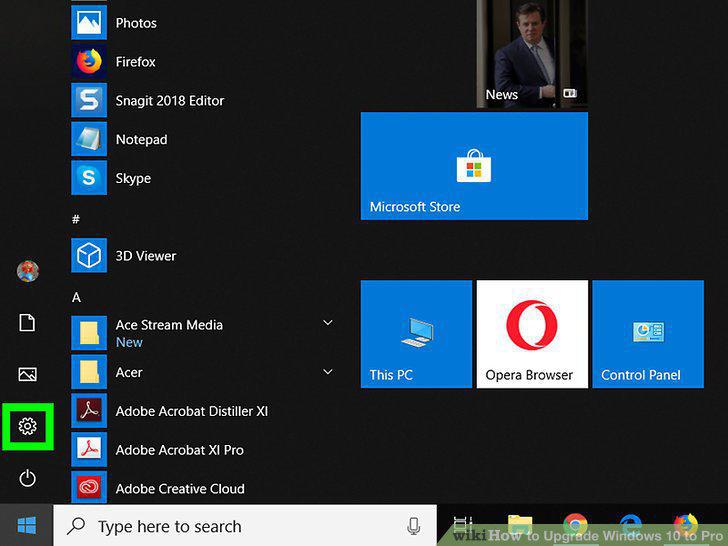
Click on Settings .
12
Click on Update and Security.
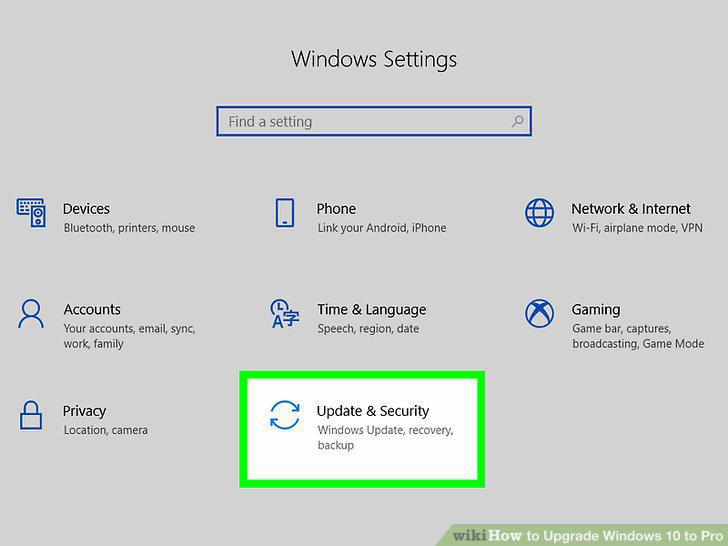
Click on Update and Security.
13
Click on Activation.
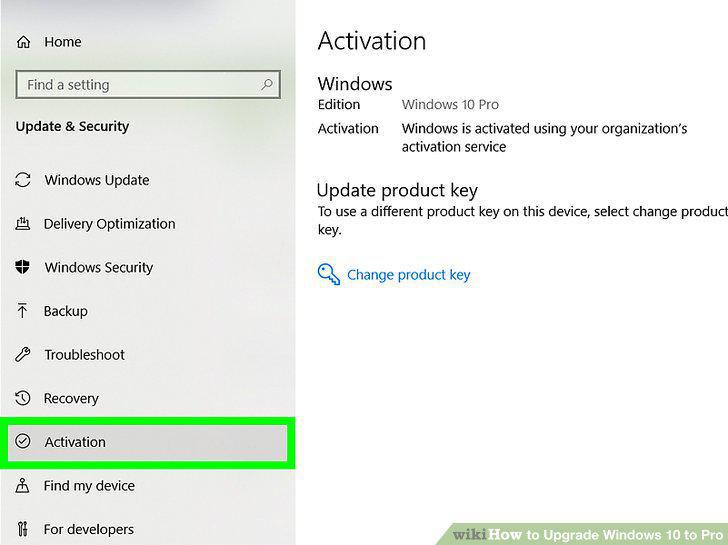
Click on Activation.
14
Click on Go to the Store if you Windows 10 Home is activated.
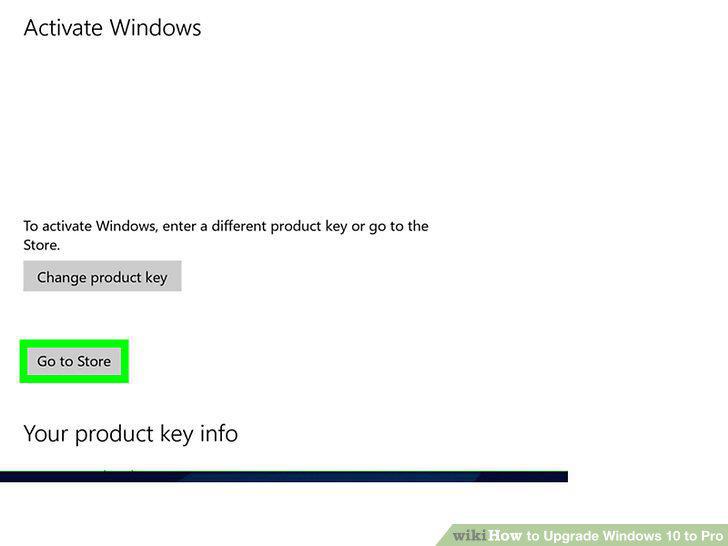
Click on Go to the Store if you Windows 10 Home is activated.
15
Purchase the digital key from the Microsoft Store.
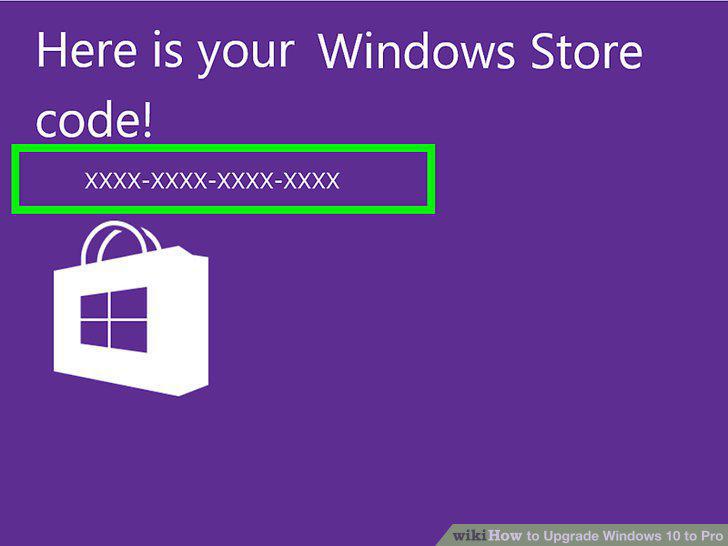
Purchase the digital key from the Microsoft Store.
16
Follow along with the prompts to finish installation.
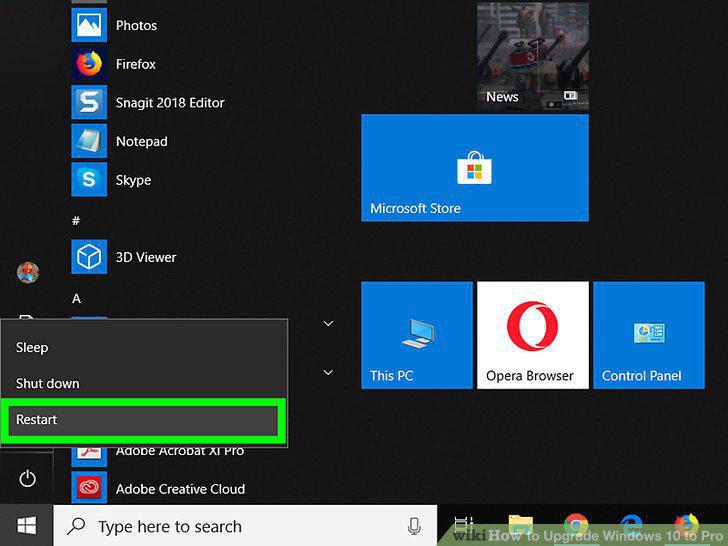
Follow along with the prompts to finish installation.
Comments (0)
No comments yet. Be the first to share your thoughts!