How to Configure Mozilla Thunderbird for Yahoo! Mail
Open Yahoo's secure login page.. Click the "Allow apps that use less secure sign in" switch .. Open Thunderbird.
Steps
1
Open Yahoo's secure login page.
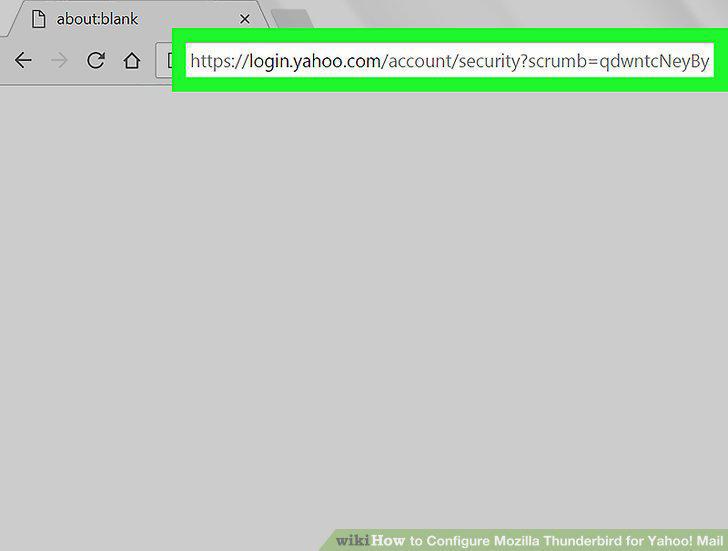
Open Yahoo's secure login page.
2
Click the "Allow apps that use less secure sign in" switch .
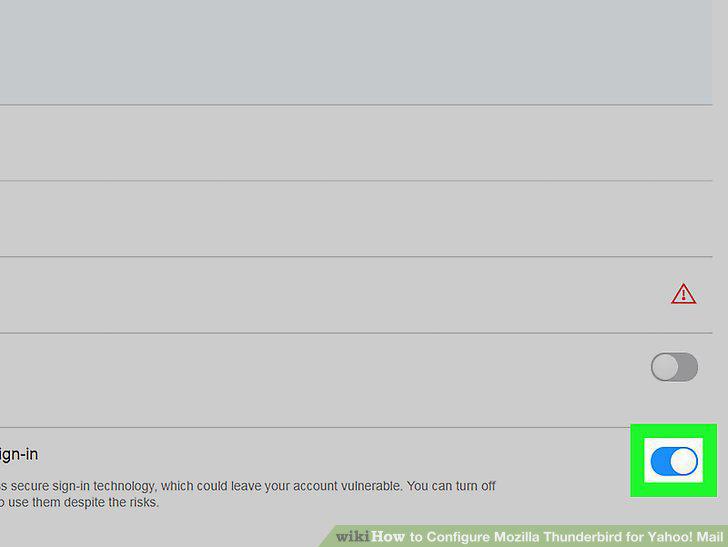
Click the "Allow apps that use less secure sign in" switch .
3
Open Thunderbird.
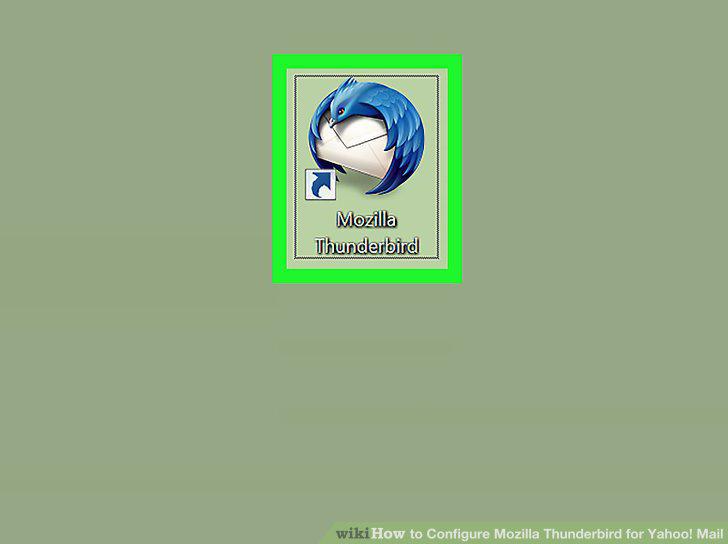
Open Thunderbird.
4
Click Email.
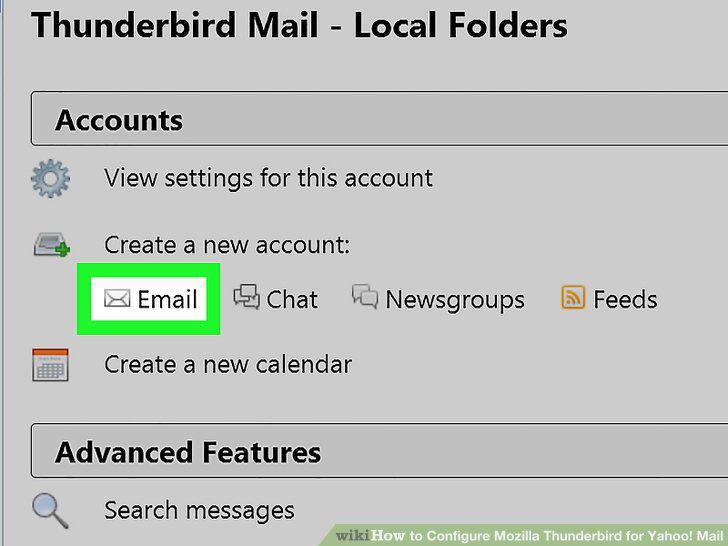
Click Email.
5
Click Skip this and use my existing email.
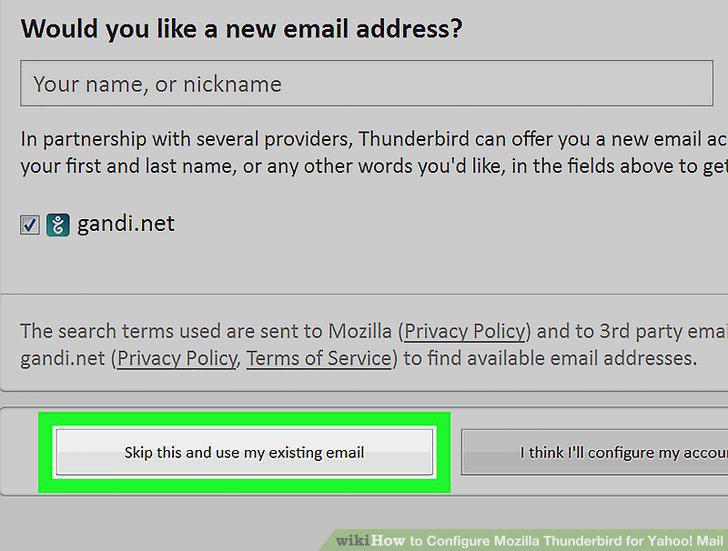
Click Skip this and use my existing email.
6
Enter your Yahoo email address and password .
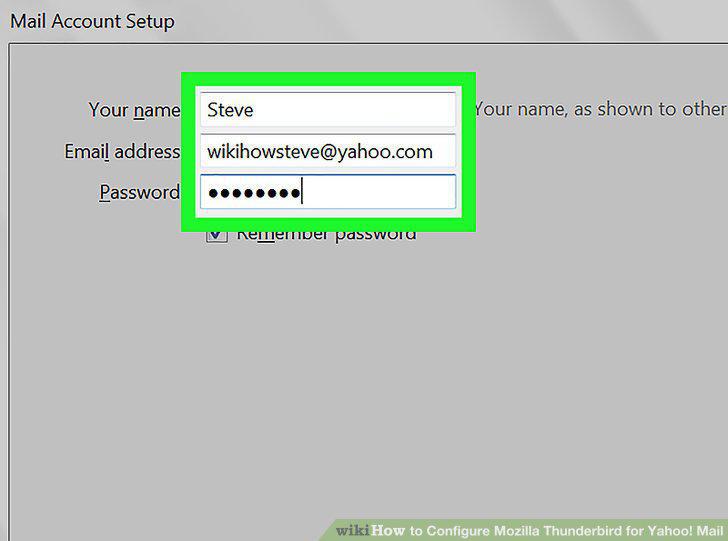
Enter your Yahoo email address and password .
7
Click Continue.
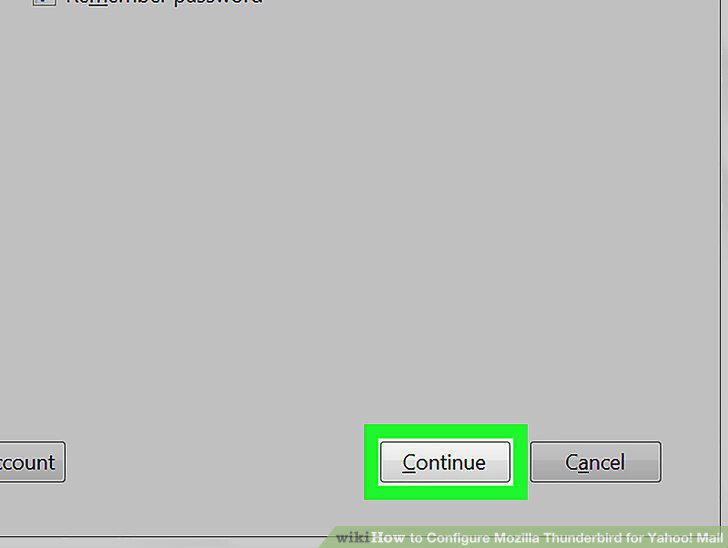
Click Continue.
8
Select a storage type.
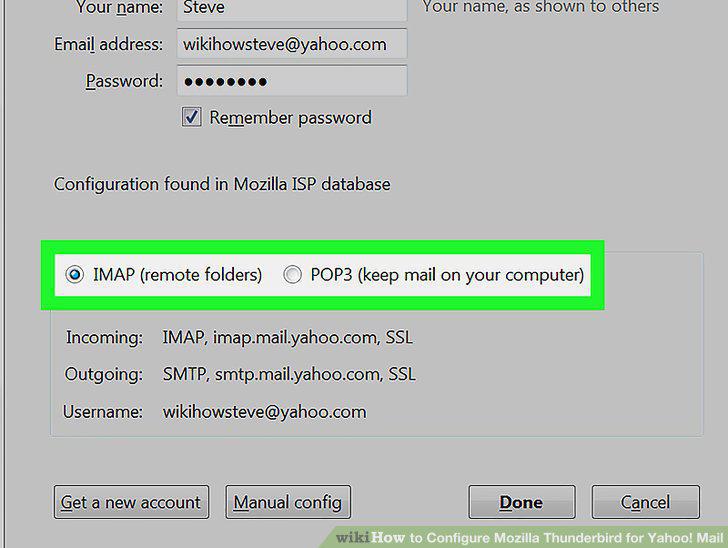
Select a storage type.
9
Click Done.
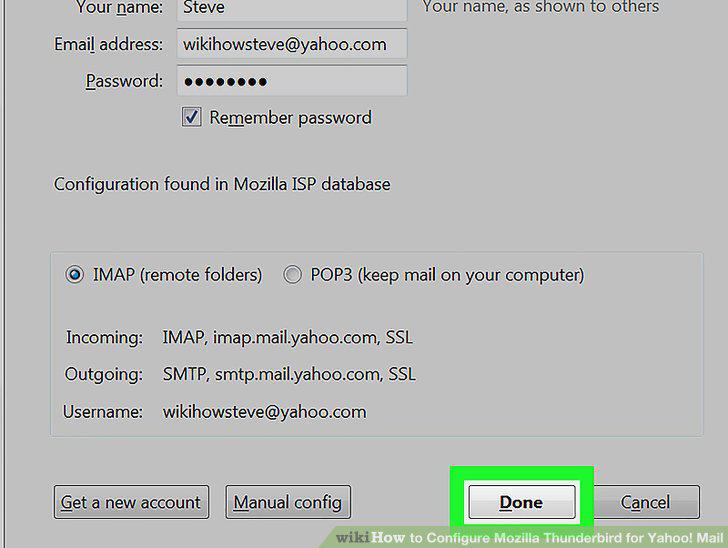
Click Done.
Comments (0)
No comments yet. Be the first to share your thoughts!