How to Install Photoshop Brushes
Search for free new brush patterns online to find the perfect brushes for you.. Download the .. Open the .ZIP file.
Steps
Search for free new brush patterns online to find the perfect brushes for you.
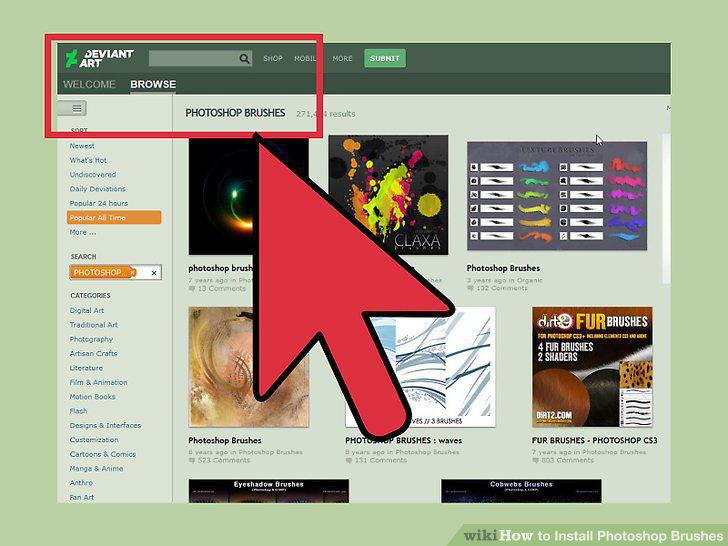
Search for free new brush patterns online to find the perfect brushes for you.
Download the .
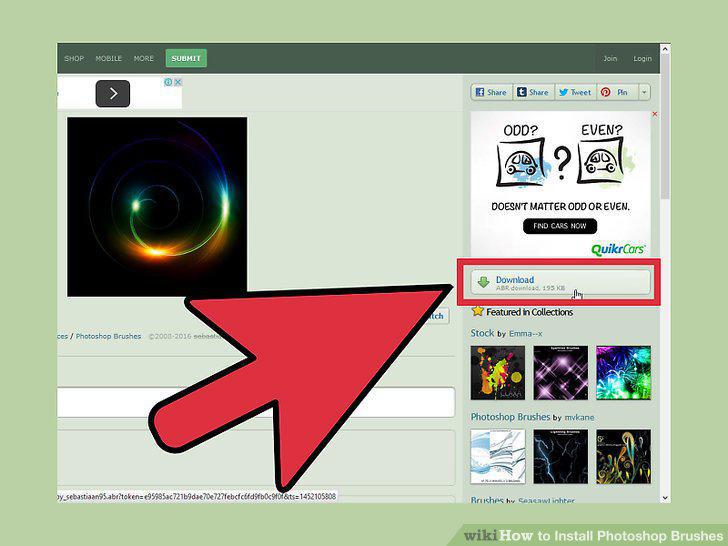
Download the .
Open the .ZIP file.
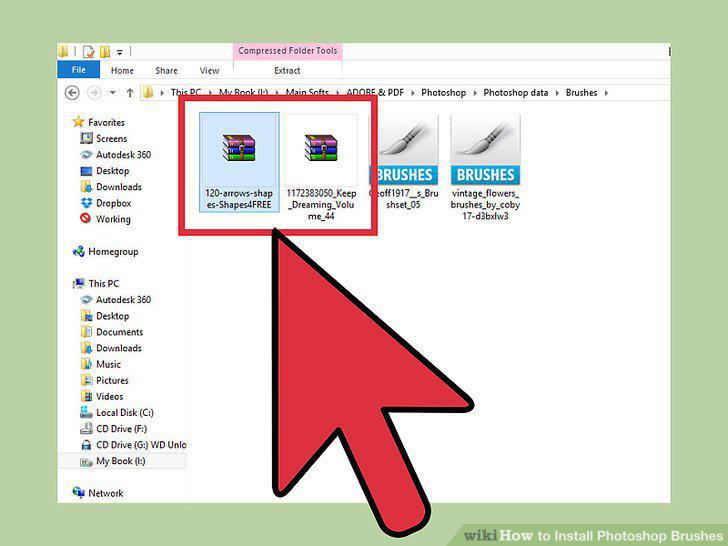
Open the .ZIP file.
Make sure there is a ".
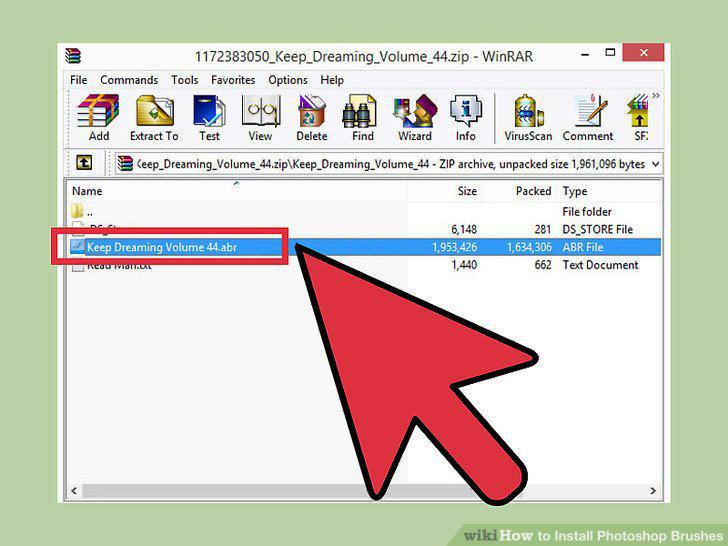
Make sure there is a ".
Open Photoshop.
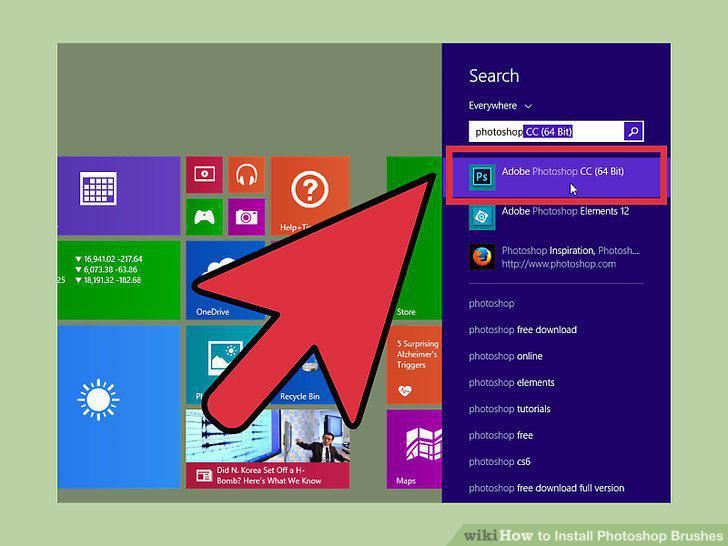
Open Photoshop.
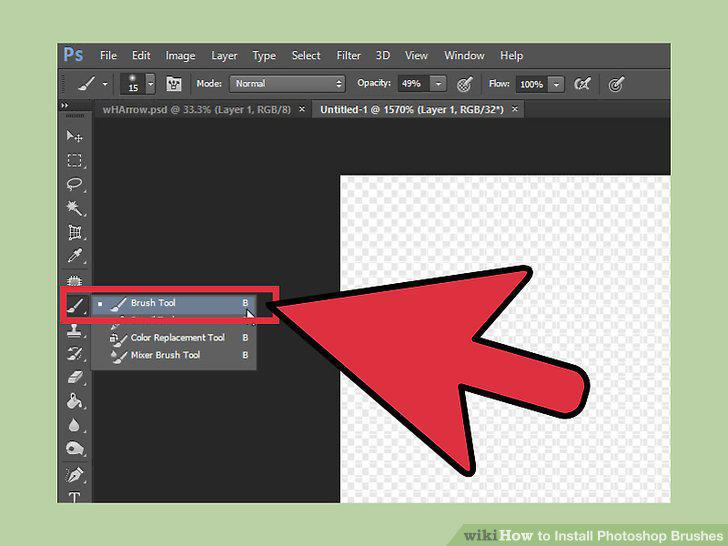
Press B, or click on the Brush tool, to bring up the brush bar on the top of the
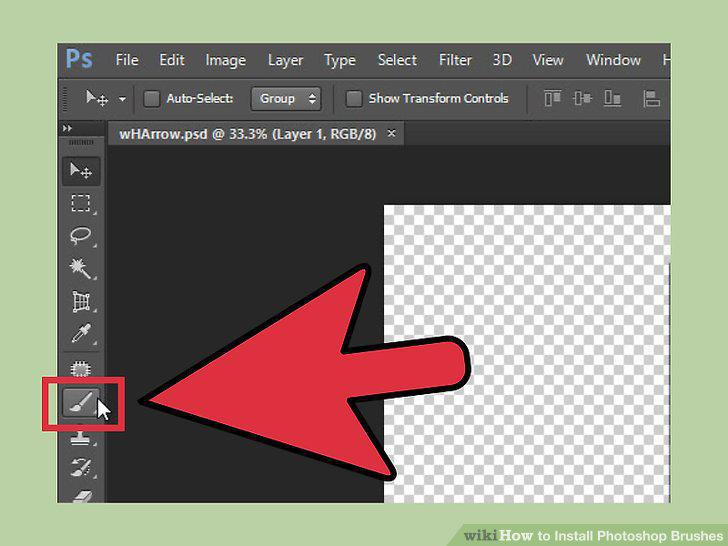
Press B, or click on the Brush tool, to bring up the brush bar on the top of the screen.
Click on the small downward arrow in the brush bar.
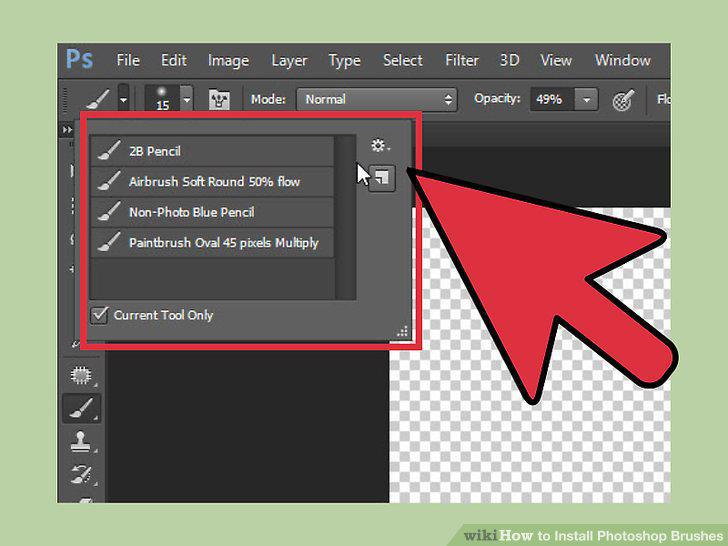
Click on the small downward arrow in the brush bar.
Click on the gear symbol, then find "Load Brushes.
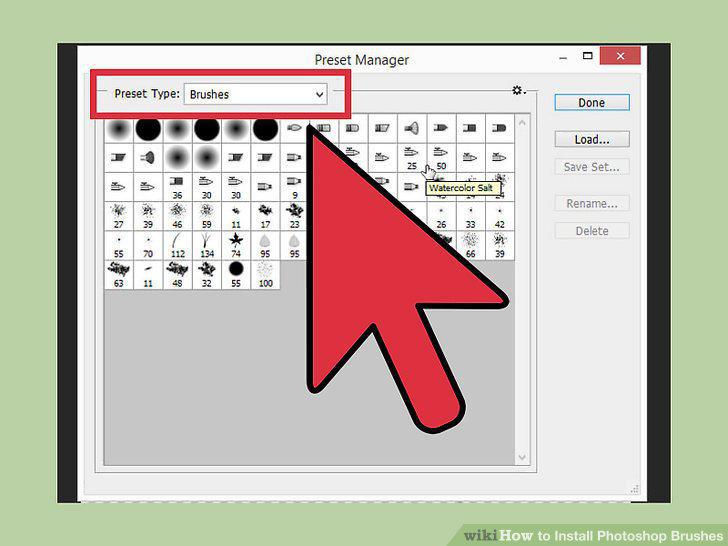
Click on the gear symbol, then find "Load Brushes.
Double-click on the .
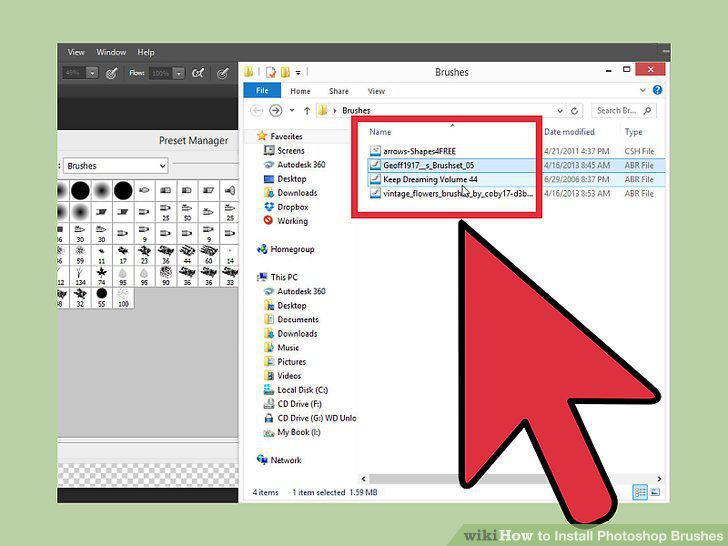
Double-click on the .
Alternatively, click and drag the brushes into the Photoshop window to add them.
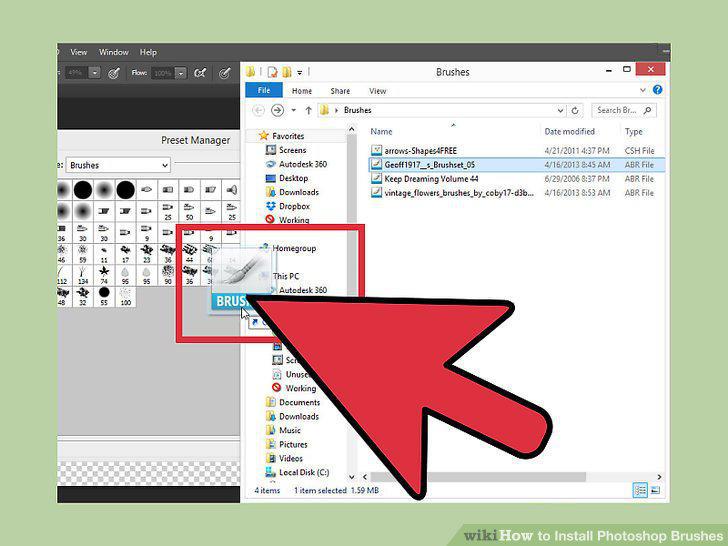
Alternatively, click and drag the brushes into the Photoshop window to add them.
Add multiple brush packs into the Photoshop system file to save time.
Add multiple brush packs into the Photoshop system file to save time.
Navigate to your Photoshop files using the following addresses.
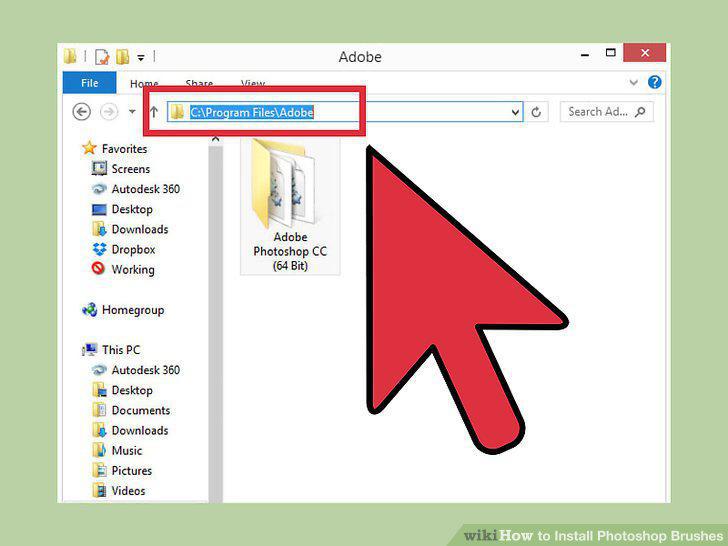
Navigate to your Photoshop files using the following addresses.
Click on "Presets," then "Brushes" to open up all of your brushes.
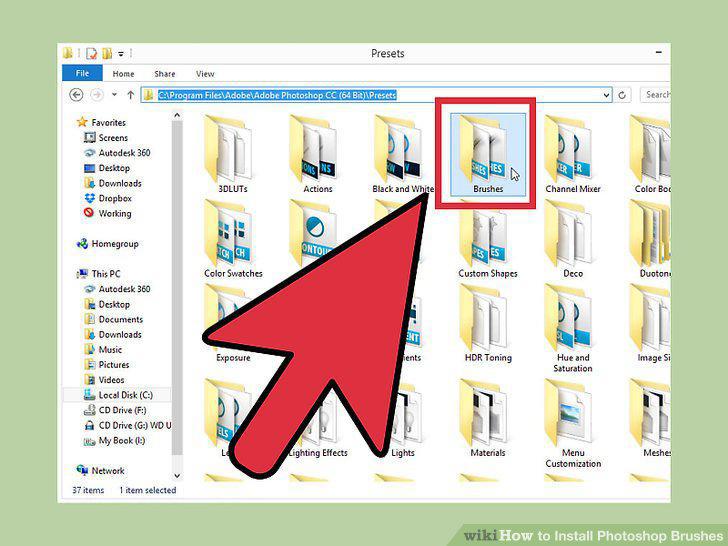
Click on "Presets," then "Brushes" to open up all of your brushes.
Click and drag the new brushes into this folder.
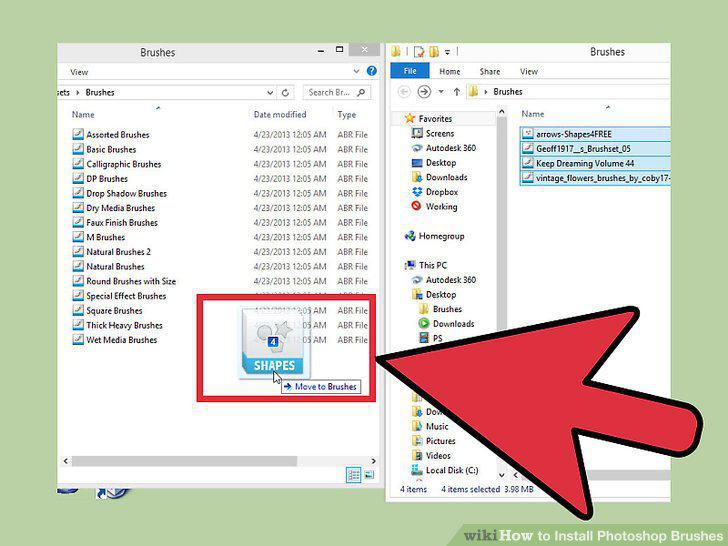
Click and drag the new brushes into this folder.
Comments (0)
No comments yet. Be the first to share your thoughts!