How to Create a Desktop Shortcut for Google Docs on iPhone or iPad
Delete Google Docs and Google Drive from your iPhone or iPad.. Open Safari on your iPhone or iPad.. Go to the Google Drive website in Safari.
Steps
1
Delete Google Docs and Google Drive from your iPhone or iPad.
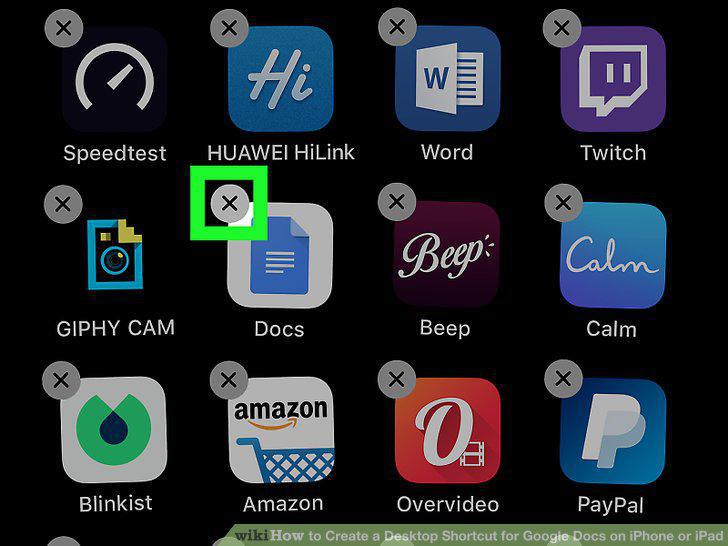
Delete Google Docs and Google Drive from your iPhone or iPad.
2
Open Safari on your iPhone or iPad.
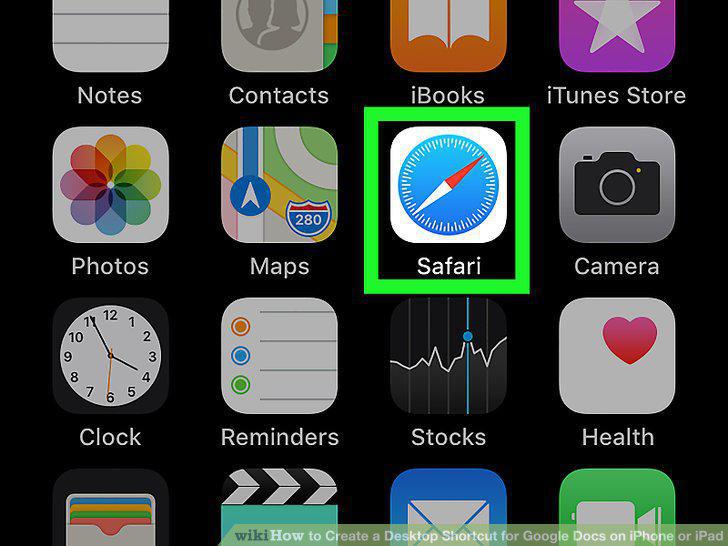
Open Safari on your iPhone or iPad.
3
Go to the Google Drive website in Safari.
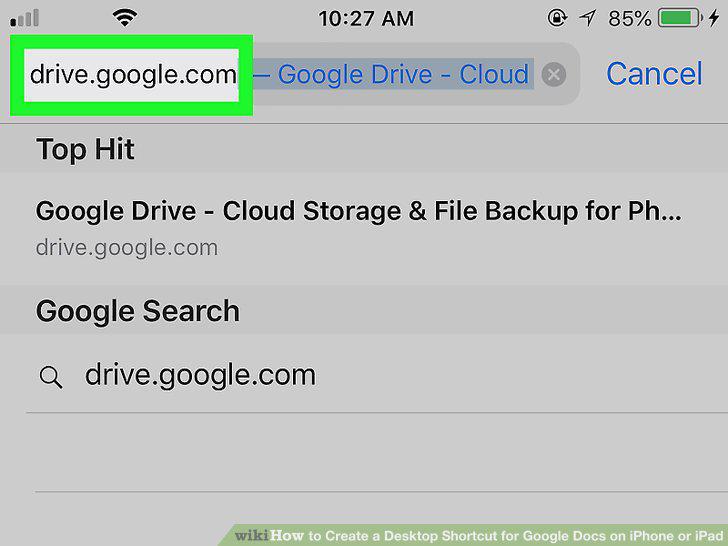
Go to the Google Drive website in Safari.
4
Find and tap the document you want to save.
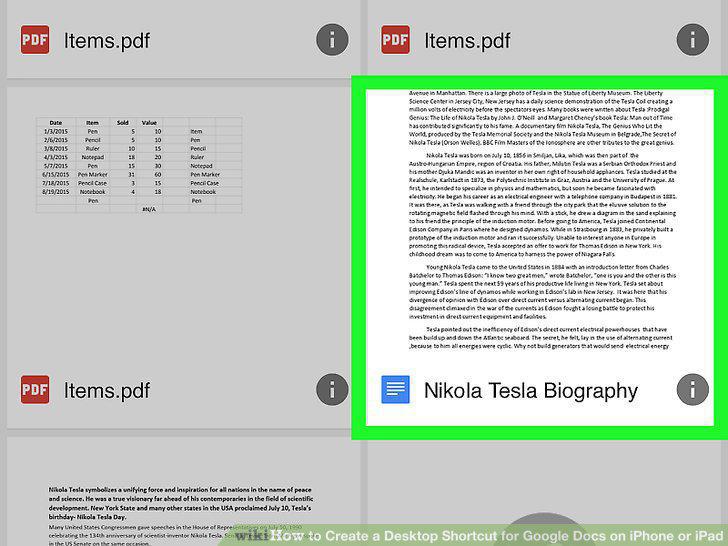
Find and tap the document you want to save.
5
Tap the icon at the bottom.
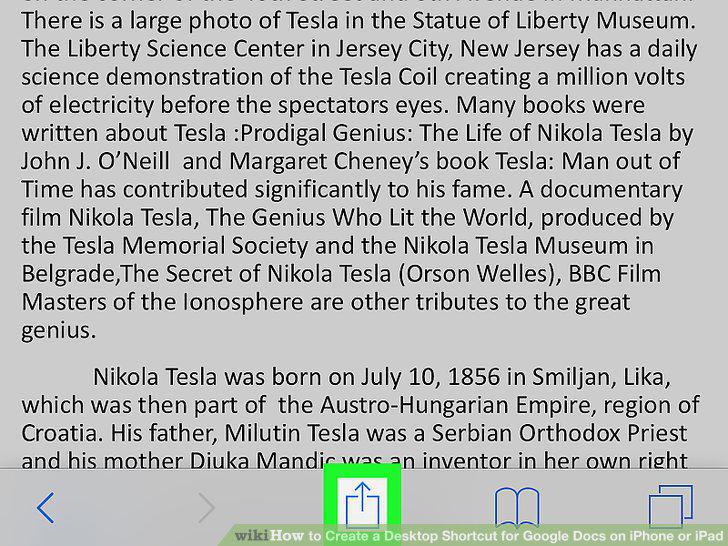
Tap the icon at the bottom.
6
Tap Add to Home Screen on the Share menu.
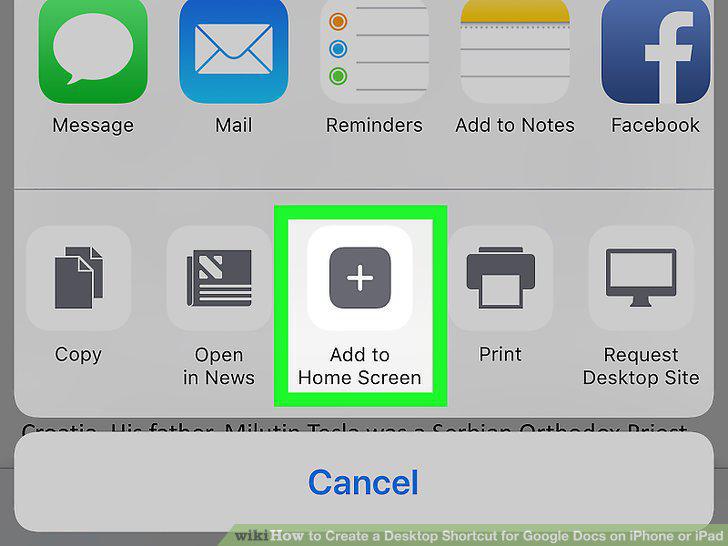
Tap Add to Home Screen on the Share menu.
7
Enter a name for your shortcut.
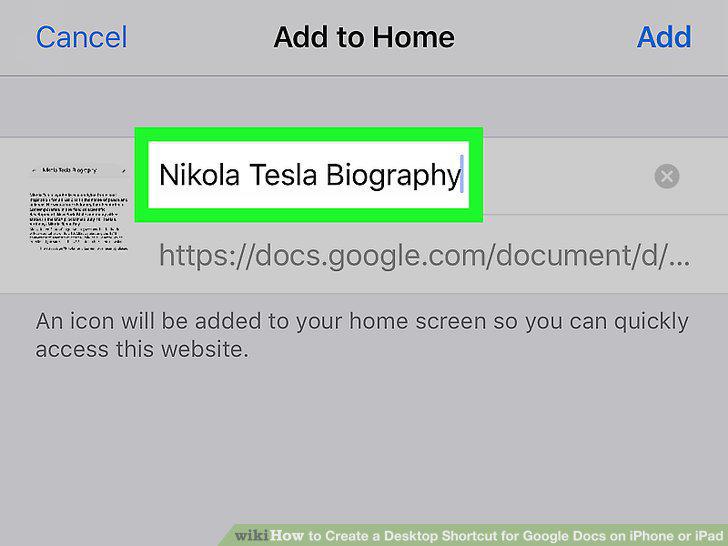
Enter a name for your shortcut.
8
Tap Add on the top-right.
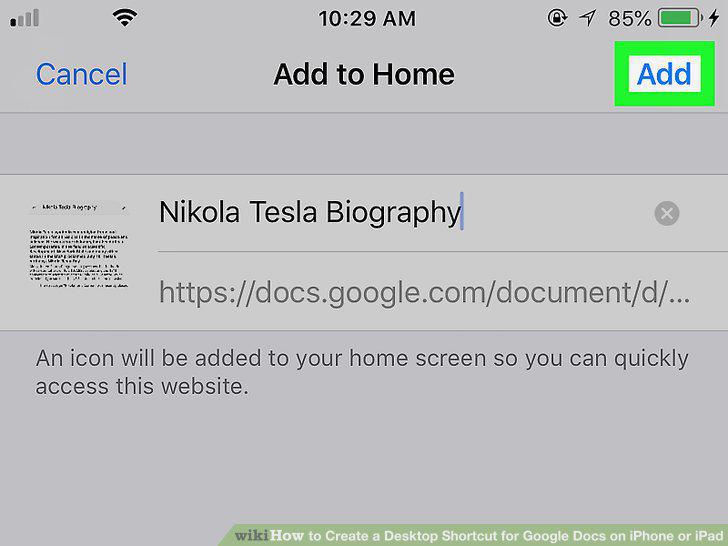
Tap Add on the top-right.
Comments (0)
No comments yet. Be the first to share your thoughts!