How to Rotate Images Using the Trackpad on a Mac
Find the image you want to open.. Press Control + click the mouse button to right click on the image.. Click Open with.
Steps
1
Find the image you want to open.
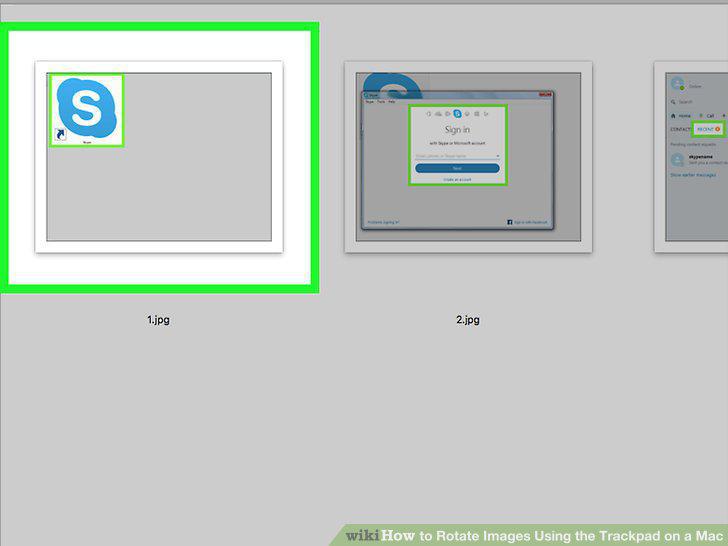
Find the image you want to open.
2
Press Control + click the mouse button to right click on the image.
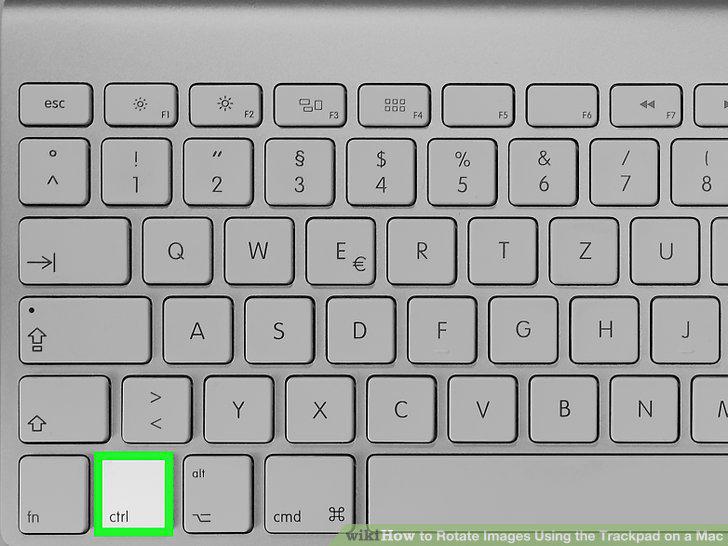
Press Control + click the mouse button to right click on the image.
3
Click Open with.
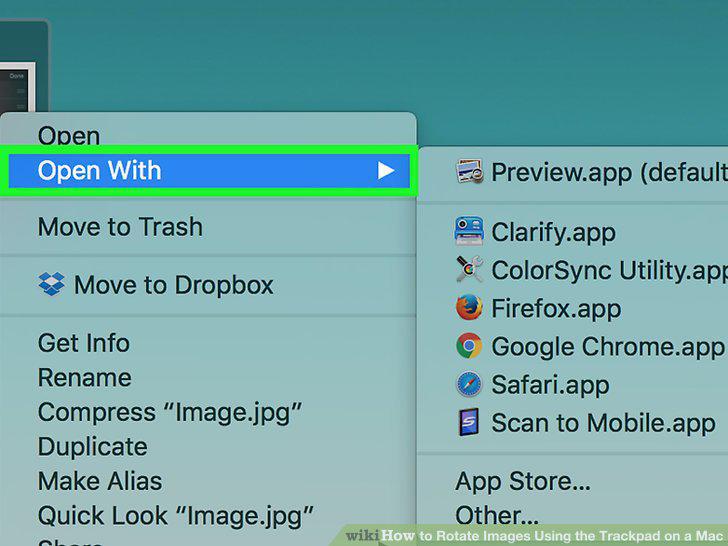
Click Open with.
4
Click Preview from the drop down list.
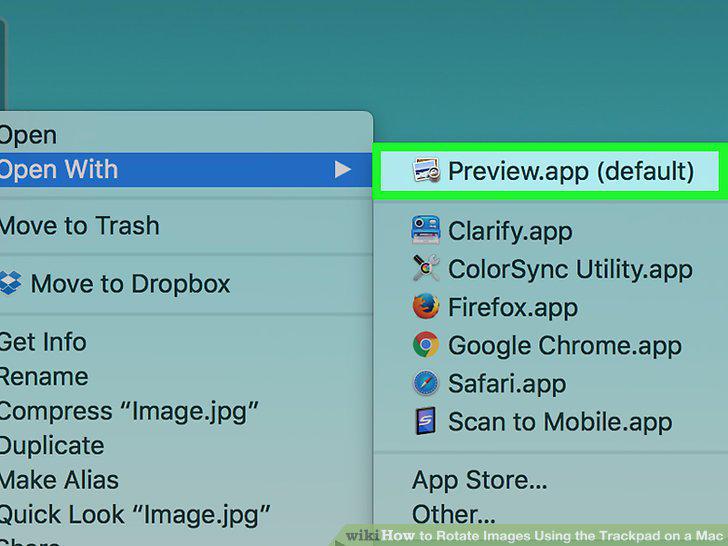
Click Preview from the drop down list.
5
Hover your cursor over the image.
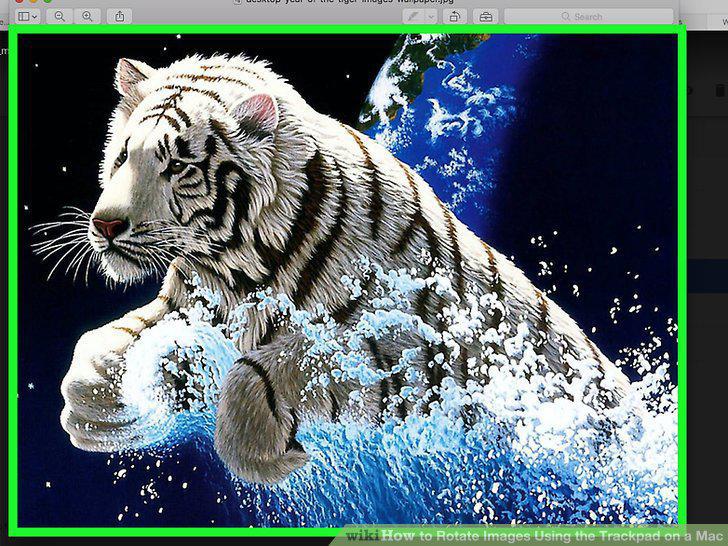
Hover your cursor over the image.
6
Place two fingers on the trackpad.
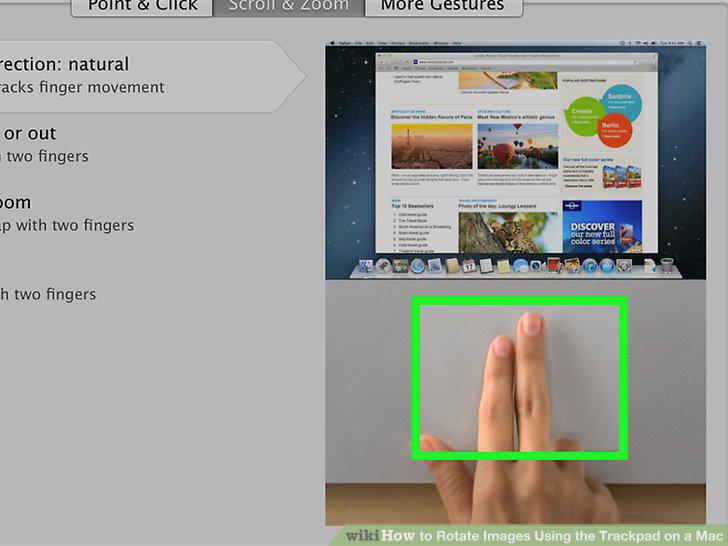
Place two fingers on the trackpad.
7
Rotate one finger around the other.
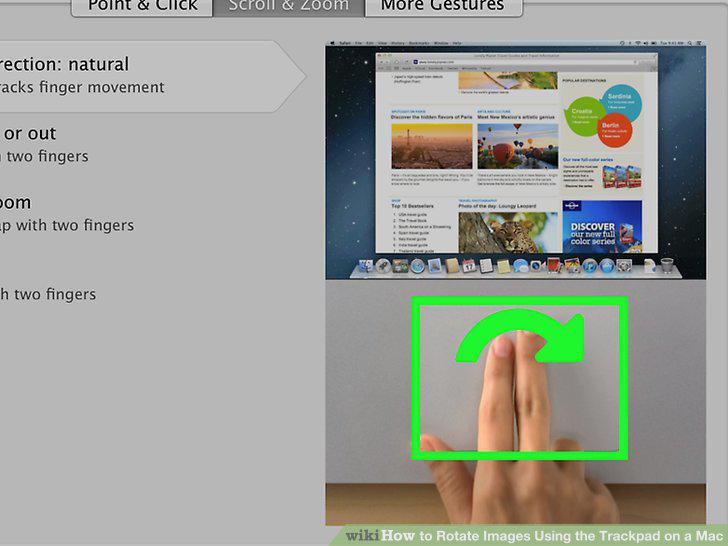
Rotate one finger around the other.
8
Take your fingers off the trackpad's surface.
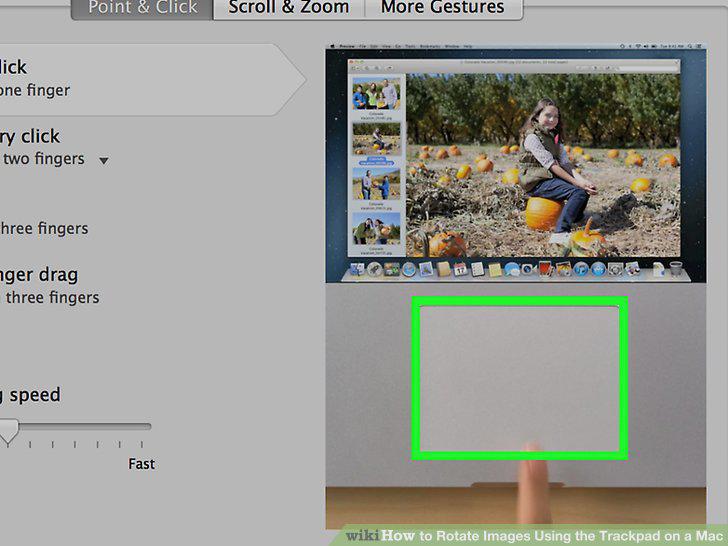
Take your fingers off the trackpad's surface.
9
Click on the Apple Icon.
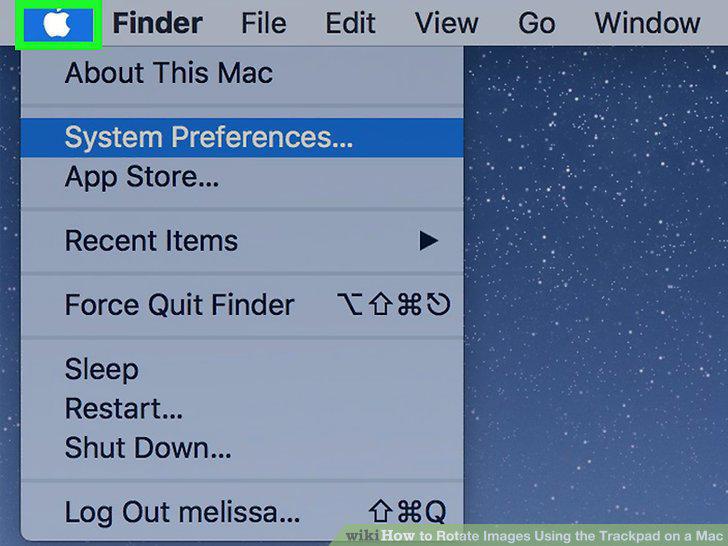
Click on the Apple Icon.
10
Click System Preferences.
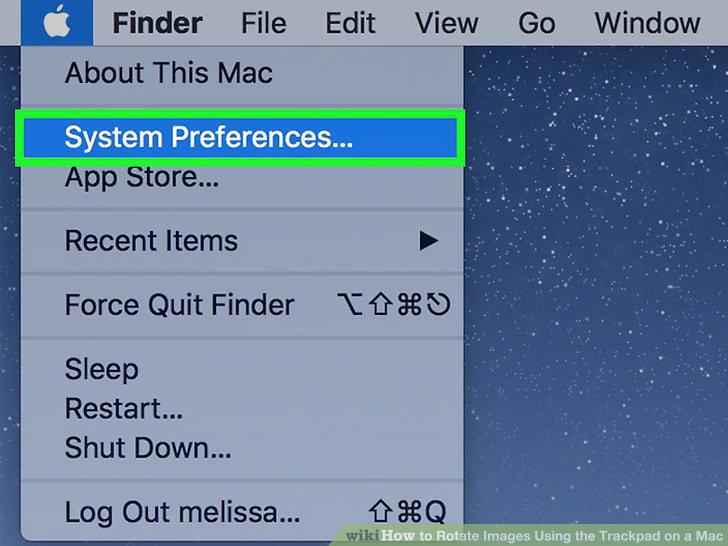
Click System Preferences.
11
Click the "Trackpad" icon.
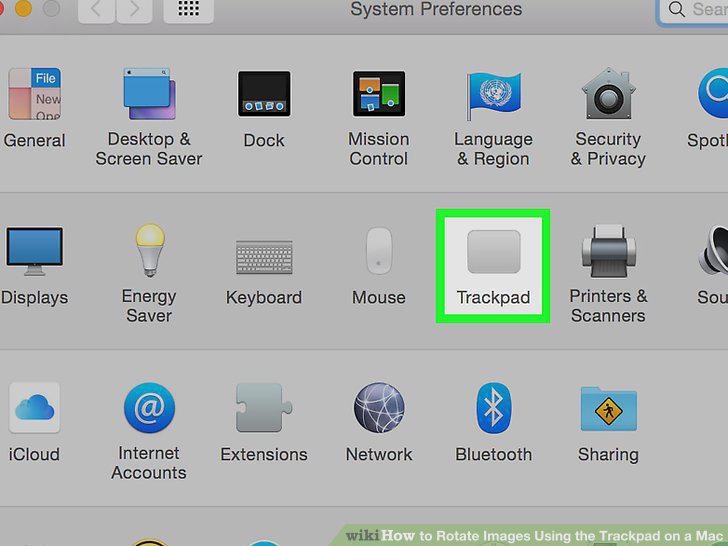
Click the "Trackpad" icon.
12
Click Scroll & Zoom.
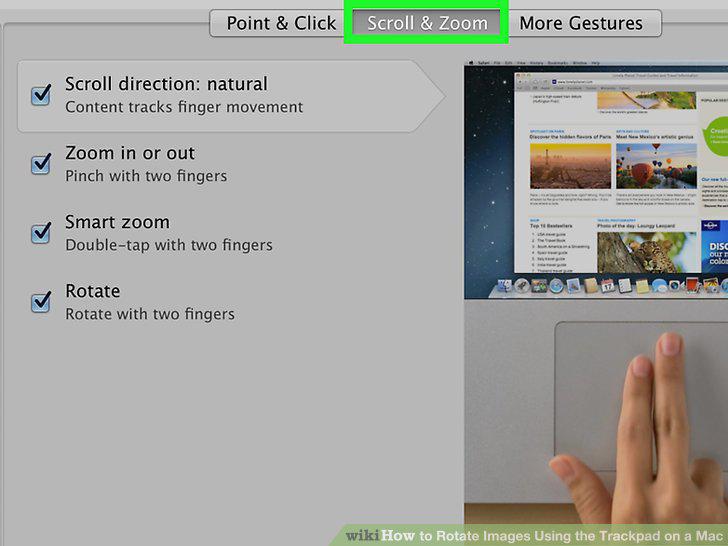
Click Scroll & Zoom.
13
Check the box next to "Rotate.
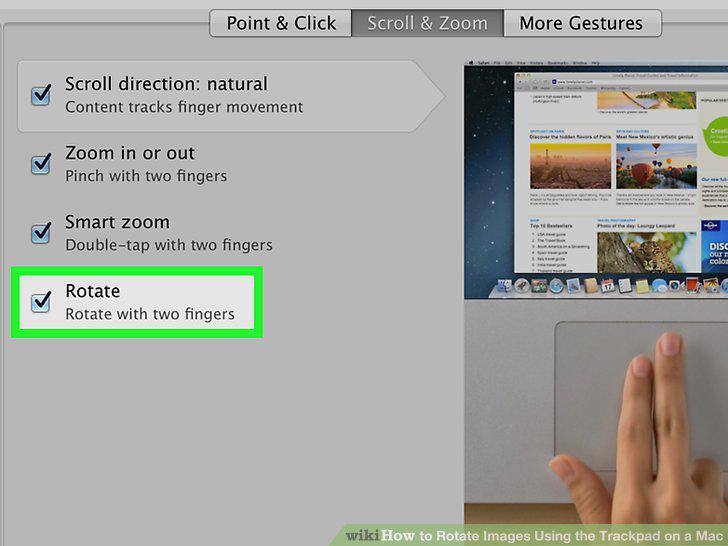
Check the box next to "Rotate.
Comments (0)
No comments yet. Be the first to share your thoughts!