How to Block All Incoming Calls on iPhone or iPad
Open your iPhone's Settings .. Tap Do Not Disturb.. Slide the "Do Not Disturb" switch to .
Steps
1
Open your iPhone's Settings .
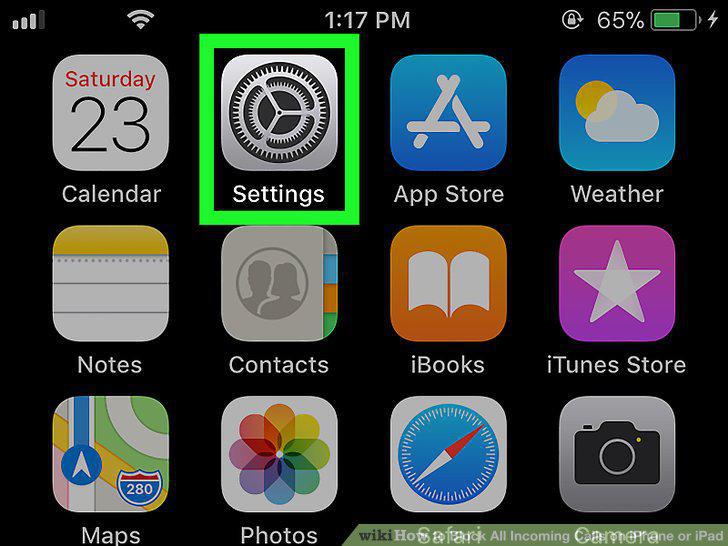
Open your iPhone's Settings .
2
Tap Do Not Disturb.
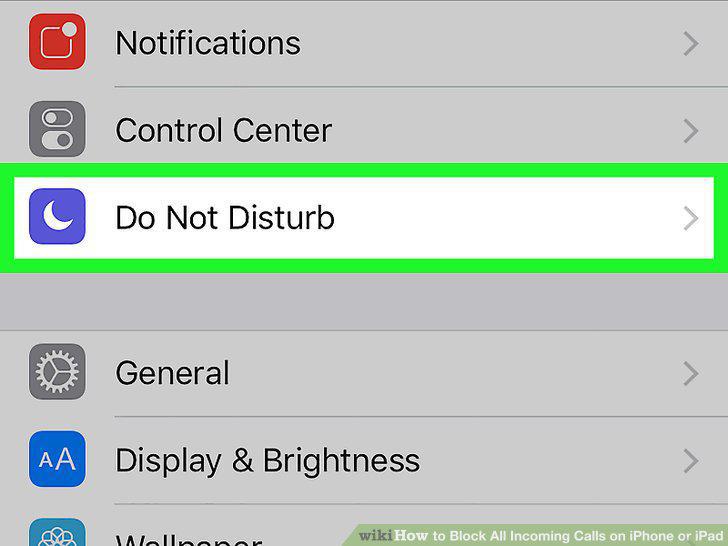
Tap Do Not Disturb.
3
Slide the "Do Not Disturb" switch to .
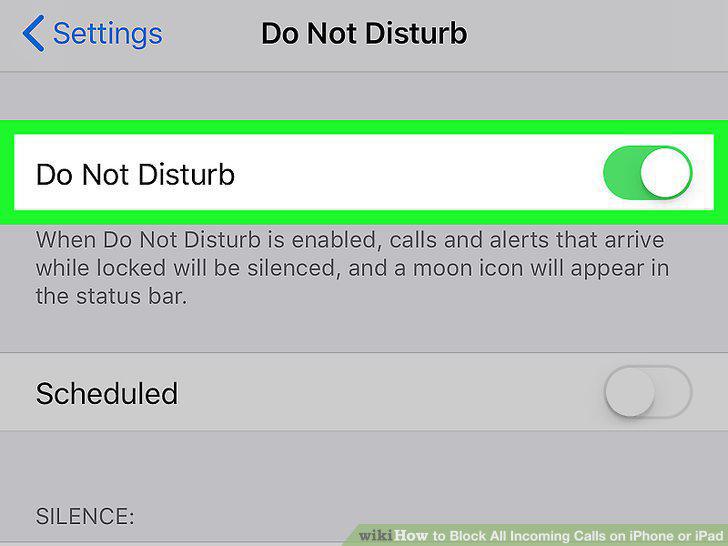
Slide the "Do Not Disturb" switch to .
4
Tap Allow Calls From.
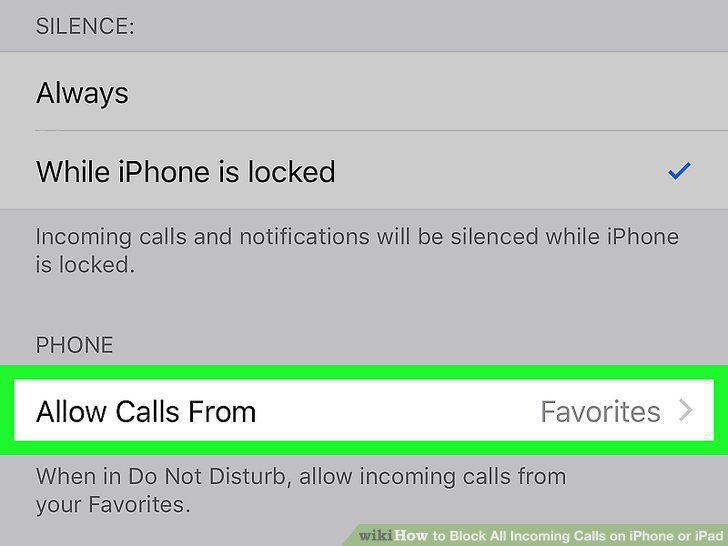
Tap Allow Calls From.
5
Select which calls you want to receive while in Do Not Disturb mode.
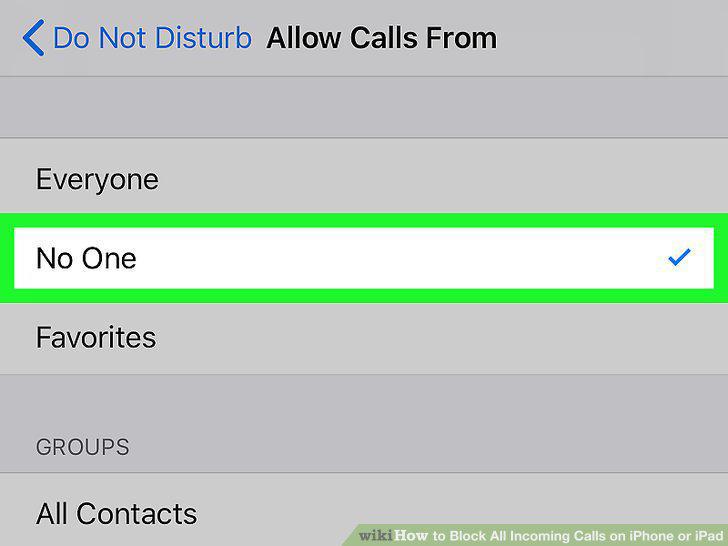
Select which calls you want to receive while in Do Not Disturb mode.
6
Tap the back button.
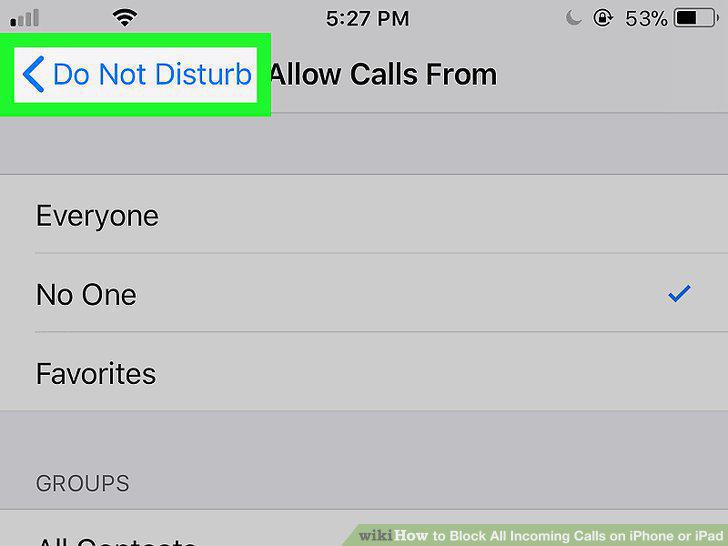
Tap the back button.
7
Slide the "Repeated Calls" switch to .
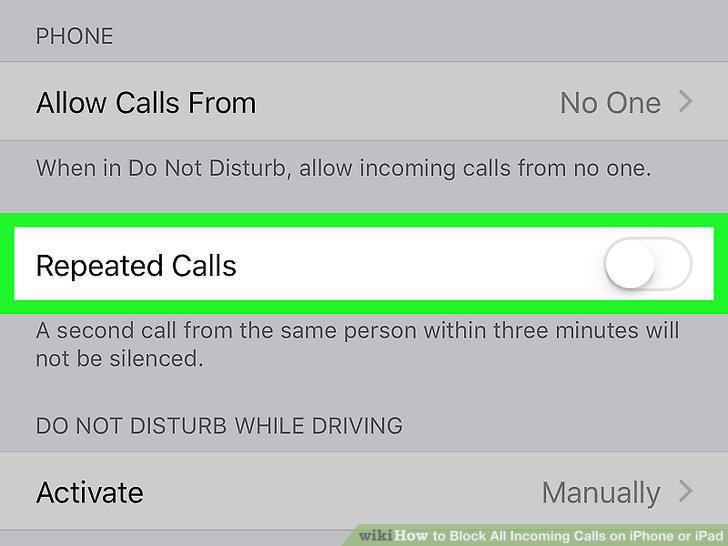
Slide the "Repeated Calls" switch to .
8
Swipe up from the bottom of the home screen.
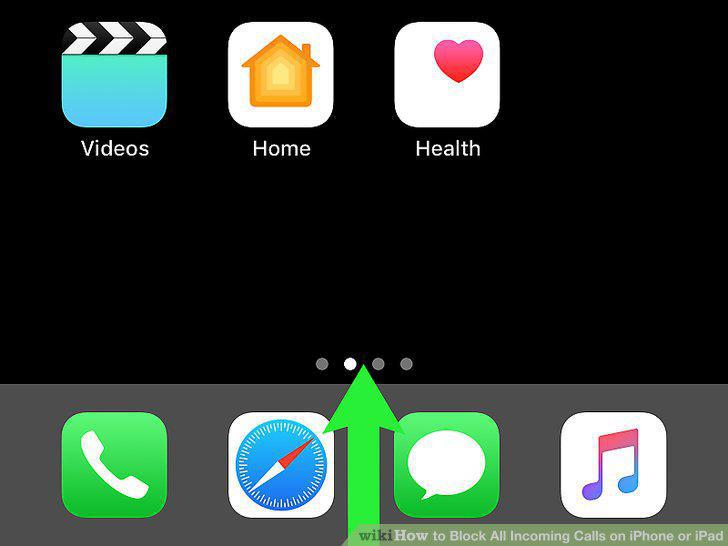
Swipe up from the bottom of the home screen.
9
Tap the moon icon.
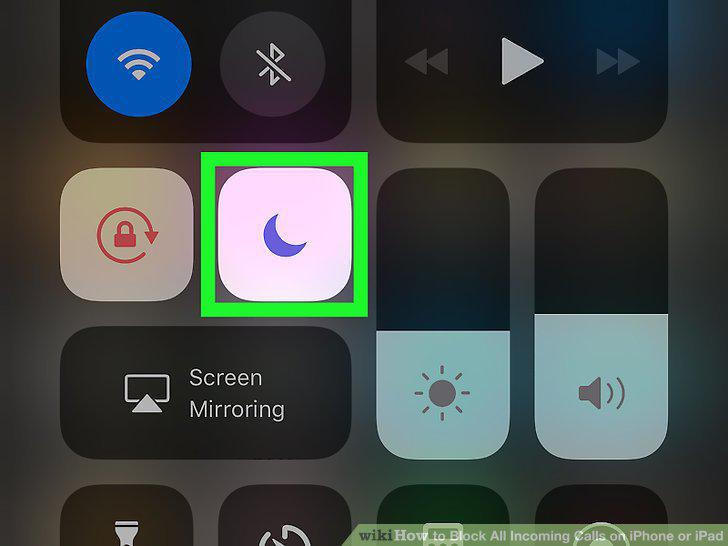
Tap the moon icon.
10
Tap the moon icon again to toggle off Do Not Disturb mode.
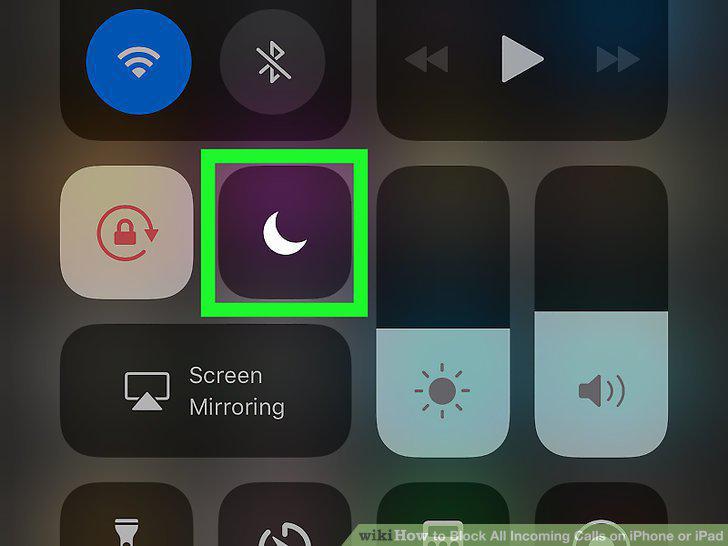
Tap the moon icon again to toggle off Do Not Disturb mode.
Comments (0)
No comments yet. Be the first to share your thoughts!