How to Add Contacts to Gmail Using a CSV File
Export a CSV file from Gmail.. Open the CSV file with a spreadsheet or text program.. Add your contacts to the CSV.
Steps
1
Export a CSV file from Gmail.
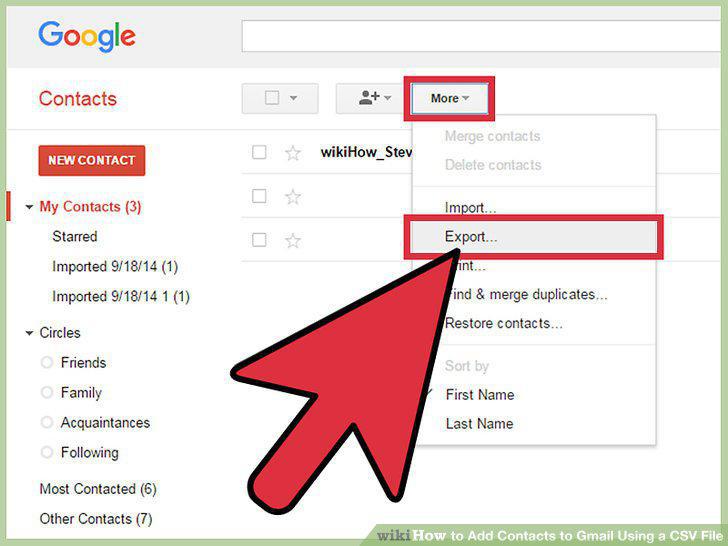
Export a CSV file from Gmail.
2
Open the CSV file with a spreadsheet or text program.
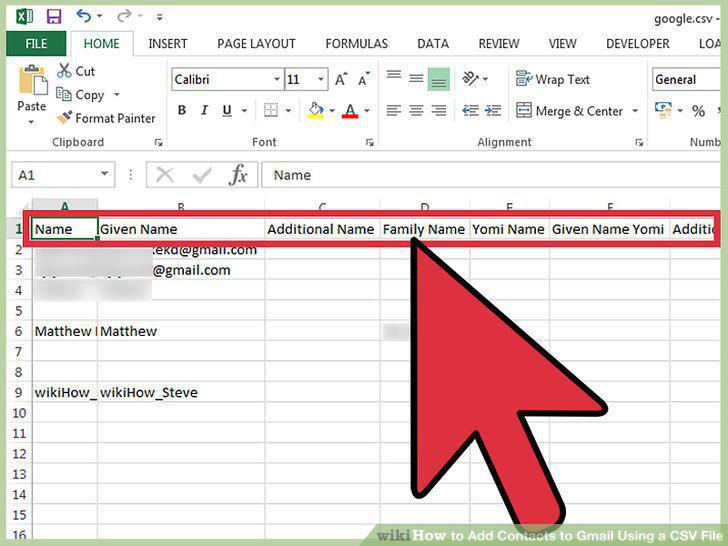
Open the CSV file with a spreadsheet or text program.
3
Add your contacts to the CSV.
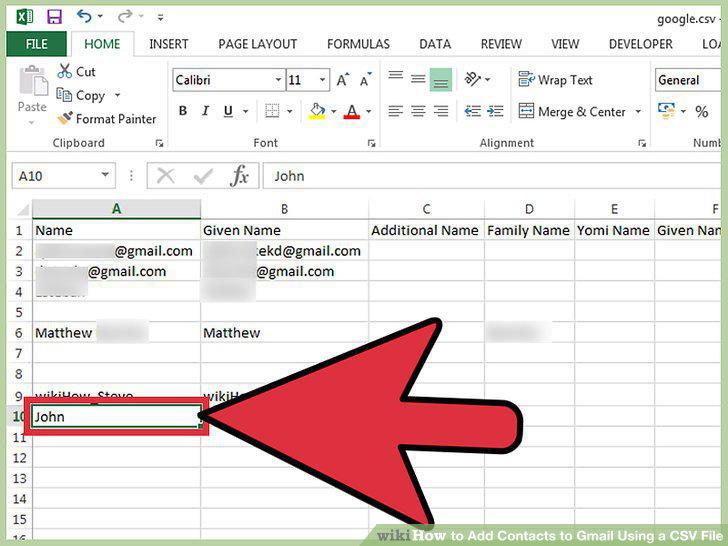
Add your contacts to the CSV.
4
Open the "File" menu and select "Save".
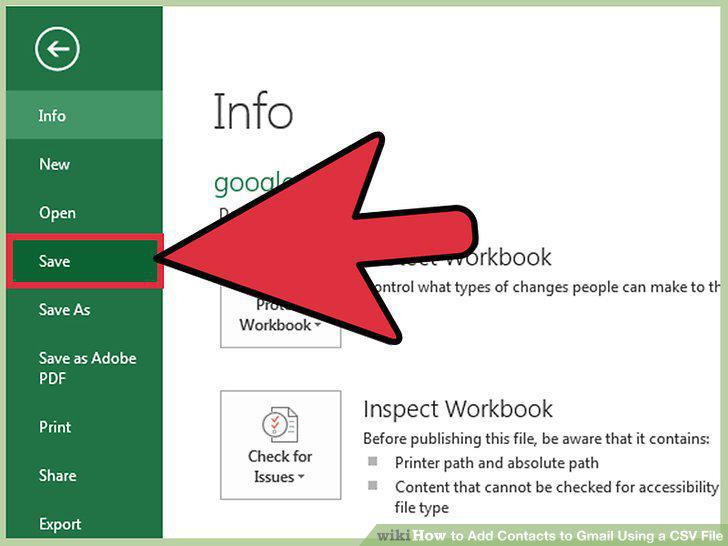
Open the "File" menu and select "Save".
5
Navigate to Google Contacts in your web browser.
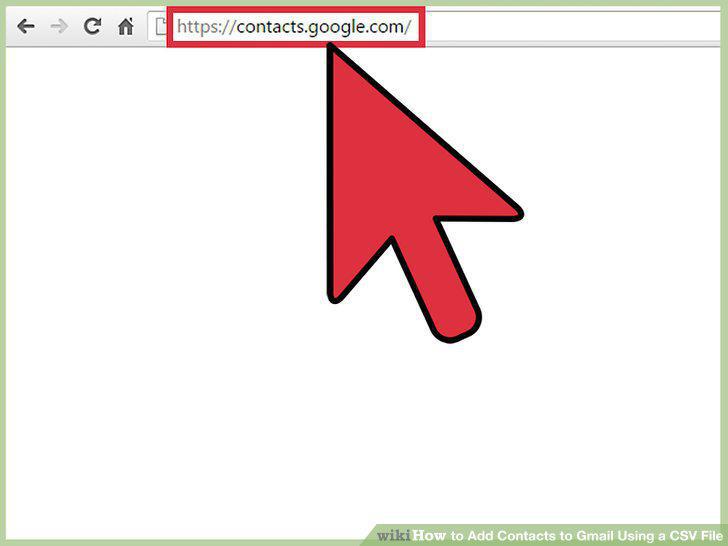
Navigate to Google Contacts in your web browser.
6
Sign into your Google/Gmail account.
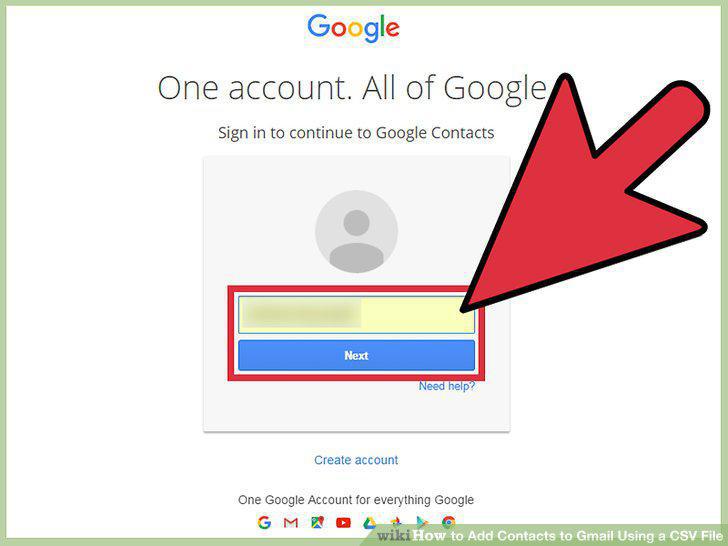
Sign into your Google/Gmail account.
7
Click the "Import Contacts" button.
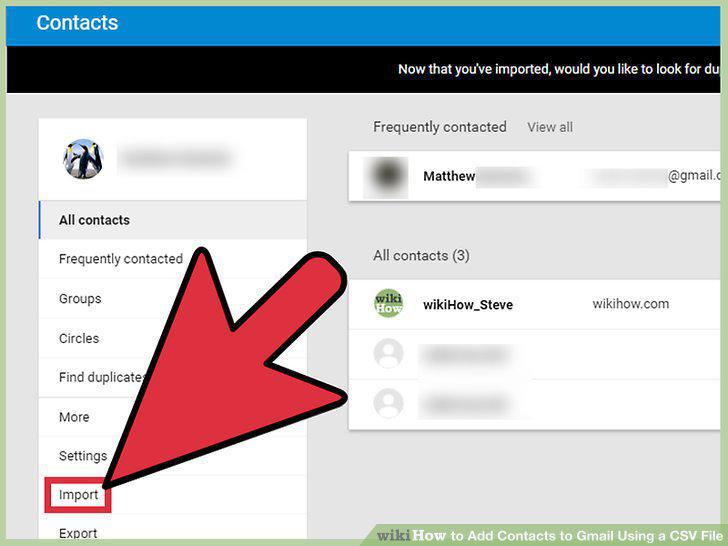
Click the "Import Contacts" button.
8
Click "Choose File".
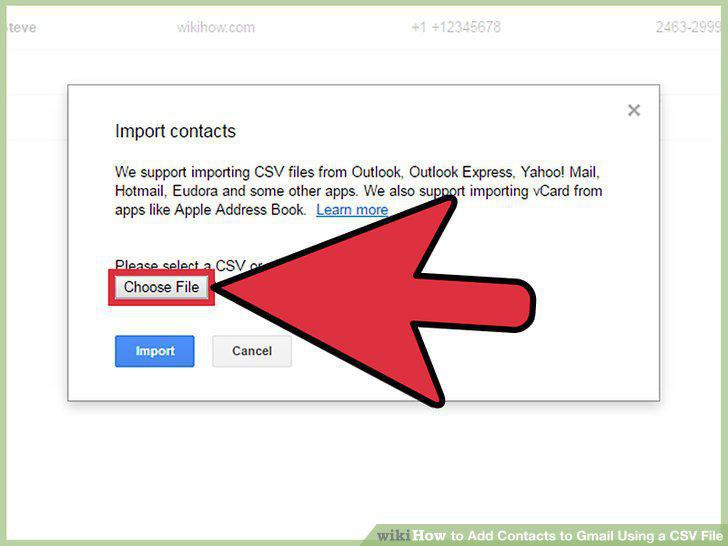
Click "Choose File".
9
Select your .CSV file to upload.
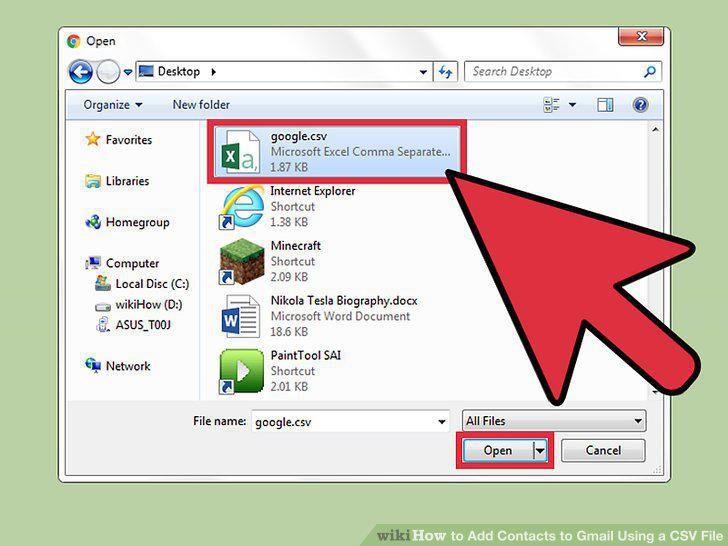
Select your .CSV file to upload.
10
Click "Import".
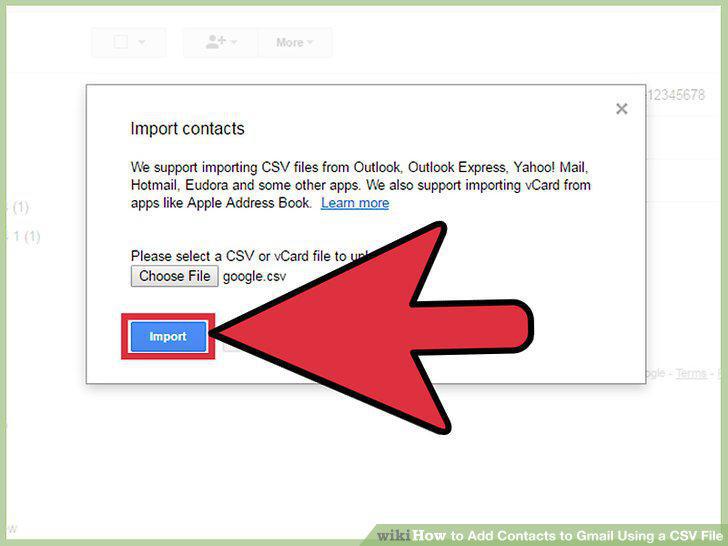
Click "Import".
Comments (0)
No comments yet. Be the first to share your thoughts!