How to Use Endnote
Use the online search tab or button to import citations.. Select a database and start your search.. Add citations to a group.
Steps
Use the online search tab or button to import citations.
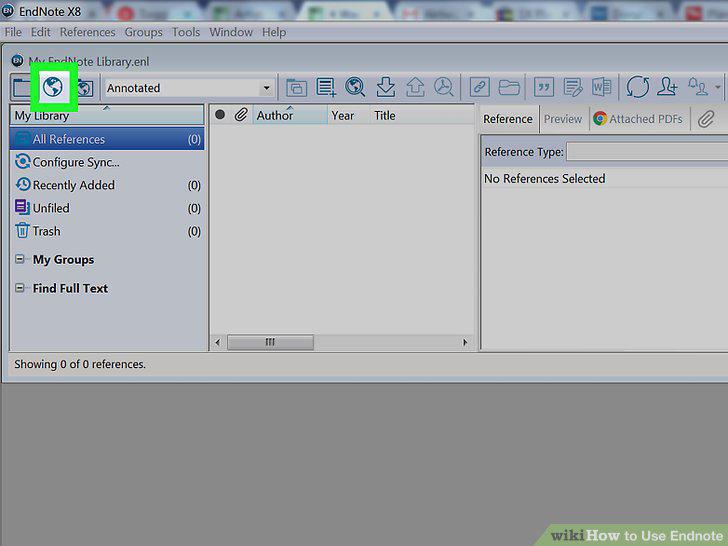
Use the online search tab or button to import citations.
Select a database and start your search.
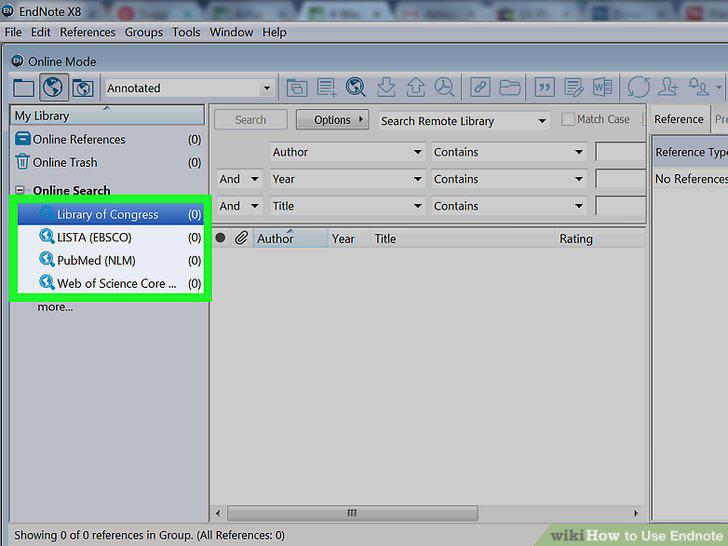
Select a database and start your search.
Add citations to a group.
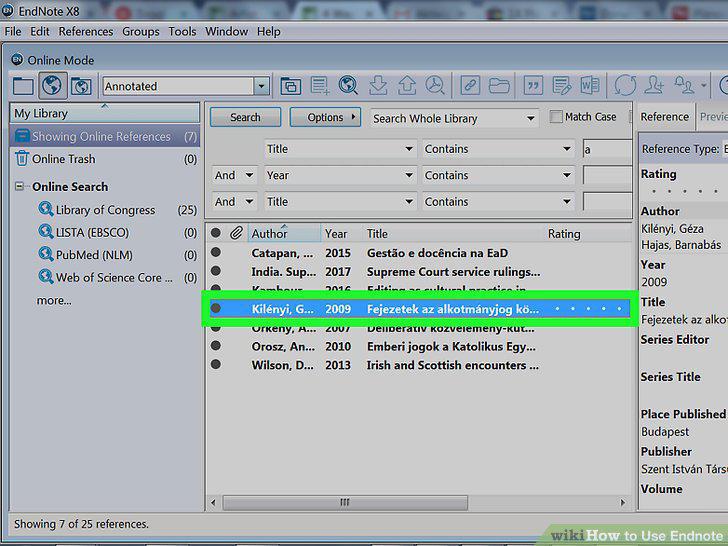
Add citations to a group.
Direct export references from databases during your searches.
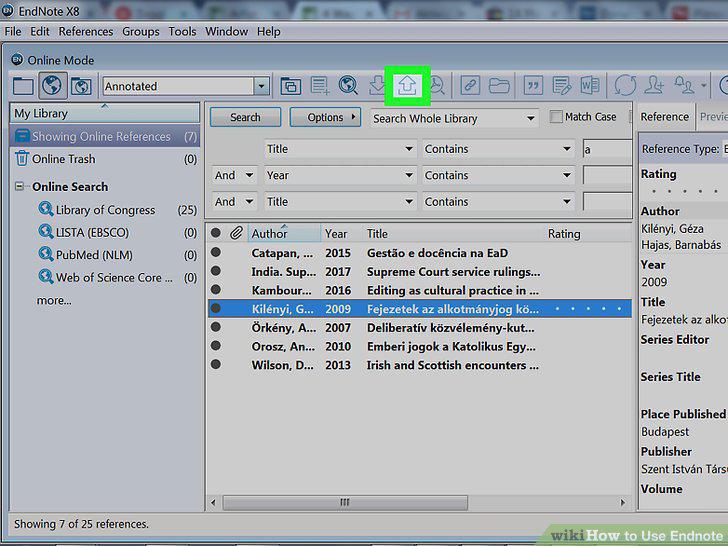
Direct export references from databases during your searches.
Import references as files once they've been exported.
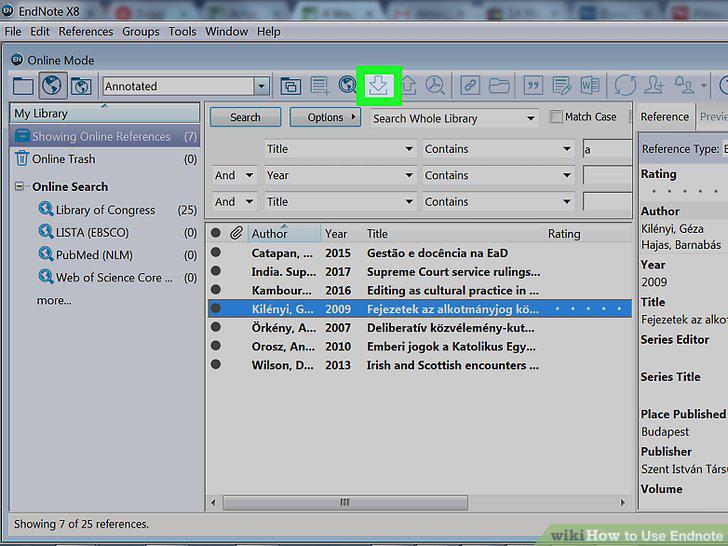
Import references as files once they've been exported.
Manually enter references if the formatting doesn't translate.
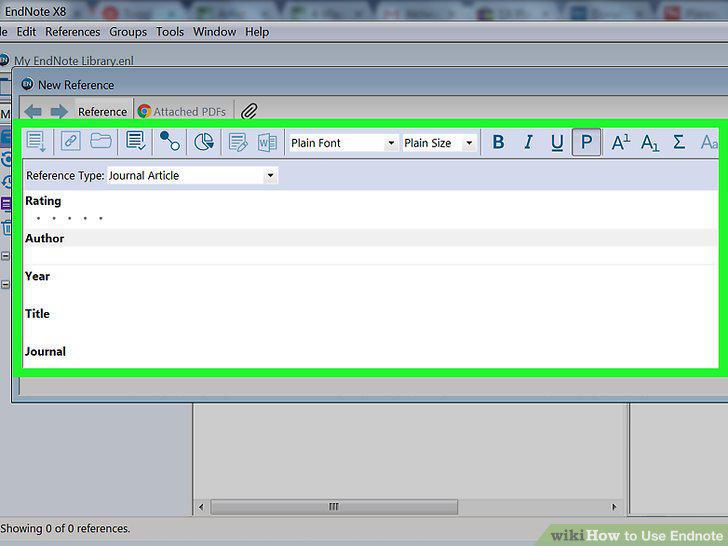
Manually enter references if the formatting doesn't translate.
Link PDFs to citations by attaching files or searching for them.
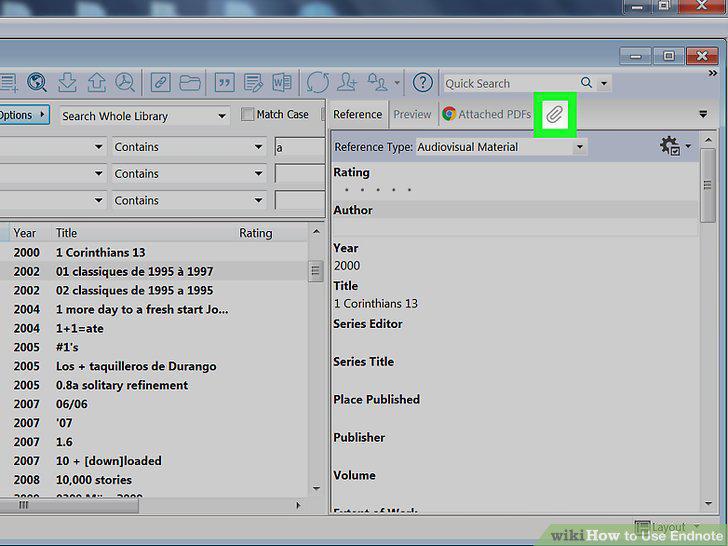
Link PDFs to citations by attaching files or searching for them.
Add the Cite While You Write plugin to Word if you have Basic.
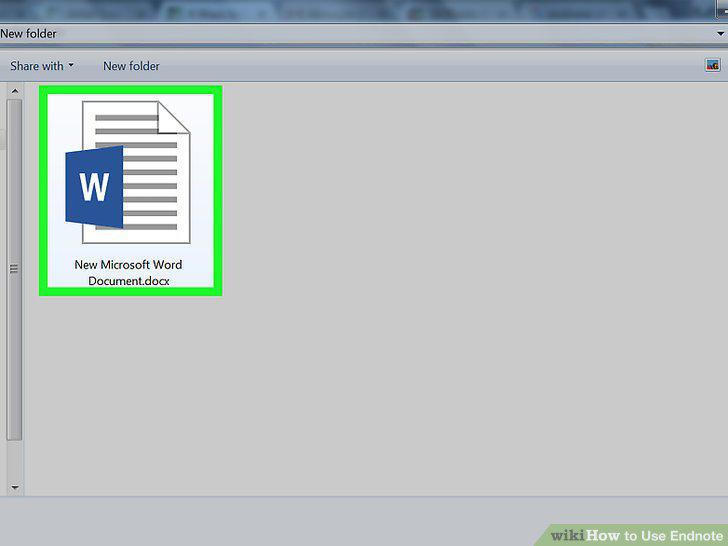
Add the Cite While You Write plugin to Word if you have Basic.
Place your cursor where you want to add the citation.
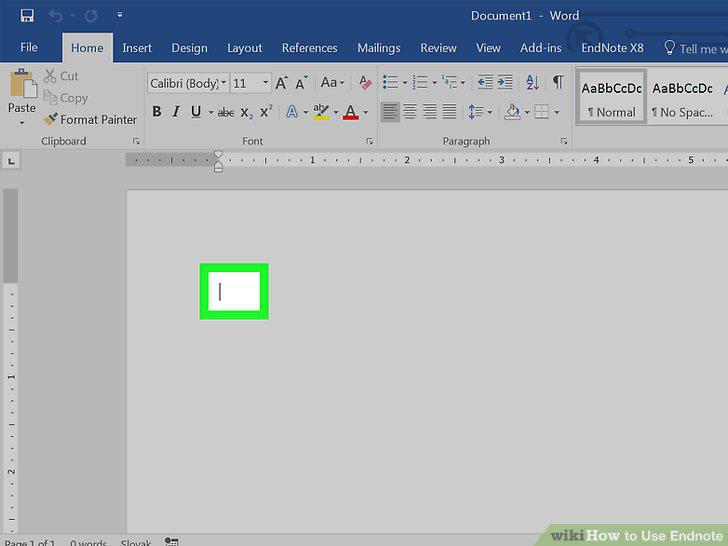
Place your cursor where you want to add the citation.
Choose the citation you want to add and insert it.
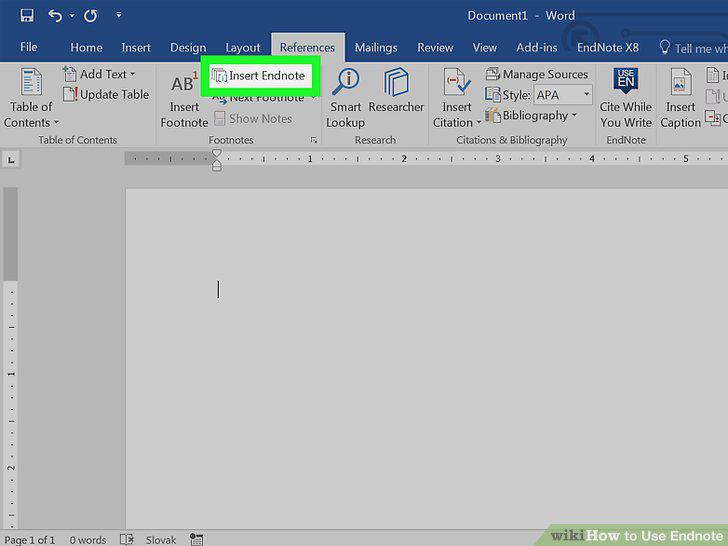
Choose the citation you want to add and insert it.
Change the style of the citations if you need to.
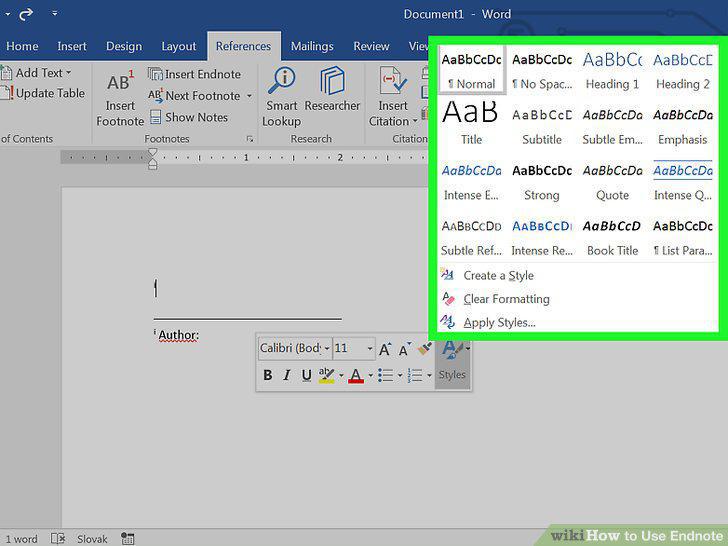
Change the style of the citations if you need to.
Add page numbers using the "Edit and Manage Citations" button.
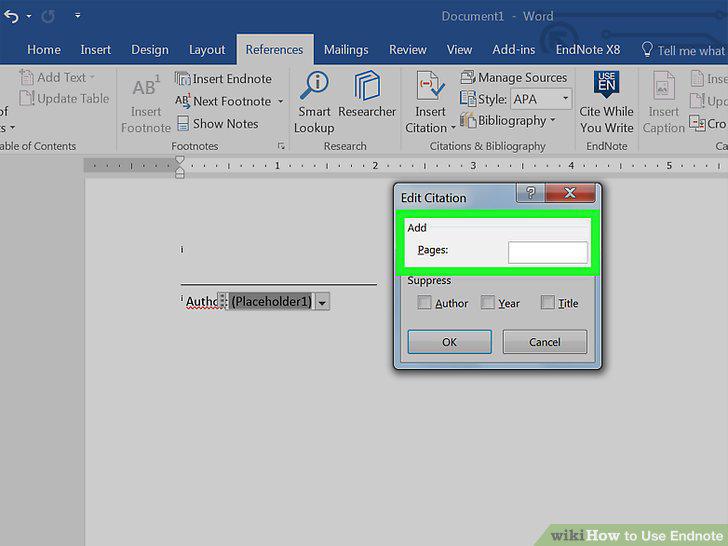
Add page numbers using the "Edit and Manage Citations" button.
Create independent bibliographies if you need to.
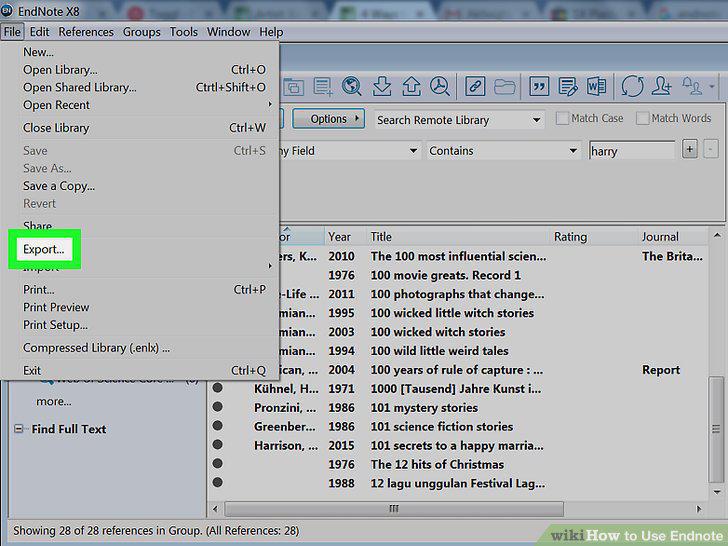
Create independent bibliographies if you need to.
Proofread citations and bibliographies for formatting errors.
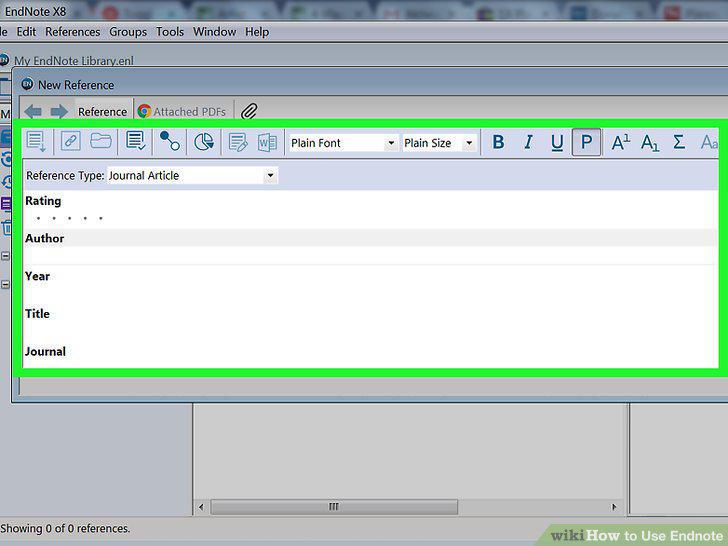
Proofread citations and bibliographies for formatting errors.
Click the sync button in the toolbar if you're using Desktop.
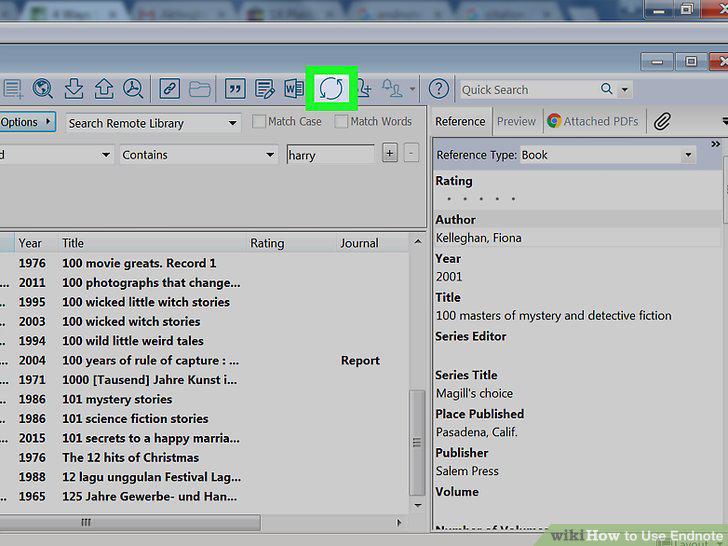
Click the sync button in the toolbar if you're using Desktop.
Click the "Organize" tab, then "Manage My Groups.
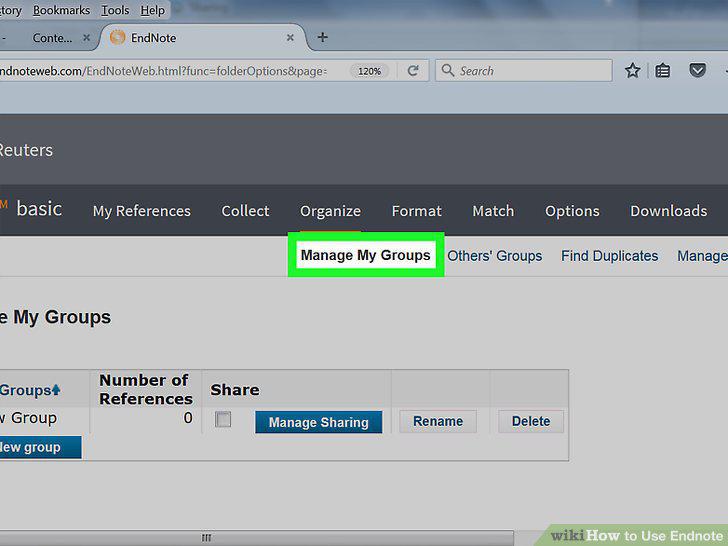
Click the "Organize" tab, then "Manage My Groups.
Click the empty box under "Share.
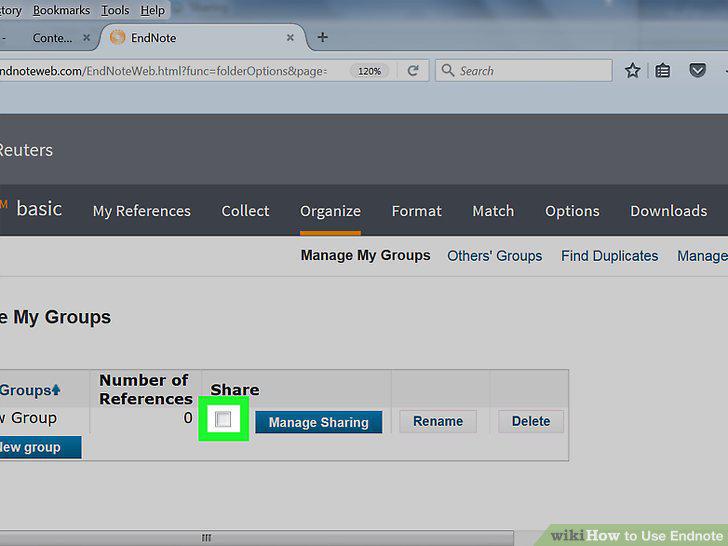
Click the empty box under "Share.
Allow your group to be edited by others.
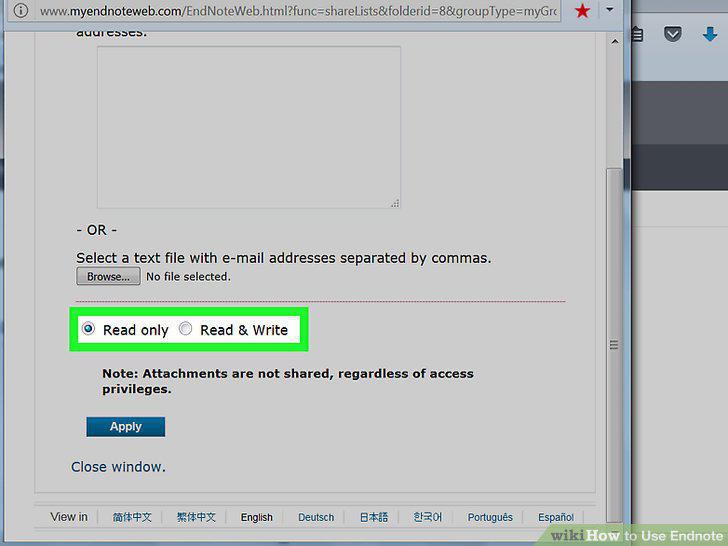
Allow your group to be edited by others.
Hit apply to finish sharing.
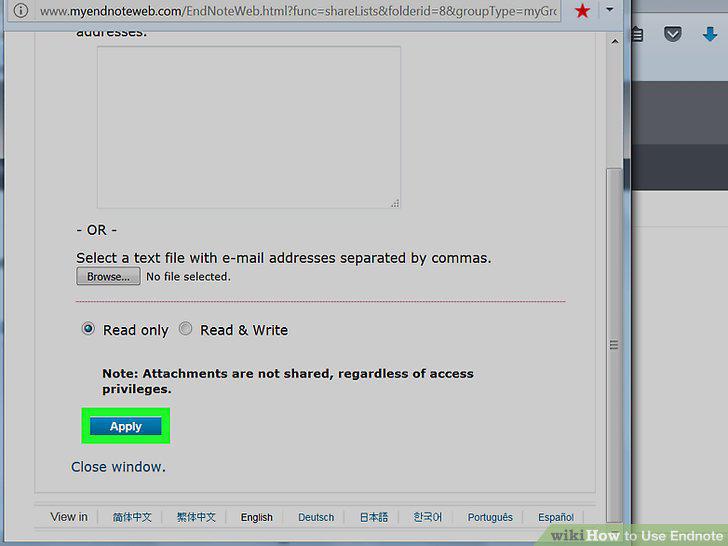
Hit apply to finish sharing.
Look for groups shared to you under "Groups Shared by Others.
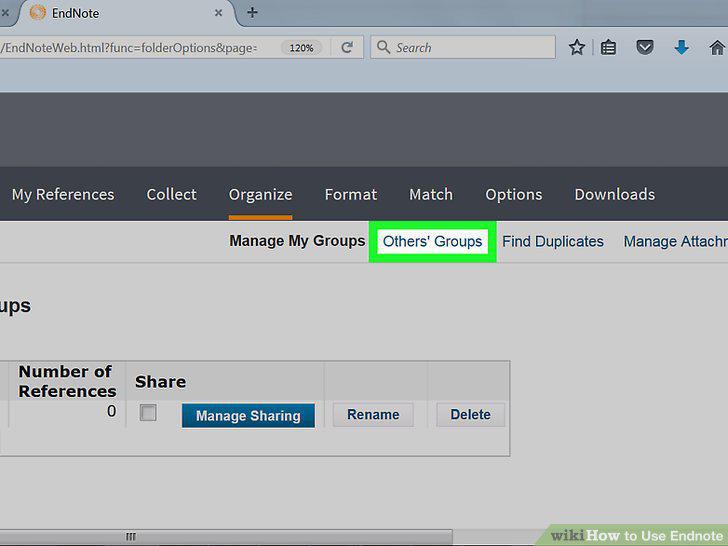
Look for groups shared to you under "Groups Shared by Others.
Choose EndNote Basic for a free but limited version.
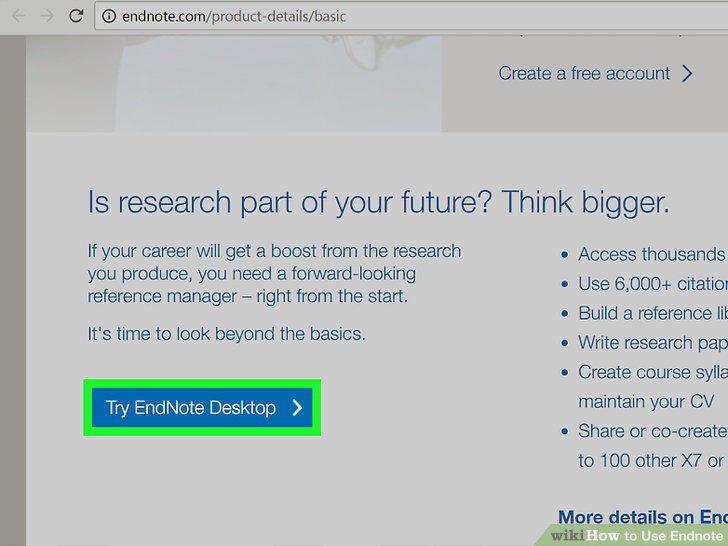
Choose EndNote Basic for a free but limited version.
Use your Web of Science subscription to access EndNote Basic.
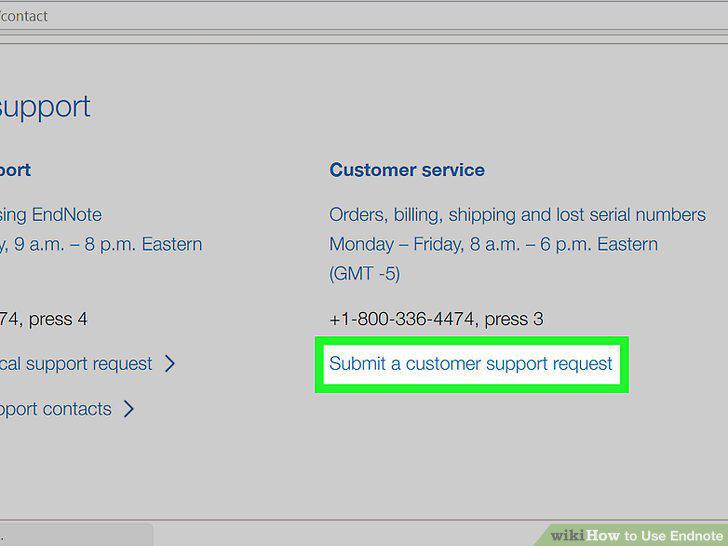
Use your Web of Science subscription to access EndNote Basic.
Download the most recent version of EndNote Desktop.
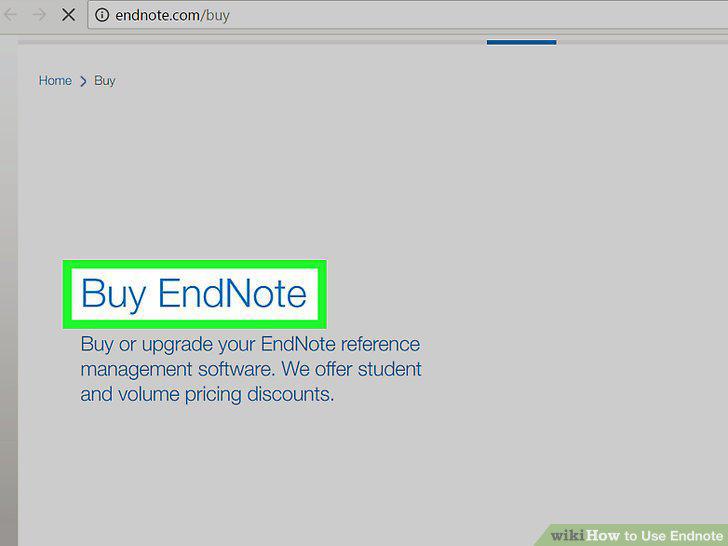
Download the most recent version of EndNote Desktop.
Create one new EndNote library for EndNote Desktop.
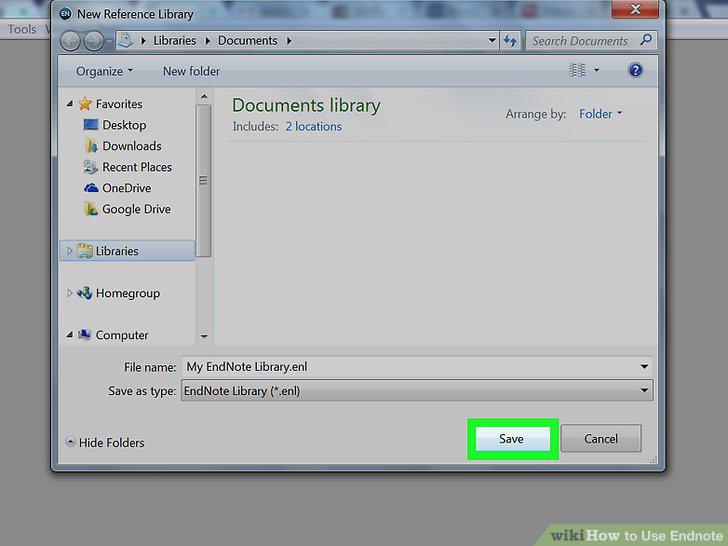
Create one new EndNote library for EndNote Desktop.
Comments (0)
No comments yet. Be the first to share your thoughts!