How to Activate Internet Tethering on the iPhone
Open the iPhone's Settings.. Tap the Personal Hotspot option.. Enable the Personal Hotspot switch.
Steps
Open the iPhone's Settings.
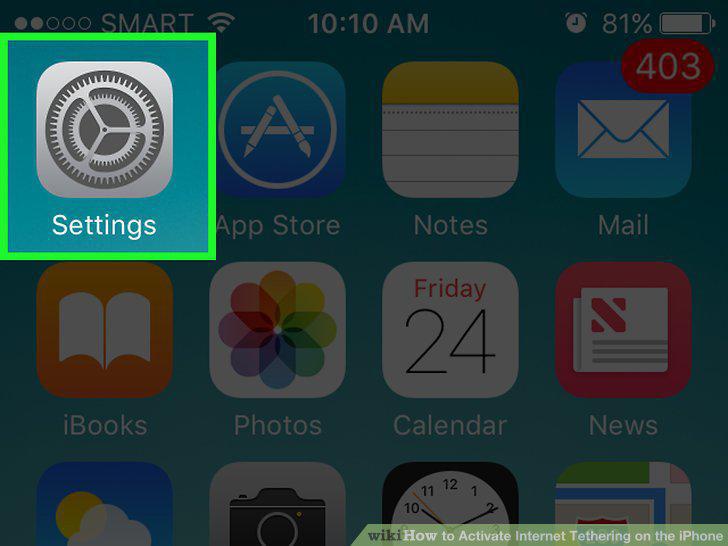
Open the iPhone's Settings.
Tap the Personal Hotspot option.
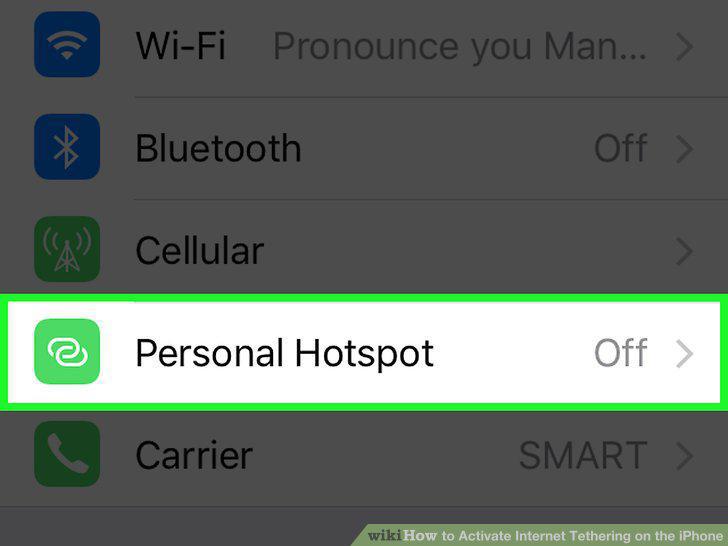
Tap the Personal Hotspot option.
Enable the Personal Hotspot switch.
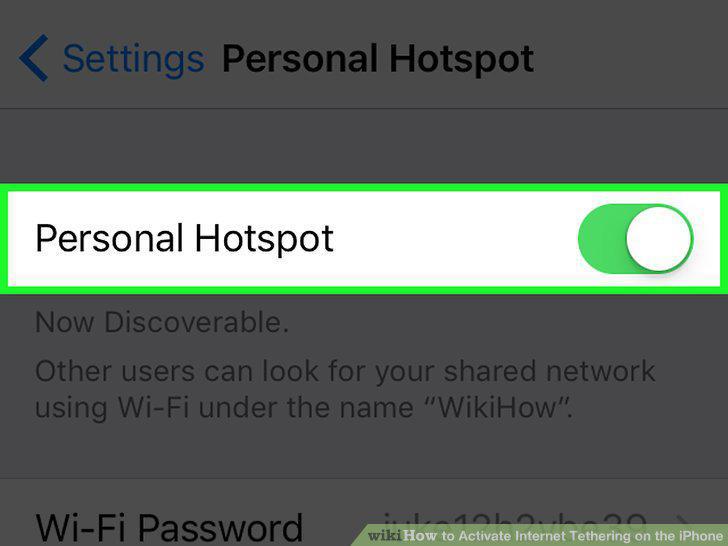
Enable the Personal Hotspot switch.
Tap the Wi-Fi Password button.
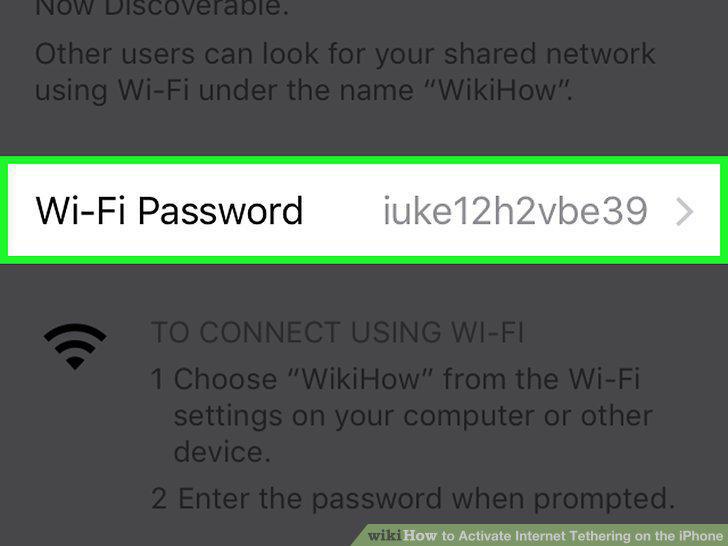
Tap the Wi-Fi Password button.
Type a password for your wireless network.
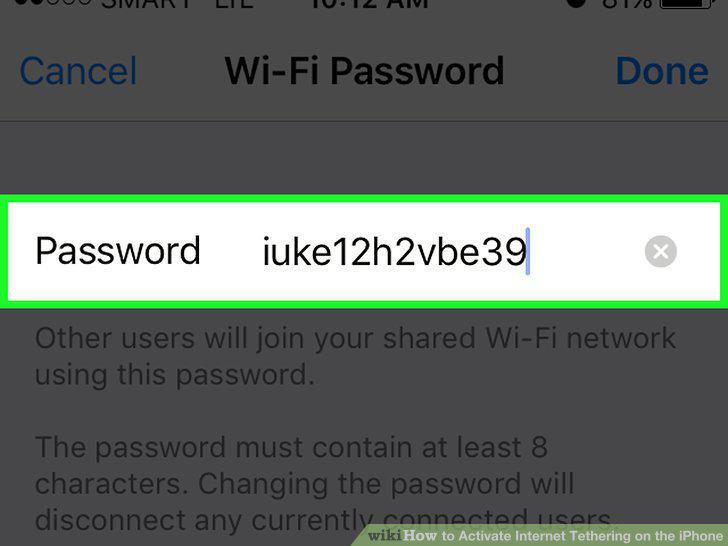
Type a password for your wireless network.
Tap Done.
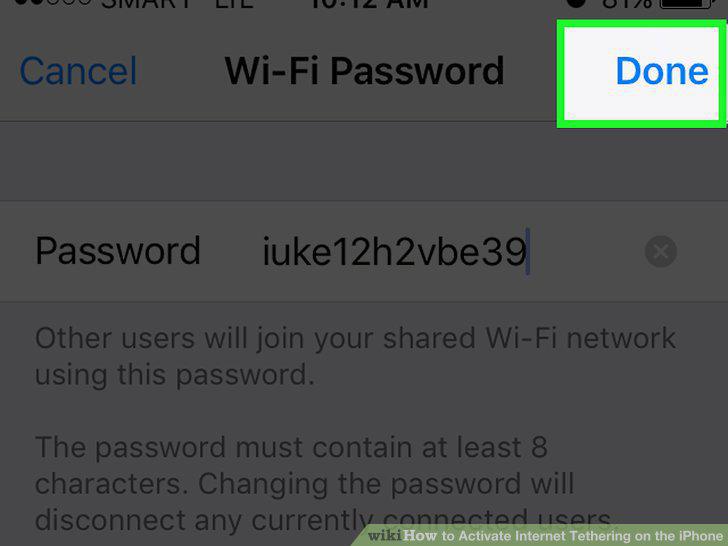
Tap Done.
Open the list of available networks on another device.
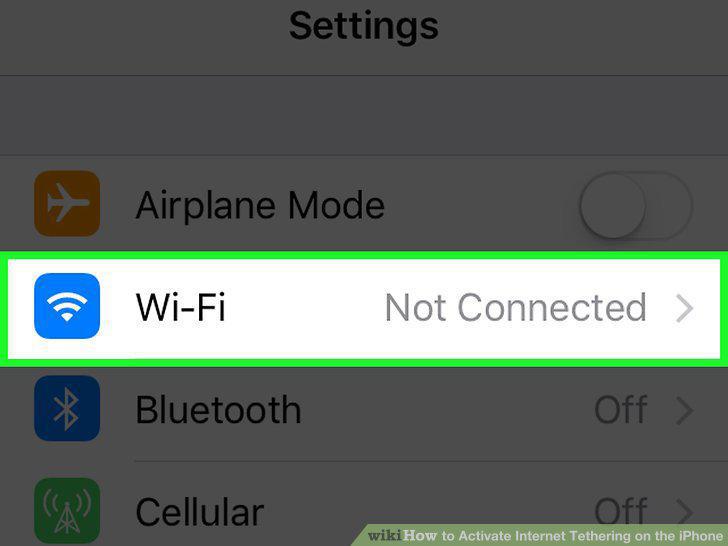
Open the list of available networks on another device.
Select your iPhone from the list of available networks.
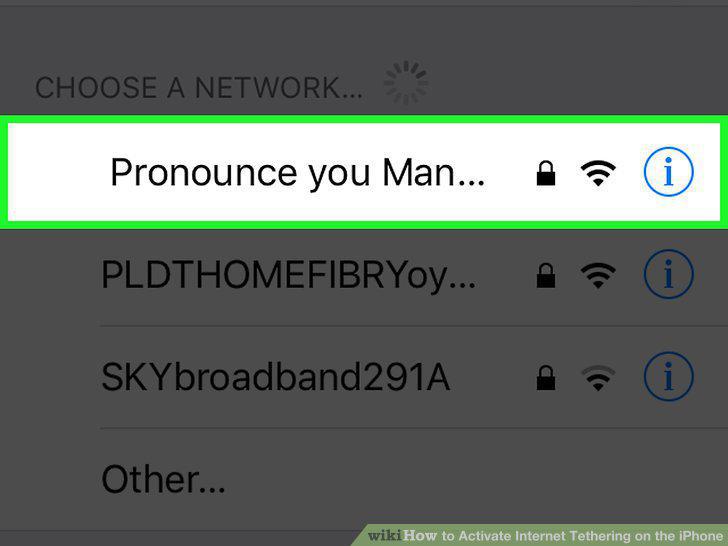
Select your iPhone from the list of available networks.
Enter the password you created when prompted.
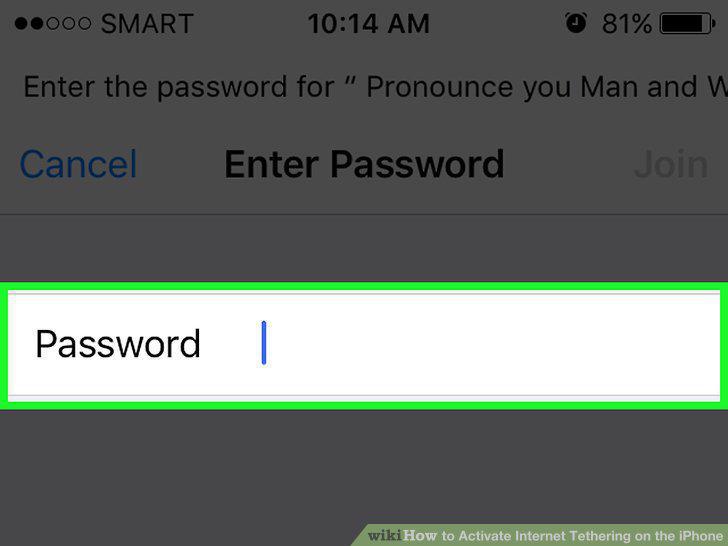
Enter the password you created when prompted.
Test your internet connection on the connected device.
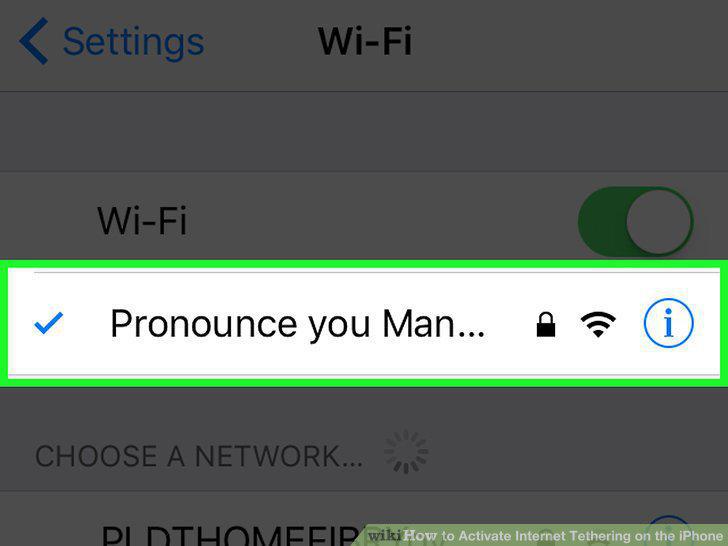
Test your internet connection on the connected device.
Open the iPhone's Settings.
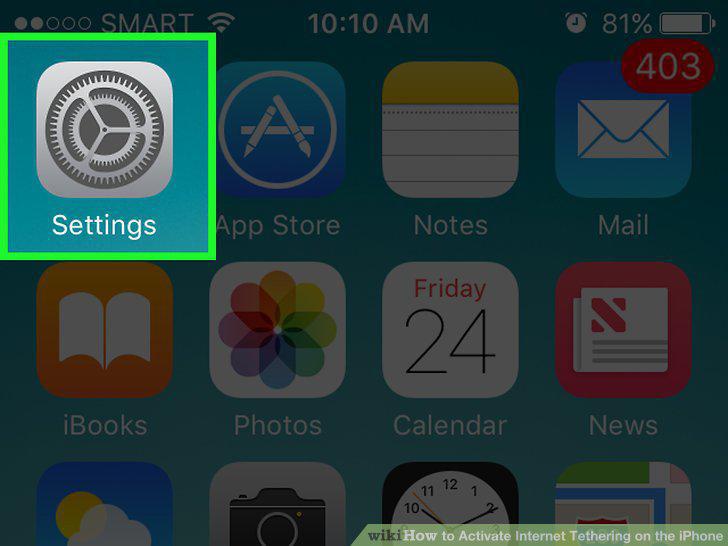
Open the iPhone's Settings.
Tap the Personal Hotspot option.
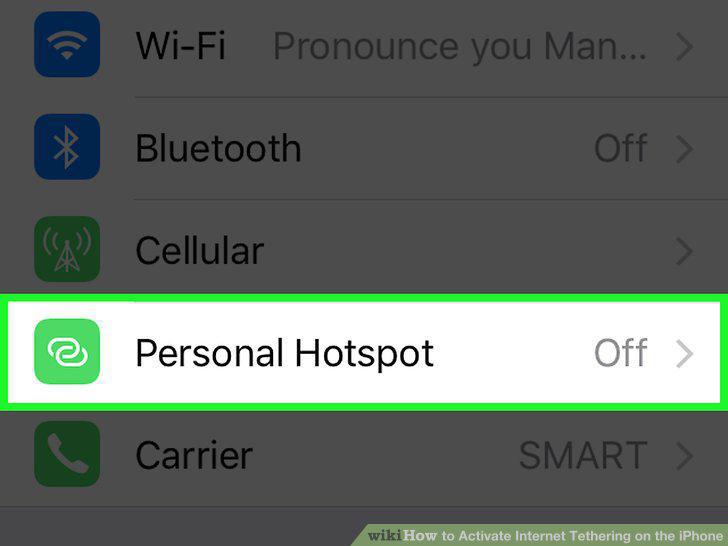
Tap the Personal Hotspot option.
Enable the Personal Hotspot switch.
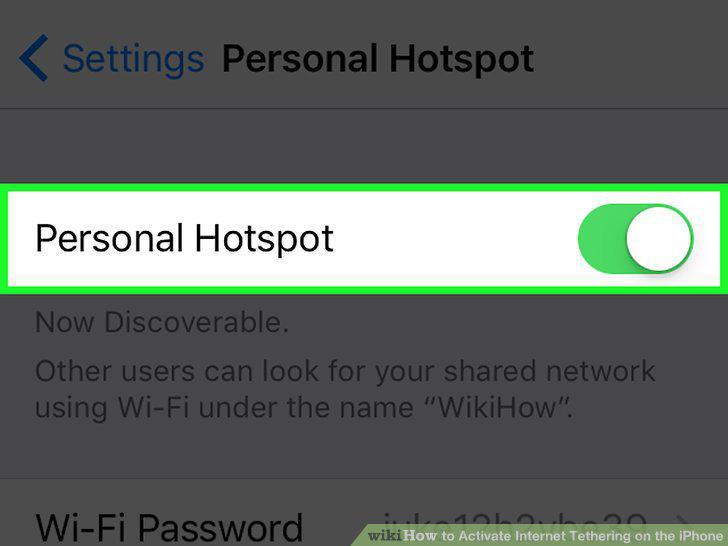
Enable the Personal Hotspot switch.
Connect your iPhone to your computer via USB.
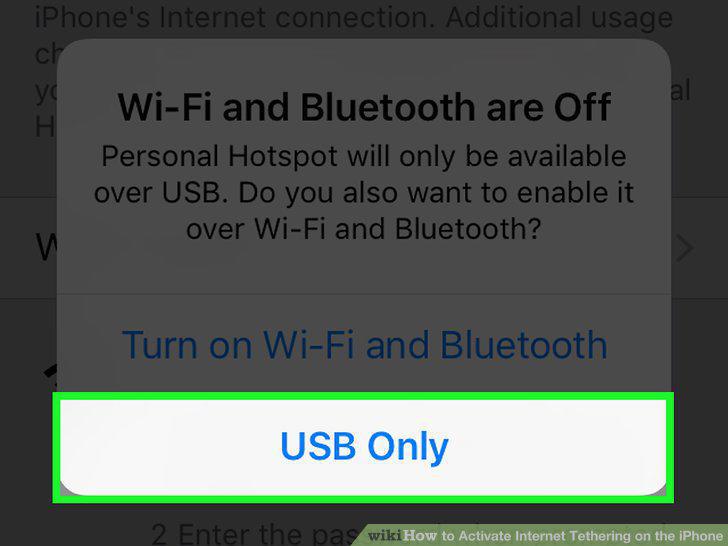
Connect your iPhone to your computer via USB.
Test your internet connection.
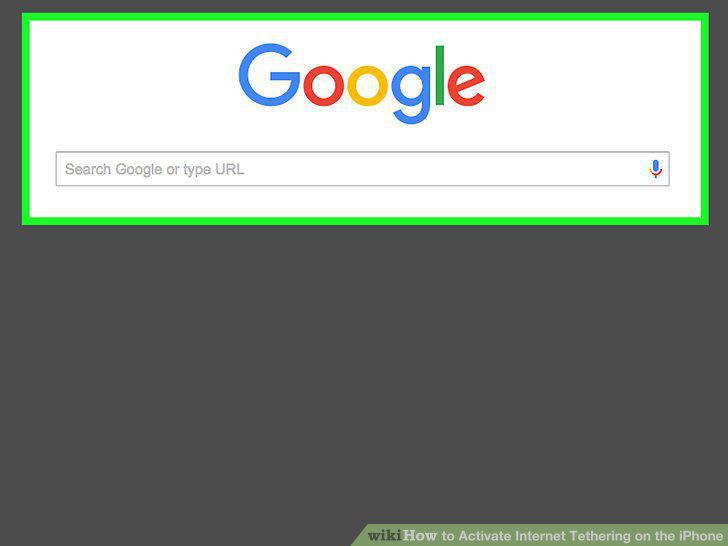
Test your internet connection.
Open the iPhone's Settings.
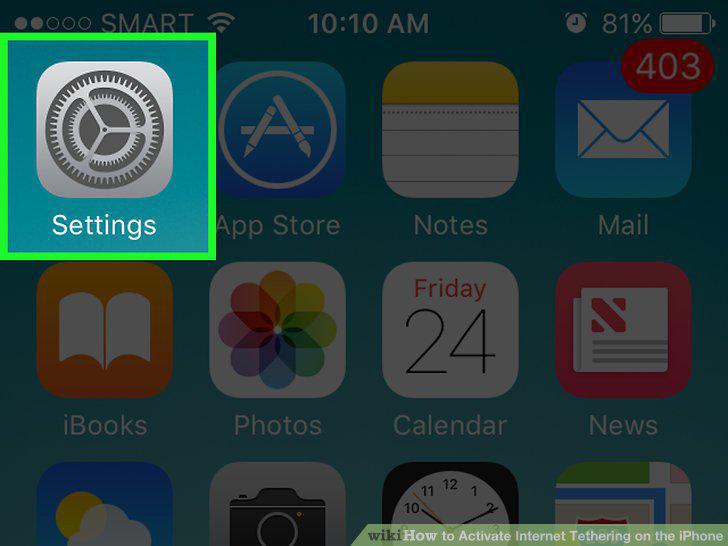
Open the iPhone's Settings.
Tap the Personal Hotspot option.
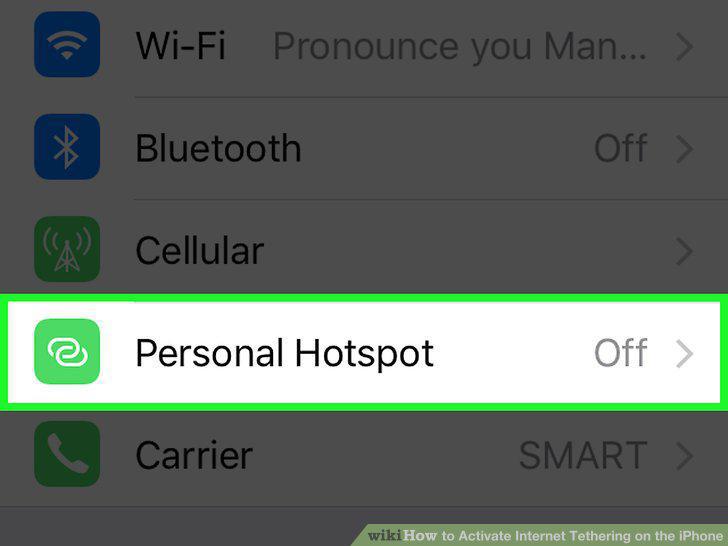
Tap the Personal Hotspot option.
Enable the Personal Hotspot switch.
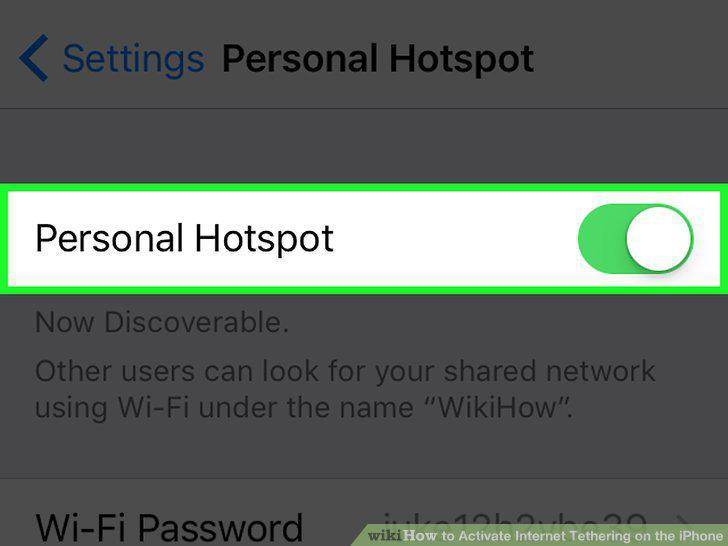
Enable the Personal Hotspot switch.
Connect to the Bluetooth network (Windows).
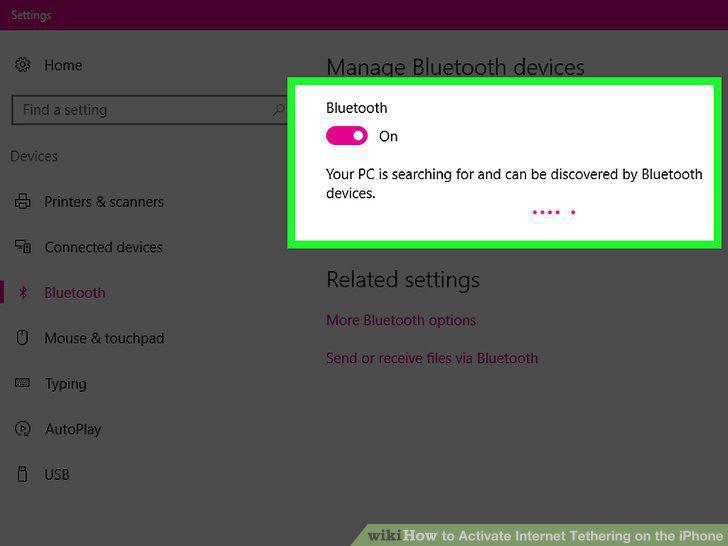
Connect to the Bluetooth network (Windows).
Connect to the Bluetooth network (Mac).
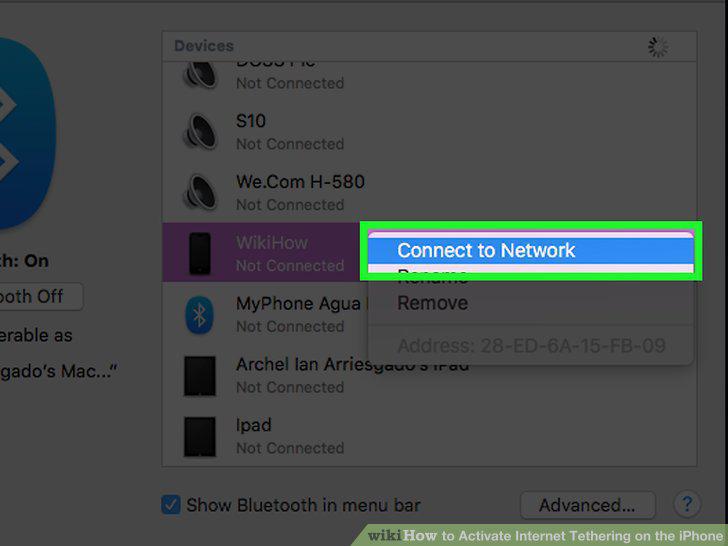
Connect to the Bluetooth network (Mac).
Test your connection.
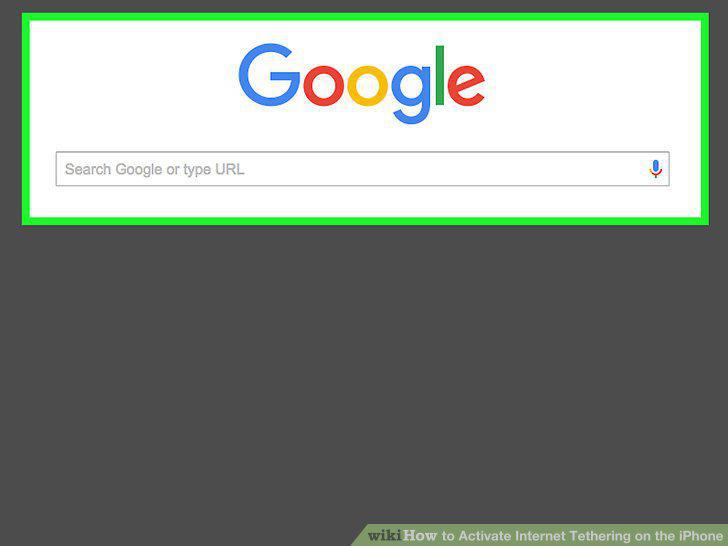
Test your connection.
Comments (0)
No comments yet. Be the first to share your thoughts!